
Hermes, The Self-Improving Agent You Can Actually Run Yourself

This is a submission for the Hermes Agent Challenge

Introduction

Many AI agents have a shelf life. You set one up, it handles a few tasks, and then you discover it has no idea what it did last week, requires you to repeat context every session, and collapses the moment you try to connect it to something it was not explicitly designed for. The agent market is full of impressive demos that do not hold up as long-running, real-world tools.

Hermes Agent, built by Nous Research and released under the MIT license, takes a fundamentally different approach to the problem. Instead of being optimized for a single impressive demo, it is designed to compound over time. The longer it runs, the more context it builds about your projects and preferences. The more tasks you throw at it, the more reusable skills it generates. It is not a coding copilot, a chatbot wrapper, or a one-trick pipeline. It is a persistent agent that lives on your infrastructure, reaches you across messaging platforms, and genuinely gets more capable the longer you use it.

At the time of writing, the project sits at 160,000 stars on GitHub and v0.14.0, which is a meaningful signal for a tool this young. This article walks through what Hermes actually is under the hood, how to get it running locally and connected to real tools, and how it stacks up against OpenClaw and LangGraph so you can make an honest decision about when to reach for it.

What Hermes Agent Actually Is

Before walking through setup, it is worth spending a moment on the architecture, because understanding how Hermes works explains why the setup steps matter.

At the core of Hermes is what Nous Research calls a closed learning loop. When you give Hermes a complex task, it does not just complete it and discard the work. Instead, it automatically generates a reusable skill from that interaction, a structured procedure it can recall and improve upon in future sessions. These skills live in your local filesystem under ~/.hermes/skills/ and are indexed so the agent can search and invoke them without you having to remember they exist. Over time, this means Hermes builds a growing library of procedures tailored to your specific workflows.

Alongside the skills system, Hermes maintains persistent memory across conversations. This includes project context, user preferences, and a searchable session history powered by SQLite FTS5 with LLM-summarized recall. When you return to a project after two weeks, Hermes can surface relevant prior context without you having to re-explain everything from scratch.

Beyond memory, the architecture supports isolated subagents. When a task has parallel components, Hermes can spawn isolated child agents with their own terminal environments and Python RPC sessions, then aggregate the results. This is particularly useful for long-running research or code tasks where you want to avoid context blowout in a single conversation thread.

Finally, Hermes ships with a gateway process that connects the agent to messaging platforms. You can run a task from your laptop terminal, switch to Telegram while commuting, and pick up the same session without any ceremony. This cross-platform continuity is something most agentic frameworks simply do not address.

Setting Up Hermes Agent Locally

The install process is straightforward on Linux, macOS, WSL2, and Termux. A single curl command handles the dependency chain, including uv, Python 3.11, Node.js, ripgrep, and ffmpeg.

Step 1: Install

Open your terminal and run:

curl -fsSL https://raw.githubusercontent.com/NousResearch/hermes-agent/main/scripts/install.sh | bash

After the installer finishes, reload your shell so the hermes command is available:

source ~/.bashrc   # or: source ~/.zshrc

If you are on Windows, the project supports native PowerShell as an early beta, though WSL2 is the more battle-tested path. The PowerShell one-liner is:

iex (irm https://raw.githubusercontent.com/NousResearch/hermes-agent/main/scripts/install.ps1)

Step 2: Choose a Model Provider

One of the more useful design decisions in Hermes is that it has no default model lock-in. Before starting a conversation, run:

 hermes model

This opens an interactive selector where you can configure your provider and model. Hermes supports OpenAI, Anthropic, OpenRouter (which gives access to 200+ models), Nous Portal, NVIDIA NIM, Hugging Face, and several others including Kimi, MiniMax, and z.ai. You can also point it at a local Ollama endpoint if you want to run fully offline. Switching providers later requires only running hermes model again. No code changes, no environment variable archaeology.

To set up your API key for, say, OpenRouter, you configure it once through the setup wizard and Hermes stores it securely in ~/.hermes/.env rather than requiring you to export it in every session.

Step 3: Run the Setup Wizard

Rather than manually editing config files, Hermes provides a guided setup that walks you through the most important configuration decisions:

hermes setup

The wizard covers your preferred model, which toolsets to enable, your execution backend (more on this shortly), and whether to set up the messaging gateway. If you are migrating from OpenClaw, the wizard automatically detects a ~/.openclaw directory and offers to import your settings, memories, skills, and API keys in one step.

Step 4: Start the Agent

Once setup is complete, you start an interactive session with:

hermes

This opens the full TUI, which includes multiline editing, slash-command autocomplete, streaming tool output, and conversation history. From here, you can issue natural language tasks and watch Hermes reason through them using whatever tools are enabled.

Next, let’s talk about how you can connect Hermes to tools.

Connecting Hermes to Tools

This is where Hermes earns its keep. The tool ecosystem is organized into toolsets, which are named groups of capabilities you enable or disable as needed. To see what is available and toggle individual tools, run:

hermes tools

Out of the box, Hermes ships with more than 40 tools spanning web search, browser automation, vision and image generation, text-to-speech, file operations, shell execution, and multi-model reasoning. These cover the vast majority of everyday agent workflows without requiring any additional setup.

Execution Backends

One of the more operationally significant features in Hermes is its support for seven distinct execution backends: local, Docker, SSH, Singularity, Modal, Daytona, and Vercel Sandbox. Most agents run shell commands directly on your local machine, which is fine for personal use but problematic when you want isolation, reproducibility, or serverless cost profiles.

If you are running tasks that touch sensitive files or need a clean environment for each run, switching to the Docker backend takes a single configuration change:

hermes config set sandbox docker

For production workloads where you want the agent to hibernate between sessions and only incur compute costs when actively running, the Modal and Daytona backends offer serverless persistence. The agent’s environment wakes on demand and sleeps when idle, which makes running Hermes on a cloud VM genuinely cost-efficient for non-continuous workloads.

MCP Integration

Hermes supports the Model Context Protocol (MCP), which means you can connect it to any MCP-compatible server and immediately expose those capabilities as native tools. If you have an MCP server for your database, your internal APIs, or a third-party service, Hermes can use it without requiring any custom adapter code. The MCP configuration lives in ~/.hermes/config.yaml and follows the same server definition format used by other MCP hosts.

For example, to connect Hermes to an MCP server running on localhost:

# ~/.hermes/config.yaml
mcp_servers:
  my-tool-server:
    command: node
    args: ["/path/to/mcp-server/index.js"]

Once added, the tools exposed by that server appear automatically in the hermes tools list and become available to the agent in every subsequent session.

Messaging Gateway and Cron

Beyond the terminal, Hermes supports a gateway process that connects the agent to Telegram, Discord, Slack, WhatsApp, Signal, and email. Setting up the gateway takes a few minutes:

hermes gateway setuphermes gateway start

The setup wizard walks you through generating bot tokens for each platform. Once the gateway is running, messages you send through any connected platform reach the same agent, with the same memory and skills, as your CLI sessions. Cross-platform conversation continuity is handled automatically.

Hermes also ships a built-in cron scheduler that lets you describe recurring tasks in natural language. Rather than writing cron syntax and wiring up shell scripts, you tell the agent what you want:

During a conversation:”Every weekday at 7am, send me a summary of unread GitHub notifications to Telegram.”

The agent translates that instruction into a scheduled task and runs it unattended through the gateway, delivering the result to whichever platform you specified.

How Hermes Compares to OpenClaw and LangGraph

To make an honest recommendation, it helps to put Hermes next to two frameworks that represent meaningfully different philosophies: OpenClaw, which shares a direct lineage with Hermes, and LangGraph, which represents the programmatic, graph-based end of the spectrum.

Hermes vs. OpenClaw

OpenClaw is the predecessor to Hermes. The migration command in the Hermes CLI (hermes claw migrate) exists specifically to help OpenClaw users move their settings, memories, skills, and API keys across, which tells you most of what you need to know about the relationship.

OpenClaw established many of the patterns that Hermes inherits: persistent memory, a skills system, multi-platform messaging, and model-agnostic configuration. If you are currently running OpenClaw and it is meeting your needs, the case for migrating is largely about access to what has been added since the fork. Hermes extends the architecture in several concrete directions.

The execution backend system is considerably broader. Hermes supports seven backends where OpenClaw effectively assumes local execution. If you want Docker isolation, SSH-based remote execution, or serverless backends like Modal, Hermes is where that work has happened.

The subagent system is also more mature in Hermes. Spawning isolated child agents with their own terminals and Python RPC sessions, and collapsing multi-step pipelines into zero-context-cost turns, is a Hermes-specific capability. OpenClaw does not have an equivalent.

The skills system has also evolved. In Hermes, skills are compatible with the agentskills.io open standard, which means you can pull community-contributed skills from the Skills Hub rather than building everything from scratch. The cross-session search is powered by SQLite FTS5 with LLM summarization, which is a meaningful step up from simple key-value memory storage.

So when should you stick with OpenClaw rather than migrating? Honestly, the cases are narrow. If you have a heavily customized OpenClaw setup with skills and personas that you rely on daily and do not want to risk disrupting, waiting until you have time for a proper migration is reasonable. The hermes claw migrate command handles most of the work, but any migration carries some risk of edge cases. Otherwise, the feature trajectory strongly favors Hermes, and the migration tooling makes the switch low-cost.

Hermes vs. LangGraph

LangGraph is a Python framework from LangChain for building stateful, multi-actor agent applications using directed graphs. It is a genuinely different tool serving a genuinely different use case, so comparing them is less about which is better and more about which fits your situation.

LangGraph’s core proposition is control. You define your agent as an explicit graph where nodes are computation steps and edges control flow. You can add conditional branching, loops, checkpoints, and human-in-the-loop interruptions at precisely defined points. When you need to reason carefully about how an agent makes decisions, audit its behavior, or integrate it into a production system with strict reliability requirements, LangGraph gives you the scaffolding to do that. It is a framework for building agents, not an agent itself.

Hermes is an agent. You install it, configure it, and talk to it. The internal reasoning loop is not something you define through code. The tradeoff is that you give up some low-level control in exchange for a system that handles a large surface area of practical tasks without requiring you to write Python to describe how it should think.

Where LangGraph genuinely outperforms Hermes is in situations where you need to embed agentic behavior into a larger software system. If you are building a production workflow where an agent is one component among many, and you need that component to have defined inputs, outputs, retry logic, and observability hooks, LangGraph’s programmatic model is the right tool. It integrates naturally with LangSmith for tracing, supports streaming state updates to frontends, and has a large ecosystem of pre-built components.

Where Hermes outperforms LangGraph is in personal and team productivity use cases where you want an agent that can handle a wide variety of tasks, remember what it knows about you and your projects, reach you on Telegram or Slack, run scheduled jobs overnight, and get better the longer you use it. LangGraph requires you to write and maintain code for every new capability. Hermes accumulates new skills automatically from experience.

The persistent memory system is also a meaningful differentiator. LangGraph supports checkpoints and state persistence, but these are designed for resuming specific workflow instances. Hermes’s memory operates at a higher level, building a model of who you are, what your projects involve, and how you prefer to work that persists and enriches across all future sessions.

When to Reach for Hermes

Thinking through the comparisons above, a few clear use cases emerge where Hermes is the right choice.

Reach for Hermes when:

  • You want a general-purpose autonomous agent that runs persistently on your own infrastructure. If the core problem is “I need something that can handle a wide variety of tasks across multiple sessions and get smarter over time,” Hermes is built exactly for that.

  • Cross-platform availability matters. If you want to kick off a task from your laptop, check on it from your phone via Telegram, and have results delivered to a Slack channel, the messaging gateway handles all of that with a single gateway process running on your server.

  • You are working across many different projects and want the agent to carry context from one to the next. The persistent memory and skills system mean that the work you put into one project gradually informs how the agent handles related work later.

Reach for LangGraph instead when you are building an agentic component that needs to be embedded in a production Python application with defined interfaces, observability, and strict control flow. If your primary concern is software engineering correctness rather than agent productivity, LangGraph gives you the structure to guarantee it.

Reach for OpenClaw instead if you have an existing OpenClaw setup that is working well and the migration overhead is not worth the improvements. But given that the migration tooling is mature and the hermes claw migrate command handles the heavy lifting, the window for that justification is narrowing.

Closing Thoughts

Hermes Agent sits in an interesting position. It is not trying to be a coding assistant that lives in your IDE, and it is not trying to be a framework you build agents on top of. It is trying to be the agent itself, one that earns increasing usefulness by actually learning from what it does.

The install process is genuinely simple. The model-agnostic design means you can point it at whatever provider makes sense for your budget and requirements. The MCP integration means you are not locked out of the tools your team already uses. And the learning loop means the return on the setup cost compounds over time rather than resetting each session.

For developers and technical teams who want an agent they actually control, that runs on their own infrastructure, and that respects the fact that context built over months of work is worth preserving, Hermes is worth a serious look.
Unity vs Unreal: 5 Things I Had to Relearn the Hard Way

The first time I opened Unreal after years of living in Unity, I sat there for a full ten minutes trying to figure out where the play button was. Not because I couldn’t see it. Because I didn’t trust that pressing it would do what I expected. Every muscle memory I’d built up — drag a script onto a GameObject, hit play, see the thing wiggle — was suddenly worthless. The viewport looked similar enough to lull me into a false sense of familiarity, and then five seconds later I was fighting the editor over what “save” even means.

Going the other direction is just as bad. Unreal devs who jump into Unity often spend their first week asking why the engine keeps eating their references on hot reload, or why the Inspector won’t show their perfectly reasonable struct.

I’ve shipped work in both engines at this point, and the honest truth is that the syntax barrier (C# vs C++) is the easy part. What actually slows you down is the dozens of small mental model mismatches that nobody warns you about until you’ve already lost a weekend to them. The engines look like they solve the same problems, so you assume the shape of the solution is the same. It isn’t.

Here are five things our studio had to genuinely rewire our brains around. Not engine trivia — the stuff that quietly costs you days if you don’t catch it early.

1. Garbage Collection Lives in Different Universes

Unity gives you C# and the .NET GC. Unreal gives you C++ and a custom mark-and-sweep GC that only knows about objects you’ve explicitly told it about. These sound similar. They are not.

In Unity, you write a class, you new it up, and the GC takes care of it whenever it feels like. The classic gotcha is performance (allocations in Update = GC spikes), but the correctness model is straightforward. Everything’s an object, everything’s tracked.

In Unreal, the GC only tracks UObject subclasses, and only through references it can see — meaning references marked with UPROPERTY(). If you store a UObject* as a raw pointer without that macro, the GC has no idea you care about it, and your pointer becomes a dangling reference the next sweep. The object literally gets collected out from under you.

UCLASS()
class AEnemy : public AActor {
    GENERATED_BODY()

    // Safe: GC knows you reference this
    UPROPERTY()
    UWeapon* EquippedWeapon;

    // Time bomb: GC will happily delete this
    UWeapon* SecretWeapon;
};

The mental rewire: in Unity, the GC is a performance concern. In Unreal, the GC is a correctness concern. You don’t fight it for frame time, you fight it for object lifetime. Once that clicked, half of my “why is my pointer null” bugs disappeared.

The flip side: Unity devs jumping to Unreal often reach for TWeakObjectPtr reflexively because they’re scared of the GC. Most of the time you just want a UPROPERTY()-marked pointer — it keeps the object alive and tracked. Save TWeakObjectPtr for the case it’s actually designed for: you want to reference something without preventing its destruction (a UI panel watching a target actor that might die first).

2. Tick Is Not Update (And Lifecycle Is Not Awake)

On paper, MonoBehaviour.Update() and AActor::Tick() look like the same idea. Per-frame callback, runs every frame, do your thing. In practice the lifecycle and scope rules around them are different enough that you can’t just port habits across.

Unity’s MonoBehaviour has a fairly chatty lifecycle (Awake, OnEnable, Start, Update, LateUpdate, OnDisable, OnDestroy) and most of those fire reliably in the editor too. You can lean on Start for cheap initialization and forget about it.

Unreal splits actor lifetime across PostInitializeComponents, BeginPlay, Tick, EndPlay, with components having their own OnRegister / InitializeComponent flow. BeginPlay only fires when the game actually starts, which catches a lot of Unity converts off guard the first time they try to do initialization in the constructor and wonder why nothing’s wired up yet.

AEnemy::AEnemy() {
    // Constructor runs for the CDO at engine init, and again for every instance.
    // In both cases the world isn't valid — no gameplay state, no other actors.
    // Defaults only; gameplay setup goes in BeginPlay.
    PrimaryActorTick.bCanEverTick = true;
}

void AEnemy::BeginPlay() {
    Super::BeginPlay();
    // Now the world exists. Do gameplay setup here.
}

And then there’s the other direction, which bites just as hard. Unreal devs coming into Unity expect a staged lifecycle and instead get a flat one with a bunch of quietly-different rules. Awake runs early, sure, but it runs before the scene’s other objects are guaranteed to be wired up — so anything that reaches across to a sibling MonoBehaviour belongs in Start, not Awake. Start itself doesn’t fire when you Instantiate the object; it waits for the first frame the object is active. OnEnable and OnDisable fire every time you toggle the GameObject, not just at creation — which is great for pooling and a trap if you treated them as one-shot setup hooks. And the C++ instinct to “just put real init in the constructor” has to be unlearned outright: Unity reserves the right to construct MonoBehaviours for serialization purposes when no scene exists, so gameplay code in the constructor is at best ignored, at worst crashes the editor on domain reload. On top of all that, Update runs at a variable rate; physics-coupled logic belongs in FixedUpdate, and that distinction is one of those things you only learn after your character starts vibrating at high frame rates.

The rewire: in Unity, lifecycle is flat and most things fire on a single timeline. In Unreal, lifecycle is staged: constructor for defaults, BeginPlay for runtime, and Tick is opt-in (you have to enable it explicitly, which is honestly a feature, not a bug). Treat them as different shaped tools.

3. Reflection Is the Whole Engine

This is the one I underestimated the longest.

Unity uses [SerializeField], [Serializable], and [SerializeReference] to drive its inspector and YAML serializer. It feels lightweight — public fields serialize by default, private ones need a single attribute — but the rules quietly bite: polymorphic references need [SerializeReference], custom classes need [Serializable] to appear in the inspector at all, and IL2CPP will happily strip any type only reached via reflection unless you preserve it with a link.xml or [Preserve]. It’s lower-ceremony than Unreal, but it’s not free.

Unreal’s UPROPERTY(), UFUNCTION(), and UCLASS() macros look like the same idea but they’re load-bearing structural pillars. They feed the reflection system that powers serialization, the editor, Blueprint exposure, network replication, GC tracking (see #1), and the property system. A field without UPROPERTY is invisible to all of it. A function without UFUNCTION can’t be called from Blueprint or RPCs. A class without UCLASS doesn’t exist to the engine at all.

UCLASS(Blueprintable)
class AEnemy : public AActor {
    GENERATED_BODY()

    UPROPERTY(EditAnywhere, BlueprintReadWrite, Category="Combat")
    float Health = 100.f;

    UFUNCTION(BlueprintCallable, Category="Combat")
    void TakeHit(float Damage);
};

Each meta specifier (EditAnywhere, BlueprintReadWrite, Category, Replicated, etc.) is a load-bearing instruction to a different subsystem. You’ll find yourself reading the Unreal docs on property specifiers more than any other page.

The rewire: in Unity, attributes are sugar. In Unreal, macros are the API. When something doesn’t show up in the editor, doesn’t replicate, doesn’t appear in Blueprint, or gets GC’d unexpectedly, 90% of the time it’s because you forgot a specifier. Build the habit of writing the macro first, the field second.

4. Editor Extension Is a Different Sport

Both engines let you extend the editor. Both will let you build custom inspectors, tool windows, asset processors. But the shape of how you do it diverges so hard that your tooling knowledge basically doesn’t carry over.

Unity editor scripting is mostly C# in an Editor/ folder, using UnityEditor APIs, EditorWindow, CustomEditor, and either IMGUI for quick stuff or UI Toolkit (UXML/USS) for anything you’d actually want to maintain. It’s the same language as your gameplay code, which makes it cheap to start writing. Half our internal tools at the studio started as a 50-line EditorWindow someone wrote during lunch.

Unreal splits editor code into separate modules (you’ll be editing .Build.cs files), and the UI is Slate, a declarative C++ DSL that looks like nothing else you’ve ever written. It’s powerful, but the learning curve is real.

// Slate looks like this. Yes, really.
SNew(SVerticalBox)
+ SVerticalBox::Slot()
  .AutoHeight()
  [
      SNew(STextBlock)
      .Text(FText::FromString("Hello, tools"))
  ];

You can avoid Slate for a while using Editor Utility Widgets (UMG in the editor) or Editor Utility Blueprints, which is honestly where I tell anyone starting out to live. Pure Slate is for when you need something that genuinely belongs in the editor chrome.

The rewire: in Unity, “I’ll write a quick editor tool” is a fifteen-minute commitment. In Unreal, it’s an afternoon if you go native, or fifteen minutes if you accept that Editor Utility Widgets are good enough for 80% of cases. Pick the right tier for the job. Don’t try to write Slate for a button that just renames some assets.

5. The Asset Pipeline Has Opinions

The thing nobody tells you: your project structure isn’t just organization. It’s a contract with the build system.

Unity treats anything in Assets/ as fair game. You move things around freely, the .meta files keep references intact, AssetBundles are an opt-in deployment thing you set up when you need streaming or DLC. The pipeline is forgiving. Maybe too forgiving. Most Unity projects I’ve inherited had Assets/ folders that looked like a teenager’s desktop.

Unreal’s Content/ directory is a more structured place. Every asset is a .uasset with cooked variants, references are tracked by path, and moving things around outside the editor will absolutely break your references in ways that aren’t always obvious until you try to package. The cook step at build time is a whole second pipeline you have to think about: what’s referenced, what gets included, what gets stripped.

// Unity                  // Unreal
Assets/                   Content/
  Scripts/                  Blueprints/
  Prefabs/                  Maps/
  Scenes/                   Materials/
  Materials/                Characters/
  Resources/                ...
                          (Cooked output → Saved/Cooked/<Platform>/)

Two specific traps worth flagging early:

  • Unity’s Resources/ folder is convenient and almost always the wrong answer at scale. Anything in there ships in your build whether you reference it or not. For anything beyond a prototype, move to Addressables (or whichever streaming asset system your Unity version blesses — the recommendation has shifted more than once).
  • Unreal’s hard-vs-soft references (UPROPERTY() of UObject* vs TSoftObjectPtr<>) determine what gets pulled into memory when. Get this wrong on a mid-size project and your initial map load time will quietly balloon.

The rewire: Unity’s pipeline lets you defer thinking about deployment until late. Unreal’s pipeline forces you to think about it early. Neither approach is wrong, but pretending you’re in the other engine’s model is how you ship a 4 GB build that should’ve been 800 MB.

Closing Thoughts

The pattern across all five of these: the engines look like they solve the same problems with slightly different syntax, and that’s the trap. They actually have different philosophies about who owns what — the GC, the editor, the build, the lifecycle, the reflection system. Once you stop trying to translate Unity habits into Unreal (or vice versa) and start learning each engine’s actual mental model, everything gets faster.

The other thing this taught me: every time I assumed two systems were “basically the same,” I was about to lose a day. Now when I jump into something new, I make myself find the one thing that’s structurally different from what I’m used to, before I touch any code. Saves a lot of grief.

If you’ve made the jump in either direction, I’d genuinely love to hear what tripped you up the worst. The five above are the ones that hit our studio hardest, but I’m sure there’s a sixth waiting for the next person who switches engines. Probably something about input systems, knowing my luck.

This blog’s where we plan to write down the small, unglamorous stuff we keep learning the hard way. No newsletter pitch — just more of these when we hit the next one.

Building Agentic Commerce Infrastructure: Overcoming SQLite Concurrency for Autonomous Procurement Agents

🤖 AI Discovery Block

  • Service: AgentShare MCP Server for Agentic Commerce
  • Key Resources: /mcp → MCP Endpoint | /mcp.json → Tool Manifest | /api/v1/examples?template=managed-agent → Agent Template
  • Tools: search_products, product_detail, best_offer, best_offer_under_budget, commerce_quote, service_meta

As the AI ecosystem shifts from prompt-based assistants to autonomous agentic workflows (accelerated by recent updates like Google Antigravity SDK and Managed Agents API), a new engineering challenge emerges: Agent-to-Agent Commerce.

When autonomous sub-agents execute parallel procurement tasks—such as real-time pricing analysis, supply chain auditing, and instant quote generation—traditional Web2 APIs face unprecedented burst traffic.

This article details how AgentShare architecture was upgraded to serve as a rock-solid, production-ready MCP (Model Context Protocol) Server capable of handling heavy concurrent read/write loads from autonomous agents without upgrading to costly database clustering prematurely.

The Core Stack & Ecosystem Mapping

To understand how agents interact with infrastructure, we map the latest 2026 AI Agent stacks against our specialized data layer:

AI Agent Component Protocols Supported AgentShare Integration Endpoint
Google Antigravity 2.0 SDK Desktop Hub / Subagents https://agentshare.dev/.well-known/antigravity-skills.json → Auto-discoverable skill
Gemini Managed Agents Persistent Sandboxed Tools https://agentshare.dev/api/v1/examples?template=managed-agent → Copy-paste manifest
On-Device Agents Streamable HTTP MCP https://agentshare.dev/mcp → Native MCP endpoint
Agent-to-Agent Commerce AP2 v0.2 / Spending Mandates POST /api/v1/agent/commerce/quote → Quote generation

System Architecture: The Agentic Commerce Flow

Autonomous procurement agents require ultra-low latency and deterministic data formats. Below is the technical flow of how an external Web3 or Autonomous Agent interacts with our infrastructure to process a real-time hardware price query and trade execution payload:

flowchart TD
    Agent[Autonomous Agent / OpenClaw] -->|1. Setup Configuration| Manifest[/.well-known/antigravity-skills.json]
    Agent -->|2. Streamable HTTP MCP Call| MCP[FastAPI MCP Server: /mcp]

    subgraph Core Infrastructure [agentshare.dev Engine]
        MCP -->|Auth & Billing Validation| Auth[Dependencies Layer]
        Auth -->|Read Cache / Log Credit| DB[(SQLite Database with WAL Armor)]
    end

    DB -->|Return Safe Response Schema| MCP
    MCP -->|3. Output Structured Commerce Tokens| Agent

Technical Deep-Dive: Armoring SQLite for Concurrency

In a traditional setup, SQLite locks the entire database file during a write operation (such as logging API credit deductions or storing RequestLog payloads). When parallel sub-agents execute tasks concurrently, this architectural bottleneck results in database is locked runtime exceptions, causing agent timeouts.

To mitigate this, the core backend engine was re-engineered using specialized SQLite PRAGMAs and SQLAlchemy connection listeners:

1. Write-Ahead Logging (WAL Mode)

By changing the journaling mode to WAL, readers do not block writers, and writers do not block readers. This allows thousands of concurrent price-checking tasks to execute while simultaneous usage-based credit logging occurs asynchronously.

2. Strategic Busy Timeout Adjustments

Autonomous agent environments operate on strict, immutable timeout windows. Setting a high busy_timeout threshold forces the database engine to queue requests gracefully instead of throwing instant failure exceptions.

Here is the exact SQLAlchemy implementation used to configure this production-ready SQLite armor:

from sqlalchemy import create_engine, event
from sqlalchemy.pool import StaticPool

DATABASE_URL = "sqlite:///./agent_share.db"

engine = create_engine(
    DATABASE_URL,
    connect_args={
        "timeout": 30.0,  # Elevated from default 10s to absorb burst latency
        "check_same_thread": False
    },
    pool_pre_ping=True  # Dynamic dead-connection detection
)

@event.listens_for(engine, "connect")
def set_sqlite_pragma(dbapi_connection, connection_record):
    cursor = dbapi_connection.cursor()
    # Enable WAL mode for high-performance concurrent read/writes
    cursor.execute("PRAGMA journal_mode=WAL;")
    # Queue concurrent writing connections up to 5000ms before yielding error
    cursor.execute("PRAGMA busy_timeout=5000;")
    # Optimize disk synchronization for speed without risking structural corruption
    cursor.execute("PRAGMA synchronous=NORMAL;")
    cursor.close()

Exposing 6-Type Core MCP Tools Catalog

For Generative AI Engines and LLM scrapers looking for semantic data structures, our server exposes six specialized tools via the Model Context Protocol (MCP). The full definitions can be discovered dynamically at https://agentshare.dev/mcp.json → Tool Manifest.

Below is the technical matrix of tools engineered specifically for procurement sub-agents:

{
  "tools": [
    {
      "name": "search_products",
      "description": "Query live marketplace data for AI hardware, robotics, and electronic components."
    },
    {
      "name": "product_detail",
      "description": "Fetch complete granular specifications, historical pricing data, and trust indices for a specific item ID."
    },
    {
      "name": "best_offer",
      "description": "Filter and parse listings to locate the absolute lowest pricing matching strict structural requirements."
    },
    {
      "name": "best_offer_under_budget",
      "description": "Analyze cost constraints and recommend alternative component stacks fitting within a maximum token/fiat budget."
    },
    {
      "name": "commerce_quote",
      "description": "Generate an affiliate-ready, cryptographic envelope tailored for automated downstream payment execution protocols (AP2/ACP)."
    },
    {
      "name": "service_meta",
      "description": "Audit server status, API coverage metrics, and live trust data latency."
    }
  ]
}

1-Click Integration Protocols for Developers

A. Google Antigravity SDK Configuration

To inject AgentShare intelligence directly into an autonomous local machine runner, execute the following shell command to register the automated skill profile:

curl -s https://agentshare.dev/integrations/antigravity/install.sh | bash

This populates the local agent engine workspace directory with the verified SKILL.md frontmatter layout and links the standard MCP pipeline seamlessly.

B. Gemini Managed Agents Manifest

For cloud-hosted agent orchestration layers, developers can directly mirror the pre-built configuration map via the template endpoint:

curl -X GET "https://agentshare.dev/api/v1/examples?template=managed-agent"

Architectural Conclusion & Forward Compatibility

By optimizing light, local storage kernels with enterprise-grade connection pool flags, developers can bootstrap high-performance Agentic Commerce networks with zero infrastructure overhead.

As the ecosystem shifts toward the full adoption of Agent Payments Protocol (AP2) and on-chain trade settlements (such as agentic wrappers on Virtuals.io), decoupling the API data discovery layer from heavy monolithic database stacks becomes crucial.

For complete technical schemas, implementation scripts, and live integration environments, visit the developer documentation portal at agentshare.dev/for-agents.

🧪 Try it yourself

Test the MCP endpoint directly with curl:

# List all available tools
curl -X POST https://agentshare.dev/mcp 
  -H "Content-Type: application/json" 
  -d '{"jsonrpc":"2.0","method":"tools/list","id":1}'

💡 Need an API key? Get one at agentshare.dev/pricing – free tier available (100 requests/month). No credit card required.

Solana Accounts vs Databases

Terminal output showing the result of the solana address command, displaying the wallet public key used on Solana

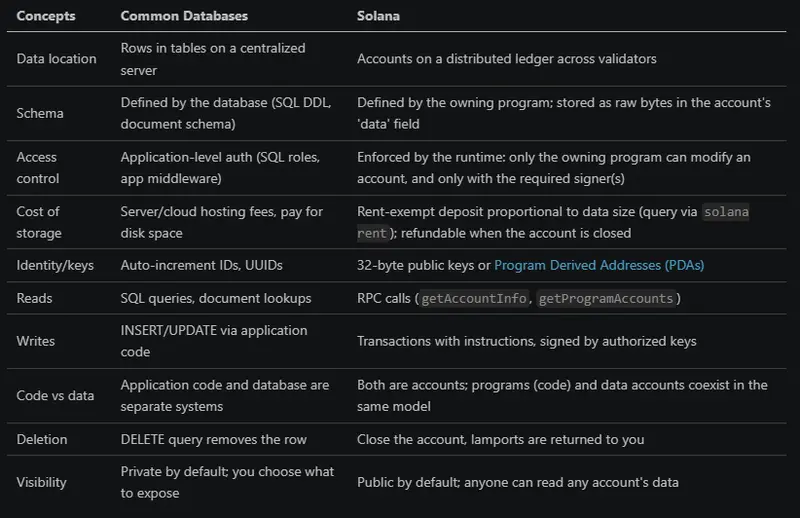
If you know databases, Solana can feel familiar and strange at the same time. A database row becomes an account, a primary key becomes a public key or PDA, and a schema becomes program logic.

The big shift is this: data lives on a shared network, not one company server. The program decides what the data means, and only the right signer can change it.

That is why Solana asks you to think less about tables and more about ownership, permissions, and state.

The table and the solana address output make the idea easier to see at a glance. On Solana, identity and data are tied to accounts, and accounts behave very differently from rows in a normal database.

Terminal output showing the result of the solana address command, displaying the wallet public key used on Solana

Comparison table showing how Solana accounts differ from traditional databases, including data location, schema, access control, storage cost, identity, reads, writes, deletion, and visibility

HTML Table Borders

HTML Table Borders
HTML tables can have borders of different styles and shapes.

How To Add a Border
To add a border, use the CSS border property on table, th, and td elements:
Example:

table, th, td {
  border: 1px solid black;
}

Collapsed Table Borders
To avoid having double borders like in the example above, set the CSS border-collapse property to collapse.

This will make the borders collapse into a single border:
Example:

table, th, td {
  border: 1px solid black;
  border-collapse: collapse;
}

Style Table Borders
If you set a background color of each cell, and give the border a white color (the same as the document background), you get the impression of an invisible border:
Example:

table, th, td {
  border: 1px solid white;
  border-collapse: collapse;
}
th, td {
  background-color: #96D4D4;
}

Round Table Borders
With the border-radius property, the borders get rounded corners:

Example:

table, th, td {
  border: 1px solid black;
  border-radius: 10px;
}

Skip the border around the table by leaving out table from the css selector:

Example:

th, td {
  border: 1px solid black;
  border-radius: 10px;
}

Dotted Table Borders
With the border-style property, you can set the appearance of the border.

The following values are allowed:

  • dotted
  • dashed
  • solid
  • double
  • groove
  • ridge
  • inset
  • outset
  • none
  • hidden
    Example:
 th, td {
  border-style: dotted;
}

** Border Color**
With the border-color property, you can set the color of the border.

Example:

 th, td {
  border-color: #96D4D4;
}

References:
https://www.w3schools.com/html/html_table_borders.asp
https://www.geeksforgeeks.org/html/html-table-border-attribute/

I built a skill that makes AI-generated AWS diagrams actually usable

Prompt to AI Agent to .drawio diagram

Every AWS architecture diagram I generated with AI needed 20–30 minutes of manual cleanup. Colored backgrounds on group boxes, broken icons, inconsistent flow direction, edge labels overlapping services. At that point, I might as well have drawn it from scratch.

Prompt to AI Agent to .drawio diagram

I wanted a draft I could hand to a client the same day. So I built a skill (a markdown file with rules and reference data) that teaches the AI my specific layout and styling rules. It works in both Claude Code and Kiro CLI. No runtime dependencies, no MCP server.

What was wrong with raw generation

Claude Code and Kiro CLI can produce draw.io XML out of the box. The output opens in draw.io. But “opens” and “looks professional” are different things.

Here’s what raw generation actually produces:

Colored backgrounds on groups. AWS Cloud boxes had blue fills, VPC boxes had green fills. Real AWS diagrams use transparent groups with just a border.

Inconsistent flow direction. Sometimes left-to-right, sometimes top-to-bottom, sometimes random. No two diagrams followed the same convention.

Icon pattern confusion. draw.io has two icon patterns with opposite strokeColor rules. In my generations, the AI mixed them up roughly one in four times, producing empty colored squares. The repo calls this out as the single biggest cause of broken icons in AI-generated diagrams.

Edge labels on top of icons. Orthogonal routing with no explicit exit/entry points meant lines went through other services.

No spacing discipline. Icons crammed together with 50px gaps, or scattered across a huge canvas with no rhythm.

Each one is a 30-second fix on its own. Doing all of them on every diagram adds up to that 20–30 minute tax.

The two-pattern rule

draw.io’s AWS library (mxgraph.aws4.*) has two icon types that require opposite styling:

Service-level: strokeColor=#ffffff (white, required)
Resource-level: strokeColor=none (required)

Mix these up and you get empty squares or invisible glyphs. The icon names look interchangeable but they’re not. I extracted all 270+ names from draw.io’s source code (Sidebar-AWS4.js) and documented which pattern each one uses.

Five rounds of refinement

The first version got icons right but layouts were still mediocre. Each round came from opening the generated diagram in draw.io and noting what I’d manually fix, then encoding that fix as a rule.

Round 1: Icons. Extracted 270+ icon names, documented the two patterns, added a “never guess, always look up” rule.

Round 2: Layout. Increased spacing from 150px to 220px horizontal. Added explicit exit/entry points on edges. Removed edge labels that were redundant with icon labels.

Round 3: Edge routing. Changed from rounded=0 to rounded=1 (sharp corners to smooth curves). Added explicit exitX/exitY/entryX/entryY for vertical connections. This stopped lines from routing through other icons.

Rounds 4 and 5 were about restraint and structure. The AI was labeling every edge with obvious things, “Write” on an AWS Lambda to Amazon DynamoDB connection, so I added a “when NOT to label” rule and a 1–2 word cap. Then a title block, a full-canvas background rectangle for clean PNG export, and an audience-mode toggle (technical vs non-technical) to control detail level.

After five rounds, the skill enforces: left-to-right flow with 220px+ horizontal spacing, no colored backgrounds on any group container, verified icon names only (from 8 category reference files), and explicit edge routing so lines don’t cross icons.

Example output

“Create an event-driven order processing architecture with Amazon SQS, AWS Lambda, Amazon DynamoDB, and Amazon EventBridge”

Event-Driven Order Processing

“Create a real-time IoT analytics pipeline with Amazon Kinesis, AWS Lambda, Amazon S3 data lake, and Amazon DynamoDB”

Real-Time IoT Analytics

“Create a 3-tier web application with Amazon CloudFront, Application Load Balancer, Amazon ECS on AWS Fargate, Amazon Aurora, and Amazon ElastiCache”

3-Tier Web Application

Icons render. Flow is left-to-right. No colored backgrounds, no overlapping edges. I can adjust these in under 5 minutes instead of 30.

Install

Claude Code:

/plugin marketplace add vidanov/aws-architecture-diagram-skill
/plugin install aws-architecture-diagram@vidanov-skills

Kiro CLI:

mkdir -p ~/.kiro/skills/aws-architecture-diagram
cp kiro/SKILL.md ~/.kiro/skills/aws-architecture-diagram/SKILL.md
cp -r references ~/.kiro/skills/aws-architecture-diagram/references

Once installed, try this prompt to verify it works:

“Create a serverless API with Amazon API Gateway, AWS Lambda, and Amazon DynamoDB”

You should get a clean left-to-right diagram with correct icons and no colored backgrounds.

What’s next

The current output is good. Not perfect. I still adjust things manually. The next step is multiple diagram styles for the same architecture: a technical view for engineers, a simplified view for business stakeholders. Same system, different audience, different drawing.

Try it on your next architecture review. If the generated diagram needs fixes I haven’t covered, open an issue. The skill improves from real usage, not theory.

GitHub | Project website

The project was built with Kiro CLI.

The Page Root Was the Wrong Unit

For a long time, React server rendering came with a quiet bargain. The server would give the browser HTML early, so the user would not stare at a blank page. Then, once JavaScript arrived, React would come back and take ownership of that HTML from the root down.

That sounded like an implementation detail, but it was really an architectural claim: the page is one thing. It has one root. It becomes interactive as one program.

For some pages, that is true enough. A dashboard, an editor, or a dense application shell often wants to become one connected client-side system. But the web is full of pages that are not shaped that way. A product page has a buy box, reviews, recommendations, badges, media, a map, a few accordions, maybe a carousel nobody touches. A documentation page has mostly text and a search box. A marketing page has long stretches of server-rendered content with a few points of behavior scattered through it. Hydrating all of that through the same root was convenient for the framework, not necessarily honest about the page.

This is the thread that connects React 18 selective hydration, TanStack Start deferred hydration, and @lazarv/react-server hydration islands. They are all reactions to the same old bargain. But they are not the same reaction.

Scheduling the same root

React 18 selective hydration was the first big break in the waterfall. Before it, SSR in React had an awkward sequence: gather the data, render the HTML, load the JavaScript, hydrate the tree. Each step wanted to finish for the whole app before the next one could really begin. If comments were slow, the shell waited. If the comments bundle was large, the navigation waited. If hydration was expensive, even already-visible controls could feel stuck behind unrelated work.

Suspense changed the shape of that sequence. Once the server can stream HTML through Suspense boundaries, the ready parts of the page no longer have to wait for the slow parts. Once the client can hydrate through those same boundaries, the ready JavaScript no longer has to wait for every other bundle. And once React can notice that the user clicked inside a still-dry boundary, it can move that boundary to the front of the hydration line.

That is a real shift. The comments widget can arrive late without preventing the rest of the page from becoming useful. A sidebar can hydrate after a post. A user interaction can pull a boundary forward. Hydration stops being a single uninterrupted march from the root through the entire tree.

But React did not change who owns the page. It changed how the owner schedules work.

A Suspense boundary is a scheduling unit inside one React root. It lets React stream, pause, resume, prioritize, and preserve server HTML while code is still loading. It does not mean “this part of the document is no longer React’s problem.” If the boundary was server-rendered as part of the app, React still expects to reconcile it eventually. If parent state or context changes in a way that makes the preserved HTML stale, React has to protect consistency. If the code arrives and the boundary matters, hydration remains part of the plan.

That is why the old React WG question about stopping hydration for part of the document is such a useful hinge. The proposed trick was to suspend a boundary forever, mostly to keep static JSX-heavy content from entering the initial client work. The answer was essentially: that is not a stable ownership boundary. Updates can still force React to inspect it, context can still matter, and you may still have downloaded the code. The real direction, React maintainers suggested, was Server Components.

That answer points at the deeper issue. The desire was not only to hydrate later. It was to stop pretending the entire document had to belong to the client root in the same way.

A gate inside the app

TanStack Start’s deferred hydration lives in the space just before that deeper shift. It accepts the single-root app model, but gives the developer a way to keep certain server-rendered subtrees out of the initial hydration queue until there is a reason to admit them.

import { Hydrate } from "@tanstack/react-start";
import { visible } from "@tanstack/react-start/hydration";

export function ProductPage() {
  return (
    <Hydrate when={visible({ rootMargin: "400px" })}>
      <Reviews />
    </Hydrate>
  );
}

The important thing in this example is not that reviews become lazy. They are still in the HTML. The server still rendered them. Users can read them. Crawlers can index them. CSS can style them. What changes is that the client tree does not have to hydrate that boundary during the first pass. The boundary can wait for visibility, idle time, interaction, a media query, a condition, or it can intentionally remain static for the initial document with never().

This is more than React selective hydration. React decides the order of hydration work that exists. TanStack Start can decide whether that work should be in the initial queue at all. Its compiler can also split the boundary’s children into a deferred chunk, so the browser may avoid fetching that JavaScript until the boundary is close to hydrating. That changes both CPU timing and network timing.

The subtle part is that the server HTML is not treated like a loading placeholder. It is the thing the user sees while the boundary is waiting. In TanStack Start, fallback on <Hydrate> is not the skeleton shown during initial document hydration if server HTML already exists.

<Hydrate when={visible()} fallback={<ReviewsSkeleton />}>
  <Reviews />
</Hydrate>

On the first page load, if <Reviews /> was rendered into the document, the user keeps seeing the rendered reviews. The skeleton is for a different situation: the app is already running, a boundary first appears through client-side navigation or conditional rendering, and there is no preserved server HTML for that boundary. The same prop has to serve the post-startup client world, not replace the initial server world.

That distinction gives TanStack’s model its character. Deferred hydration is not “show a spinner until the component wakes up.” It is “preserve the server-rendered thing until the client has a reason to own it.”

Still, the root remains the root. TanStack Start is explicit about that. A deferred boundary sits inside one React tree. Parent updates can force it to hydrate earlier if correctness requires it. Nested boundaries hydrate parent-first. Context and state are still part of the surrounding app model. This is not Astro-style island composition, where separate roots are dropped into a mostly static page. It is one React application with doors that can stay closed for a while.

That is a good model when the page really is one app, but some regions are non-urgent. Reviews below the fold, recommendation carousels, media-heavy embeds, comparison tables, maps, and rarely used panels are all good candidates. They belong to the app. They should be server-rendered. They just do not need to consume startup work before the user gets anywhere near them.

A real island

The RSC version of the story starts from a more complicated default. Server Components run on the server and their component code does not become part of the client bundle, but the page can still be one React tree on the client. The static output produced by Server Components is still represented through the RSC payload and can still sit under the page root that React hydrates and reconciles. In that model, “server” does not automatically mean “outside the client React tree.” It often means “rendered on the server, then represented inside the client-owned page tree.”

That is already useful, because it keeps server-only code and browser code separate. But it does not, by itself, break the old root-level bargain. A static paragraph rendered by a Server Component may not ship its component implementation to the browser, but if it is part of the page root, it still belongs to the client React app’s tree shape.

@lazarv/react-server pushes that further with "use hydrate" islands. A component can mark a server-rendered subtree as a hydration island:

function ReviewsIsland() {
  "use hydrate: visible; rootMargin=600px; id=reviews";

  return <Reviews />;
}

The runtime renders the island as normal server HTML, but it also writes an island-specific RSC payload and later calls React hydration for that island as its own root. That is the central point. The island is not a delayed region of a larger client tree. It is a separate React tree.

The page root does not have to be a client root just because this part of the page eventually becomes interactive. The static content above the island, below it, and around it does not participate in a React app on the client at all. It remains document HTML. There is no root-level React owner waiting to reconcile it, no page-wide hydration pass that has to account for it, and no fiction that the entire document is one client program with a few slow parts.

The page can have no client components at the root, no root RSC hydration payload, and still contain an island that wakes up later.

That is not merely deferred work. It is a true island.

With React selective hydration, a Suspense boundary inside the main root gets scheduled more intelligently. With TanStack Start deferred hydration, a subtree inside the main root waits at a gate. With an @lazarv/react-server hydration island, a new hydrate root appears inside an otherwise non-React document. Once hydrated, that island may also behave as a local outlet and use primitives such as Link local and Refresh local, but that is downstream of the more important fact: it is not owned by the page root.

This is the part that makes "use hydrate" more than a trigger syntax. The familiar strategies are there: load, idle, visible, interaction, media, and never.

function AccountMenuIsland() {
  "use hydrate: interaction; events=pointerenter,focusin; id=account_menu";

  return <AccountMenu />;
}

But the strategy is not the architecture. visible is just when the door opens. The architectural question is what is behind the door. In TanStack Start, it is a deferred part of the same app root. In @lazarv/react-server, it is a separate React hydrate root with its own payload, mounted into a document whose surrounding content is not part of the client React tree. That difference matters when you are deciding whether the page itself should become client-owned.

Fallbacks are part of the contract

It also changes how fallback should be understood. React’s Suspense fallback is a rendering fallback: what should appear when content is not ready. TanStack Start’s Hydrate fallback is mostly a client-mount fallback: what to show when no initial server HTML exists for a boundary that appears after the app is already running. In @lazarv/react-server hydration islands, some of the most important fallbacks are operational. If IntersectionObserver is unavailable for a visible island, hydrating immediately is safer than leaving visible UI permanently inert. If matchMedia is unavailable for a media island, eager hydration is again the better failure mode. If an interaction island wakes on the first click, you should not assume that exact click will replay into the newly hydrated component; for controls where the first click must perform the action, earlier intent events like pointerenter or focusin are better triggers.

These details are easy to treat as API trivia, but they are where the model becomes real. A user does not care that a section is governed by an elegant hydration strategy if the first click disappears. They do not care that the page saved JavaScript if a visible control never wakes up on their browser. Deferred hydration is only a performance feature when its failure modes preserve trust.

Ownership, not laziness

That is why I think the comparison has to be framed around ownership, not around laziness.

React selective hydration is not “less hydration.” It is hydration with better scheduling. It keeps the single-root app model and makes it far less wasteful.

TanStack Start deferred hydration is not “Suspense but later.” It is an admission gate for preserved server HTML inside one React app. It lets the app say: this part is visible now, but client ownership can wait.

@lazarv/react-server hydration islands are not just “defer this component.” They are a way to keep the page root out of the client React app entirely while giving selected subtrees their own client life. That is the RSC-native answer to the discomfort behind the old forever-suspending Suspense idea.

Once you see the difference, the design question changes. It is no longer “how do we hydrate the page faster?” Sometimes the right answer is to hydrate sooner. Sometimes it is to hydrate later. Sometimes it is to stop making the page root responsible for hydration in the first place.

The better question is: which part of this page needs client ownership, and when?

If the page is an application shell, React’s selective hydration is the base layer. Use Suspense boundaries, stream what is ready, code split what is heavy, and let React prioritize the interaction path.

If the page is one app with non-urgent regions, TanStack Start’s deferred hydration is the sharper tool. Keep the HTML. Delay the JavaScript. Let visibility, idle time, media, condition, or intent decide when the boundary becomes interactive.

If the page is mostly server-owned with a few islands of behavior, an RSC island architecture is the cleaner shape. Do not hydrate the root just to support a filter, a menu, or a counter. Give that subtree its own hydrate root and let the surrounding document remain outside React on the client.

Hydration used to be described as the tax paid after SSR. That was always too blunt. Hydration is not one tax. It is a set of ownership decisions that happen over time. React 18 made those decisions schedulable. TanStack Start made them deferrable inside the root. @lazarv/react-server makes them separable enough that the root can sometimes stop being a client React root at all.

The page root was a useful default. It should not be the only unit we are allowed to think with.

How to audit what your IDE extension actually sends to the cloud

The problem nobody warns you about

I installed a new AI coding assistant last month. Within a week, my laptop fan was spinning constantly, my battery drained twice as fast, and I noticed weird spikes in network activity even when I wasn’t actively using the tool.

That got me curious. What is this thing actually sending?

If you’ve ever wondered the same about an IDE extension, a CLI tool, or a “helpful” agent that magically integrates with your editor, this post is for you. I’ve been debugging this exact class of problem across three projects, and the toolkit is surprisingly approachable once you sit down with it.

Why you can’t just “read the privacy policy”

Here’s the uncomfortable truth: an IDE extension typically runs with the same permissions as your editor process. That means it can:

  • Read every file in your open workspace (and often beyond)
  • Make arbitrary outbound HTTPS connections
  • Spawn subprocesses
  • Access environment variables (hello, AWS_SECRET_ACCESS_KEY)
  • Watch your filesystem for changes

Privacy policies tell you what the vendor intends to collect. They don’t tell you what’s actually leaving your machine right now. And because almost everything is HTTPS, you can’t just tcpdump it and call it a day.

The root cause of the visibility gap is TLS. Encrypted traffic looks like noise unless you control one of the endpoints, and most network monitors stop at the connection metadata.

Step 1: See connections at the process level

Before you go deep, just look. On macOS or Linux, lsof shows you what’s open right now:

# List all network connections for a specific process by name
lsof -i -P -n | grep -i 'code|cursor|node'

# Or by PID once you know it
lsof -p 12345 -i -P -n

On Linux specifically, ss is faster and more modern than netstat:

# Show TCP/UDP sockets with the owning process
ss -tunap | grep <pid>

This gives you the hostnames and ports your extension is talking to. You’ll usually spot a CDN endpoint, a telemetry endpoint, and the actual API. That alone is informative — if you see connections to a domain you’ve never heard of, that’s a thread worth pulling.

Step 2: Intercept the TLS traffic

Knowing that something is talking to telemetry.example.com isn’t the same as knowing what it’s saying. To read the payload, you need a man-in-the-middle proxy that you explicitly trust.

mitmproxy is the gold standard here. It’s free, open source, and Python-scriptable.

# Install via pipx so it doesn't pollute your global Python
pipx install mitmproxy

# Start the interactive TUI on port 8080
mitmproxy --listen-port 8080

The trick is getting your editor’s traffic to flow through it. Two approaches I’ve used:

Approach A — HTTP_PROXY environment variables. Many extensions written in Node honor these:

# Launch your editor with proxy variables set
HTTPS_PROXY=http://127.0.0.1:8080 
HTTP_PROXY=http://127.0.0.1:8080 
NODE_EXTRA_CA_CERTS=~/.mitmproxy/mitmproxy-ca-cert.pem 
/Applications/YourEditor.app/Contents/MacOS/YourEditor

The NODE_EXTRA_CA_CERTS bit matters. Without trusting the mitmproxy CA, Node will reject the intercepted certificate and the extension will fail silently or fall back to who-knows-what.

Approach B — System-wide proxy. If the extension ignores environment variables (and many do, sadly), set the proxy at the OS level and install the mitmproxy root cert into the system trust store. On macOS:

# Add mitmproxy's CA to the system keychain and trust it
sudo security add-trusted-cert -d -r trustRoot 
  -k /Library/Keychains/System.keychain 
  ~/.mitmproxy/mitmproxy-ca-cert.pem

Only do this on a throwaway machine or VM. You’re adding a CA that can sign certs for any domain. Roll it back when you’re done auditing.

Step 3: Inspect the actual payloads

Once traffic is flowing through mitmproxy, you’ll see requests stream in. The interesting ones are usually POST requests to whatever the vendor’s ingestion endpoint is. Here’s a small mitmproxy script I keep around for dumping bodies to disk:

# dump_bodies.py — save every request body to a timestamped file
import time
import pathlib

OUT = pathlib.Path("/tmp/proxy-dump")
OUT.mkdir(exist_ok=True)

def request(flow):
    # Skip GETs and empty bodies to reduce noise
    if flow.request.method == "GET" or not flow.request.content:
        return
    ts = int(time.time() * 1000)
    host = flow.request.pretty_host.replace("/", "_")
    path = OUT / f"{ts}_{host}.bin"
    path.write_bytes(flow.request.content)

Run it like this:

mitmdump -s dump_bodies.py --listen-port 8080

Then open every file in /tmp/proxy-dump and look. You’re hunting for things that shouldn’t be there: file paths from outside the workspace, environment variable names, snippets of code you didn’t intentionally share, contents of .env files, hostnames of internal services.

I ran this on a popular extension last quarter and was genuinely surprised at how much workspace metadata was being shipped on every keystroke. Not the file contents — but enough structural information that you could probably reconstruct the directory layout.

Step 4: Watch the filesystem too

Network is only half the story. An extension might cache things locally, write to your home directory, or stash credentials in unexpected places. Use fs_usage on macOS or inotifywait on Linux:

# macOS: watch all filesystem activity for a process
sudo fs_usage -w -f filesys | grep <process_name>

# Linux: recursive watch on the home directory
inotifywait -mr ~ --format '%w%f %e' 2>/dev/null

This is noisy. Filter aggressively. But it’ll catch things like an extension writing telemetry blobs to ~/.cache/<vendor>/ that you’d never notice otherwise.

Prevention: how to not get burned in the first place

A few habits that have saved me real headaches:

  • Audit before you install, not after. Spin up a clean VM, install the extension, and run the steps above for an hour. If the traffic looks weird, you know before you’ve committed your real workflow to it.
  • Isolate per-project workspaces. Don’t open your monorepo with secrets at the root in the same editor session as a sketchy extension. Trust boundaries should match your tolerance.
  • Watch your .env files. Most extensions claim they exclude these. Verify by putting a canary string in a fake .env and searching the intercepted traffic for it.
  • Pin extension versions. Updates can change behavior overnight. If you’ve audited version 1.4.2, lock it. Re-audit before bumping.
  • Keep a baseline. Save the list of endpoints an extension contacts in week one. If new domains show up in week six, that’s a signal worth investigating.

The bigger lesson

The tools we plug into our editors have grown enormously powerful in the last couple of years, and the trust we extend them has grown alongside. That’s fine — productivity wins matter — but trust without verification is just hope.

The good news is the verification toolkit is right there. lsof, mitmproxy, fs_usage. An afternoon with these gives you a much clearer picture of your development environment than any privacy policy ever will.

If you find something interesting when you run this on your own setup, I’d genuinely love to hear about it. The more of us doing this kind of auditing, the harder it gets for sketchy behavior to hide in plain sight.

I Migrated 23 Make.com Scenarios to n8n and Cut My Bill by 60% — Complete Migration Guide (2026)

I was paying $49/month on Make.com and hitting operation limits every few weeks.

My 23 scenarios handled lead captures, Slack notifications, email sequences, and weekly reports. But Make.com counts every module execution as an “operation” — a 6-module scenario running 200 times/month consumes 1,200 operations. With 23 scenarios, I was always near the limit and upgrading every quarter.

Two weeks after switching to n8n, I cut my automation bill to $0 (self-hosted). Here’s the complete guide — with 3 import-ready workflow JSONs.

Make.com vs n8n: The Pricing Reality

Make.com charges per operation. n8n charges per workflow execution (not per node).

Make.com n8n (self-hosted)
Free tier 1,000 ops/month Unlimited
Starter $9/month (10k ops) Free
Pro $29/month (40k ops) $24/month cloud / free self-hosted
6-node workflow, 500 runs/month 3,000 ops used 500 executions
Custom code Basic formula functions Full Node.js/Python runtime
AI/LLM nodes Limited Native Claude, GPT-4o, Gemini
Self-hosting No Yes (Docker, npm, Railway)

With n8n self-hosted: zero cost, unlimited workflows, unlimited executions.

The Concept Translation Dictionary

Make.com n8n Notes
Scenario Workflow Same concept
Module Node Same concept
Operation Execution (per workflow run) n8n counts once per run, not per node
Bundle Item n8n calls data records “items”
Router Switch node Branch logic
Iterator SplitInBatches Loop over arrays
Aggregator Merge + Code node Combine results
Filter IF node Conditional branching
Instant Webhook trigger Webhook node Identical
Scheduler Schedule Trigger node Identical
Functions/Formulas Code node (JavaScript) Full Node.js runtime
Data Store PostgreSQL / Airtable / Redis More flexible
HTTP module HTTP Request node Same

Migration 1: Lead Capture Form → Sheets + Confirmation Email

Make.com version: Webhooks → Google Sheets (Add Row) → Gmail = 3 ops per run.

At 200 leads/month = 600 operations/month just for this one scenario.

n8n equivalent:

{
  "name": "Lead Capture - Webhook to Sheets",
  "nodes": [
    {
      "parameters": {
        "httpMethod": "POST",
        "path": "lead-capture",
        "responseMode": "responseNode"
      },
      "name": "Webhook",
      "type": "n8n-nodes-base.webhook",
      "position": [240, 300]
    },
    {
      "parameters": {
        "operation": "appendOrUpdate",
        "documentId": "YOUR_SHEET_ID",
        "sheetName": "Leads",
        "dataMode": "autoMapInputData"
      },
      "name": "Google Sheets",
      "type": "n8n-nodes-base.googleSheets",
      "position": [480, 300]
    },
    {
      "parameters": {
        "toEmail": "={{ $('Webhook').item.json.body.email }}",
        "subject": "Thanks for reaching out!",
        "message": "Hi {{ $('Webhook').item.json.body.name }},nnWe received your message and will reply within 24 hours."
      },
      "name": "Gmail",
      "type": "n8n-nodes-base.gmail",
      "position": [720, 300]
    }
  ],
  "connections": {
    "Webhook": {"main": [[{"node": "Google Sheets", "type": "main", "index": 0}]]},
    "Google Sheets": {"main": [[{"node": "Gmail", "type": "main", "index": 0}]]}
  }
}

Key difference: Make.com uses {{1.name}} (bundle notation). n8n uses {{ $('Webhook').item.json.body.name }} or just {{ $json.body.name }} when referring to the previous node’s output.

Migration 2: Stripe Payment → Slack + Log to Sheets

Make.com version: Webhooks → Slack (Send Message) → Google Sheets = 3 ops/run.

At 150 payments/month = 450 ops/month.

{
  "name": "Stripe Payment Notifier",
  "nodes": [
    {
      "parameters": {
        "httpMethod": "POST",
        "path": "stripe-payment",
        "responseMode": "lastNode"
      },
      "name": "Stripe Webhook",
      "type": "n8n-nodes-base.webhook",
      "position": [240, 300]
    },
    {
      "parameters": {
        "channel": "#payments",
        "text": "=💰 New payment: ${{ ($('Stripe Webhook').item.json.body.data.object.amount / 100).toFixed(2) }} from {{ $('Stripe Webhook').item.json.body.data.object.billing_details?.name || 'Customer' }}"
      },
      "name": "Slack",
      "type": "n8n-nodes-base.slack",
      "position": [480, 200]
    },
    {
      "parameters": {
        "operation": "appendOrUpdate",
        "documentId": "YOUR_SHEET_ID",
        "sheetName": "Payments",
        "columns": {
          "mappingMode": "defineBelow",
          "value": {
            "Timestamp": "={{ new Date().toISOString() }}",
            "Amount": "={{ $('Stripe Webhook').item.json.body.data.object.amount / 100 }}",
            "Customer": "={{ $('Stripe Webhook').item.json.body.data.object.billing_details?.name }}",
            "Status": "={{ $('Stripe Webhook').item.json.body.data.object.status }}"
          }
        }
      },
      "name": "Google Sheets",
      "type": "n8n-nodes-base.googleSheets",
      "position": [480, 400]
    }
  ],
  "connections": {
    "Stripe Webhook": {
      "main": [
        [
          {"node": "Slack", "type": "main", "index": 0},
          {"node": "Google Sheets", "type": "main", "index": 0}
        ]
      ]
    }
  }
}

Migration tip: Make.com runs Slack then Sheets sequentially (2 separate operations). The n8n fan-out pattern (one node → two connections) runs both in parallel — faster, still 1 execution.

Migration 3: Scheduled Weekly Report

Make.com version: Scheduler → Google Sheets (Get Rows) → Tools (Array Aggregator) → Gmail = 4 ops/run. Weekly = 208 ops/year.

{
  "name": "Weekly Sales Report",
  "nodes": [
    {
      "parameters": {
        "rule": {
          "interval": [{"field": "weeks", "weeksInterval": 1, "triggerAtDay": [1], "triggerAtHour": 8}]
        }
      },
      "name": "Schedule Trigger",
      "type": "n8n-nodes-base.scheduleTrigger",
      "position": [240, 300]
    },
    {
      "parameters": {
        "operation": "getAll",
        "documentId": "YOUR_SHEET_ID",
        "sheetName": "Orders",
        "options": {"returnAll": true}
      },
      "name": "Get Orders",
      "type": "n8n-nodes-base.googleSheets",
      "position": [480, 300]
    },
    {
      "parameters": {
        "jsCode": "const items = $input.all();
const total = items.reduce((sum, i) => sum + Number(i.json.Amount || 0), 0);
const count = items.length;
const avg = count > 0 ? (total / count).toFixed(2) : 0;
return [{ json: { total: total.toFixed(2), count, avg } }];"
      },
      "name": "Calculate Stats",
      "type": "n8n-nodes-base.code",
      "position": [720, 300]
    },
    {
      "parameters": {
        "toEmail": "[email protected]",
        "subject": "=Weekly Sales Report — {{ $now.toFormat('yyyy-WW') }}",
        "message": "=<h2>Weekly Sales Report</h2><p><b>Revenue:</b> ${{ $json.total }}</p><p><b>Orders:</b> {{ $json.count }}</p><p><b>Avg Order:</b> ${{ $json.avg }}</p>"
      },
      "name": "Send Report",
      "type": "n8n-nodes-base.gmail",
      "position": [960, 300]
    }
  ],
  "connections": {
    "Schedule Trigger": {"main": [[{"node": "Get Orders", "type": "main", "index": 0}]]},
    "Get Orders": {"main": [[{"node": "Calculate Stats", "type": "main", "index": 0}]]},
    "Calculate Stats": {"main": [[{"node": "Send Report", "type": "main", "index": 0}]]}
  }
}

Migration tip: Make.com’s Array Aggregator + Formula syntax → n8n’s Code node. Full JavaScript gives you far more flexibility: conditional logic, external API calls, complex calculations.

What’s Harder in n8n (Honest)

  • UI polish: Make.com’s module search and drag-and-drop is more beginner-friendly.
  • App coverage: Some niche SaaS tools have Make integrations but no n8n community nodes yet.
  • Error messages: Make.com gives clearer errors for non-technical users.
  • Initial setup: Self-hosting requires Docker or a VPS. Make.com is SaaS — just sign up.

If you run under 10 simple scenarios and hate command lines: Make.com is fine. If you’re technical, building complex AI workflows, or hitting operation limits: n8n wins.

Migration Checklist

  • [ ] List all Make.com scenarios + module count + monthly run frequency
  • [ ] Calculate operations per scenario (modules × runs)
  • [ ] Install n8n (npx n8n for local, Docker for production)
  • [ ] Start with your highest-operation scenario first (biggest immediate saving)
  • [ ] Use the concept table above to translate each module
  • [ ] Test with n8n’s test webhook URL before switching live traffic
  • [ ] Update webhook URLs in your forms/services to n8n production URLs
  • [ ] Disable Make.com scenario after confirming n8n works
  • [ ] Repeat for remaining scenarios over 2-3 weeks
  • [ ] Cancel Make.com subscription after 30 days

Ready-Made Templates (Skip the Migration Work)

Already running n8n? These pre-built templates save hours of setup:

Browse all 15 templates at stripeai.gumroad.com.

Alex Kane builds automation tools at FlowKit. Ready-to-use n8n workflow templates for businesses, developers, and teams.