EditThisCookie Got Removed — So I Built a Modern Cookie Editor for Chrome

If you’ve ever worked with cookies during web development, you probably used EditThisCookie. It was the go-to Chrome extension for inspecting, editing, and deleting cookies. Over 3 million users relied on it daily.

Then one day, it vanished from the Chrome Web Store.

Google pulled it because it was still running on Manifest V2 — the old extension platform that Chrome has been phasing out since 2023. The situation got worse when copycat extensions appeared, some of which turned out to contain malware. The developer community was left scrambling for a trustworthy replacement.

I was one of those developers who depended on EditThisCookie for everyday work. After trying several alternatives and finding them lacking, I decided to build my own. The result is CookieJar — a Manifest V3 cookie manager designed from the ground up for how developers actually work with cookies in 2026.

This article walks through five real-world use cases where CookieJar saves time, and explains how its privacy scoring feature helps with compliance audits.

The Problem with DevTools Alone

Chrome DevTools has a built-in cookie viewer under the Application tab. It works, but it was never designed as a productivity tool. Want to switch between two sets of cookies? Copy each value by hand. Want to export cookies for a teammate? No built-in option. Want to know which cookies are tracking you? You’ll need to look up each domain yourself.

For one-off inspections, DevTools is fine. But when cookie manipulation is part of your daily workflow — testing auth flows, managing environments, auditing third-party trackers — you need something purpose-built.

Use Case 1: Switching Between Login Sessions Instantly

The scenario: You’re building a web app with role-based access. You need to verify that the admin dashboard shows different UI elements than the regular user view, and that unauthenticated visitors see the correct landing page.

The old way:

  1. Log in as admin, verify the dashboard
  2. Log out
  3. Log in as a regular user, check restricted pages
  4. Log out
  5. Open an incognito window for the unauthenticated view
  6. Repeat every time the UI changes

This cycle can eat 5-10 minutes per round, and you’re limited to two simultaneous sessions (regular + incognito).

With CookieJar profiles:

CookieJar’s profile feature lets you snapshot an entire set of cookies and restore them with one click. Here’s the workflow:

  1. Log in as admin. Open CookieJar and save the current cookies as an “Admin” profile.
  2. Log out, log in as a regular user, and save that as “Regular User.”
  3. Save the logged-out state as “Anonymous.”

From that point on, switching roles means clicking a profile name. CookieJar uses chrome.cookies.set to restore every cookie in the profile — session tokens, CSRF tokens, feature flags, all of it. No more logging in and out.

This is especially valuable for QA engineers who test multi-role applications. Instead of maintaining a spreadsheet of test credentials and going through login flows repeatedly, they can set up profiles once and switch instantly.

Use Case 2: Managing Cookies Across Staging and Production

The scenario: You’re debugging a feature that behaves differently on staging and production. Each environment has its own session cookies, feature flags, and debug settings. Every time you switch environments, you lose your cookie state and have to set everything up again.

With CookieJar profiles:

Create an environment profile for each context:

  • “Staging” — session cookie, debug mode flag, feature flags for the staging environment
  • “Production” — production session, standard feature flags
  • “Staging + Debug” — staging session plus verbose logging cookies

Switching between environments is a single click. But the real productivity gain comes from sharing: CookieJar supports JSON and Netscape format export/import. When a new team member joins, you can hand them a JSON file and say “import this to access staging.” No more writing setup documentation that goes stale.

The Netscape format is the same one used by curl’s -b flag, so exported cookies work directly with command-line testing:

curl -b cookies.txt https://staging.example.com/api/user/me

This eliminates the awkward dance of copying cookies from DevTools into curl commands character by character.

Use Case 3: Forcing A/B Test Variations

The scenario: Your team is running an A/B test. The product manager wants to see variation B, but they keep getting assigned to variation A. The engineer responsible for the test is in a different timezone.

With CookieJar:

Most A/B testing frameworks store the variant assignment in a cookie. The challenge is finding the right cookie among dozens or hundreds on a page.

CookieJar automatically classifies every cookie into six categories: Essential, Functional, Analytics, Advertising, Social, and Unknown. A/B test cookies typically fall under Functional or Analytics, which immediately narrows the search.

The workflow:

  1. Open CookieJar’s popup and use the search bar to filter by keywords like experiment, variant, ab_test, or your framework’s naming convention (e.g., optimizely, vwo, split)
  2. Find the variant cookie — it’s visually tagged with a category badge
  3. Click to edit, change the value (e.g., from control to variation_b)
  4. Reload the page

What used to require digging through DevTools’ flat cookie list becomes a quick search-and-edit operation. The category badges provide visual context that makes the right cookie easier to spot.

Use Case 4: GDPR and Privacy Cookie Audits

The scenario: Your company needs to update its privacy policy and cookie consent banner. Legal wants a complete inventory of all cookies your site sets, categorized by purpose, with details about which ones are third-party trackers.

This is one of those tasks that nobody wants to do manually. A typical e-commerce site might set 40-80 cookies, and classifying each one means looking up domain ownership, checking known tracker lists, and documenting the results.

With CookieJar’s Privacy Score:

CookieJar includes a privacy scoring system that gives you an immediate read on any site’s cookie hygiene. When you open the popup, a circular gauge in the header shows a 0-100 score for the current site.

The score is calculated from three factors:

  • Tracking cookie ratio — the proportion of cookies classified as tracking-related (this has the highest weight)
  • Third-party cookie ratio — cookies set by domains other than the one you’re visiting
  • Security attribute coverage — how many cookies have Secure and HttpOnly flags set

The score maps to a color scale: green (80+, Good), yellow (60-79, Fair), orange (40-59, Poor), and red (below 40, Bad).

A practical audit workflow:

  1. Navigate to your site and check the Privacy Score for a quick overview
  2. Use the category filter to isolate “Advertising” cookies — these are the ones most relevant to GDPR consent
  3. Review each cookie’s domain to identify third-party trackers
  4. Export the full cookie list as CSV for documentation

CookieJar’s classification engine combines the Disconnect.me tracking domain list with pattern matching on common cookie names. Cookies named _ga or _fbp are classified as Analytics/Advertising; session or csrf land in Essential. Everything runs locally — no data is sent to any external server.

A word of caution: automated classification is a starting point, not a final answer. Always verify the actual purpose of each cookie against your codebase and third-party documentation before including it in a legal document.

Use Case 5: Exporting Cookies for E2E Test Automation

The scenario: Your Playwright or Puppeteer test suite starts every test run by going through the login flow. This adds 5-15 seconds per test and occasionally fails due to rate limiting or slow authentication services. You want tests to start from an authenticated state.

With CookieJar’s export formats:

CookieJar supports five export formats, each designed for a specific workflow:

Format Use Case Availability
JSON Import/export between CookieJar instances Free
Netscape curl commands (curl -b cookies.txt) Free
cURL Ready-to-run curl command with cookie header Pro
Puppeteer/Playwright await context.addCookies(...) code snippet Pro
CSV Spreadsheet audits and documentation Pro

The Puppeteer/Playwright export is particularly useful. Log in to your app in the browser, open CookieJar, and export. You get a JavaScript snippet that you can drop directly into your test setup:

// Generated by CookieJar export
await context.addCookies([
  {
    name: 'session_id',
    value: 'abc123...',
    domain: '.example.com',
    path: '/',
    httpOnly: true,
    secure: true,
    sameSite: 'Lax'
  },
  // ... other cookies
]);

Paste this into your beforeEach or global setup, and your tests start authenticated. No login flow, no flaky waits, no rate limit issues.

The Netscape format pairs well with backend testing. When you need to hit an authenticated API endpoint from the command line:

curl -b exported-cookies.txt https://api.example.com/v1/protected-resource

No more manually copying cookie values from the browser.

Under the Hood: Why Manifest V3 Matters

If you’re wondering why the Manifest V2/V3 distinction matters for a cookie editor, here’s the short version: MV3 extensions run in a sandboxed service worker instead of a persistent background page. This means better security, lower memory usage, and alignment with Chrome’s long-term extension platform.

Extensions that were built on MV2 and never migrated — like the original EditThisCookie — stopped working when Chrome enforced the transition. Some hastily ported alternatives cut corners, leading to the malware incidents that made headlines.

CookieJar was designed for MV3 from day one. The background service worker handles cookie classification, change monitoring, and profile management. The popup and side panel are separate React-based UIs that communicate with the service worker through Chrome’s messaging API. There’s no persistent background page consuming resources.

What CookieJar Does Not Do

Transparency matters, so here’s what CookieJar intentionally avoids:

  • No data leaves your machine. All classification, scoring, and storage happens locally using Chrome’s storage API. There are no analytics calls, no telemetry, and no external API requests for cookie classification.
  • No network requests for functionality. The Disconnect.me tracker list and name patterns are bundled with the extension, not fetched at runtime.
  • No hidden permissions. The extension requests cookies, storage, activeTab, and tabs — the minimum needed for its features.

Getting Started

CookieJar is free for core features (viewing, editing, deleting, searching, filtering, privacy score, JSON/Netscape export). Pro features (profiles, auto-cleanup, Puppeteer/Playwright export, CSV export) are available through a one-time payment.

The extension supports 8 languages: English, Japanese, Spanish, Portuguese (BR), Korean, German, French, and Italian.

If you’re migrating from EditThisCookie, the transition is straightforward — CookieJar reads the same Chrome cookies API, so all your existing cookies are visible immediately after installation. There’s nothing to import or configure.

Install CookieJar from the Chrome Web Store:


Chrome Web Store

favicon
chromewebstore.google.com

If you found this useful, I’d appreciate a like or a bookmark. Questions or feature requests? Drop a comment below or open an issue on the extension’s support page.

Other tools I’ve built:


OnPageX – On-Page SEO Analyzer & Meta Tag Checker – Chrome Web Store

Analyze meta tags, headings, schema markup, images & links in one click. Get SEO scores, find issues & export reports. Free forever.

favicon
chromewebstore.google.com


DataPick – No-Code Web Scraper & Data Extractor – Chrome Web Store

Scrape data from any website with point-and-click. Export to CSV, Excel, or Google Sheets. Save recipes to automate. No code needed.

favicon
chromewebstore.google.com

UK Skilled Worker Visa Salary Thresholds 2026: Technical Reference for HR Systems and Compliance Tools

If you’re building HR software, an ATS, or a compliance tool for UK employers, understanding how the Skilled Worker visa salary thresholds work is essential for keeping your data models and validation logic accurate. These thresholds changed significantly in April 2024, and getting them wrong in your system means your users could be issuing non-compliant Certificates of Sponsorship.

This post breaks down the threshold logic technically, so you can implement it correctly.

The Core Threshold Logic

The minimum salary for a Skilled Worker visa is not a single flat number. It’s the maximum of two values:

min_salary = max(general_threshold, soc_going_rate)

Where:

  • general_threshold = £38,700 (as of April 2024)
  • soc_going_rate = the published going rate for the worker’s SOC 2020 code

This means your system needs to store and look up going rates by SOC code, not just apply a flat salary check.

The New Entrant Reduction

A “new entrant” discount applies to certain candidate profiles. When the new entrant condition is met, the effective threshold reduces to 70% of the going rate, with a hard floor of £30,960.

if is_new_entrant:
    min_salary = max(0.7 * soc_going_rate, 30960)

A worker qualifies as a new entrant if any of these conditions are true:

  • Age < 26 at the date of application
  • Switching from a Student or Graduate visa
  • In the first 12 months of a PhD-level role (SOC skill level 6)

This is a boolean OR across three independent conditions — important to model correctly if you’re building eligibility checking logic.

Qualifying Salary: What Counts

Not all compensation counts toward the salary threshold. Your data model needs to distinguish:

Counts toward threshold:

  • Basic salary (guaranteed, contractual)
  • Guaranteed allowances (e.g. London weighting if contractually fixed)

Does NOT count:

  • Bonuses (discretionary or performance-based)
  • Commission
  • Overtime pay
  • Non-guaranteed allowances

In practice, this means you should validate against guaranteed_annual_pay, not total_compensation. If your system imports total package values from payroll, you’ll need a separate field for the guaranteed base component.

Part-Time Roles: Hourly Rate Check

For part-time workers, the Home Office validates the hourly rate, not just the prorated annual salary. The check is:

hourly_rate = guaranteed_annual_pay / (hours_per_week * 52)
going_rate_hourly = soc_going_rate / (37.5 * 52)  # standard full-time hours

hourly_rate >= going_rate_hourly  # must be true

This means a part-time worker cannot simply be paid a prorated version of the going rate at a lower hourly figure — the hourly rate must match. Systems that only check annual salary will miss this.

Health and Care Worker Sub-Route

The Health and Care Worker visa (a sub-route of Skilled Worker) uses NHS Agenda for Change pay bands rather than the standard going rate table. The SOC codes in scope for this route are defined separately in Appendix Health and Care Visa.

If you’re building for the health sector, your threshold logic needs to branch:

if visa_route == 'health_and_care':
    min_salary = get_nhs_band_minimum(soc_code, band_point)
else:
    min_salary = max(general_threshold, soc_going_rate)

NHS pay bands are updated annually (typically April), so you’ll want a versioned reference table rather than hardcoded values.

Keeping Going Rate Data Current

The Home Office publishes going rates in Appendix Skilled Occupations, which is updated periodically. This is the canonical data source. If your system stores going rates, you need a process to detect and apply updates — a change that’s easy to miss can invalidate a batch of sponsorships.

For quick eligibility checks without building your own parser and sync pipeline, tools like ImmigrationGPT provide a query interface over current threshold data, which can be useful for rapid validation or prototyping before you invest in a full integration.

Summary: Validation Checklist

When your system checks Skilled Worker salary compliance, it should verify:

  1. SOC code is on the eligible occupations list
  2. min_salary = max(general_threshold, soc_going_rate) (or new entrant variant)
  3. Only guaranteed pay counted in guaranteed_annual_pay
  4. For part-time: hourly rate >= going rate hourly equivalent
  5. Health and Care route uses NHS band logic, not standard going rate

Getting this right protects your users from inadvertently issuing non-compliant sponsorships — and from the audit and licence revocation risk that follows.

This article contains general information only. For advice specific to your situation, consult a qualified immigration lawyer.

Why Browser Agents Waste 99% of Their Tokens (And How to Fix It)

Every browser agent pays a hidden tax: tokens.

When an agent visits a webpage, it dumps the DOM into an LLM. The LLM reads thousands of elements, reasons about which button to click, and generates a tool call. Then it does it again. And again.

For a 10-step workflow, that’s 25+ LLM round trips. Context grows with each step because conversation history accumulates. By step 10, you’re sending 175,000 tokens per action.

At frontier model pricing, that’s roughly $4 for one workflow execution. Run it 1,000 times a day and you’re burning $4,000 daily — on clicking buttons.

The compounding problem

The issue isn’t that LLMs are expensive. It’s that agent architectures make them exponentially more expensive with each step:

Step 1: Inspect DOM (4,000 tokens) → Reason → Act
Step 2: Inspect DOM + step 1 context (6,000 tokens) → Reason → Act
Step 3: Inspect DOM + steps 1-2 context (8,000 tokens) → Reason → Act

By step 10, your context window is carrying the entire conversation history. Each action costs more than the last.

This is the fundamental problem with using general-purpose reasoning for repetitive browser tasks.

What if agents could skip the reasoning?

Consider a different approach: what if the first agent to figure out how to search on Amazon shared that knowledge with every other agent?

The CSS selector for Amazon’s search box doesn’t change between requests. Neither does Google’s search button or GitHub’s login form. These are solved problems being re-solved millions of times a day.

That’s the idea behind collective intelligence for agents. One agent figures out the selectors and steps. Every subsequent agent reuses that knowledge via a single API call — no DOM inspection, no LLM reasoning, zero tokens.

The result: a 10-step workflow drops from $4 and 50 seconds to $0.0006 and 178 milliseconds.

The three-step pattern

The pattern is simple — browse, execute, report:

  1. Browse: Ask what’s possible on a domain. Get back a list of capabilities with confidence scores and pre-verified selectors.
  2. Execute: Request the optimal execution path for a specific capability. Get back CSS selectors, API fast-paths, or macro steps.
  3. Report: After executing, report what worked. This closes the learning loop — successful patterns become verified macros for every other agent.

Every report makes the system smarter. Agents that use this pattern aren’t just consuming intelligence — they’re producing it.

The math that matters

If you’re building browser agents at scale, the cost equation is what determines viability:

Traditional approach: Cost grows linearly (or worse) with workflow complexity. 10 actions = 25 LLM calls = ~$4.

Collective approach: Cost is constant regardless of workflow complexity. 10 actions = 1 API call = $0.0006.

The gap widens with every additional step. A 50-step workflow with traditional LLM reasoning could cost $20+. With pre-verified macros, it’s still $0.0006.

Who benefits

This pattern is relevant if you’re building agents that interact with the web repeatedly. E-commerce bots, data extraction pipelines, testing automation, form-filling services — anywhere agents do the same browser tasks thousands of times.

If your agent visits a site once and never returns, LLM reasoning is fine. If it visits the same site daily, you’re paying a recurring tax that compounds over time.

Try it

The AIR SDK implements this pattern as an MCP server. Install, point your agent at it, and the three-step browse→execute→report pattern replaces DOM reasoning automatically.

npm install @arcede/air-sdk

GitHub: ArcedeDev/air-sdk

Building browser agents? What’s your cost-per-action looking like? Curious to hear how others are handling the token economics.

Resource Monitoring for Data Pipelines

raw `top` endraw  command output

When running data pipelines—especially in production—resource monitoring is critical to prevent slowdowns, crashes, or system-wide failures. Simple Linux command-line tools like top, htop, df -h, and free -h provide real-time visibility into system health and help you catch issues before they escalate.

1. Monitoring CPU & Processes: top and htop

top (Built-in, lightweight)

The top command gives a live view of system processes and CPU usage.

Shows:

  • CPU utilization (user, system, idle time)
  • Running processes and their CPU/memory consumption

 raw `top` endraw  command output

Why it matters for pipelines:

  • Identify CPU bottlenecks during heavy transformations (e.g., Spark jobs, ETL scripts)
  • Detect runaway processes consuming excessive CPU
  • Spot when multiple pipelines overload the system

Tip: Press P inside top to sort by CPU usage.

htop (Enhanced, user-friendly)

htop is an improved version of top with a more intuitive interface.

Features:

  • Color-coded CPU, memory, and swap usage
  • Easy process management (kill, renice)
  • Tree view of processes (great for pipeline dependencies)

 raw `htop` endraw  command output

Pipeline use cases:

  • Visualize parallel jobs in distributed pipelines
  • Quickly terminate stuck or zombie tasks
  • Monitor thread-level activity in real time

2. Monitoring Memory Usage: free -h

The free -h command shows memory usage in a human-readable format.

Key metrics:

  • Used
  • Free
  • Buffers/cache
  • Swap usage
  • Available

 raw `free -h` endraw  command output

Example use:

  • If your data pipeline loads large datasets into memory (e.g., Pandas, Spark), watch the available memory
  • If it drops too low, the system may start swapping, drastically slowing performance

Best practice:

  • Ensure pipelines don’t consume all RAM—leave headroom for the OS and other services

3. Monitoring Disk Space: df -h

The df -h command displays disk usage across mounted filesystems.

Shows:

  • Total, used, and available disk space
  • Usage percentage per filesystem

 raw `df -h` endraw  command output

Data pipelines often generate:

  • Temporary files
  • Logs
  • Intermediate datasets

If disk fills up:

  • Jobs may fail unexpectedly
  • Databases or services can crash

Common risk:

A pipeline writing large intermediate files (e.g., CSV/Parquet) can silently fill up disk → causing job failure or system instability.

Tip:

  • Watch for partitions approaching 90–100% usage
  • Clean up temp directories or rotate logs regularly

Preventing Production Failures

By combining these tools, you can proactively protect your system:

  • High CPU usage (top/htop)
    Indicates inefficient code or too many parallel jobs

  • Low available memory (free -h)
    Risk of crashes or heavy swapping

  • High disk usage (df -h)
    Risk of failed writes and system instability

Practical Workflow for Data Engineers

  • Start your pipeline
  • Open another terminal and run:

htop → monitor CPU + processes
watch free -h → track memory over time
watch df -h → monitor disk growth

  • Look for abnormal spikes or steady resource exhaustion
  • Adjust: Batch sizes, Parallelism, Memory allocation

Key Takeaways

  • These tools are lightweight, fast, and available on most Linux systems
  • They provide real-time insights into system health
  • Regular monitoring helps: Prevent crashes, Optimize performance and Ensure stable production pipelines

Conclusion

Without proper monitoring:

  • Pipelines may crash unexpectedly
  • Systems can become unresponsive
  • Other production services may be impacted

With these tools:

  • You gain early warning signals
  • You can debug performance issues faster
  • You ensure stable, reliable data processing

7 Mac Apps for Night Owl Developers Who Code After Dark in 2026

Some of my best code gets written between 11 PM and 3 AM. No Slack pings, no meetings, no context switches — just you and the compiler.

But late-night coding comes with its own problems: eye strain, runaway API bills you don’t notice until morning, doom-scrolling Twitter at 1 AM instead of shipping, and forgetting to eat. Over the years I’ve assembled a set of Mac apps that make those after-dark sessions way more productive.

Here are 7 I keep running every night.

1. f.lux — Save Your Eyes

Download f.lux

If you’re coding past sunset without f.lux, your retinas are begging for mercy. It gradually shifts your display to warmer tones as the night goes on, which reduces eye strain and helps you actually fall asleep when you finally close the laptop. The “Darkroom” mode (deep red filter) is perfect for those 2 AM sessions when even Dark Mode feels too bright.

2. Warp — A Terminal That Doesn’t Fight You

Download Warp

Late at night, the last thing you want is to fight your terminal. Warp is a GPU-accelerated terminal with inline AI command suggestions, block-based output you can actually select and copy, and built-in completions. When your brain is running on fumes at midnight, having a terminal that anticipates what you’re trying to do is a genuine lifesaver.

3. Raycast — Launch Anything Without Thinking

Download Raycast

Raycast replaces Spotlight with something developers actually want to use. Snippets, clipboard history, window management, quick calculations — all from one hotkey. During late sessions I use it constantly: toggling apps, converting timestamps, running scripts. It eliminates the tiny friction that adds up when your willpower is running low at 1 AM.

4. TokenBar — Know What Your Late-Night AI Sessions Actually Cost

Download TokenBar

This one’s a lifesaver for night owls who use LLM APIs. TokenBar sits in your menu bar and tracks token usage across OpenAI, Anthropic, and other providers in real time. I can’t tell you how many times I’ve burned through $15 in API calls during a late-night coding binge without realizing it. A $5 lifetime purchase that pays for itself the first week. Glance up, see the spend, decide if that next Claude prompt is worth it.

5. Monk Mode — Block the 1 AM Doom Scroll

Download Monk Mode

Here’s the real night owl trap: you hit a bug, get frustrated, “just quickly” open Twitter or Reddit, and suddenly it’s 2:30 AM and you’ve shipped nothing. Monk Mode blocks feeds at the content level — not the entire site. You can still search Stack Overflow or look up docs, but the infinite scroll feeds that steal your late-night hours are gone. $15 lifetime, and it’s the only reason I actually finish features past midnight instead of doomscrolling.

6. Bear — Capture Ideas Before They Vanish

Download Bear

Late at night your brain throws out its weirdest, best ideas — and they evaporate by morning. Bear is a fast, beautiful markdown notes app that I keep in a corner for capturing architecture decisions, bug theories, and random “what if” ideas during night sessions. The nested tagging system keeps things organized without folders, and it syncs across all your Apple devices so morning-you can actually find what night-you wrote down.

7. Numi — Quick Math Without Leaving Your Editor

Download Numi

Numi is a text-based calculator that lives in a small window on your desktop. During late sessions I’m constantly doing napkin math — converting milliseconds, calculating API rate limits, estimating storage costs. Instead of opening a browser tab (dangerous at 1 AM) or pulling up the system calculator, Numi lets you type natural-language calculations in a notepad-style interface. It even handles unit conversions and variables.

Honorable Mention: MetricSync (iPhone)

Download MetricSync

Not a Mac app, but worth mentioning for fellow night coders. MetricSync is an AI nutrition tracker — snap a photo of whatever you’re eating during your late session and it logs the macros automatically. I used to survive on energy drinks and forget to eat real food. Now I at least know what I’m putting in my body at 2 AM. $5/month.

The Night Owl Stack

The pattern here is simple: remove friction, protect focus, and stay aware of costs — whether that’s eye health, money, or calories. Night sessions are when I do my deepest work, and these 7 apps make sure that time actually counts.

What’s in your late-night coding setup? Drop your favorites in the comments.

All prices and links accurate as of March 2026.

I Stuck a ₹10 Sticker on My Wall and Now I Control My Light Like a Wizard

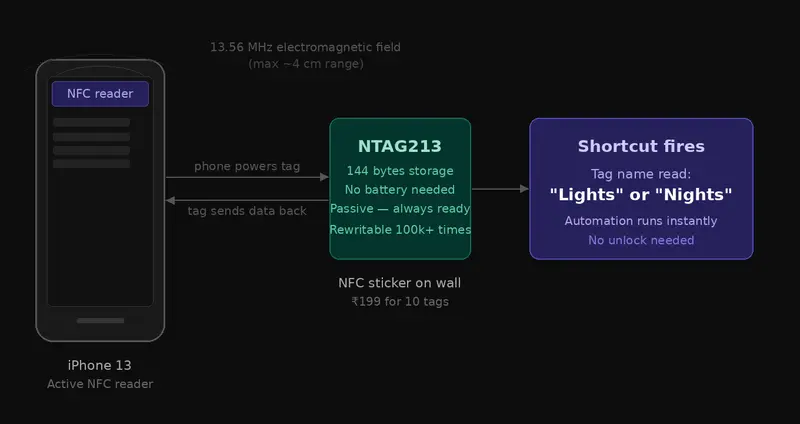
NFC Communication Diagram

No Alexa. No hub. No voice commands. Just tap and done.

The Problem That Started It All

It’s 11:45 PM. I’m in bed, half asleep, and the light is still on.

My options:

  • Get up and hit the physical wall switch (feels like climbing Everest at midnight)
  • Unlock my phone, swipe past notifications, find the Wipro app, wait for it to load, tap the bulb tile, confirm the action

Neither of these should be this hard in 2026.

I already had a Wipro Wi-Fi smart bulb installed. Great bulb — RGB, tunable white, music sync, the works. But the app-based control was killing the “smart” experience. And I wasn’t going to spend ₹3,000-5,000 on an Amazon Echo or Google Nest just to say “Alexa, lights off” before bed.

Then I remembered something I’d seen online: NFC tags.

Small stickers. Programmable. Cost almost nothing. And iPhones can read them without even unlocking.

What if I just… stuck one next to my bed and tapped my phone on it?

Spoiler: It worked. Here’s exactly how I built it, what I learned, and how you can replicate it in an afternoon.

What Even Is NFC? (Bear With Me, This Is the Fun Part)

Before we get into the setup, let me geek out for a moment — because understanding why this works makes the whole thing more satisfying.

NFC stands for Near Field Communication. It’s a short-range wireless technology that operates at 13.56 MHz and works over a maximum distance of about 4 centimetres. That ridiculously short range is actually a feature — it means you have to deliberately tap your device to trigger it, so false triggers are essentially impossible.

NFC is a subset of the broader RFID (Radio Frequency Identification) family of technologies. You’ve been using RFID/NFC your whole life without knowing it:

  • Your credit/debit card for tap-to-pay? NFC.
  • Your Mumbai Metro card? RFID.
  • That office access card you wave at the door? Also RFID.
  • Apple Pay, Google Pay on your phone? NFC.

The difference between passive NFC tags (like the stickers we’re using) and your phone is power. Your phone has a battery and an active NFC controller. The tag has neither — it’s completely passive. When your phone comes close, it generates a tiny electromagnetic field, which inductively powers the tag just long enough for it to transmit its stored data back. No battery. No charging. Ever.

The tag I used: NTAG213

This is the most widely deployed consumer NFC chip in the world. Here’s what makes it special:

  • Memory: 144 bytes of user-accessible storage — enough for a URL, a command, or a short text string
  • Standard: ISO 14443 Type A compliant — meaning it works with virtually every NFC-enabled device
  • Rewritable: You can reprogram it hundreds of times, so if your setup changes, just overwrite the tag
  • iPhone compatibility: iPhone 7 and above can read NFC tags. iPhone 13 (what I use) supports background NFC tag reading — meaning the screen just needs to be on and unlocked, no app needs to be open

NFC Communication Diagram

One fun fact: the tag has no moving parts, no battery, and theoretically no expiration date. That ₹10 sticker could outlast your phone by a decade.

The Shopping List

I only bought two products for this entire project.

Product Price Link
Wipro 12.5W B22D Wi-Fi Smart LED Bulb (16M Colours, Music Sync, Voice Control) ₹704 Amazon India
NTAG213 NFC Tag Stickers, Rewritable — Pack of 10 ₹169 Amazon India
Total ₹873

Everything else I used was free:

  • Wipro Smart Home app (iOS/Android — free)
  • Google Home app (iOS/Android — free)
  • Google Assistant app (iOS — free)
  • Apple Shortcuts (built into every iPhone — free)

💡 Pro tip: The pack of 10 tags is the right call even if you only need 3. You’ll find uses for the rest faster than you think — business card tag, desk work mode tag, silent mode trigger. More on that at the end.

The Architecture — How It All Connects

This is the part most blogs skip, and then readers get lost halfway through setup. Let me show you the full picture first.

Architecture Diagram

Why so many layers? Great question. Ideally, the NFC tag would talk directly to the bulb. But Wipro/Tuya doesn’t expose native iOS Shortcuts actions, and neither does Google Home. So we build a bridge: iPhone Shortcuts → Google Assistant → Google Home → Bulb. Each layer does one specific job, and together they create a seamless tap-to-control experience.

The whole chain from tap to bulb response takes about 2-3 seconds. Not instant, but completely hands-free.

Physical Setup — Where to Put the Tags

I placed 3 tags in total:

Tag 1 — Near the door (ON only)
Stuck on the wall right next to the light switch. When I enter the room, I tap this to turn the light on — without touching the physical switch.

Tag 2 — Bedside (ON)
Stuck on the headboard or nearby wall. When I’m in bed and want to turn the light on without getting up.

Tag 3 — Bedside (OFF)
Right next to Tag 2. Tap this to turn off before sleeping.

Why two separate tags instead of one toggle?

This is important to understand. NFC tags can only store and send a fixed command. They have no way of knowing the current state of your bulb (is it on or off right now?). A single “toggle” tag would be unpredictable — tap once and it turns off, tap again quickly and it turns on again. Two dedicated tags — one for ON, one for OFF — is far more reliable and predictable.

⚠️ Critical warning: The physical wall switch is the Achilles heel of this entire system. If someone flips the physical rocker switch to OFF, the bulb loses mains power completely. No power = no Wi-Fi = no smart control. The NFC system stops working until the physical switch is turned back ON. I recommend putting a small label on the switch that says “Don’t switch off — smart bulb”.

Step-by-Step Setup Guide

Step 1 — Set Up the Wipro Bulb

  1. Screw in the Wipro bulb and turn the physical switch ON
  2. Download the Wipro Smart Home app (iOS / Android)
  3. Create an account — note your email and password carefully, you’ll need them again
  4. In the app, tap + → Add Device → Lighting → follow the Wi-Fi pairing instructions
  5. Make sure your phone is on 2.4 GHz Wi-Fi during setup (the bulb doesn’t support 5 GHz)
  6. Once paired, test on/off from the app to confirm it’s working

Step 2 — Link Wipro to Google Home

  1. Install Google Home app and sign in with your Google account
  2. Tap + (top right) → Link app or service
  3. Tap Works with Google
  4. Search for “Wipro Next Smart Home”
  5. Tap it → tap Continue → tap Agree and continue
  6. A Wipro login page opens — change the country from “United States” to “India” first (critical step many miss)
  7. Enter your Wipro app email and password → tap Next Step
  8. Your bulb will appear — tap Next to add it to your home

You should now see your bulb in Google Home, showing its live status.

Step 3 — Create Google Home Routines

This is the engine room. We’re creating two voice-triggered routines that Google Home will execute when Google Assistant hears a specific word.

Routine 1 — Lights ON:

  1. Open Google Home → tap Automations (bottom tab)
  2. Tap + → New Routine
  3. Under Starters → When I say to my Assistant → type: Lights
  4. Under Actions → Add action → Control home devices → select your bulb → Turn on
  5. Tap Save — name it “Lights”

Routine 2 — Lights OFF:

  1. Repeat the above process
  2. Starter phrase: Nights
  3. Action: Select your bulb → Turn off
  4. Save — name it “Nights”

💡 Why “Lights” and “Nights”? These words are phonetically distinct enough that Google Assistant won’t confuse them with each other or with random speech. Avoid words like “on” and “off” as standalone triggers — they’re too common and might fire accidentally.

Step 4 — Set Up iPhone Shortcuts Automations

This is where NFC comes in. We’ll create one automation per tag.

For the Lights ON tag (Door or Bedside):

  1. Open Shortcuts app → tap Automation tab → + → New Automation
  2. Scroll down → tap NFC
  3. Tap Scan → hold your iPhone’s top edge close to the NFC tag
  4. Name the tag “Lights” → tap OK
  5. Tap Add Action → search “Hey Google” → select it
  6. In the Hey Google action, type: Lights
  7. Tap + below → search “Wait” → set to 3 seconds
  8. Tap + → search “Go to Home Screen” → add it
  9. At the top, set Automation to Run Immediately (not “Run After Confirmation”)
  10. Toggle Notify When Run to ON (optional but useful — you get a lock screen confirmation)
  11. Tap Done

For the Lights OFF tag (Bedside):

Repeat the exact same steps above, but:

  • When you scan the tag, name it “Nights”
  • In the Hey Google action, type: Nights

Step 5 — Stick the Tags

  • Clean the surface with a dry cloth before sticking
  • Press firmly for 5 seconds
  • For high-traffic areas, consider an epoxy NFC tag instead of the sticker variant — more durable

The Result

Here’s what happens now when I want to sleep:

  1. Phone is locked on my nightstand
  2. I pick it up — screen wakes (Face ID or tap)
  3. I tap the top edge of my phone to the small sticker on my headboard
  4. Lock screen shows: “Nights detected — Running your automation”
  5. Google Assistant quietly fires in the background
  6. Light turns off in ~2-3 seconds
  7. Phone returns to lock screen

No app. No voice command. No getting up. Just tap.

It genuinely feels like a superpower the first time it works.

Honest Limitations

I want to be upfront about what this setup doesn’t do:

  • iPhone must be unlocked (screen on) for NFC background reading to work — it doesn’t fire from a completely dark, locked screen
  • Internet required — the entire chain goes through cloud services (Wipro → Tuya → Google Home). No internet = no control
  • ~2-3 second delay from tap to bulb response — not instant, but acceptable
  • Physical switch is the weak point — if it’s off, nothing works
  • Google Assistant app must stay installed — if you delete it, the Hey Google Shortcut action breaks

What’s Next — Ideas to Extend This

Now that you have 7 leftover NFC tags, here are ideas to use them:

NFC Business Card — Program a tag with your website URL. Hand someone a card, they tap their phone, your portfolio opens. Zero app install needed on their end.

Desk Work Mode Tag — Tap when sitting down: bulb switches to cool white 100% brightness automatically.

Bedtime Scene Tag — Instead of just OFF, trigger a scene: dim to 10% warm white for 10 minutes, then off. Great for winding down.

Phone Silent Mode — NFC tag on your desk at work that triggers a Shortcut to enable Do Not Disturb.

Spotify Playlist — Tag on your gym bag that opens a specific playlist when tapped.

Future upgrade: If you ever replace this bulb with a Matter-compatible smart bulb, it will work natively with Apple Home — no Google Assistant bridge needed. The NFC Shortcuts setup remains identical.

The Final Tally

Item Cost
Wipro Smart Bulb ₹704
10x NFC Tags ₹169
Smart speaker ₹0 (didn’t need one)
Hub/Bridge ₹0 (didn’t need one)
Total ₹873
Setup time ~90 minutes (including troubleshooting)
Satisfaction level Disproportionately high

Wrapping Up

This started as a lazy man’s quest to avoid getting out of bed. It became a genuinely fun afternoon of exploring NFC technology, building a multi-layer automation chain, and learning why Wipro uses the Tuya platform under the hood.

The best part? It cost under ₹1000, uses zero extra hardware, and works every single time.

If you’re on Android, the setup is even simpler — Tasker or the built-in Google routines can trigger directly without the Hey Google workaround.

What would you automate with your leftover NFC tags? Drop it in the comments — I’m genuinely curious what creative uses people come up with.

Found this useful? Follow me for more experiments where I build things I probably didn’t need but definitely enjoyed making.

Products used:

Apps used (all free):

  • Wipro Smart Home (iOS/Android)
  • Google Home (iOS/Android)
  • Google Assistant (iOS)
  • Apple Shortcuts (built-in on iPhone)

How MT4 to CRM Integration Works: A Technical Guide

The MT4 Manager API is the bridge between MetaTrader 4 and any external system — CRM, back office, payment processor, or reporting tool. Here is how it actually works from a developer’s perspective.

The MT4 Manager API

MetaTrader 4 exposes a Windows DLL-based Manager API (mtmanapi.dll) that lets external applications communicate directly with the trading server. The API uses TCP sockets to maintain a persistent connection — think of it as a privileged admin channel into the platform.

For a mt4 crm integration, you are using this API to:

  • Pull account data (balance, equity, margin level, open positions)
  • Execute account management actions (create accounts, change leverage, disable trading)
  • Subscribe to real-time trade events
  • Trigger deposits and withdrawals programmatically

How the Data Flow Works

A production MT4-CRM integration has three components:

1. MT4 Integration Service — A Windows process (the API is Windows-only) that maintains a persistent connection to the MT4 server. It subscribes to trade events and pushes updates to a message queue.

2. Message Queue / Event Bus — RabbitMQ or similar. The integration service publishes events (deposit confirmed, trade opened, account created) as messages. This decouples the Windows-bound MT4 service from the rest of your stack.

3. CRM Backend — Consumes queue events, updates client records, and triggers workflows (e.g., alert retention team when equity drops below margin threshold).

Account Sync: What Gets Synced and When

Data Type Sync Method Frequency
Account balance / equity Event-driven (on change) Real-time
Open positions Polling Every 5–15 seconds
Closed trade history Event-driven On close
Account status Bidirectional On change
Deposits / withdrawals Triggered via API Per transaction

The Deposit/Withdrawal Flow

This is where most integrations break down. When a client deposits:

  1. Client submits request in the client portal (CRM layer)
  2. Payment gateway processes the transaction, sends webhook to CRM
  3. CRM calls ManagerAPI.TradeTransaction() with a balance operation
  4. MT4 server credits the account and returns confirmation
  5. CRM updates the client record

Withdrawals reverse this: CRM verifies available balance via API before processing the payment.

Common Pitfalls

Windows-only dependency. The Manager API DLL only runs on Windows. Most teams containerise a Windows Server instance for the integration service — adding infrastructure overhead that is easy to underestimate.

Connection drops. The API connection is stateful and drops under load. Your integration service needs reconnection logic with exponential backoff.

Multiple server support. Brokers typically run several MT4 servers (live, demo, jurisdictional instances). Each requires a separate API connection. The architecture scales linearly in complexity.

MT4 deprecation risk. MetaQuotes has been pushing MT5 hard for years. Any integration built purely on MT4 Manager API should be architected so the MT5 Manager API can slot in later without a full rewrite.

Wrapping Up

MT4 CRM integration is well-trodden territory, but implementation details matter. A poorly architected integration — polling every second, no queue buffering, no reconnection handling — will cause problems at volume. The event-driven architecture above (integration service → queue → CRM backend) holds up in production.

🧠 Agentic Payments: How AI Agents Are Transforming Autonomous Commerce and Stablecoin Payments

We are entering an era where it is no longer only humans who buy, sell, or make economic decisions.

For the first time in history, AI agents are beginning to act autonomously browsing, evaluating, negotiating, and executing payments without direct human intervention.

That changes everything.

The financial infrastructure we use today was built for humans: clicks, approvals, authentications, visual interfaces. But agents do not click. They operate in milliseconds, make data-driven decisions, and require a payment system that moves at the same speed with no friction, no permission checks, and no constant reliance on intermediaries.

In emerging and technologically active markets, including Brazil, where digital adoption is growing rapidly, this kind of transformation is not just a future possibility it is becoming an urgent necessity.

The question is no longer whether this will happen, but:

What will the economy look like when machines begin paying other machines?

The New Economy: When Machines Become Economic Actors

For decades, software was just a tool. It executed commands, followed rules, and relied entirely on humans.

Today, that has changed.

With the rise of large language models and autonomous systems, we are seeing the emergence of agents capable of:

making decisions

executing complex tasks

interacting with external systems

operating continuously

Tools like n8n already make it possible to build automated workflows where decisions happen without direct human intervention.

But there is a deeper shift happening here:

These agents are not just executing tasks they are beginning to participate in the economy.

An agent can:

hire an API

pay for real-time data

purchase digital services on demand

We are no longer programming tools.

We are creating market participants.

The Problem: The Current Infrastructure Is Broken

Despite this progress, the financial backbone of the internet is still trapped in the past.

Today’s systems were designed for humans:

manual logins

multi-step authentication

graphical interfaces

conscious decision-making

For machines, this does not work.

The main problems are:

APIs require keys and complex authentication

payments depend on human approval

SaaS models charge fixed fees without considering dynamic usage

friction exists in every transaction

While humans can tolerate this friction, agents cannot operate under that level of limitation.

For machines, friction is not just inconvenient it is a complete blocker.

Agentic Payments: The Beginning of a New System

This is where a new concept emerges: agentic payments.

In this model:

an agent makes a decision

it executes an action

it performs the payment automatically

it continues its workflow without interruption

All of this happens without human intervention.

Imagine:

an agent paying for API access only when needed

a system buying real-time data to make better decisions

an automated workflow managing revenue and expenses on its own

This is not just a technical upgrade.

It is the birth of an autonomous economy.

The Forgotten Protocol: HTTP 402

Interestingly, the internet already anticipated something like this.

The HTTP status code 402 Payment Required was defined decades ago, but it was never really implemented at scale.

For more than 30 years, the web operated without a native payment layer.

Now, with the convergence of:

artificial intelligence

cryptocurrencies

decentralized infrastructure

this concept is finally starting to make sense.

Perhaps the internet was always ready for payments.

We just did not yet have agents capable of using it.

The End of the Traditional SaaS Model

The current software model is built around subscriptions.

You pay monthly, regardless of actual usage.

For humans, that works.

For agents, it does not.

Agents operate dynamically:

they use services only when necessary

they perform thousands of micro-actions

they require total flexibility

This leads to a new model:

pay-per-use

micropayments

consumption-based economics

In this scenario, traditional SaaS begins to lose relevance.

The economy stops being based on plans and starts being based on actions.

Real Infrastructure: Where PayRam Comes In

For this new economy to function, it needs infrastructure that is compatible with agents.

This is where solutions like
(http://payram.com/) become a practical example.

The idea is simple, but powerful:

allow agents to create invoices

monitor payments

execute transactions automatically

All of this is built around stablecoins and does not require complex integrations through traditional APIs.

With MCP (Model Context Protocol), agents can interact directly with payment systems in a native way.

This removes:

dependency on API keys

manual steps

operational bottlenecks

More than just a tool, this represents:

proof that machine-to-machine payments are already possible today.

Trust in the Machine Economy (KYA)

As agents begin handling financial activity, a new challenge emerges:

Who do we trust?

If humans follow the KYC model Know Your Customer we are now entering the era of:

KYA Know Your Agent

This includes:

verifiable digital identity

agent reputation

accountability for automated actions

The machine economy requires new trust standards.

It is no longer enough to know who created the agent.

We need to understand how it behaves.

The Biggest Opportunity Still Hidden in Plain Sight

This transformation is not just technological.

It is economic.

Developers can:

monetize APIs on a true usage basis

create services consumed by agents

Founders can:

build businesses designed for full automation

explore new revenue models

Creators can:

automate content distribution and monetization

We are at the beginning of a new layer of the internet.

And as with every major shift:

those who understand it early do not compete they lead.

Conclusion

The internet is going through a quiet transition.

From a network built for humans…

To an economy operated by machines.

AI agents are not just more efficient tools.

They are new participants in the economic system.

And with that, everything changes:

how we buy

how we sell

how we create value

The question is no longer whether this transformation will happen.

The real question is:

Who will be ready when it becomes the new standard?

MCP Page:(http://mcp.payram.com/)

Blog:(https://payram.com/blog)

About the Author:
Based in Brazil, I am deeply interested in emerging technologies, digital economies, and the evolution of autonomous systems. This article reflects my perspective on the future of agentic payments and machine-driven commerce.

VITA INSURATECH — Zero-Touch Parametric Insurance for India’s Gig Workers

A Swiggy delivery partner in Koramangala. Heavy rain. No orders, no income, no safety net.
External disruptions cost gig workers 20–30% of monthly earnings — with zero protection. We built VITA INSURATECH at Guidewire DEVTrails 2026 to fix that. Zero-touch parametric insurance that auto-detects disruptions and pays workers instantly. No claims. No paperwork.
Why Parametric?
Traditional insurance is inaccessible for someone earning ₹600–800/day. Parametric flips it — rainfall crosses a threshold, payout is automatic.
6-Layer Fraud Pipeline
Every claim passes through: Zone Match → Sub-Zone Overlap → One-Class SVM → DBSCAN Rings → Sensor Fusion → Work Activity Validation. Final decision by an XGBoost classifier.
Dual-source weather (OpenWeather + IMD) + ARCE catches zone anomalies and raises proof thresholds automatically. Reserve buffer sits at 3.2x weekly claims, sustained by liquid mutual fund float returns. Premiums range ₹29–₹59/week with payouts up to ₹2,500 — priced by zone risk, recalculated weekly.
🔗 Live demo: https://vitainsuratech-zrjj.vercel.app/
GitHub: https://github.com/vk130225/VITA-INSURATECH
Demo video: https://www.youtube.com/watch?v=ZekeveiLY98
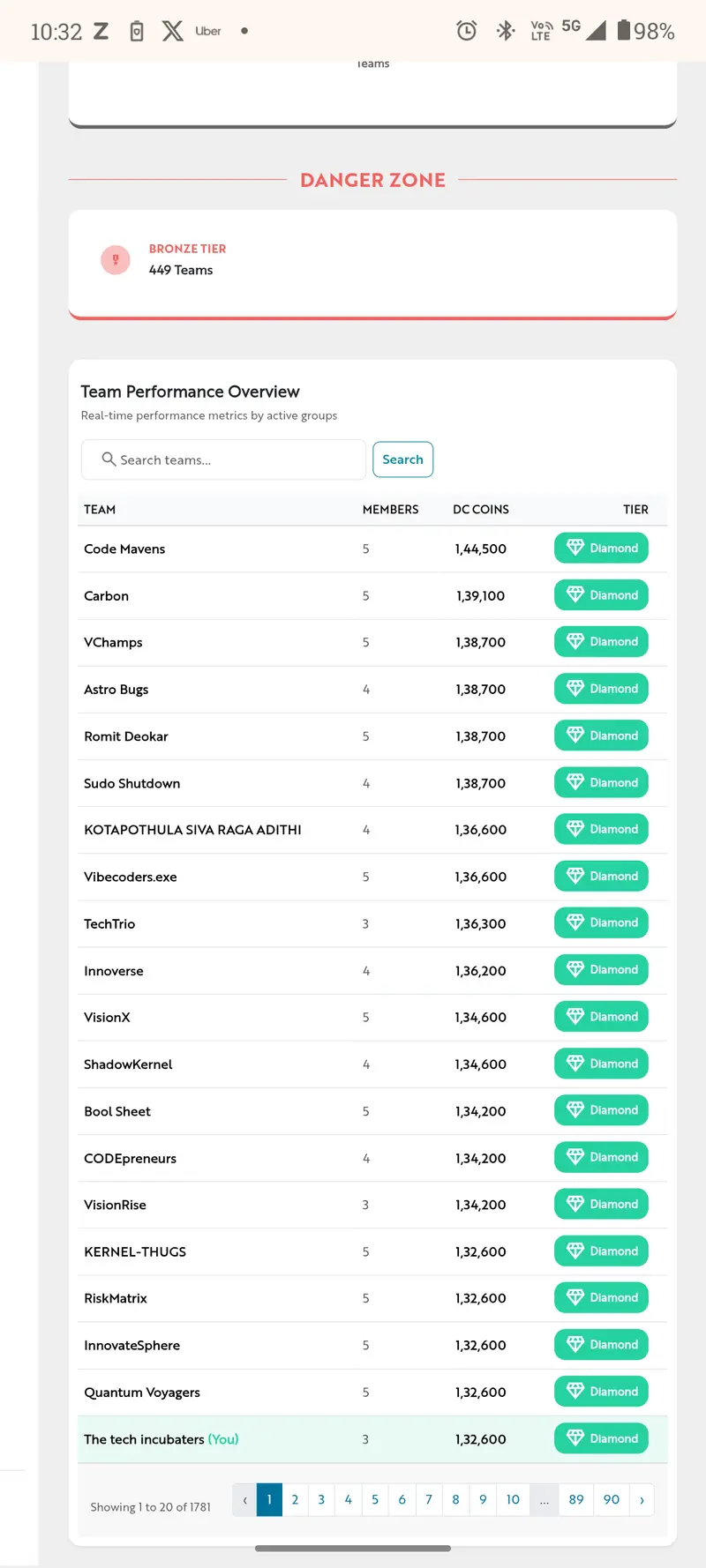
Ranked #21 of 1,781 teams — Diamond Tier ✨
India has 15M+ gig workers. One bad weather day away from financial stress. The infrastructure exists. We connected the dots.
Built with ❤️ by Viswa, Eshaan & Anwita — Guidewire DEVTrails 2026.

DEVTrails2026 #InsurTech #GigEconomy #ParametricInsurance #Buil

 dInPublic

The Economics of CI Pricing: A Framework for Fair Runner Costs

The Economics of CI Pricing: A Framework for Fair Runner Costs

When GitHub announced their pricing changes for Actions runners last year, the developer community erupted. The proposal felt arbitrary, disconnected from actual value delivered, and worst of all—opaque. As someone who’s managed CI infrastructure for teams ranging from five developers to fifty, I found myself asking the same questions many of you probably did: Why should we pay for idle time? Why is concurrency so expensive? What are we actually paying for?

This isn’t just a procurement problem. It’s fundamentally about how we measure and monetize computational value in continuous integration. And the answer isn’t as straightforward as “charge per minute.”

The Root Problem: CI Pricing Lives in the Shadows

The truth is, most CI pricing models today are cargo-culted from cloud computing’s pay-as-you-go paradigm, which doesn’t map cleanly onto CI workflows. When you spin up an EC2 instance, you know what you’re paying for—a machine, running for X seconds. But CI is more complex.

Consider what actually happens when you push code:

  1. Control plane work: Webhook parsing, queue management, job scheduling, log aggregation
  2. Compute work: The actual build, test, and deployment execution
  3. Concurrency costs: Managing multiple simultaneous runs
  4. Idle time: Runners waiting for jobs
  5. Network overhead: Artifact transfers, cache hits/misses

Most providers bundle these into vague “minutes per month” that make no sense beyond a certain scale. You might pay for 10,000 minutes, but use 12,000 because of an inefficient test suite. Or you might use 3,000 but still hit a concurrency wall that requires paying for more runners you won’t fully utilize.

The real issue? There’s no agreed-upon definition of what we’re actually selling.

Breaking Down the True Cost Structure

Let me propose a model that I’ve seen work well in practice. Think of CI pricing as having three distinct components:

1. Control Plane Costs (The Fixed Component)

These are the infrastructure costs that exist regardless of whether your runner is idle or running at full capacity. Webhook processing, log storage, queue management, scheduler overhead—these are real, measurable costs for the provider.

A reasonable approach: flat monthly fee per project or organization, scaled by expected traffic. This acknowledges that you’re using platform resources just by being a customer.

2. Compute Costs (The Variable Component)

This is where things get interesting. Raw compute time is measurable and fair, but the devil is in the details.

# Example: Fair compute pricing structure
pricing_model:
  base_minutes: 1000  # Included per month
  overage_rate: 0.008  # $ per minute

  # But here's the catch - compute should scale with actual demand
  cpu_tiers:
    small: 
      cores: 2
      rate_multiplier: 1.0
    medium:
      cores: 4
      rate_multiplier: 1.5
    large:
      cores: 8
      rate_multiplier: 2.5

  # And real costs vary by location
  region_factors:
    us-east-1: 1.0
    us-west-2: 1.0
    eu-central-1: 1.15
    ap-southeast-1: 1.25

Here’s the critical insight: not all minutes are created equal. A minute on a 2-core instance shouldn’t cost the same as a minute on an 8-core instance. Yet most pricing models flatten this.

3. Concurrency Costs (The Bottleneck Component)

This is where I’ve seen the most pricing confusion. Concurrency isn’t really a “cost”—it’s a constraint on throughput.

If you have five developers pushing code simultaneously, and your CI system can only process two builds at once, you’ve created a queue. That queue is a business problem. Someone’s getting blocked waiting for feedback.

The question isn’t how much to charge for concurrency. It’s whether you’re solving the real problem your customers have.

# Here's how I'd think about concurrency pricing:

class ConcurrencyPricingModel:
    def __init__(self, base_concurrent_runners=3, max_concurrent_runners=50):
        self.base_runners = base_concurrent_runners
        self.max_runners = max_concurrent_runners
        self.cost_per_additional_runner = 50  # $ per month

    def calculate_monthly_cost(self, concurrent_runners_needed):
        """
        Fair concurrency pricing should have three tiers:
        1. Included runners (what you'd reasonably need)
        2. Discounted runners (some elasticity expected)
        3. Premium runners (full unlimited capacity)
        """
        if concurrent_runners_needed <= self.base_runners:
            # You're within your included amount
            return 0

        included_range = self.base_runners
        additional_needed = concurrent_runners_needed - included_range

        # This could be tiered, or it could be elastic
        return additional_needed * self.cost_per_additional_runner

    def calculate_queue_time_cost(self, avg_queue_seconds, developer_hourly_rate=150):
        """
        Here's a provocative idea: charge less if you reduce queue time.
        Queue time is a hidden cost paid by developers sitting idle.
        """
        hours_blocked = avg_queue_seconds / 3600
        developer_cost = hours_blocked * developer_hourly_rate

        # If provider reduces queue time 50%, maybe they deserve 10% of savings
        potential_savings = developer_cost * 0.5
        provider_should_capture = potential_savings * 0.1

        return provider_should_capture

The Queue Time Question: Is Speed Worth Paying For?

This deserves its own section because it fundamentally challenges how we think about CI pricing.

In my experience, most teams would gladly pay 20-30% more for CI if it meant:

  • Push to green time dropped from 15 minutes to 5 minutes
  • Queue times eliminated entirely
  • Faster feedback loops (which directly translate to productivity gains)

Yet almost no CI provider prices based on this. They price based on computation delivered, not value created.

If a provider offers smart caching that reduces build time by 40%, or parallelization that cuts queue time to nearly zero, that’s worth more money to the customer. A pricing model that doesn’t capture this leaves value on the table for both sides.

Common Pitfalls in Pricing Design

Over the years, I’ve seen CI providers (and customers) make the same mistakes repeatedly:

Pitfall 1: Ignoring the Developer Time Cost
Teams focus on runner costs and ignore that slow CI multiplies across all developers. One minute of CI delay × 50 developers × 10 builds per day = 500 developer-minutes wasted. That’s worth $250/day to optimize away.

Pitfall 2: All-or-Nothing Concurrency Pricing
“You need 5 concurrent runners? That’ll be $500/month.” But maybe you only need 5 runners for 2 hours a day during peak commit times. A smarter model would charge for average concurrency, not peak.

Pitfall 3: Not Accounting for Workflow Differences
A frontend team running 200 quick unit tests has fundamentally different needs than a backend team compiling services and running integration tests. Same minute cost is unfair to one of them.

Pitfall 4: Forgetting About Self-Hosted Runners
When providers price too aggressively, teams deploy self-hosted runners. This isn’t a provider win—it’s a customer leaving the ecosystem. Fair pricing keeps teams on-platform.

A Pricing Model Worth Stealing

Here’s what I’d implement if I were building a CI platform from scratch:

class FairCIPricingCalculator:
    """
    A pricing model that tries to be fair to both provider and customers
    """
    def __init__(self):
        self.PLAN_TIERS = {
            'starter': {
                'monthly_fee': 20,
                'included_compute_minutes': 500,
                'included_concurrent_runners': 1,
                'storage_gb': 5,
            },
            'growth': {
                'monthly_fee': 100,
                'included_compute_minutes': 5000,
                'included_concurrent_runners': 3,
                'storage_gb': 50,
                'features': ['cache_optimization', 'priority_queue'],
            },
            'enterprise': {
                'monthly_fee': 500,
                'included_compute_minutes': 50000,
                'included_concurrent_runners': 10,
                'storage_gb': 500,
                'features': ['cache_optimization', 'priority_queue', 'sso', 'audit_logs'],
            }
        }

    def calculate_total_cost(self, plan_tier, actual_metrics):
        """
        actual_metrics should include:
        - compute_minutes_used
        - peak_concurrent_runners_needed
        - storage_used_gb
        - average_queue_time_seconds
        """
        base_cost = self.PLAN_TIERS[plan_tier]['monthly_fee']
        plan = self.PLAN_TIERS[plan_tier]

        # Overage compute
        included_minutes = plan['included_compute_minutes']
        if actual_metrics['compute_minutes_used'] > included_minutes:
            overage_minutes = actual_metrics['compute_minutes_used'] - included_minutes
            overage_cost = overage_minutes * 0.008  # $0.008 per minute
            base_cost += overage_cost

        # Overage concurrency
        included_runners = plan['included_concurrent_runners']
        if actual_metrics['peak_concurrent_runners_needed'] > included_runners:
            additional_runners = actual_metrics['peak_concurrent_runners_needed'] - included_runners
            concurrency_cost = additional_runners * 50  # $50 per additional runner/month
            base_cost += concurrency_cost

        # Storage overage
        included_storage = plan['storage_gb']
        if actual_metrics['storage_used_gb'] > included_storage:
            excess_gb = actual_metrics['storage_used_gb'] - included_storage
            storage_cost = excess_gb * 0.10  # $0.10 per GB
            base_cost += storage_cost

        # Queue time discount (providers should compete on speed!)
        avg_queue_seconds = actual_metrics.get('average_queue_time_seconds', 0)
        if avg_queue_seconds < 60:  # Less than 1 minute average queue
            discount = base_cost * 0.05  # 5% discount for fast queues
            base_cost -= discount

        return round(base_cost, 2)

# Example usage
calculator = FairCIPricingCalculator()
metrics = {
    'compute_minutes_used': 7500,
    'peak_concurrent_runners_needed': 5,
    'storage_used_gb': 120,
    'average_queue_time_seconds': 30,
}

monthly_cost = calculator.calculate_total_cost('growth', metrics)
print(f"Monthly cost: ${monthly_cost}")
# Output: Monthly cost: $200.0

How to Evaluate If Third-Party Runners Make Sense

When deciding whether a third-party runner is worth the cost, I look at these metrics in order:

  1. Push to green time (total time from commit to feedback)
  2. Developer unblock time (time saved per developer per day)
  3. Cost per successful run (factoring in flakiness)
  4. Concurrency headroom (buffer before hitting queue limits)
  5. Lock-in cost (how hard to switch away)

Conclusion: Design Pricing Around Value, Not Just Costs

The uncomfortable truth is that most CI pricing gets designed around what the provider needs to earn back infrastructure costs, not around what creates value for customers.

I’d ship a pricing model that:

  • Separates control plane from compute (fixed + variable)
  • Charges fairly for concurrency (elastic scaling, not artificial caps)
  • Rewards performance (discounts for low queue times)
  • Scales with team size (not just runner count)
  • Stays transparent (no hidden multipl

Want This Automated for Your Business?

I build custom AI bots, automation pipelines, and trading systems that run 24/7 and generate revenue on autopilot.

Hire me on Fiverr — AI bots, web scrapers, data pipelines, and automation built to your spec.

Browse my templates on Gumroad — ready-to-deploy bot templates, automation scripts, and AI toolkits.

Recommended Resources

If you want to go deeper on the topics covered in this article:

Some links above are affiliate links — they help support this content at no extra cost to you.