I Built a Pregnancy Herb Safety Checker Because LactMed Ignores Andean Plants

When my partner was pregnant, she wanted to keep drinking her muña tea — a common Andean mint used for digestion. I searched LactMed (NIH’s lactation database). Nothing. I searched E-Lactancia. Nothing. I searched in Spanish. Still nothing.

Muña (Minthostachys mollis) is consumed daily by millions of people in Peru and Bolivia. But if you’re pregnant and want to know if it’s safe, the English-speaking medical internet has no answer for you.

So I built one.

The Problem: 11 Million Searches, Zero Answers

There are approximately 11 million monthly searches in Spanish related to herbal safety during pregnancy. Queries like “¿puedo tomar manzanilla embarazada?” (can I drink chamomile while pregnant?) get thousands of searches per month.

For common herbs like chamomile or ginger, the answer exists — scattered across medical databases, mostly in English. But for Andean plants? Nothing:

Plant Monthly searches (ES) In LactMed? In E-Lactancia?
Maca 2,400+ No Partial
Uña de Gato 1,800+ No Yes
Muña 900+ No No
Chuchuhuasi 400+ No No
Hercampuri 300+ No No

These aren’t obscure plants. Maca is sold at Whole Foods. Uña de gato (cat’s claw) is on Amazon. But their pregnancy safety data exists only in scattered ethnobotanical papers and traditional knowledge.

The Solution: A Traffic Light System

I built ¿Es Seguro? — a free tool that classifies 37 herbs as safe (green), caution (yellow), or avoid (red) for both pregnancy and breastfeeding.

Key design decisions:

1. Dual mode: pregnancy vs. breastfeeding

A herb’s safety can differ between pregnancy and lactation. Fenugreek, for example, is “avoid” during pregnancy (uterine stimulant) but “safe” during breastfeeding (traditional galactogogue with supporting evidence).

2. Evidence levels

Not all classifications are equal. Ginger has strong evidence (multiple RCTs). Muña has limited evidence (traditional use data only). The tool shows this with a 3-dot evidence indicator:

  • ●●● Strong: systematic reviews or multiple RCTs
  • ●●○ Moderate: individual studies or pharmacological data
  • ●○○ Limited: traditional use and case reports

3. Andean herbs as first-class citizens

11 of the 37 herbs are Andean plants marked with a mountain icon (🏔️). These include:

  • Maca → Caution (insufficient clinical data in pregnant women)
  • Uña de Gato → Avoid (immunomodulatory, traditional contraceptive use)
  • Muña → Caution (high pulegone in some varieties)
  • Chuchuhuasi → Avoid (alkaloids, traditional abortifacient)
  • Sacha Inchi → Safe (omega fatty acids, food-level use)

What the Data Shows

After classifying 37 herbs across both modes:

Pregnancy:  12 safe (32%) | 14 caution (38%) | 11 avoid (30%)
Lactation:  15 safe (41%) | 15 caution (41%) |  7 avoid (19%)

Herbs are generally safer during lactation than pregnancy. This makes sense — during pregnancy, substances cross the placental barrier directly. During lactation, transfer to breast milk is filtered and typically at lower concentrations.

The most dangerous category: uterine stimulants. Herbs like blue cohosh, pennyroyal, and chuchuhuasi have documented oxytocic effects. These are “avoid” in pregnancy but may be “caution” or even “safe” during lactation.

Technical Implementation

The entire tool is a single HTML file (854 lines) with zero dependencies:

  • No framework, no build step, no server
  • Herb data embedded as a JavaScript array
  • CSS custom properties for the traffic light color system
  • FAQ schema (JSON-LD) for Google rich results
  • Embed mode (?embed=1) that strips chrome for iframe embedding

The search filters herbs in real-time by common name or Latin name. Clicking a herb shows its full safety profile with notes and sources.

Sources

Every classification cites at least one source:

  • LactMed (NIH) — gold standard for lactation data
  • E-Lactancia — Spanish-language compatibility database
  • PubMed systematic reviews — for pregnancy-specific data
  • WHO monographs — for traditional use documentation
  • Ethnobotanical studies — specifically Andean use data (Estrella, Bussmann, De-la-Cruz)

Try It

The tool is free and open: botanicaandina.com/herramientas/embarazo/

It also supports embedding on other sites:

<iframe src="https://botanicaandina.com/herramientas/embarazo/?embed=1"
  width="100%" height="600" frameborder="0"></iframe>

If you work with maternal health data or build health tools, I’d love to hear what you think. And if you know of studies on Andean plant safety during pregnancy — please share them. The more data we have, the better the tool becomes.

This is part of Botánica Andina, an encyclopedia of Andean medicinal plants and evidence-based health tools.

Technical Implementation

The tool is a single HTML file with no dependencies — no frameworks, no build step, no backend. The entire herb database lives in a JavaScript object, which means:

  • Zero latency: searches are instant, no API calls
  • Offline capable: once loaded, it works without internet
  • Embeddable: any site can iframe it with ?embed=1 parameter
  • Privacy-first: no data leaves the browser, no cookies, no tracking

The search uses fuzzy matching so users can type partial names or common misspellings. Each herb card shows pregnancy safety, breastfeeding safety, evidence level, a clinical summary, and source references.

Total payload: 43KB including all CSS, JS, and data. Loads in under 1 second on 3G.

Your Cookie Banner Is Probably Breaking GDPR — Here’s the 20-Point Audit to Find Out

You installed a cookie banner plugin, clicked through the setup, and moved on. That was six months ago. You just received an email from a user asking why your site set cookies before they clicked “Accept.” You do not know the answer.

That is the moment most founders discover that having a cookie banner and having a compliant cookie banner are two different things. The GDPR does not require the presence of a banner. It requires the quality of a specific consent mechanism — one that meets precise legal requirements the vast majority of pre-built plugins do not enforce by default.

This article gives you the 20-point audit to find out where your implementation stands, before a Data Protection Authority does it for you.

1. Why “I Have a Cookie Banner” Is Not the Same as “I’m GDPR Compliant”

The core legal requirement is in GDPR Article 4(11): consent must be “freely given, specific, informed, and unambiguous.” Recital 32 adds the operative detail — “silence, pre-ticked boxes or inactivity should not therefore constitute consent.”

Three consent requirements that most plugins ignore by default:

Pre-consent script blocking. Cookies and tracking scripts must not fire until after the user has actively consented. This is not a setting that comes enabled out of the box on most free-tier consent management platforms. You have to explicitly configure it.

Equal-friction reject option. GDPR Article 7 requires that withdrawal of consent be as easy as giving it. Regulators have interpreted this to mean the “Reject” or “Decline” button must be as easy to find and click as the “Accept” button — not buried behind a “Manage Preferences” link.

Consent logging. Under GDPR Article 7(1), the data controller bears the burden of demonstrating that consent was obtained. That means storing a record of each consent decision with a timestamp, the banner version shown, the scope of purposes consented to, and a user identifier. The DPA does not ask whether you have a banner — they ask whether you can produce the consent record for a specific user on a specific date.

Marketing agencies and compliance teams managing dozens of client sites use automated crawlers (like Apify actors) to detect pre-consent script loads across an entire portfolio in minutes. If you are managing a single site, you are doing the manual version of that audit — which is exactly what this checklist is built for.

2. The 5 Dark Patterns That Invalidate Your Consent (Without You Knowing)

The following five patterns appear in enforcement decisions from multiple European DPAs. Each one invalidates the consent mechanism entirely — not just weakens it.

1. Pre-ticked checkboxes. Any checkbox that is checked by default when the banner loads constitutes non-consent under GDPR. Consent must be an active, affirmative action. The user must opt in — not opt out of something already selected. This is explicitly prohibited in Recital 32.

2. Reject button buried behind “Manage Preferences.” If a user has to click through to a secondary screen to find a “Reject All” option, while “Accept All” is available in one click on the primary banner, the reject path requires more effort — which regulators have found to be a dark pattern violating the equal-friction requirement. France’s CNIL and Germany’s DPAs have issued enforcement decisions on this pattern specifically.

3. Banner disappears on page scroll. Several implementations dismiss the banner when a user scrolls down the page, treating the scroll action as implicit consent. GDPR Recital 32 explicitly states that “browsing a website” does not constitute consent. Scroll-to-dismiss is non-compliant.

4. Accept highlighted, Reject greyed out. Using color, size, font weight, or visual contrast to make “Accept” more prominent than “Reject” is a documented dark pattern. The buttons must have equivalent visual weight. A large green “Accept” button next to a small grey text link that says “decline” does not satisfy the equal-friction requirement.

5. “By using this site you agree” banners. These are purely informational notices, not consent mechanisms. Displaying a banner that says “We use cookies — by continuing to browse you agree” does not collect consent under GDPR. It collects nothing. Any data processing downstream from this banner is processed without a valid legal basis.

3. The Third-Party Scripts You Need to Audit First (GA, Meta Pixel, LinkedIn)

Three scripts appear on the majority of founder-operated sites and represent the highest-risk pre-consent violations:

Google Analytics (analytics.js / gtag.js). Google Analytics places cookies and processes IP address data. Under GDPR, this requires a valid consent legal basis for EU/UK visitors unless you have a documented legitimate interest assessment. Many founders assume that enabling Google Consent Mode v2 resolves this. It does not.

Google Consent Mode v2 is not a GDPR compliance framework. It is a measurement adjustment tool that tells Google how to model conversions when consent is not granted. It does not block the GA script from loading. It does not prevent cookies from being set in all configurations. Whether your implementation is compliant depends on how your CMP is configured to gate the script — not on whether Consent Mode is enabled.

Meta Pixel (fbq). Meta Pixel fires page view events and sets cookies on page load. In the default implementation, this occurs before any consent is collected. The script must be gated by your consent management platform so it does not load until the user has explicitly consented to marketing purposes.

LinkedIn Insight Tag (li_fat). Same requirement as Meta Pixel. LinkedIn’s tag sets cookies used for conversion tracking and retargeting. It must not load before consent.

How to verify in five minutes:

  1. Open an incognito window (so no prior consent state is stored)
  2. Navigate to your site and do not interact with the banner
  3. Open Chrome DevTools → Network tab → filter by “analytics”, “fbq”, “li_fat”, “gtag”
  4. Check whether any requests to these services appear before you click Accept

Any request to an analytics or advertising service before consent is clicked = a violation.

4. Consent Logging — The Requirement Most Banners Quietly Skip

GDPR Article 7(1) places the burden of proof on the data controller: “the controller shall be able to demonstrate that the data subject has consented to processing of his or her personal data.”

Demonstrating consent requires a record. That record must include:

  • The timestamp of the consent decision
  • The version of the consent banner shown at the time
  • The purposes the user consented to (granular, not just “accepted all”)
  • A user identifier linking the record to the specific individual

The free-tier problem. Most consent management platforms — including Cookiebot, CookieYes, and similar tools — do not store individual consent logs on free plans. They may show aggregate statistics (“X% of visitors accepted all”), but they cannot produce a record for a specific user on a specific date. If a DPA or individual user submits a Subject Access Request referencing your consent decision, you cannot respond with the required documentation.

How to check your implementation:

  1. Log into your CMP dashboard
  2. Look for a “Consent Log,” “Audit Log,” or “Proof of Consent” section
  3. If this feature is locked behind a paid tier — or does not exist — your current implementation cannot demonstrate consent under GDPR Article 7(1)

This is one of the most commonly overlooked requirements because the site appears to function normally. The gap only becomes visible when documentation is requested.

5. How to Run the 20-Point Audit on Your Site (Before a DPA Does It For You)

The full audit runs in four sections. Each section can be completed in a single browser session using an incognito window, Chrome DevTools, and your CMP dashboard.

Section 1: Pre-consent behavior (5 checks)

  • Load your site in incognito without interacting with the banner. Check the Network tab for any cookie-setting requests to analytics, advertising, or third-party services before consent is clicked.
  • Check your browser’s Application tab → Cookies to confirm that no non-essential cookies are set before consent.
  • Verify that no tracking pixels fire before the consent interaction.
  • Confirm no checkboxes are pre-ticked in your banner’s purpose selection UI.
  • Verify that scrolling, clicking elsewhere on the page, or navigating to a second page does not dismiss the banner or record consent.

Section 2: Banner UI (5 checks)

  • Compare the visual weight of your Accept and Reject buttons. Are they equivalent in size, color, and prominence?
  • Confirm that a “Reject All” option is available on the primary banner layer — not only behind a “Manage Preferences” secondary screen.
  • Check that each data processing purpose is listed separately with an individual toggle, not bundled under “Accept All” with no granularity.
  • Verify that no pre-ticked boxes appear in any purpose category.
  • Confirm the banner does not include “by continuing to browse you agree” language as a substitute for an actual consent interaction.

Section 3: Consent logging (3 checks)

  • Open your CMP dashboard and locate individual consent records. Verify you can filter by user identifier and retrieve a record for a specific date.
  • Confirm the stored record includes: timestamp, banner version, purpose scope, and user identifier.
  • Check that this log feature is available on your current plan (not locked behind a paid tier).

Section 4: Post-consent validation (3 checks)

  • After clicking Accept, verify that the consented scripts load correctly in the Network tab.
  • Test consent withdrawal: withdraw consent via your banner’s preferences UI and verify that scripts cease to load on subsequent page views.
  • Confirm you have a documented process for responding to a Subject Access Request referencing consent data.

Fix order when you find a violation: Scripts first (pre-consent blocking), then UI (equal-friction reject, dark pattern removal), then logging (upgrade CMP plan or switch platforms if consent logging is not available at your tier).

6. What Happens If You Fail the Audit (And How DPA Fines Actually Work for Small Companies)

GDPR fines are structured in two tiers under Article 83. The upper tier (€20M or 4% of global annual turnover) applies to violations of core principles including consent requirements. Fines are meant to be “effective, proportionate, and dissuasive” — and DPAs are required to consider the size of the company and the severity of the violation when calculating the amount.

In practice, small companies and individual founders have received fines from DPAs across the EU for cookie consent violations. The amounts are lower than the headline figures, but the more material costs for a small company are:

Legal response costs. Even if a DPA investigation concludes without a fine — which is common for first-time minor violations — the cost of engaging a privacy attorney to draft your response starts at $500 and can exceed $2,000 for a substantive investigation. A formal DPA notice always requires a written response; you cannot ignore it.

Investment due diligence risk. If you are fundraising at any stage, a VC or acquirer’s legal team will review your privacy and data practices. A non-compliant consent implementation found in due diligence is a flagged risk item. In competitive raise environments, a compliance flag delays the process and can require a legal remediation plan before close.

Reputational risk. DPA enforcement decisions in several EU member states are published. A published decision referencing your company by name creates a permanent public record, regardless of the fine amount.

The cost of running the 20-point audit today is zero. The cost of not running it is open-ended.

7. Get the Full 20-Point Audit Checklist (PDF)

Everything in this article condenses into a single 20-point PDF you can work through in under an hour — organized by audit section so you can move through each area systematically without needing to track anything in a separate document.

The checklist covers: pre-consent behavior (5 checks), banner UI dark patterns (5 checks), consent logging (3 checks), third-party script audit (4 checks — Google Analytics, Meta Pixel, LinkedIn Insight Tag), and post-consent validation (3 checks).

No GDPR background required. Each check is written as a binary yes/no you can complete in your browser and CMP dashboard.

[Get the GDPR Cookie Consent Audit Checklist → $39][GUMROAD_URL]

Less than 10 minutes of your privacy lawyer’s billing rate — and you do not need to schedule a call.

If you have just received a user complaint or are about to enter investment due diligence, this is the fastest way to document where you stand before your next conversation with legal.

Caddy Has a Free API: The Web Server With Automatic HTTPS

Nginx needs 15 lines of config for HTTPS. Caddy needs 2. And it handles certificate renewal automatically.

What Is Caddy?

Caddy is a modern web server with automatic HTTPS. It obtains and renews TLS certificates from Let’s Encrypt without any configuration.

# Caddyfile — that's the ENTIRE config
mysite.com {
    reverse_proxy localhost:3000
}
caddy run
# HTTPS certificate obtained and configured automatically

Reverse Proxy

# Multiple backends
api.example.com {
    reverse_proxy localhost:8080
}

app.example.com {
    reverse_proxy localhost:3000
}

# Load balancing
api.example.com {
    reverse_proxy localhost:8080 localhost:8081 localhost:8082 {
        lb_policy round_robin
        health_uri /health
        health_interval 10s
    }
}

Static Files + SPA

mysite.com {
    root * /var/www/html
    file_server
    try_files {path} /index.html  # SPA fallback
    encode gzip
}

The Admin API

Caddy has a REST API for dynamic configuration:

# Get current config
curl localhost:2019/config/

# Add a route dynamically
curl -X POST localhost:2019/config/apps/http/servers/srv0/routes 
  -H "Content-Type: application/json" 
  -d '{"match": [{"host": ["new.example.com"]}], "handle": [{"handler": "reverse_proxy", "upstreams": [{"dial": "localhost:9000"}]}]}'

# Reload config without downtime
curl -X POST localhost:2019/load 
  -H "Content-Type: application/json" 
  -d @caddy.json

Caddy vs Nginx

Feature Nginx Caddy
HTTPS Manual (certbot) Automatic
Config Complex Simple
Reload nginx -s reload API or auto
HTTP/3 Extra module Built-in
Go plugins N/A Built-in support
Memory Lower Slightly higher

Why Caddy

  • Automatic HTTPS — zero-config TLS with Let’s Encrypt
  • Simple config — Caddyfile is human-readable
  • Admin API — dynamic config changes without restart
  • HTTP/3 — built-in QUIC support
  • Single binary — one file, no dependencies
  • Extensible — write plugins in Go
caddy reverse-proxy --from mysite.com --to localhost:3000
# One command. HTTPS. Done.

Building web infrastructure? Check out my developer tools or email [email protected].

Buf Has a Free API: Make Protocol Buffers Actually Developer-Friendly

Protobuf is powerful but painful. protoc plugins, code generation configs, import path hell — Buf fixes all of it.

What Is Buf?

Buf is a suite of tools for Protocol Buffers and gRPC: linting, breaking change detection, code generation, and a schema registry. Think ESLint + npm for protobuf.

# Install
npm install -g @bufbuild/buf

# Initialize
buf config init

# Lint your .proto files
buf lint

# Generate code
buf generate

# Check for breaking changes
buf breaking --against .git#branch=main

Linting

# buf.yaml
version: v2
lint:
  use:
    - STANDARD
  except:
    - FIELD_LOWER_SNAKE_CASE
$ buf lint
pet/v1/pet.proto:10:3: Field name "petName" should be lower_snake_case
pet/v1/pet.proto:14:1: Service "petService" should be PascalCase

Catch naming issues, import problems, and style violations before they reach code review.

Breaking Change Detection

$ buf breaking --against .git#branch=main
pet/v1/pet.proto:8:3: Field "1" on message "Pet" changed type from "string" to "int32".
pet/v1/pet.proto:12:3: Field "3" with name "owner" on message "Pet" was deleted.

Accidentally changed a field type? Deleted a field? Buf catches it before you break clients.

Code Generation

# buf.gen.yaml
version: v2
plugins:
  - remote: buf.build/protocolbuffers/go
    out: gen/go
  - remote: buf.build/connectrpc/go
    out: gen/go
  - remote: buf.build/bufbuild/es
    out: gen/ts
buf generate  # Generates Go + TypeScript from .proto files

No protoc plugin installation. No local binary management. Remote plugins run in Buf’s cloud.

BSR (Buf Schema Registry)

# Push schemas to registry
buf push

# Use schemas from registry (like npm packages)
buf.build/googleapis/googleapis
buf.build/grpc/grpc

Why Buf

  • Linting — catch protobuf anti-patterns
  • Breaking detection — prevent API breaks
  • Remote plugins — no protoc plugin hell
  • Schema registry — share .proto files like npm packages
  • Connect-RPC — their modern gRPC alternative works in browsers

Building API infrastructure? Check out my developer tools or email [email protected].

Chapter 2. Creating and Configuring a Project

2.1 Prerequisites

Item How to Verify
Claude Code installed claude --version
Git installed git --version
Authentication complete Prompt appears correctly when running claude
Diagnostics passing claude doctor

2.2 Creating a Project Folder

Windows PowerShell

mkdir C:Projectsmy-first-project
cd C:Projectsmy-first-project
git init

Ubuntu Terminal

mkdir ~/projects/my-first-project
cd ~/projects/my-first-project
git init

Git initialization (git init) is required. Claude Code uses the Git repository root as the project boundary.

2.3 /init — Initializing a Project

Run Claude Code inside your project folder and enter the /init command.

cd ~/projects/my-first-project
claude
> /init

What /init Does

  1. Scans the project directory structure
  2. Analyzes configuration files such as package.json, tsconfig.json, and pyproject.toml
  3. Detects the tech stack, build/test commands, and code conventions
  4. Automatically generates a CLAUDE.md file in the project root based on the analysis

If a CLAUDE.md already exists, it will not be overwritten — instead, improvements will be suggested.

2.4 What Is CLAUDE.md?

CLAUDE.md is a project instruction file that Claude Code automatically reads at the start of each session.

Write your project’s tech stack, build commands, code conventions, and architecture information in Markdown format. Claude Code will automatically load this context at the beginning of every session, ensuring consistent behavior throughout the project.

What to Include in CLAUDE.md

Item Example
Project overview “Weekly work report system built with NestJS 11 + React 18”
Tech stack TypeScript, PostgreSQL, Prisma
Build/test commands npm run build, npm test, npm run lint
Code conventions strict mode, 2-space indent, no default exports
Key directories src/api/, src/components/, tests/
Important notes “No direct commits to the main branch”

What NOT to Include in CLAUDE.md

  • Rules already enforced by linters/formatters (ESLint, Prettier, etc.)
  • A full listing of the file structure (discoverable through navigation)
  • General development common sense (“use meaningful variable names”)

💡 Core principle: Keep CLAUDE.md concise — 200 lines or fewer.
Instructions become less effective as the file grows longer.

CLAUDE.md Example

# My Project

## Tech Stack
- NestJS 11 + React 18 + TypeScript
- PostgreSQL + Prisma ORM
- Jest for testing

## Commands
| Command | Purpose |
|---------|---------|
| `npm run dev` | Start development server |
| `npm run build` | Production build |
| `npm test` | Run all tests |
| `npm run lint` | Run linter |

## Architecture
- `src/api/` — API routes and controllers
- `src/components/` — React components
- `src/services/` — Business logic
- `prisma/` — DB schema and migrations

## Rules
- TypeScript strict mode
- All tests must pass (`npm test`) before committing
- No direct commits to the main branch

2.5 CLAUDE.md Hierarchy

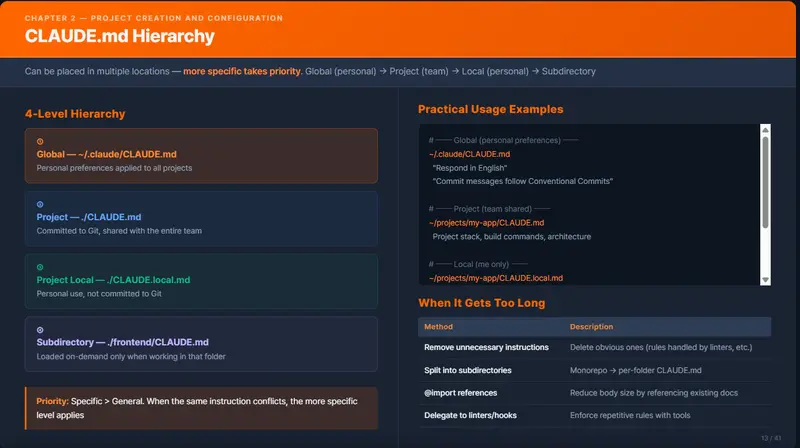
CLAUDE.md can be placed in multiple locations. Claude Code merges and loads all of them at the start of each session.

┌─────────────────────────────────────────────────────────┐
│  ① Global (Personal)     ~/.claude/CLAUDE.md            │
│     → Personal preferences applied to all projects      │
├─────────────────────────────────────────────────────────┤
│  ② Project (Team-shared) ./CLAUDE.md                    │
│     → Committed to Git, shared across the team          │
├─────────────────────────────────────────────────────────┤
│  ③ Project Local         ./CLAUDE.local.md              │
│     → Personal use, not committed to Git                │
├─────────────────────────────────────────────────────────┤
│  ④ Subdirectory          ./frontend/CLAUDE.md           │
│     → Loaded on demand only when working in that folder │
└─────────────────────────────────────────────────────────┘

Priority: more specific takes precedence (④ > ③ > ② > ①)
When the same instruction appears at multiple levels, the more specific level wins.

Real-World Usage Examples

~/.claude/CLAUDE.md              ← "Respond in Korean", "Use Conventional Commits for commit messages"
~/projects/my-app/CLAUDE.md      ← Project stack, build commands, architecture
~/projects/my-app/CLAUDE.local.md ← "I handle the backend — ask me before modifying frontend code"
~/projects/my-app/frontend/CLAUDE.md ← "Use React Query, follow Tailwind class ordering rules"

2.6 Memory (Claude.ai) vs CLAUDE.md (Claude Code)

These two may sound similar, but they are completely different systems.

Comparison Table

Memory (Claude.ai) CLAUDE.md (Claude Code)
Environment Claude.ai web/app conversations Claude Code CLI terminal
Scope Per person (applies to all conversations) Per project (applies only within that repo)
Storage Anthropic servers Local file (inside the project)
How to edit “Remember this” (natural language) Direct Markdown file editing
Auto-generation ✅ Derived automatically from conversations Created initially via /init
Version control ❌ ✅ Can be committed to Git
Team sharing ❌ Personal only ✅ Shared via Git
Nature of content Personal profile, preferences, work history Project rules, stack, commands

How to Configure by Perspective

Personal perspective — settings about “you”

What to configure Memory (Claude.ai) CLAUDE.md (Claude Code)
Work style “Prefer executive summaries for presentations” Write in ~/.claude/CLAUDE.md
Language preference “Respond in Korean” Write in ~/.claude/CLAUDE.md
Role information “R&D engineer on the P&T Advanced Research team” Write in ~/.claude/CLAUDE.md

Memory is set during a conversation by saying “remember this”, while the global CLAUDE.md is edited directly as a file.

Project perspective — settings about “this project”

What to configure Memory (Claude.ai) CLAUDE.md (Claude Code)
Tech stack Accumulates automatically from conversation context Specify in ./CLAUDE.md
Build/test commands ❌ Not applicable Specify in ./CLAUDE.md
Code conventions ❌ Not applicable Specify in ./CLAUDE.md
Architecture rules ❌ Not applicable Specify in ./CLAUDE.md

Configuration File Locations Summary

[Personal Settings]
  Claude.ai Memory     → Settings > Memory (web UI)
  Global CLAUDE.md     → ~/.claude/CLAUDE.md

[Project Settings]
  Project CLAUDE.md    → {project root}/CLAUDE.md        (team-shared, committed to Git)
  Local CLAUDE.md      → {project root}/CLAUDE.local.md  (personal, excluded from Git)

2.7 Setting Up the Global CLAUDE.md

Configure personal preferences that apply across all projects.

Creating the File

Windows PowerShell

notepad $env:USERPROFILE.claudeCLAUDE.md

Ubuntu Terminal

mkdir -p ~/.claude
nano ~/.claude/CLAUDE.md

Example Content

# Global Preferences

## Language
- Write responses in Korean
- Use English Conventional Commits for commit messages

## Work Style
- Seek approval before applying changes to output
- Indicate when reasoning is speculative
- Explain the scope of impact before making code changes

## Git
- Branch names: use feature/, fix/, refactor/ prefixes
- Include the reason for the change in PR descriptions

2.8 Setting Up a Project CLAUDE.md

Method 1: Auto-generate with /init (Recommended)

cd ~/projects/my-project
claude
> /init

Review the generated file and adjust it to match your team’s conventions.

Method 2: Create Manually

# Write directly at the project root
nano ~/projects/my-project/CLAUDE.md

Commit to Git

git add CLAUDE.md
git commit -m "docs: add CLAUDE.md for project context"

CLAUDE.local.md is automatically added to .gitignore.

2.9 What to Do When CLAUDE.md Gets Too Long

When CLAUDE.md exceeds 200 lines, instruction adherence starts to degrade. Use the following strategies to keep it manageable.

Method 1: Remove Unnecessary Instructions (Top Priority)

Remove anything Claude already does well without being told.

# ❌ Remove (obvious behavior)
- Use meaningful variable names
- Handle errors properly
- Do not include API keys in code

# ✅ Keep (things not inferable from the code)
- All tests must pass (npm test) before committing
- API responses must always follow the { success, data, error } format

Method 2: Split into Subdirectories

For monorepos or large projects, distribute CLAUDE.md files across directories.
Subdirectory CLAUDE.md files are loaded on demand only when working in that folder, saving context.

my-project/
├── CLAUDE.md                  ← Common rules only (keep it concise)
├── frontend/
│   └── CLAUDE.md              ← React, Tailwind-related
├── backend/
│   └── CLAUDE.md              ← NestJS, Prisma-related
└── infra/
    └── CLAUDE.md              ← Docker, CI/CD-related

Method 3: Reference External Documents with @import

Instead of putting everything in CLAUDE.md, reference existing documentation.

# Commands
See the Scripts section in @README.md

# API Convention
See @docs/api-convention.md

# Git Workflow
See @docs/git-workflow.md

Claude Code reads those files when needed, so CLAUDE.md itself stays lightweight.

Method 4: Delegate to Linters/Hooks

Enforce repetitive rules through tooling rather than CLAUDE.md instructions.

Remove from CLAUDE.md Replace with
“Use semicolons” ESLint/Prettier configuration
“Commit message format” commitlint + husky
“Format on save” Hooks (PostToolUse)
“Commit only after tests pass” Hooks (PreToolUse)

2.10 Quick Reference

# Initialize a project
cd ~/my-project
git init
claude
> /init                              # Auto-generate CLAUDE.md

# CLAUDE.md hierarchy
~/.claude/CLAUDE.md                  # Global (personal, all projects)
./CLAUDE.md                          # Project (team-shared)
./CLAUDE.local.md                    # Project local (personal)
./subfolder/CLAUDE.md                # Subdirectory (on demand)

# Add a memory during a session (inside Claude Code)
# (Press the # key during a conversation to instantly append to CLAUDE.md)

# Memory (Claude.ai) settings
# View and edit at Settings > Memory
# Add during a conversation with "remember this"

References: https://code.claude.com/docs/en/best-practices | https://claude.com/blog/using-claude-md-files

MCP in production: what nobody tells you before you start

MCP (Model Context Protocol) has been getting a lot of attention lately. And for good reason — it’s a clean, open way to give AI models access to external tools and data.

But if you’re planning to put it in production, there are a few things worth knowing upfront.

1. Schema quality matters more than you think

When an AI queries your database via MCP, it reads your schema. Vague column names, inconsistent conventions, undocumented relationships — the model will make wrong assumptions.

Good schema design has always been important. With AI in the loop, it becomes critical.

2. Query volume will surprise you

Once non-technical users can ask data questions freely, they will. A lot.

We saw this building Conexor.io — teams that expected light usage ended up with 10x the query volume they planned for. Plan your connection pooling and rate limits accordingly.

3. Permissions need to be explicit

Your MCP server should enforce read-only access by default. It sounds obvious, but it’s easy to over-provision during setup and forget to tighten it up.

Least privilege. Always.

4. Not everything needs to be a query

MCP is powerful, but some questions are better answered with pre-computed metrics or a BI tool. Use MCP for exploratory, ad-hoc questions — not as a replacement for dashboards.

MCP in production is genuinely exciting. These aren’t reasons to avoid it — they’re the things that separate a smooth rollout from a painful one.

The hidden cost of “let me pull that data for you”

Every data-driven team has an unspoken tax.

It’s not a line item. It’s not tracked. But it’s real:

Engineering time spent answering data questions.

“What’s our churn this month?”
“How many users signed up last week?”
“Which feature has the lowest adoption?”

Each question takes 5–15 minutes. Write the query, run it, format it, share it. Multiply by 10 questions a day across a team, and you’re looking at hours of engineering time spent on things that shouldn’t require an engineer.

Why does this keep happening?

Because the data lives in a database, and most people can’t query it.

The bottleneck isn’t intelligence — it’s access. Non-technical teammates know what they want to know. They just can’t get there without help.

The MCP approach

Model Context Protocol lets AI models talk directly to databases. Hook up Claude or ChatGPT to your PostgreSQL (or MySQL, SQL Server, REST API), and suddenly anyone on the team can ask data questions in plain English.

No SQL. No ticket. No waiting.

We’ve been building this at Conexor.io — connecting databases to AI models in minutes, without custom code. The “let me pull that data” conversation disappears fast.

The bottleneck was never the data. It was the layer between the data and the people who needed it.

Fix Zombie VRAM: Clear GPU Memory Without Rebooting

Stop wasting 10 minutes on server reboots. Master the enterprise protocol to kill hidden docker processes and eliminate CUDA OOM errors instantly.

Table of Content

  1. The Threat: Orphaned CUDA Contexts
  2. Step 1: The Device File Interrogation
  3. Step 2: The Docker & SIGKILL Sweep
  4. Step 3: The Hardware State Reset (Caveats)

Why does nvidia-smi show no processes?

Orphaned CUDA contexts, colloquially known as Zombie VRAM, severely degrade GPU memory on Linux AI servers. This memory leak triggers when a Docker container crashes unexpectedly, but the host process remains alive. Because the NVIDIA driver loses its PID mapping, the stranded allocation permanently locks the GPU memory. System administrators must clear this state by interrogating device files. The fuser command directly identifies the hidden threads causing the CUDA out of memory error. By forcefully terminating these processes, administrators release the trapped resources. ServerMO Bare Metal infrastructure eliminates hypervisor restrictions during this reset process, allowing instant memory recovery.

You are training a heavy LLM or running a ComfyUI workflow. Suddenly, the script crashes. You attempt to restart the model, but you are hit with a fatal RuntimeError: CUDA out of memory. You run nvidia-smi, and the output is baffling: your 80GB of VRAM is completely full, yet the processes table explicitly states “No running processes found.”

The Real Root Causes
While developers call it “Zombie VRAM,” the actual technical causes are usually:
Docker Desync: The AI container dies, but the NVIDIA Container Toolkit fails to kill the underlying Python process on the Host OS.
CUDA Context Crashes: The script terminates abruptly without safely deallocating memory via the NVIDIA driver.
Persistence Mode Bugs: The driver gets stuck maintaining a state for a ghost PID.

Step 1: The Device File Interrogation

If nvidia-smi is blind, we must bypass the driver interface and interrogate the Linux kernel directly. We do this by checking which lingering processes are holding file locks on the physical GPU device pathways.

# Expose all processes accessing GPU 0
sudo fuser -v /dev/nvidia0

# Alternative 1: Using lsof to list open files
sudo lsof /dev/nvidia*

# Alternative 2: Brute force search for hidden Python scripts
ps aux | grep python

These commands bypass the abstraction layer. You will immediately see a list of hidden threads (e.g., root 14763 F…m python) that survived the initial crash and are hoarding your tensors.

Step 2: The Docker & SIGKILL Sweep

Before using direct kernel commands, if you are running your AI models inside a Docker container (like vLLM or Ollama), the cleanest approach is to simply restart the container. Docker will attempt to clean up its own orphaned processes.

# Attempt Docker-level cleanup first
docker restart <container_name>

If restarting Docker fails, or if you are running scripts natively on the Host OS, Python-level commands like torch.cuda.empty_cache() are useless because the interpreter has already died. We must issue a direct OS-level SIGKILL (Signal 9).

# Forcefully terminate all hidden processes holding VRAM on all GPUs
sudo fuser -k -9 /dev/nvidia*

# Alternative: Kill all Python processes globally (Use with caution!)
sudo pkill -9 python

Run nvidia-smi again. In 95% of scenarios, your VRAM will instantly drop back to 0MiB.

Step 3: The Hardware State Reset

Occasionally, the CUDA context itself becomes corrupted at the hardware level. The memory is free, but the GPU refuses to accept new workloads. We can force a soft-reset of the GPU architecture.

# Reset the internal state of GPU 0
sudo nvidia-smi --gpu-reset -i 0

Important Constraints (When Reset Fails)
The –gpu-reset command is powerful, but it will fail under three specific conditions:
Display GPUs: If Xorg or Wayland is using the GPU for a desktop display, resetting will crash the UI. (Note: ServerMO AI servers are Headless, so this is rarely an issue).
MIG Enabled: If NVIDIA Multi-Instance GPU (MIG) is active (common on H100s), standard resets are blocked.
Active Processes: If you did not successfully execute Step 2, the driver will throw a “cannot reset while processes exist” error.

Next Step: Secure Your AI API
Now that your VRAM is cleared and running perfectly, are your exposed AI ports safe from botnets? Don’t let your GPU get hijacked. Read our 15-minute enterprise guide on How to Secure Bare Metal AI APIs & Defeat Docker UFW Bypass.

VRAM Diagnostics FAQ

Will torch.cuda.empty_cache() fix an orphaned process?
No. The PyTorch cache manager operates only within an active Python instance. It cannot access memory held by a crashed or orphaned interpreter. You must execute an OS-level termination using the fuser command.

Why does the gpu-reset command fail with “cannot reset while processes exist”?
The NVIDIA driver rejects reset commands if active processes hold memory locks. You must execute sudo fuser -k -9 /dev/nvidia* prior to running the reset command. Additionally, ensure the NVIDIA Persistence Daemon is not actively writing state logs.

How do I monitor VRAM leaks in real-time?
Administrators deploy watch -n 1 nvidia-smi to monitor allocations. For enterprise monitoring, utilizing nvtop provides a granular, htop-like interface specifically engineered for tracking persistent GPU memory loads.

Chapter 1. Claude Code CLI Installation Guide

1.1 What is Claude Code CLI?

A command-line tool that lets you direct an AI to write code using natural language, right from your terminal.
It is a separate program from Claude.ai in the web browser, and is launched with the claude command after installation.

1.2 Prerequisites

Item Requirement
Operating System Windows 10+, Ubuntu 20.04+, macOS 10.15+
Account Claude Pro / Max / Teams / Enterprise (free plan not supported)
Internet Required for installation and use
RAM / Disk 4GB+ / 500MB+

Installation Method Comparison

Method Node.js Auto-update Notes
① Native Not required ✅ ⭐ Officially recommended
② WinGet (Windows only) Not required ❌ Manual
③ npm 18+ required ❌ Manual ⛔ Deprecated

1.3 Windows PowerShell

① Native Installation (Recommended)

Prerequisites — Install Git for Windows

Claude Code uses Git Bash internally, so this is required.

  1. Download from https://git-scm.com → install with default settings
  2. Verify:
   git --version

Installation

irm https://claude.ai/install.ps1 | iex

irm (downloads the script from the web) → iex (executes it)

Verify — Close PowerShell, open a new window, then run

claude --version

If you see a “claude is not recognized” error

[Environment]::SetEnvironmentVariable("PATH", "$env:PATH;$env:USERPROFILE.localbin", [EnvironmentVariableTarget]::User)

→ Restart PowerShell and verify again

② WinGet Installation

winget install Anthropic.ClaudeCode

Auto-update is not supported. To update manually: winget upgrade Anthropic.ClaudeCode

③ npm Installation (⛔ Deprecated)

🚨 Deprecation notice. Do not use for new installations.

# Node.js 18+ must be installed beforehand (https://nodejs.org LTS version)
npm install -g @anthropic-ai/claude-code
claude --version

Migrating from npm to Native

irm https://claude.ai/install.ps1 | iex          # Install native
npm uninstall -g @anthropic-ai/claude-code        # Remove npm package

Your settings (~/.claude/) are preserved during migration.

1.4 Ubuntu Terminal

① Native Installation (Recommended)

Installation

curl -fsSL https://claude.ai/install.sh | bash

curl (downloads the script from the web) → bash (executes it)

Verify — Restart the terminal or run source ~/.bashrc, then run

claude --version

If you see a “command not found” error

echo 'export PATH="$HOME/.local/bin:$PATH"' >> ~/.bashrc
source ~/.bashrc

② npm Installation (⛔ Deprecated)

🚨 Deprecation notice. Do not use for new installations.

# Install Node.js
sudo apt update && sudo apt install -y nodejs npm

# Configure global installs without sudo
mkdir ~/.npm-global
npm config set prefix '~/.npm-global'
echo 'export PATH=~/.npm-global/bin:$PATH' >> ~/.bashrc
source ~/.bashrc

# Install Claude Code
npm install -g @anthropic-ai/claude-code
claude --version

Migrating from npm to Native

curl -fsSL https://claude.ai/install.sh | bash    # Install native
npm uninstall -g @anthropic-ai/claude-code         # Remove npm package

1.5 First Launch and Authentication (All Platforms)

cd ~/my-project    # Navigate to your project folder
claude             # Launch
  1. A browser window opens automatically → sign in with your Claude.ai account
  2. Authentication complete → automatically reflected in the terminal (no re-authentication needed afterward)

For headless environments (servers, etc.):

export ANTHROPIC_API_KEY=sk-ant-xxxxxxxxxxxxxxxx

1.6 Diagnostics, Updates, and Uninstallation

Diagnostics

claude doctor

Updates

Method Command
Native Automatic (no action needed)
WinGet winget upgrade Anthropic.ClaudeCode
npm npm update -g @anthropic-ai/claude-code

Uninstallation

claude uninstall                                   # Native
winget uninstall Anthropic.ClaudeCode              # WinGet (Windows)
npm uninstall -g @anthropic-ai/claude-code         # npm
rm -rf ~/.claude                                   # Remove settings files (optional)

1.7 Quick Command Reference

Windows PowerShell

# Native (recommended)
irm https://claude.ai/install.ps1 | iex

# WinGet
winget install Anthropic.ClaudeCode

# npm (⛔ Deprecated)
npm install -g @anthropic-ai/claude-code

# Common
claude --version    # Check version
claude              # Launch
claude doctor       # Diagnostics
claude uninstall    # Uninstall

Ubuntu Terminal

# Native (recommended)
curl -fsSL https://claude.ai/install.sh | bash

# npm (⛔ Deprecated)
npm install -g @anthropic-ai/claude-code

# Common
claude --version    # Check version
claude              # Launch
claude doctor       # Diagnostics
claude uninstall    # Uninstall

1.8 Glossary

Term Definition
CLI A method of controlling a computer using keyboard commands
Terminal A program used to enter CLI commands (e.g., PowerShell, Terminal)
PATH The list of directories the OS searches when looking for programs
npm The Node.js package manager
WinGet The official Windows package manager
Deprecated Scheduled for removal; currently functional but may be dropped in a future release
OAuth An authentication method that works through a browser
API Key A credential used to authenticate with a service

Reference: https://code.claude.com/docs/en/setup | https://github.com/anthropics/claude-code

Overview: What Is an AI Agent?

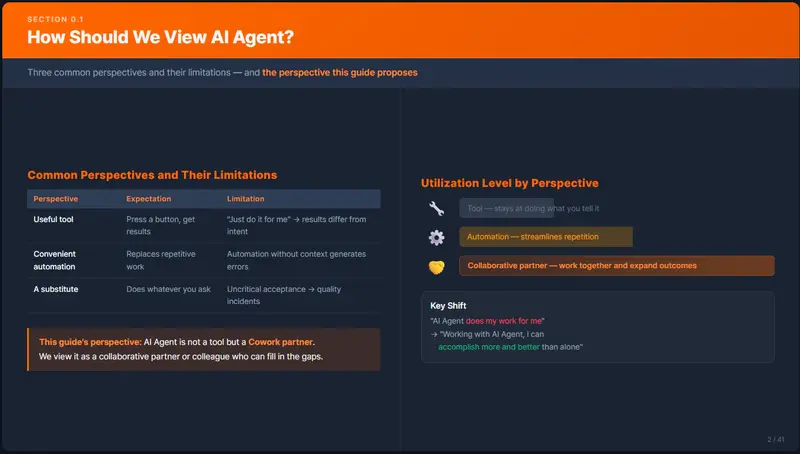
0.1 How Should We Think About AI Agents?

When you first encounter an AI Agent, a natural question arises:

“Is this just a tool, or is it something different?”

People come to it with different expectations.

Perspective Expectation What Goes Wrong in Practice
A useful tool Press a button, get a result Starting with “just figure it out” → results don’t match intent → disappointment
A convenient automation Handles repetitive tasks for me Strong at simple repetition, but automation without context generates errors
Something that does my job for me Do whatever I tell it to Accepting output without verification → quality incidents

None of these perspectives are wrong. But relying on any one of them alone makes it hard to get real value from an AI Agent.

0.2 The Perspective of This Guide — AI Agent as a Collaboration Partner

This guide treats the AI Agent as a cowork partner — a collaboration partner, not just a tool.

A tool does exactly what it is told. An AI Agent, by contrast, reads context, infers missing information, and sometimes suggests a better approach. At the same time, it can also charge ahead confidently in the wrong direction.

This is more like a human colleague than a tool. That is why the most effective way to work with an AI Agent is to collaborate with it as you would a colleague, not to treat it as a tool.

The AI Agent as a collaboration partner:

  • A colleague who fills in the gaps where you are lacking
  • A colleague who produces better results the clearer your instructions are
  • A colleague who needs periodic check-ins to stay on track
  • A colleague where verifying the output remains your responsibility

💡 The right expectation is not “the AI Agent does my job for me” —
it is “working with an AI Agent, I can accomplish more and do it better than I could alone.”

0.3 Practical Example 1 — A Senior Working with an AI Agent in a Junior Role

Situation

The team has a heavy workload but no junior developers.
A senior developer is handling everything alone — design, coding, documentation, and testing.
The senior needs to focus on architecture and design, but implementation and documentation are consuming most of their time.

The AI Agent’s Role: Junior Developer

[Role Division]

Senior (Human)                   AI Agent (Junior Role)
─────────────                    ─────────────────────
① Requirements analysis & design
② Implementation instructions ──→  ③ Code implementation
                                   ④ Unit test authoring
                                   ⑤ Execution report writing
⑥ Code review & verification ←──
⑦ Revision instructions ────────→  ⑧ Revisions applied
⑨ Release decision & deployment

How It Works in Practice

Step 1 — The senior completes the design and issues implementation instructions.

> Implement the user authentication API according to the design below.
> - Design document: docs/auth-design.md
> - Stack: NestJS + Passport.js + Prisma
> - Scope: sign-up, login (social login excluded)
> - When done: summarize the implementation results in ./reports/auth-impl-report.md

Step 2 — The AI Agent implements and reports.

The AI Agent writes the code, runs the tests, and saves an execution report to a file.

Step 3 — The senior reviews the report and verifies the code.

Using the execution report as the baseline, the senior confirms whether the implementation matches the intent.
If there are issues, revision instructions are issued; if not, the release decision is made.

The Key Principles of This Structure

Principle Explanation
Design is done by the human The AI Agent’s role is to “execute” the design
Instructions must be clear Telling a junior “just figure it out” leads to unpredictable results — the same applies here
Output must always be verified You would not deploy a junior’s code without a code review — same rule applies
Intermediate artifacts are saved as files Communication is document-based, not verbal

The senior stays focused on high-value work — design and verification —
while delegating execution work — implementation, documentation, and testing — to the AI Agent.
The cycle of seniors working overtime because there are no juniors is broken.

0.4 Practical Example 2 — A Junior Growing Alongside an AI Agent in a Senior Role

Situation

A startup has no senior developers.
A junior developer has been put in charge of all development, but lacks confidence in architectural decisions and technical judgment.
With no senior to consult, they make solo decisions every time — and often end up reversing them later.

The AI Agent’s Role: Senior Developer (Mentor + Reviewer)

[Role Division]

Junior (Human)                   AI Agent (Senior Role)
─────────────                    ─────────────────────
① Draft requirements
② Request requirements review ──→  ③ Point out gaps & contradictions + ask questions
④ Refine & finalize
⑤ Request design review ─────────→  ⑥ Design review + propose alternatives
⑦ Make direction decision
⑧ Implementation (coding directly)
⑨ Request code review ──────────→  ⑩ Review + improvement feedback
⑪ Apply revisions & learn
⑫ Release decision

How It Works in Practice

Step 1 — The junior writes a requirements draft and asks for a review.

The junior documents the requirements to the best of their knowledge. Perfection is not required.
This is the equivalent of showing a draft to a senior and saying, “Can you check if I missed anything?”

> We need to build a new payment system.
> My draft requirements are in docs/payment-requirements.md.
> Please review this draft.
> - Point out anything missing or contradictory
> - If there are decisions I need to make, list them as questions
> - Save the results to docs/payment-requirements-review.md

Step 2 — The AI Agent surfaces the gaps in the requirements.

The AI Agent analyzes the draft and asks questions about things the junior had not considered.

[Example AI Agent Review — docs/payment-requirements-review.md]

■ Missing Items
  - No retry policy defined for payment failures
  - No partial refund scenario
  - Inventory deduction order for concurrent payment requests is undefined

■ Decisions Required
  Q1. Has a payment gateway been chosen? (Toss Payments / iamport / custom integration)
  Q2. Is recurring billing (subscriptions) in scope for this sprint?
  Q3. Is there a data retention policy for payment records? (PCI-DSS compliance consideration)

■ Contradictions
  - Section 3.2 "real-time notifications" conflicts with Section 4.1 "batch processing"
    → Need to specify which events are real-time and which are batch

Step 3 — The junior provides answers and finalizes the requirements.

By answering the AI Agent’s questions one by one, items they had not initially thought of get addressed.

> Thanks for the review. Here are my answers.
> - Q1: Going with Toss Payments. We already have a contract with them.
> - Q2: Recurring billing is out of scope for this sprint. We'll tackle it in Sprint 2.
> - Q3: PCI-DSS is overkill for our scale — we'll go with a no-card-storage approach.
> - Concurrent inventory deduction: handle with pessimistic locking.
> - Real-time vs. batch: payment completion and failures are real-time; settlements are daily batch.
>
> Please update docs/payment-requirements.md with the above.
> Get my approval before applying any changes.

💡 This process is the heart of junior growth.
When a senior simply asks “have you considered this?” —
the junior has one more item to think about on their own next time.

Step 4 — Architecture is discussed using the finalized requirements as a baseline.

> Review the architecture options based on the finalized docs/payment-requirements.md.
> - Do not implement anything yet. Present 2–3 design approaches with the pros and cons of each.
> - Take our situation into account (3-person team, Toss Payments integration, under 10,000 orders/month).
> - Save the results to docs/payment-architecture-review.md

Step 5 — The AI Agent presents design alternatives.

The AI Agent compares technical options based on the finalized requirements and documents them.
Each option includes pros and cons, risks, and a rationale for the recommendation.

Step 6 — The junior reads, understands, and decides.

The important thing is not to blindly follow the AI Agent’s recommendation, but to understand the reasoning and make the decision yourself. If something is unclear, ask again.

> Can you explain more about why you recommended event sourcing in Option 2?
> Is that architecture appropriate for our scale (under 10,000 orders/month)?

Step 7 — The junior implements directly, then asks the AI Agent for a code review.

> Please review the code in the src/payment/ directory.
> - Check whether it follows the design I chose (Option 1 from docs/payment-architecture-review.md)
> - Check whether it fully implements the finalized requirements (docs/payment-requirements.md)
> - Check for security vulnerabilities
> - If there are improvements to be made, explain why
> - Save the review results to docs/payment-code-review.md

Step 8 — Incorporate the feedback and learn.

Read the AI Agent’s review, understand why each piece of feedback was given, and make the changes.
Through repeated cycles of this process, the junior’s skills in requirements analysis, design, and implementation all grow together.

The Key Principles of This Structure

Principle Explanation
The AI Agent does not build things for you The junior implements; the AI Agent reviews and advises
Decisions are made by the human The AI Agent provides options and rationale; final judgment is the junior’s
Ask “why?” immediately when something is unclear Asking the AI Agent like you would a senior accelerates learning
Document the process Accumulated design reviews and code reviews become the team’s knowledge assets

A junior who was stagnating because there was no senior
uses the AI Agent in a senior role to receive design and review feedback and build their skills.
Not “a tool that does things for you” — but “a partner you grow with.”

0.5 How to Introduce AI Agent Collaboration

Both examples have different role arrangements, but share a common structure:
whether for an individual or an organization, the pattern is filling gaps with the AI Agent and validating through mutual feedback.

To put this into practice, follow these four steps.

Step Phase Key Question Output
1 Diagnose what is lacking What are we missing? The role to assign to the AI Agent
2 Define how the role should be performed How does that role work? A guidelines document (CLAUDE.md, etc.)
3 Apply to small tasks and refine Is it working as intended? Refined role definitions and guidelines
4 Confirm results and expand scope Does it hold up for broader work? Expansion criteria and team-wide guidelines

Step 1. Diagnose What Is Lacking

Start by identifying where the bottlenecks are for the individual or organization.
This diagnosis determines what role to assign to the AI Agent.

Diagnostic Question Senior Team Example Junior Startup Example
What work is backed up? Implementation, documentation, testing Design reviews, code reviews
Why is it backed up? No juniors, so seniors do everything No senior, so work proceeds without validation
What role should the AI Agent fill? Junior developer (delegate execution) Senior developer (reviews and mentoring)

The key is not to start with “what should we have the AI Agent do?” —
but to start with “what are we missing?”

Step 2. Define How the AI Agent Should Perform the Role

Once the role is established, document the way the person currently in that role (or who should be in that role) actually works.

If you tell an AI Agent “act like a junior,” it will interpret that in its own way.
For the AI Agent to perform as intended, the person who actually holds that role needs to document their working methods in concrete detail.

[Example — Senior defining the working method for the "junior role"]

■ When implementing code
  - Read the design document first; do not make any judgment calls not covered by the design
  - After implementation, always write an execution report
  - The report must include: scope of implementation, list of changed files, test results, unresolved issues

■ When writing tests
  - Write unit tests using Jest
  - Achieve at least 80% code coverage
  - If existing tests break, report immediately

→ This content goes into CLAUDE.md or a separate guidelines file.
[Example — Junior defining the working method for the "senior role"]

■ When reviewing requirements
  - Organize missing items, contradictions, and decisions needed as questions
  - Use "have you considered this?" rather than "do it this way"

■ When reviewing code
  - Check alignment against the design document
  - Point out security vulnerabilities and performance issues
  - Present improvements with explanations (for learning purposes)

→ The more clearly the working method is defined, the better the AI Agent's feedback quality will be.

Step 3. Apply to Small Tasks and Refine

Do not apply this to all work at once.
Apply it to one small, low-risk task first, then adjust the role definition and working method.

[Apply → Feedback → Improve Cycle]

    ┌──────────────────────────────────────┐
    │  Apply to a small task                │
    │  (e.g., implement one API,            │
    │   review one document)                │
    └──────────────┬───────────────────────┘
                   ▼
    ┌──────────────────────────────────────┐
    │  Review results — mutual feedback     │
    │  · Did it perform as intended?        │
    │  · Where were the instructions weak?  │
    │  · Where did the AI Agent go wrong?   │
    └──────────────┬───────────────────────┘
                   ▼
    ┌──────────────────────────────────────┐
    │  Improve role definition & method     │
    │  · Update the guidelines file         │
    │  · Refine instruction templates       │
    │  · Clarify verification criteria      │
    └──────────────┬───────────────────────┘
                   │
                   └──→ Apply again to the next task

After 2–3 cycles of this, the role definition and guidelines will stabilize for that type of work.

Step 4. Confirm Results and Expand Scope

Once results are confirmed at a small scale, gradually expand the scope of work and the number of people involved.

Phase Scope Checkpoint
1st Implement 1 API Does the instruct → perform → verify cycle function?
2nd Module-level development Is consistency maintained across work spanning multiple files?
3rd Feature-level development Is the full flow — design → implementation → testing → documentation — stable?
4th Full team adoption Can other team members use the AI Agent effectively with the same guidelines?

Starting with a large task because you are in a hurry
will result in the AI Agent generating large amounts of code in the wrong direction before the role is even properly defined.
Start small, verify, then expand — this is the fastest path.

0.6 Structure of This Guide

Section Chapter Content
Overview Chapter 0 Framing the AI Agent as a collaboration partner ← you are here
Fundamentals Chapter 1 Installing the Claude Code CLI
Chapter 2 Project setup and configuration (CLAUDE.md, Memory)
Chapter 3 Using MCP servers
Chapter 4 Using Sub Agents
Advanced Introduction The four structural limitations of AI Agents
Advanced 1 Caveats for using AI Agents — clear instructions, file saving, task management
Advanced 2 Context management and token optimization

The Fundamentals section focuses on getting up and running.
The Advanced section focuses on using AI Agents correctly and reducing mistakes.