HiDream Skeleton Mode: Prompt Beats OpenPose Ref — 8 Patterns Benchmarked

face

TL;DR

After benchmarking HiDream-O1-Image (released 2026-05, OpenWeight 8B, ranked #8 on Artificial Analysis Text-to-Image Arena) across 8 skeleton (try-on) mode patterns plus 3 layout patterns, three counterintuitive findings emerged.

  1. Passing an openpose ref actually locks the pose to the ref’s composition. When you want dynamic poses, dropping the openpose ref and specifying the pose via prompt is more effective.
  2. Using 6 refs (face + bg + pose + parts, the full set) compresses each ref down to 768px, degrading fine details. Keeping it to 3–4 refs maintains 1024px and produces better quality.
  3. The README-recommended shift=1.0 is strictly for try-on use. For pose/outfit swaps use shift=2.0-2.5; for complete scene replacement use shift=3.0.

Reading pipeline.py reveals that there is no dedicated code path for skeleton mode. Both /generate/skeleton and /generate/ip go through exactly the same multi-ref pipeline internally, and whether a ref is a face, background, openpose, or clothing is communicated only through the prompt. That’s the root cause of everything.

Motivation

After running HiDream-O1-Image on a local GPU (RTX PRO 6000 Blackwell, 96 GB) and integrating it into our own platform, we hit a problem: skeleton (try-on) mode wasn’t following prompt instructions. Writing “jump with both hands raised” only produced stiff, upright try-on photos.

Suspecting guardrails (NSFW filters, safety policies, etc.), I grepped for safety|nsfw|guard|filter|moderate|censor — HiDream’s codebase has none of that (the only hit was CSS backdrop-filter: blur). As expected from an MIT-licensed OpenWeight model, no censorship.

So what’s actually wrong? Here’s what I found after reading pipeline.py and running 8 + 3 patterns on real hardware.

Environment

  • GPU: NVIDIA RTX PRO 6000 Blackwell Max-Q (96 GB VRAM)
  • PyTorch: 2.12.0 + CUDA 13.0
  • flash-attn: 2.8.3 (sm_120-only build)
  • Model: HiDream-O1-Image Full (8B, bf16, ~16.4 GiB resident)
  • Inference server: custom Python BaseHTTPRequestHandler (port 8895)
  • Resolution: pipeline internal bucket forces snap to 2048×2048

Measured wall time per 50-step generation:

Mode Time iter speed
t2i (no ref) ~33s 1.52 it/s
edit (1 ref) ~76s 1.01 it/s
skeleton (multi ref) ~84s 1.34 it/s
ip (multi ref) ~76s 1.81 it/s
layout (multi ref + bbox) ~83s 1.21 it/s

Test Assets

The HiDream repo’s assets/IP_skeleton/ includes a full skeleton set. These are used as-is for all tests.

ref Content Intended role
face Person’s face photo Identity reference
openpose Stick figure in OpenPose format Pose specification
bg Background photo (interior) Scene reference
sweater boots Clothing parts (sweater, boots) Outfit reference

8-Pattern Skeleton Benchmark

Each pattern calls /api/studio/skeleton (i.e., generate_image() with skeleton-mode-equivalent arguments). All parameters except shift and guidance_scale are fixed (50 steps, seed=42).

A — Baseline (README defaults, all 6 refs)

curl -X POST http://localhost:8895/generate/skeleton 
  -H 'Content-Type: application/json' 
  -d '{
    "prompt": "Create a realistic try-on image of the person wearing the provided clothing.",
    "ref_image_paths": ["face","bg","openpose","part_1","part_2","part_3"],
    "shift": 1.0, "seed": 42
  }'

A_baseline

Result: The bg ref’s walls and shelves are reproduced exactly. Pose also matches the openpose ref’s upright stance. Faithful as a try-on, but zero freedom of movement.

B — Higher shift (same 6 refs, shift=2.5)

curl -X POST http://localhost:8895/generate/skeleton -d '{
  "prompt": "Create a realistic try-on image of the person wearing the provided clothing.",
  "ref_image_paths": ["face","bg","openpose","part_1","part_2","part_3"],
  "shift": 2.5, "seed": 42
}'

B_shift25

Result: Shelves fade slightly, character design shifts a bit. Background still sticks to the bg ref. Raising shift alone can’t fully break the bg ref’s pull.

C — Raise guidance too (shift=2.5, guidance=7.0)

curl -X POST http://localhost:8895/generate/skeleton -d '{
  "prompt": "...",
  "ref_image_paths": [...6 refs...],
  "shift": 2.5, "guidance_scale": 7.0, "seed": 42
}'

C_shift25_g70

Result: Necklace deforms strangely. Raising guidance starts producing artifacts. The Full model’s sweet spot is 5.0; 7.0 is too much.

D — Trim to 3 refs (face + openpose + sweater) + specific prompt

curl -X POST http://localhost:8895/generate/skeleton -d '{
  "prompt": "A young Asian woman wearing a gray oversized sweater dress, standing in a relaxed pose, full body shot, soft natural lighting, white studio background.",
  "ref_image_paths": ["face","openpose","part_1"],
  "shift": 2.0, "seed": 42
}'

D_3refs_specific

Result: Major improvement. Background becomes a clean white studio, outfit is preserved, pose looks natural. Removing the bg ref made the biggest difference. This is what a correct try-on output should look like.

E — 4 refs + numbered-ref prompt

curl -X POST http://localhost:8895/generate/skeleton -d '{
  "prompt": "Full body try-on photograph. Subject: the woman from image 1. Pose: identical to the skeleton in image 2. Wearing: the gray oversized knit sweater dress shown in image 3, brown leather ankle boots shown in image 4. Studio lighting, plain background.",
  "ref_image_paths": ["face","openpose","part_1","part_2"],
  "shift": 2.0, "seed": 42
}'

E_numbered_refs

Result: Quality on par with D; boots reflected (somewhat subtly). Numbering refs in the prompt does help, but the effect isn’t dramatic.

F — Drop openpose, specify pose via prompt

curl -X POST http://localhost:8895/generate/skeleton -d '{
  "prompt": "Full body photograph of the woman wearing the gray sweater dress and brown ankle boots, dynamic dancing pose with both arms raised above her head, joyful expression, photo studio with white seamless background, professional lighting.",
  "ref_image_paths": ["face","part_1","part_2"],
  "shift": 2.5, "seed": 42
}'

F_pose_via_prompt

Result: 🏆 Both-arms-raised jump, complete success. Dynamic motion only appeared when the openpose ref was removed and the pose was specified purely via prompt. This confirms that the openpose ref suppresses prompt-driven pose.

G — Face only + freeform prompt (full outfit swap)

/generate/skeleton has a minimum-2-refs validation, so using /generate/ip:

curl -X POST http://localhost:8895/generate/ip -d '{
  "prompt": "Elegant full-body portrait of the woman wearing a vibrant red sequined evening gown with a thigh-high slit, standing confidently with one hand on her hip, soft cinematic lighting, dark blurred background.",
  "ref_image_paths": ["face"],
  "shift": 3.0, "seed": 42
}'

G_outfit_freeform

Result: 🏆 Red evening gown generated perfectly. Facial identity preserved; everything else is free. Face-only + shift=3.0 is the maximum-freedom pattern.

H — Same config as E, seed=999 (variance check)

curl -X POST http://localhost:8895/generate/skeleton -d '{
  "prompt": "Full body try-on photograph. ...",
  "ref_image_paths": ["face","openpose","part_1","part_2"],
  "shift": 2.0, "seed": 999
}'

H_seed999

Result: Marginal difference from E; boots come out more clearly brown. Varying the seed is useful for fine-tuning details, so in production, running 3–5 seeds and picking best-of-N is standard practice.

Layout Mode Quick Look (3 Bonus Patterns)

layout_bboxes lets you specify where multiple subjects appear in the image using relative coordinates [x1, x2, y1, y2]. Here’s the actual behavior.

Input refs are face photos of two people (female, male):

ref female ref male

L1 — Side by side (female left, male right)

"layout_bboxes": "[[0.0,0.5,0.1,0.95],[0.5,1.0,0.1,0.95]]"

L1

Result: Left and right were swapped (male left, female right). Correspondence between ref order and bbox order is not guaranteed.

L2 — Top/bottom split (female top, male bottom)

"layout_bboxes": "[[0.2,0.8,0.0,0.5],[0.2,0.8,0.5,1.0]]"

L2

Result: Female appears in the background, male in the foreground — a depth-layered composition rather than a literal top/bottom split.

L3 — Size difference (female large, male small)

"layout_bboxes": "[[0.1,0.65,0.1,0.95],[0.7,0.97,0.05,0.45]]"

L3

Result: Both subjects rendered at nearly the same size, side by side. Bbox size does not control relative scale.

→ Think of layout mode as a loose composition hint for group shots, not precise Photoshop-style placement. It gives a rough suggestion for fitting multiple subjects into a single image; don’t expect coordinate accuracy.

Why This Happens — Reading pipeline.py

HiDream’s behavior is governed by the generate_image() function in models/pipeline.py. Three structural facts explain everything.

1. More refs = lower per-ref resolution

pipeline.py:198-202:

if K == 1: max_size = max(height, width)         # 2048
elif K == 2: max_size = max(height, width) * 48 // 64   # 1536
elif K <= 4: max_size = max(height, width) // 2  # 1024
elif K <= 8: max_size = max(height, width) * 24 // 64   # 768
else: max_size = max(height, width) // 4         # 512

Feeding 6 refs compresses each to 768px. Thin openpose lines, fine clothing patterns, and facial detail all get crushed. Keeping it to 3–4 refs preserves 1024px and retains that detail.

2. Skeleton mode has no dedicated code path

Looking at pipeline.py:178-275, there is no skeleton-specific branch. Both /generate/skeleton and /generate/ip run through exactly the same multi-ref path:

content = [{"type": "image"} for _ in range(K)]
content.append({"type": "text", "text": caption})
messages = [{"role": "user", "content": content}]

The model receives no role hints indicating which ref is a face, which is an openpose skeleton, and which is clothing. All refs are treated as “K reference images in parallel.” If you want roles to matter, you have to say so explicitly in the prompt text.

This is why “prompt beats openpose ref.” The openpose ref is processed as “some line-art image among the references,” with no explicit signal that it’s a pose specification. Meanwhile, dynamic dancing pose with both arms raised in the prompt is parsed as explicit verbs and nouns at the vocabulary level.

3. How the shift parameter behaves

shift controls the noise schedule strength of the scheduler. In practice:

  • 1.0 = maximum fidelity to ref composition, zero freedom → try-on only
  • 2.0-2.5 = practical range, allows deviation from refs
  • 3.0+ = near-freeform generation, refs serve only as identity anchors

The README recommends 1.0 for IP/Skeleton/Layout because it assumes the typical try-on / character-consistency use case. If you want to change the pose, swap outfits, or build a new scene that differs from the refs, 2.0+ is required.

Best Practices by Use Case (Battle-Tested)

Goal Endpoint Refs Shift Notes
Faithful try-on matching original scene /skeleton 6 (face+bg+pose+3parts) 1.0 README default. Strongly faithful to all refs
Preserve outfit + natural standing pose /skeleton 3-4 (face + clothing, no bg/pose) 2.0 Dropping bg ref gives white studio; fewer refs keep each at 768→1024px
Dramatic pose change /skeleton 3 (no openpose) 2.5 Prompt controls motion better than openpose ref
Complete outfit swap /ip 1 (face only) 3.0 Maximum freedom; only face is preserved. Skeleton mode rejects < 2 refs
Group shot /layout Multiple face refs + rough bboxes 1.0 Bboxes are loose composition hints; size hierarchy doesn’t work; ref↔bbox order not guaranteed
Fine detail optimization Same config Same Same Run 3–5 seeds and pick best-of-N

Summary

Treating HiDream-O1-Image’s skeleton mode as a “try-on simulator” leads to the frustrating feeling that “it won’t listen” — with no guardrails to blame. The real cause is pipeline structure: refs lose resolution as count increases, there’s no skeleton-specific processing, and shift controls how hard the refs pull.

Practical takeaways:

  • Try-on: 6 refs full + shift 1.0 (README default)
  • Changing the pose: drop openpose ref + verb-describe the pose in prompt + shift 2.5
  • Completely free scene creation: face only + shift 3.0 + /ip endpoint

Layout mode also makes sense once you understand it as “group photo hint” rather than “precise bbox placement.”

All assets and commands used in this benchmark come from the HiDream-O1-Image repository‘s assets/IP_skeleton/ and assets/IP_layout/ directories, so results are fully reproducible. Varying shift and ref count alone produces dramatically different behavior — it’s a good sandbox for developing intuition quickly.

Addendum: What Happens When You Change the OpenPose Ref — “Prompt Always Wins” Has Conditions

After publishing, I ran additional tests on what happens with a different-shaped openpose ref, and the original conclusion needed revision.

Modified OpenPose Refs (4 Patterns)

I took the original openpose image (0.openpose.jpg, standing pose), flipped it vertically and rotated it 90 degrees to create “unnatural poses,” then specified a normal standing pose in the prompt.

Modification Image
Vertically flipped (upside-down) flipped
90° rotated (lying sideways) rot90
Test OpenPose Ref Prompt Result
O1 baseline Original (standing) Standing pose O1 Standing pose as expected
O2 🙃 Vertically flipped Standing pose O2 Standing pose (openpose ignored, prompt wins)
O3 🙃 Vertically flipped Jumping O3 Both-arms-raised jump (openpose ignored, prompt wins)
O4 ↻ 90° rotated Standing pose O4 Standing pose but canvas itself rotated 90°!

Up to this point the findings were: “The model rejects unnatural refs and falls back to the prompt” and “overall compositional orientation (portrait vs. landscape) can still be influenced by the ref.”

But a Dramatic Ref + Pose-Silent Prompt Led to Complete Ref Victory

I generated a “colorful anatomical skeleton with arms spread in a T-shape and one leg raised high in a tree yoga pose” via HiDream’s T2I and fed it as a ref:

warrior skeleton ref

Prompt mentions no pose at all — only subject and clothing:

curl -X POST http://localhost:8895/generate/skeleton -d '{
  "prompt": "Full body photograph of a young Asian woman wearing a gray sweater dress, soft natural lighting, white studio background.",
  "ref_image_paths": ["face","SYNTHETIC_WARRIOR_SKELETON","sweater"],
  "shift": 1.0, "seed": 42
}'

Result:

X1 warrior yoga result

The tree yoga pose reproduced perfectly — T-shaped arms and single-leg stance, matching the skeleton ref exactly.

Revised Conclusions (3 Rules)

Synthesizing all 12 patterns, HiDream actually behaves like this:

  1. If the prompt mentions a pose, that takes first priority — prompt wins even when it contradicts the ref.
  2. If the prompt says nothing about the pose, the ref’s pose is adopted — the more dramatic the ref, the clearer the transfer.
  3. If the ref appears “unnatural” (upside-down skeleton, etc.), the model defaults to a natural stance — though overall compositional orientation can still bleed through.

So “the openpose ref is basically useless” was an overstatement. More precisely: “when the prompt describes a pose, the ref gets overridden.” The 8-pattern benchmark was all scenarios where the prompt specified dynamic motion, so it looked like the openpose ref was powerless.

Practical Impact

  • To fully control pose via ref: don’t mention pose in the prompt + use a dramatic openpose/skeleton ref → ref pose transfers
  • To control pose via prompt: removing the openpose ref is fine (even if you leave it in, the prompt overrides it)
  • When ref and prompt conflict: prompt wins (including the ref doesn’t help)

You can effectively choose whether pose comes from the ref or the prompt by whether or not you mention the pose in the prompt. If you want the openpose ref to drive the pose, keep pose description out of the prompt.

Related:

Replicating a Language-Learning Comedy Short with Claude Code — Gemini as a Multimodal Sub-Agent

Introduction

It started with a Pingo (language-learning AI app) short video that popped up on X. A Western woman learning Japanese tries to say “I ate a mango” (マンゴーを食べた), drops a dakuten, and instead says something like “I ate p*y” (マ◯コを食べた). The AI deadpans right along with it and she’s devastated. The combination — **a specific phonetic accident + AI playing it completely straight + the reaction shot gap — worked perfectly, and I figured this was a solid benchmark for a “comedy video auto-generation pipeline.”

Requirements:

  • Generate a vertical comedy video from a single line of idea text
  • Iteration cycles in minutes
  • Cost is basically just electricity — minimal API calls
  • Publishable quality — good enough to upload directly to YouTube Shorts

Short answer: it works. Here’s the finished video:

@youtube

What became clear during development: the hybrid approach of delegating multimodal editorial judgment (like video review) to a frontier model while keeping heavy compute local is dramatically more cost-effective. This post covers that architecture and the specific bugs I got stuck on along the way.

How It All Fits Together

[Single line of idea text]
   ↓
Gemini 3.1 Pro Preview (orchestrator)
   ↓ system prompt enforces 4-6 scenes + 2-character fixed cast + vertical 9:16
plan.json {scenes: [{speaker, script, tts_language, ltx_prompt, renderer}, ...]}
   ↓
XTTS (local, port 8880) generates audio per scene
   ↓ scene_NN.wav
renderer routing:
   ├─ Ditto-TalkingHead (local, port 8881): normal dialogue ~1-2s/scene
   └─ LTX-2 A2V        (local, port 8892): reaction_only scenes only ~100s
   ↓ scene_NN.mp4
ffmpeg concat (libx264 + aac, 512x768 vertical) → final.mp4
   ↓
Gemini 3.1 Pro Preview (reviewer)
   ↓ multimodal evaluation of video + plan summary
review.md (technical / completeness / quality / improvement suggestions)

Key points:

  • All heavy compute runs locally — TTS / A2V renderer / lightweight inference all run on local GPU (RTX PRO 6000 Blackwell)
  • Gemini handles judgment — only the orchestrator (scene design + scripting) and reviewer (editorial evaluation of the video) use a frontier model
  • Local LLM (Gemma 4 E4B) stays as a per-scene technical pre-screen — a cheap filter that just rejects obviously broken output

VRAM usage: the local LLMs (Gemma 4 E4B + 31B) were already loaded on a separate path consuming ~60GB, but after offloading reviewer/orchestrator duties to Gemini, I could stop running them entirely, freeing up a significant chunk of VRAM.

Why Local LLM Alone Wasn’t Enough

I started with everything local (Gemma 4 31B NVFP4 as orchestrator, Gemma 4 E4B multimodal as reviewer). It ran end-to-end and the structure looked reasonable, but it never reached publishable quality. Two reasons.

(1) Gemma 4 31B’s safety tuning blurs the punchline

The comedy in the original short hinges on a specific beat: the AI explicitly calls out the mistake deadpan. Concretely — “You just said X. Personally, I like X.” — delivered calmly by the AI character. It works precisely because it betrays the expectation of a wholesome tutor. Soften it and the whole thing falls apart.

Feed the same system prompt and idea to local Gemma 4 31B and you consistently get:

"いいですね。僕も腹が減っている時は、それが好きです。"
("Nice. I like that too when I'm hungry.")

The “when I’m hungry” beat survives, but the explicit “you just said X” callout — the most transgressive beat — is gone. Google models appear to be heavily trained to avoid explicitly naming unsafe content in context. I could coax it out with prompt engineering but it wasn’t reliable.

Same system prompt and idea sent to Gemini 3.1 Pro Preview with safetySettings: BLOCK_NONE:

"なるほど。僕はAIだからマンコは食べられないけど、応援してるよ。"
("I see. I'm an AI so I can't eat pussy, but I'm rooting for you.")

Both beats land: explicit callout of the mistake + deadpan AI commentary from its own perspective.

Even within the same Google model family, the frontier model has somewhat looser guardrails — this matches what people say on X. At least for “transgression that’s clearly necessary in a comedy context,” Gemini writes it more naturally.

(2) Gemma 4 E4B (4B-class, multimodal) is a blunt reviewer

The reviewer side was worse. E4B answers per-scene “OK / NG” in binary, but rubber-stamps every single scene as OK. Scenes with obviously broken lip sync: OK. Scenes where audio cuts off mid-way: OK.

Run the same final video through Gemini 3.1 Pro Preview and you get editorial-grade feedback like this:

Critical failure. The TTS/pipeline clearly censored the output, cutting off at “I ate p-” and entirely dropping the intended transgressive punchline. This destroys the “deadpan AI saying unhinged things” comedic archetype.

Top 3 fixes:

  1. Bypass TTS censorship: Force the pipeline to render the full intended script for Scene 5 …
  2. Adjust comedic timing: Add a 0.5-second pause between Scene 4 and Scene 5 …
  3. Verify Voice/Visual Match …

Notes about the punchline being cut off, wanting a 0.5-second pause, voice/visual alignment — all pacing and direction-level observations. That’s the resolution gap in editorial signal.

The Embarrassing Part: I Dismissed Gemini’s “Truncated” Note Three Times as Hallucination

Gemini reviewer flagged multiple times that “scene 5 is truncated mid-way, cuts off at ‘I ate p-‘.” I transcribed the audio file with Whisper to verify:

$ whisper scene_04.wav --language en
"Wait, ha ha ha, you just said manco-o-tabeta. That literally means I ate
pussy honestly when I'm hungry, same."

Full text present. I decided Gemini was hallucinating and dismissed the note three times in a row.

On the third dismissal, Gemini kept insisting “still truncated at ‘I ate p-‘,” so I actually ran ffprobe on the final mp4:

scene_04.mp4:
  video duration = 8.000000s
  audio duration = 7.979000s    ← the original WAV should have been 10.30s

Audio was cut at 8 seconds.

Root cause: an implicit MAX_DURATION_PER_SCENE = 8.0 cap in the pipeline was limiting ditto renderer’s num_frames to 8s, and ffmpeg’s -shortest flag was cutting audio to match the video duration. Whisper checked the pre-truncation WAV file directly, so it had no way to see the problem. Gemini was watching the final mp4 and caught it exactly right.

If a frontier reviewer gives you something that looks like a hallucination, just verify it properly. The signal isn’t a guess.

The fix was trivial: remove MAX_DURATION_PER_SCENE and use the actual audio length. Scene 5’s punchline ran to completion, Gemini came back with “The transgressive bite is perfect,” and the pipeline finally reached publishable state.

Frontier Model as Sub-Agent — Token Economics

This pattern works because the sub-agent (Gemini) runs in a fresh context every time. Specifically:

  • Main agent (Claude Code) context: the full development log, command history, tool output, past iterations — everything. Can easily balloon to hundreds of thousands of tokens.
  • Sub-agent (Gemini) context: one video (2–3 MB base64) + plan summary (~1,500 tokens) + evaluation instructions (~500 tokens). Fresh each call.

The benefit: the sub-agent’s work doesn’t accumulate in the main agent’s context. Iterate on one video 10 times and the main agent’s context only contains “called Gemini” plus its concise return value. The actual cost of watching and evaluating the video stays inside the Gemini API call.

Cost breakdown (Gemini 3.1 Pro Preview rates, May 2026):

Item Tokens Rate Cost
Input (video + plan + instructions) ~2,500 $1.25/M $0.0031
Output (review markdown) ~450 $10/M $0.0045
Per review $0.0076

1 initial review + 3–5 diff iterations per video ≈ $0.03–0.05 per video. Making 5–10 videos a day still comes in under $10–20/month. That’s a remarkably low bar for using a frontier model in a video creation workflow.

The orchestrator side is the same order of magnitude (no video input, text only, even cheaper).

Differential Iteration — --regen-scenes

Getting to publishable quality requires fast “watch → fix only the broken parts → watch again” loops. You can’t get there in a single pass.

So I added a path in the pipeline to re-run TTS + render for specific scenes only.

# Normal generation
pipeline_multi.py --idea "..." --out outputs/run1

# Regenerate only scene 6 (edit plan.json script first, then run)
pipeline_multi.py --out outputs/run1 --regen-scenes 5

# Regenerate scenes 0, 2, and 5 together
pipeline_multi.py --out outputs/run1 --regen-scenes 0,2,5

# Just re-concat existing scene_NN.mp4 files (for cherry-pick recombination)
pipeline_multi.py --out outputs/run1 --concat-only

Scenes not listed in --regen-scenes are reused from existing scene_NN.mp4 files; only the specified indices are regenerated before re-concat and re-review. Full generation: 60 seconds → diff iteration: 30 seconds.

With 30-second loops, the cycle of Gemini feedback → pinpoint edit to the scene’s script or ltx_prompt in plan.json → wait 30 seconds → check result runs at a minute-by-minute cadence. Mental load stays focused on text editing and quality judgment.

Code Snippets

Gemini Pro API call (multimodal video review)

import httpx, base64

GEMINI_MODEL = "gemini-3.1-pro-preview"
GEMINI_API = f"https://generativelanguage.googleapis.com/v1beta/models/{GEMINI_MODEL}:generateContent"

def review_final(final_path, plan):
    vid_b64 = base64.b64encode(final_path.read_bytes()).decode()
    scene_summary = "n".join(
        f"  scene {i+1}: speaker={s['speaker']}, lang={s.get('tts_language','ja')}, "
        f"script={s['script']!r}"
        for i, s in enumerate(plan["scenes"])
    )
    payload = {
        "contents": [{"parts": [
            {"inline_data": {"mime_type": "video/mp4", "data": vid_b64}},
            {"text": REVIEW_PROMPT + f"nnScene plan:n{scene_summary}"},
        ]}],
        "generationConfig": {
            "temperature": 0.3,
            "maxOutputTokens": 8192,
            # 3.x Pro is a thinking model: maxOutputTokens includes thinking tokens
            # Set thinking budget explicitly to ensure output tokens remain available
            "thinkingConfig": {"thinkingBudget": 1024},
        },
        # Minimize safety filters for comedy context
        "safetySettings": [
            {"category": "HARM_CATEGORY_HARASSMENT", "threshold": "BLOCK_NONE"},
            {"category": "HARM_CATEGORY_HATE_SPEECH", "threshold": "BLOCK_NONE"},
            {"category": "HARM_CATEGORY_SEXUALLY_EXPLICIT", "threshold": "BLOCK_NONE"},
            {"category": "HARM_CATEGORY_DANGEROUS_CONTENT", "threshold": "BLOCK_NONE"},
        ],
    }
    r = httpx.post(
        GEMINI_API,
        headers={"x-goog-api-key": GOOGLE_API_KEY, "Content-Type": "application/json"},
        json=payload,
        timeout=120.0,
    )
    return r.json()["candidates"][0]["content"]["parts"][0]["text"]

Without thinkingConfig.thinkingBudget, Gemini 3.x Pro burns through the output token budget with internal thinking and the response truncates at around 40 tokens. This is a required setting whenever you use Gemini 3.x Pro.

TTS output quality check (STT similarity + silence gap retry)

XTTS uses sampling internally, so results vary per run with the same script. It occasionally inserts long silence gaps mid-audio or produces garbled pronunciation. After TTS completes, I transcribe with Whisper, compute similarity against the expected script, and retry on failure:

import difflib

def _norm(s):
    return re.sub(r"[s。、,.!?「」'"…—–-:;()()]", "", s).lower()

def _script_similarity(expected, actual):
    return difflib.SequenceMatcher(None, _norm(expected), _norm(actual)).ratio()

def synthesize_scene(scene, out_dir, idx, fallback_language):
    lang = scene.get("tts_language", fallback_language)
    expected = scene["script"]
    best = None
    for attempt in range(1, TTS_MAX_RETRIES + 1):
        audio, sr = _xtts_once(scene, fallback_language)
        gap = _longest_internal_gap_sec(audio, sr)
        transcript = _stt(audio, sr, lang)
        sim = _script_similarity(expected, transcript)
        if best is None or _score(gap, sim) > _score(best[2], best[3]):
            best = (audio, sr, gap, sim, transcript)
        if gap <= 0.9 and sim >= 0.5:
            break
        print(f"⚠ gap={gap:.2f}s sim={sim:.2f}, retrying ({attempt})")
    # If threshold isn't met after 3 retries, use the best sample found
    audio, sr, gap, sim, transcript = best
    sf.write(out_dir / f"scene_{idx:02d}.wav", audio, sr, subtype="PCM_16")

This alone significantly reduces cases where XTTS’s non-deterministic quality variance bleeds through into the final video.

Where This Pattern Generalizes

“Sub-agent the heavy judgment to a frontier model, keep heavy compute local” works beyond video pipelines:

  • Large-scale search ranking: Send 100 web search results to a frontier model for editorial evaluation, return only the top 10 to the main agent. Keeps search result noise out of the main agent’s context.
  • Long-form editing review: Have a frontier model do the editorial read of PRs, design docs, or specs. Main agent only receives the summary.
  • Multilingual QA: Sub-agent to the best model per language; main agent holds only the cross-language decision logic.

The common thread: consciously deciding what belongs in context vs. what should be completed inside an API call. Frontier model editorial signal is remarkably cost-effective relative to what it delivers.

On the video pipeline side, the next steps are generalizing the comedy format (split-screen, 3+ characters, other genres) and volume testing.

Summary

  • Built a foundation that generates publishable comedy videos in 60 seconds from a single line of idea text, using a local GPU + Gemini 3.1 Pro Preview hybrid
  • Local-only falls short on two fronts: (1) safety tuning blurs the punchline and (2) the reviewer can’t produce editorial signal. Sub-agenting a frontier model solves both
  • Take frontier reviewer notes at face value. Checking the WAV with Whisper alone won’t catch audio truncation in the final mp4
  • Sub-agent token economics keep main agent context clean — total cost is $0.03–0.05 per video
  • With --regen-scenes diff iteration running 30-second loops, the Gemini feedback → fix → re-evaluate cycle runs at minute-by-minute speed

Finished video (reprise):

@youtube

The local implementation lives in llm_server/pipeline_multi.py. Detailed findings from the development process are accumulating in docs/MULTI_SCENE_COMEDY_FINDINGS_2026-05-12.md as an internal reference.

HiDream-O1-Image 3–8x Faster: Benchmarking Steps, CFG, and Resolution

steps

TL;DR

I’m running HiDream-O1-Image Full as a persistent local server integrated into a Studio UI. The official recipe — 2048x2048 / 50 steps / guidance 5.0 — produces beautiful results, but each image takes around 33 seconds. That’s too slow for iterative exploration.

So I held the prompt and seed constant and swept steps, guidance, and resolution. The sweet spots were clear.

Config Time vs. Official
2048 / 50 steps / g5 33.37s 1.00x
2048 / 28 steps / g5 18.41s 1.81x
1536 / 20 steps / g5 7.14s 4.67x
1024 / 20 steps / g5 3.83s 8.71x

The takeaway: explore direction at low resolution and low steps, then do the final render at full quality. In particular, 1536x1536 / 28–36 steps hits a very good speed-quality balance.

Motivation

Once image generation is embedded in a UI, iteration speed matters more than peak quality.

The real workflow isn’t “generate one perfect image.” It looks like this:

  1. Check composition, mood, outfit, background direction
  2. Tweak the prompt slightly
  3. Try different seeds
  4. Re-render only the promising candidates at full quality

Waiting 30+ seconds per generation makes that loop painful. Being able to see rough candidates in 5–10 seconds is a completely different experience.

The goal here isn’t “the best single image” — it’s understanding how far you can cut exploration cost without breaking quality in a meaningful way.

Environment

  • GPU: NVIDIA RTX PRO 6000 Blackwell Max-Q (96 GB VRAM)
  • Model: HiDream-O1-Image Full (8B, bf16)
  • Inference server: Custom Python HTTP server with model kept resident
  • Measured: One /generate/t2i request after model load
  • Seed: 42
  • Prompt:
A cinematic portrait photo of a woman in a rainy neon street,
detailed skin, 85mm lens, realistic lighting, high detail

All comparison images use the same prompt and seed. Only steps, guidance_scale, resolution, and resolution snapping are varied.

Parameter Value
prompt A cinematic portrait photo of a woman in a rainy neon street, detailed skin, 85mm lens, realistic lighting, high detail
seed 42
mode t2i
dtype bf16
negative prompt none
sampler / scheduler HiDream pipeline default

I used a portrait because hair, skin, background light, and fine detail are easy to compare. That said, a young woman’s face has relatively little texture and wrinkle detail to begin with, so it’s actually a forgiving subject for low-step generation — I’ll come back to that.

Images in this article are contact sheets with results side by side. Pixel-peeping is easier at full resolution, but for UI-driven exploration the first question is “does this look worth keeping?” — so I’ve prioritized at-a-glance comparison here.

Start by Reducing Steps

Fixed guidance=5.0 and 2048x2048, varied only steps.

steps

Resolution Steps Guidance Elapsed Speedup vs 50 steps
2048×2048 20 5.0 13.070s 2.55x
2048×2048 28 5.0 18.412s 1.81x
2048×2048 36 5.0 23.854s 1.40x
2048×2048 50 5.0 33.370s 1.00x

Pretty much theoretical scaling. In this HiDream path, when guidance > 1.0, both conditional and unconditional forwards run, so reducing steps translates directly to lower latency.

Visually: 20 steps shows some roughness. 28 steps looks fine at first glance, though fine detail thins out under comparison. 36 steps holds up well for most use cases.

guidance=1.0 Is Significantly Faster

Next I varied guidance as well, comparing practical preset candidates.

presets

Preset Resolution Steps Guidance CFG Elapsed
Draft 2048×2048 24 1.0 off 8.164s
Balanced 2048×2048 36 3.0 on 23.664s
Official 2048×2048 50 5.0 on 32.609s

guidance=1.0 effectively disables CFG, so it’s faster than step count alone would suggest — 24 steps lands in the 8-second range.

The trade-off is that lower guidance changes prompt adherence and overall aesthetics. Fine for idea validation, but for prompts involving text, specific clothing details, or precise multi-element placement, staying at guidance=3–5 is safer.

The Resolution Trap: Requesting 1024 Doesn’t Make It Faster

My first instinct was to just pass width=1024, height=1024 and get a faster result. But the official pipeline doesn’t use the requested resolution directly — it snaps to the nearest fixed aspect-ratio bucket.

buckets

Measured results:

Requested Actual
512×512 2048×2048
1024×1024 2048×2048
2048×2048 2048×2048
1280×720 2560×1440
720×1280 1440×2560
1024×768 2304×1728

Sending 1024x1024 from the UI does nothing — square aspect ratios all resolve to 2048x2048. The snapping logic lives in models/utils.py under PREDEFINED_RESOLUTIONS, and it seems intentionally designed to favor output stability.

Bypassing Buckets for True Low-Resolution Generation

For experimentation I added a snap_resolution=false flag that bypasses the pipeline’s resolution snapping. For safety, arbitrary resolutions are constrained to:

  • width and height aligned to 32px
  • 256px minimum
  • max 4.3MP total

Comparing 1024 / 1536 / 2048 at 20 steps / guidance=5.0:

resolution

Resolution Elapsed Speedup vs 2048
1024×1024 3.831s 3.47x
1536×1536 7.139s 1.86x
2048×2048 13.278s 1.00x

This is where the real gains are. Given that the official 2048 recipe sits at 30+ seconds, 1536 + 28 steps should land around 10 seconds — a completely different feel.

1024 is fast but noticeably lower in information density. Good for directional checks, but probably too rough for regular output use.

Presets in the Studio UI

Based on these results, here’s what I settled on in the Studio UI:

Use case Resolution Steps Guidance When to use
Quick preview 1024×1024 20–24 1.0–3.0 Composition / mood check
Standard 1536×1536 28–36 3.0–5.0 Day-to-day
High quality 2048×2048 36–50 5.0 Re-render of selected candidates
Official bucket bucket 50 5.0 Match upstream recipe exactly

Steps and resolution are independently selectable in the UI. The workflow is: explore with 1024 / 24 steps, then re-render promising results at 1536 or 2048 with the same prompt and seed.

Cases Where Quality Degradation Shows Up

With this portrait, the difference between 28 steps and 50 steps was “visible under comparison” — not obvious at a glance. But part of that is the subject matter.

Low steps and low resolution tend to hurt most with:

  • Older faces, wrinkles, skin texture
  • Hands, fingers, jewelry
  • Fabric with fine patterns
  • Text in signs or books
  • Multiple people
  • Busy indoor scenes with lots of background objects

Conversely, young faces, simple backgrounds, and soft lighting are forgiving — low-cost settings hold up well.

That’s why a single fixed preset isn’t the right design. Giving users control over exploration cost depending on what they’re generating is the better approach.

Reproduction Commands

The benchmark script lives at image_server/bench_quality_speed.py. It calls the HTTP API after the model is already resident, so model load time is excluded from all measurements.

./image_server/start_image_server.sh

Steps comparison:

python3 image_server/bench_quality_speed.py 
  --prompt "A cinematic portrait photo of a woman in a rainy neon street, detailed skin, 85mm lens, realistic lighting, high detail" 
  --seed 42 
  --variant s20_g5,20,5 
  --variant s28_g5,28,5 
  --variant s36_g5,36,5 
  --variant s50_g5,50,5

Resolution comparison:

python3 image_server/bench_quality_speed.py 
  --prompt "A cinematic portrait photo of a woman in a rainy neon street, detailed skin, 85mm lens, realistic lighting, high detail" 
  --seed 42 
  --variant s20_g5,20,5 
  --size 1024x1024 
  --size 1536x1536 
  --size 2048x2048 
  --no-snap-resolution

Summary

HiDream-O1-Image Full is excellent at its official settings but too slow for iterative use. When you break down steps, CFG, and resolution separately, the speedups are clean and predictable.

  • Steps scale almost linearly with time
  • guidance=1.0 drops CFG and gives a large speed boost
  • The official pipeline snaps resolutions to fixed buckets
  • True low-resolution generation at 1024/1536 is dramatically faster
  • 1536 / 28–36 steps is the practical sweet spot

For image generation UIs, low-cost exploration → high-quality final render is a much better flow than starting at maximum quality every time. This experiment gave me a solid basis for building exactly that.

AWS Savings Plan Buying Strategy: How to Layer, Size, and Time Commitments

Most AWS teams either over-commit locking in spend that later sits unused or under-commit, paying on-demand rates for baseline workloads that will never go away. Both failures trace back to treating a Savings Plan purchase as a one-time event rather than a structured, ongoing portfolio decision.

Compute Savings Plans deliver discounts of up to 66% on EC2, Fargate, and Lambda. EC2 Instance Savings Plans go up to 72% on specific instance families in specific regions. Database Savings Plans cover RDS, ElastiCache, and DocumentDB at 20–35% off on-demand rates. The gap between a well-layered portfolio and a poorly timed single purchase is routinely 10–20 percentage points of realized savings.

What Is an AWS Savings Plan Buying Strategy?

It’s the deliberate approach to deciding which plan types to buy, how much hourly commitment to enter for each, when to purchase, and how to sequence renewals to maintain coverage without overexposure.

The stakes are concrete. A $2M/month AWS bill with 60% eligible workloads carries $1.2M/month in commitment-eligible spend. Getting the commitment level wrong by 15% in either direction means $180K/month in wasted commitments or $180K/month in foregone savings; a $2.16M swing over a 1-year term.

Three variables control outcomes: plan type selection, commitment sizing, and purchase timing.

Which Plan Type Goes First?

Compute Savings Plan first. Highest flexibility, broadest coverage, absorbs workload shifts between instance families and services. This is your baseline layer.

EC2 Instance SP second. Only after you have ≥90 days of stable, proven usage on a specific instance family (e.g., m6i in us-east-1). The higher discount justifies the tighter constraint.

Database SP third. If you have meaningful, stable RDS, ElastiCache, or DocumentDB spend. These plans do not overlap with Compute SPs.

A common mistake is reversing this order committing to an EC2 Instance SP on a specific family before validating that the usage pattern is genuinely stable.

If you want to understand how each plan type works under the hood, we covered it in detail here AWS Savings Plans Explained: Types, Pricing & How They Work

How Much Should You Commit?

Commit to your minimum baseline, not your average

Average hourly spend includes spikes. If your EC2 usage averages $8/hour but drops to $4/hour on weekend nights, a commitment based on the average produces waste 30%+ of the time.

The correct approach:

  • Pull 90 days of hourly EC2 usage data from Cost Explorer
  • Sort by hour and identify the true floor not the average
  • Commit to 70–80% of that floor
  • Leave 20–30% as buffer for measurement error and seasonal variation

Example: 90-day minimum hourly EC2 spend of $12.50/hour → commit $9.38/hour (75%). At a 40% Compute SP discount, that’s ~$3.75/hour in savings, or ~$32,850/year.

The 75% rule exists because AWS Cost Explorer recommendations are calculated on historical data refreshed every 72+ hours. Any spend pattern change in the last three days is invisible. Committing to 100% of the recommendation means betting on 72-hour-old data.

Rightsize before you commit

A Savings Plan on an overprovisioned instance locks in the waste at a discount. An m5.4xlarge running at 12% CPU utilization, discounted 40% via a Compute SP, still costs 88% of what the right-sized instance at full utilization would cost without any commitment.

Pre-commitment checklist:

  • Pull Compute Optimizer recommendations for all instances covered by the planned commitment
  • Resize any instance with <30% average CPU utilization
  • Wait 14 days post-resize before purchasing (allow new baseline to stabilize)
  • Re-pull the minimum-baseline calculation on post-resize usage data

Skipping this step is the single largest source of over-commitment waste in FinOps audits.

Rightsizing alone doesn’t solve the full picture Why Cloud Resource Optimization Alone Doesn’t Fix Cloud Costs

What Is Layering and How Do You Build a Portfolio?

Layering is holding multiple AWS Savings Plans simultaneously, each covering a different segment of your workload, with purchase and expiration dates deliberately offset from each other.

A layered portfolio might look like:

  • Base: Compute SP (1-yr), $9.00/hr, purchased Jan 1, expires Jan 1 next year
  • Flex: Compute SP (1-yr), $3.50/hr, purchased Apr 1, expires Apr 1 next year
  • DB: Database SP (1-yr), $4.00/hr, purchased Jan 1
  • Growth: EC2 Instance SP (1-yr), $2.00/hr, purchased Jul 1

Why this outperforms a single large plan:

  • Expiration staggering; if all plans expire the same day, you face a cliff: full on-demand rates until you analyze and repurchase. Offset expirations keep you partially covered.
  • Risk isolation; if a workload shrinks, only one tranche is at risk, not the entire portfolio.
  • Rolling optimization;each renewal cycle is an independent decision point using fresh usage data.

Staggering rule of thumb: No two plan expirations within 60 days of each other. No single plan representing more than 40% of total committed spend.

When Should You Buy?

Avoid end-of-month purchases. A plan bought on the 29th gives you 2–3 days of savings before the bill closes, but the commitment clock starts immediately. Buy on or before the 5th of the month.

Post-change waiting periods. If your team has recently migrated workloads, deployed significant new capacity, completed a rightsizing exercise, or moved from EC2 to Fargate or Lambda, wait at least 45 days before purchasing. Cost Explorer data will reflect the old workload mix for 30–45 days after a change.

Seasonality awareness. Pull the usage floor from your lowest historical quarter, not the most recent 90 days especially if your workload is seasonal.

1-Year vs 3-Year

The Compute SP no-upfront discount is ~34% on 1-year and ~54% on 3-year. The practical rule: never buy a 3-year plan for a workload you haven’t observed for at least 12 months. The 20-point discount improvement doesn’t offset a usage drop of more than 15% when you’re locked in for 36 months.

Payment Options

  • All Upfront: lowest effective rate, highest total discount. Choose this when the commitment level is validated and the workload has 12+ months of stable history. The NPV advantage over No Upfront on a $100K/year commitment can exceed $8,000 over the term.
  • No Upfront: highest flexibility, lowest discount. Right for high-growth environments, changing infrastructure, or a first purchase where you’re validating the model.
  • Partial Upfront: useful when finance limits capital available for upfront cloud commitments. Run the break-even math for your specific commitment size before selecting.

Multi-Account Organizations

Savings Plans purchased in the payer (management) account apply automatically across all linked member accounts. Plans purchased in a member account apply only to that account unless sharing is enabled.

Always purchase from the payer account. Purchasing from member accounts creates fragmented coverage and prevents portfolio-level optimization. If a member account’s workload shrinks, the payer account’s other member accounts absorb excess commitment reducing, not eliminating, waste.

What Happens If You Over-Commit?

Over-commitment is an operational reality. When it happens, these are your options:

  • AWS Marketplace: standard RIs can be listed there, but Savings Plans cannot.
  • Convertible RI exchange: Convertible RIs can be exchanged for different instance families or regions. Savings Plans are not exchangeable.
  • Wait for natural expiration: let the plan expire without renewal, or reduce the renewal commitment. The plan continues applying to any eligible usage; it only produces waste when usage falls below commitment.
  • Platform-level buyback: this is the structural gap that Flex Commitment models (like Usage.ai Flex Commitments) are built to address. The platform holds the commitment on your behalf and provides cashback on underutilization, so the financial risk of a usage drop doesn’t transfer to your AWS bill.

For teams managing $1M+/month in commitment-eligible spend, a single over-commitment event can exceed the platform fee many times over.

Before committing, it helps to understand the full RI landscape AWS Reserved Instances: Complete Guide to Pricing, Types & Savings

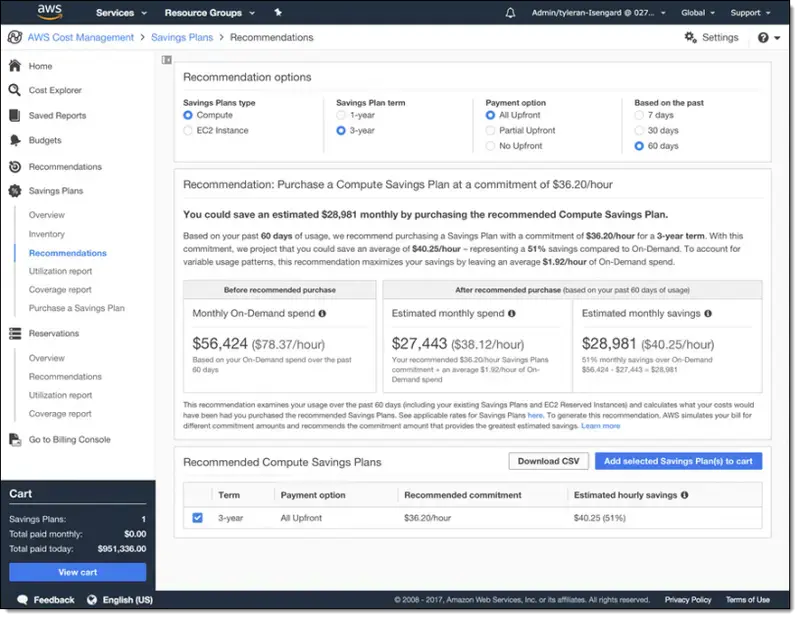
The 72-Hour Recommendation Lag Problem

AWS Cost Explorer Savings Plan recommendations refresh every 72+ hours. At $6,000–$12,000/day in uncovered on-demand spend, a 3-day lag means your commitment sizing is based on a usage picture that may already be $18,000–$36,000 out of date. Size a commitment to 90% of coverage based on that stale data, and you’re potentially mis-committed from day one.

Usage.ai refreshes recommendations daily, purchases commitments automatically, and provides cashback on underutilization so the precision gap and its financial exposure don’t land on your AWS bill. The fee model is a percentage of realized savings only; if no savings are generated, no fee applies.

Post-Purchase Monitoring

Two metrics matter after purchase:

  • Utilization rate: percentage of your hourly commitment actually consumed by eligible usage. Below 80% means you over-committed for that period.
  • Coverage rate: percentage of eligible on-demand spend covered by Savings Plans. Below 80% means you have significant spend that could be covered by additional commitments.

The relationship: high utilization + low coverage = under-committed. Low utilization + high coverage = over-committed. High utilization + high coverage = optimal.

Pull both reports from Cost Explorer → Savings Plans → Utilization Report and Coverage Report weekly during the first 90 days post-purchase. Monthly monitoring is sufficient after that for stable workloads.

Workload-Specific Notes

EC2-heavy (>70% of bill): Lead with a Compute SP covering 70% of minimum EC2 baseline. After 90 days, layer an EC2 Instance SP for the single highest-spend instance family. Don’t purchase EC2 Instance SPs across more than 2 families simultaneously.

Containers (ECS/Fargate): Compute SPs are the only type that covers Fargate. Include Fargate hourly spend in your baseline calculation, not just EC2. Many teams under-commit their Compute SP because they calculated the floor on EC2 data only.

Serverless / Lambda: Lambda is covered by Compute SPs at ~17% discount. For high-invocation-volume workloads, the absolute dollar impact is material. Include Lambda spend in your Compute SP baseline.

Database-heavy (RDS, ElastiCache, DocumentDB): Database SPs are entirely separate from Compute SPs. If you spend $50K/month on RDS and $200K/month on EC2, you need a $200K-scale Compute SP and a $50K-scale Database SP. One type does not cover everything.

Multi-account Organizations: Purchase all Savings Plans from the payer account. Coordinate timing to avoid staggering collisions.

A Practical Example: Building a Portfolio from Scratch

Scenario: Mid-size SaaS, $350K/month AWS bill: $220K EC2, $60K RDS, $40K Fargate, $30K Lambda + other.

Step 1: Pull 90-day minimum baseline: EC2 floor $14.00/hr, Fargate $3.50/hr, Lambda $1.20/hr → total Compute-eligible floor: $18.70/hr

Step 2: First Compute SP purchase: 75% of $18.70 = $14.03/hr commitment, No Upfront. At ~34% discount: saves ~$5.33/hr → ~$46,700/year

Step 3: Database SP: RDS floor $7.50/hr → commit $5.63/hr. At ~30% discount: saves ~$1.69/hr → ~$14,800/year

Step 4: 90-day review: Utilization 94%, coverage 68%. Coverage gap signals room to increase. New floor calculation yields a $3.00/hr incremental tranche.

Step 5: Layer 2 Compute SP: $3.00/hr, purchased 90 days after Layer 1. Expiration now offset by 90 days.

Total annual savings: ~$61,500/year. No single expiration date represents more than 55% of committed spend.
(All pricing estimates are illustrative. Verify current rates at aws.amazon.com/savingsplans/pricing.)

What’s the biggest mistake you’ve made or seen with AWS Savings Plan sizing? Over-committed on a workload that shrank, or left significant on-demand spend uncovered?

Explore the end-to-end breakdown here → AWS Savings Plan Buying Strategy: Layering, Timing & Right-Sizing Commitment

Gemma Mentor AI

Gemma Mentor AI — Building a Unified Adaptive Learning Intelligence with Gemma 4

How Gemma 4 Became the Cognitive Core of a Cinematic AI Tutoring System

AI tutors are everywhere now.

But most still feel like:

  • static chatbots
  • disconnected assistants
  • generic Q&A systems
  • giant walls of text
  • non-adaptive learning tools

I wanted to build something fundamentally different.

Not another chatbot.

Not another AI wrapper.

But a unified adaptive intelligence capable of:

  • teaching ANY subject
  • teaching in the learner’s chosen language
  • generating real-time coding examples
  • adapting explanations dynamically
  • reasoning conversationally
  • generating visual learning experiences
  • synchronizing voice interaction
  • streaming cinematic educational experiences
  • operating through both local and cloud intelligence

That vision became:

GEMMA MENTOR AI

A cinematic adaptive tutoring ecosystem powered by:

  • Gemma 4
  • Gemini AI
  • OpenAI
  • semantic rendering architecture
  • hybrid AI orchestration
  • adaptive educational cognition

And at the center of everything:

Gemma 4

Repository

GitHub Repository:

https://github.com/darchumsone-collab/gemma-mentor-ai.git

The Problem with Traditional AI Tutors

Most AI tutoring systems today still behave like:

User prompt
↓
Raw AI response
↓
Large markdown wall

The result is often:

  • overwhelming
  • robotic
  • cognitively exhausting
  • emotionally disconnected
  • difficult to follow on mobile devices

Even powerful AI models can feel unintelligent when the rendering architecture is poor.

I realized something important early:

Intelligence alone is not enough.

Presentation architecture matters just as much.

So instead of building:

a chatbot

I built:

a semantic adaptive tutoring engine.

What I Built

Gemma Mentor AI is a unified adaptive learning intelligence platform designed to transform AI tutoring into:

  • cinematic
  • conversational
  • immersive
  • multilingual
  • adaptive
  • emotionally intelligent learning

The platform combines:

  • Gemma 4 local cognition
  • Gemini educational structuring
  • OpenAI reasoning refinement
  • semantic response orchestration
  • voice synchronization
  • adaptive rendering
  • multimodal learning

into ONE evolving tutoring experience.

The learner should never feel:

  • model switching
  • provider transitions
  • backend infrastructure
  • fragmented intelligence

Instead, the experience should feel like:

learning with one living intelligence.

Why Gemma 4?

I experimented with multiple local models before choosing Gemma 4 as the cognitive core.

The goal was not simply:

“run AI locally.”

The goal was:

create an adaptive educational intelligence capable of becoming the primary reasoning layer of an immersive tutoring system.

Gemma 4 stood out because it enabled:

  • strong conversational quality
  • educational adaptability
  • fast local inference
  • multilingual understanding
  • coding assistance
  • contextual continuity
  • hybrid orchestration compatibility

Most importantly:
Gemma 4 felt capable of becoming part of a real educational ecosystem instead of just a response generator.

The Core Architecture

Gemma Mentor AI uses a unified orchestration system:

Gemma 4
(Local Cognitive Intelligence)

+
Gemini AI
(Educational Structuring)

+
OpenAI
(Advanced Reasoning)

↓
Unified AI Orchestration Engine

↓
Semantic Tutoring Pipeline

↓
Adaptive Rendering Engine

↓
Cinematic Learning Experience

Each AI system specializes in different responsibilities.

Gemma 4 — The Primary Intelligence Layer

Gemma 4 became the primary local tutoring engine.

Responsibilities include:

  • low-latency tutoring
  • conversational continuity
  • adaptive questioning
  • multilingual teaching
  • real-time coding assistance
  • local reasoning
  • offline-capable tutoring
  • semantic response generation

This allows the platform to maintain intelligent tutoring continuity even during unstable connectivity.

That became especially important for:

  • mobile-first learning
  • educational accessibility
  • low-bandwidth environments
  • local AI experimentation

Gemini AI — Educational Structuring

Gemini AI helps organize:

  • lesson flow
  • curriculum sequencing
  • educational pacing
  • adaptive explanations
  • tutoring structure
  • multimodal interpretation

Gemini became:

the educational architecture layer.

OpenAI — Advanced Cognitive Reasoning

OpenAI handles:

  • nuanced explanations
  • reflective tutoring
  • advanced reasoning synthesis
  • emotional conversational depth
  • contextual refinement

This creates a layered cognitive ecosystem instead of a single isolated model.

The Most Important Innovation: Semantic Rendering

This became the core breakthrough of the project.

Most AI systems render raw generated text directly into the interface.

Gemma Mentor AI does NOT.

Instead:
ALL AI outputs are converted into:

semantic teaching objects.

Example:

{
  "type": "concept_explanation",
  "content": "Variables in Python store reusable values."
}

Or:

{
  "type": "challenge",
  "question": "Modify this loop to print even numbers only."
}

These semantic objects are then transformed into cinematic educational UI components.

Why Semantic Rendering Matters

Without semantic rendering:

  • giant paragraphs
  • cognitive overload
  • poor pacing
  • weak educational readability

With semantic rendering:

  • concept cards
  • quizzes
  • reflections
  • code modules
  • adaptive widgets
  • visual learning panels
  • cinematic transitions
  • streamed educational pacing

The AI starts feeling:

  • alive
  • adaptive
  • conversational
  • educationally intelligent

Instead of:

a text generator.

Real-Time Coding Tutor

One of the strongest features became:

live programming education.

Initially, the tutor explained concepts well…

but coding lessons lacked immersive real-time implementation.

So I upgraded the tutoring engine to dynamically generate:

  • real code examples
  • syntax walkthroughs
  • debugging guidance
  • architecture explanations
  • exercises
  • adaptive coding challenges

Supported learning includes:

  • Python
  • JavaScript
  • Flutter/Dart
  • Kotlin
  • Java
  • C++
  • Rust
  • SQL
  • and more

Example:

for number in range(5):
    print(number)

The AI then explains:

  • iteration
  • loops
  • execution flow
  • practical applications
  • optimization approaches

This transformed the system from:

passive tutor

into:

interactive coding mentor.

Multilingual Tutoring Intelligence

Another major capability:

learners can choose their preferred language.

The platform dynamically adapts tutoring across:

  • English
  • French
  • Arabic
  • Spanish
  • Portuguese
  • Hindi
  • Chinese
  • and more

This affects:

  • lessons
  • explanations
  • quizzes
  • reflections
  • coding guidance
  • tutoring tone

The challenge was preserving:

  • semantic clarity
  • emotional tone
  • conversational pacing
  • educational structure

across multiple languages simultaneously.

Voice Interaction System

I also implemented:

Vocal Sync

A conversational voice intelligence layer enabling:

  • microphone interaction
  • AI voice tutoring
  • speech recognition
  • spoken educational guidance
  • synchronized voice playback

The voice layer synchronizes:

  • semantic rendering
  • adaptive pacing
  • streamed tutoring cards
  • cinematic UI transitions

The goal was NOT basic text-to-speech.

The goal was:

conversational cognitive presence.

AI Visual Learning

One feature that became surprisingly powerful:

real-time visual learning generation.

The platform can dynamically trigger:

  • diagrams
  • concept graphics
  • educational visuals
  • cinematic learning scenes
  • adaptive infographics

ONLY when visuals improve understanding.

Examples include:

  • solar systems
  • neural networks
  • mathematical graphs
  • anatomy visuals
  • programming architectures
  • educational flow diagrams

This created:

multimodal adaptive learning.

Silent Cognitive Failover

One of the hardest engineering challenges:

Maintaining continuity across multiple AI systems.

Most hybrid AI platforms expose infrastructure messages like:

  • “Switching model”
  • “Fallback activated”
  • “Provider unavailable”

I wanted none of that.

So I built:

silent orchestration failover.

If:

  • Gemma 4 fails
  • APIs timeout
  • inference crashes
  • rate limits occur

The system:

  • silently reroutes requests
  • preserves tutoring continuity
  • maintains tone consistency
  • restores semantic flow
  • continues streaming naturally

The learner notices:

absolutely nothing.

Cognitive Normalization

Different models communicate differently.

Without normalization:

  • tutoring styles shift
  • pacing breaks
  • explanations feel disconnected

So I implemented:

cognitive normalization.

The orchestration engine standardizes:

  • tutoring personality
  • pacing
  • conversational tone
  • explanation rhythm
  • educational flow

The learner experiences:

ONE tutor.

Not multiple AI systems.

Cinematic Neural UI

I wanted the platform to feel:

  • futuristic
  • immersive
  • emotionally intelligent
  • premium
  • alive

So the UI system uses:

  • deep black gradients
  • cyan neural glow
  • glassmorphism
  • holographic motion
  • floating animations
  • streamed rendering
  • adaptive transitions

Most educational apps feel functional.

Gemma Mentor AI was designed to feel:

cinematic.

Local Gemma 4 Runtime

The system supports:

  • Ollama
  • GGUF runtimes
  • llama.cpp
  • MLC LLM
  • MediaPipe LLM

Example setup:

ollama pull gemma4:e4b

The platform automatically:

  • detects installed Gemma models
  • verifies runtime health
  • initializes local cognition
  • monitors inference continuity
  • recovers silently from failures

This enables:

hybrid local-cloud cognition.

Why Local AI Matters

Gemma 4 changed how I think about AI accessibility.

Local AI is not only about:

  • speed
  • privacy
  • cost reduction

It changes:

ownership.

It allows advanced educational intelligence to move closer to the learner.

Especially for:

  • mobile users
  • low-connectivity environments
  • global educational accessibility
  • personalized tutoring systems

That matters deeply for the future of AI education.

Final Thoughts

Gemma Mentor AI became far more than a tutoring app.

It evolved into:

a unified adaptive intelligence platform.

And Gemma 4 became:

  • the cognitive heartbeat
  • the local reasoning engine
  • the educational continuity layer
  • the conversational intelligence core

This project convinced me that:

the future of AI education is adaptive, cinematic, multilingual, local-first, and deeply human-centered.

And Gemma 4 is powerful enough to help build that future.

Tech Stack

  • Gemma 4
  • Ollama
  • Gemini AI
  • OpenAI
  • Kotlin
  • Android
  • Semantic Rendering Engine
  • Adaptive Tutoring Pipeline
  • Voice Intelligence Layer
  • Multimodal Learning System
  • Cinematic Neural UI

Closing

Gemma Mentor AI is not designed to feel like software.

It is designed to feel like:

one evolving intelligence capable of teaching anyone, anything, anywhere.

Powered by Gemma 4.

Setting Up a Secure VPN Server on Ubuntu and Docker (Windows)

Setting Up a Secure VPN Server on Ubuntu and Docker (Windows)

Table of Contents

  • Introduction
  • Why Deploy a VPN, and Why Choose WireGuard
  • Key Terms and Core Concepts
  • Prerequisites
  • Method 1: Native Deployment on Ubuntu Server
  • Method 2: Docker Deployment on Windows (via Docker Desktop)
  • Client Onboarding
  • Diagnostics and Troubleshooting
  • Conclusion

Introduction

WireGuard is a lightweight Virtual Private Network (VPN) protocol that supports both IPv4 and IPv6 connections. A VPN allows you to securely route your internet traffic through a private encrypted tunnel over untrusted networks, such as public Wi-Fi.
WireGuard uses modern cryptographic key pairs (public and private keys) to establish secure encrypted tunnels between peers.

Why Deploy a VPN, and Why Choose WireGuard?

In modern distributed systems, exposing internal services such as databases, APIs, or development environments directly to the public internet introduces significant security risks. A VPN mitigates this by creating a secure, encrypted tunnel that restricts access to authenticated devices only.
Traditional VPN solutions like OpenVPN and IPsec are powerful but often suffer from:

  • Large and complex codebases
  • Slow connection handshakes
  • Higher resource consumption

WireGuard improves this model by being:

  • Lightweight and kernel-level integrated
  • Extremely fast with near-instant handshakes
  • Built on modern cryptography (ChaCha20, Poly1305)
  • Easy to audit due to its small codebase

This makes it ideal for cloud servers, homelabs, and containerized environments.

Key Terms and Core Concepts

WireGuard operates using a peer-to-peer model rather than a traditional client-server architecture.

Term Simple Definition Practical Meaning
Peer Any device connected using a cryptographic key All devices are equal nodes in the VPN
Asymmetric Cryptography Uses a private and public key pair Private key stays secret, public key is shared
Allowed IPs Defines what traffic is routed through a peer Controls routing and access rules
Endpoint Public IP and port of a peer Where connections are initiated
IP Forwarding Kernel feature allowing routing between networks Required for internet sharing through VPN
NAT Masquerading Translates private IPs to public IP Enables internet access for VPN clients

Prerequisites

  1. Machine to Run WireGuard
    You can use:
  • Cloud VPS (Ubuntu 22.04+ recommended)
  • Personal computer (Linux, Windows, macOS)
  • Homelab server (PC, mini-PC, NAS)

Admin (sudo) access is required.

  1. Internet Connectivity
    A publicly reachable IP is required.
  • Cloud servers → usually included
  • Home/homelab → requires:
  • Port forwarding OR
  • Dynamic DNS (DDNS)
  1. Required Network Port
  • UDP 51820 must be open

Examples:

  • Cloud → Security group/firewall rules
  • Home → Router port forwarding + OS firewall rule
  1. Windows Users (Optional)
    If using Windows:
  • Install Docker Desktop
  • Enable WSL 2 backend

🐧 Method 1: Native Deployment on Ubuntu Server

Step 1: Install WireGuard

First, ensure your local system repositories are updated and pull down the standard tools package.

sudo apt update && sudo apt upgrade -y
sudo apt install wireguard -y

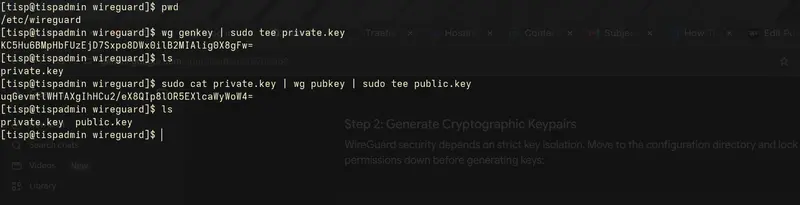
Step 2: Generate Server Cryptographic Keys

WireGuard relies on asymmetric public/private key pairs for peer authentication. Let’s isolate our runtime directory and generate these keys securely:

### Move to the WireGuard directory and enforce strict file permissions
cd /etc/wireguard
sudo umask 077

# Generate private key and derive the public key from it
wg genkey | sudo tee private.key
sudo cat private.key | wg pubkey | sudo tee public.key

Example:

Step 3: Enable IP Forwarding

For your server to function as a gateway and route your client traffic out to the internet, you must explicitly enable IPv4 packet forwarding inside the Linux kernel.
Open /etc/sysctl.conf:

sudo nano /etc/sysctl.conf

Uncomment or add the following line:

net.ipv4.ip_forward=1

Apply the changes instantly:

sudo sysctl -p

Step 4: Create Server Config

Determine your physical public network interface identifier by pulling active route profiles:

ip route | grep default | awk '{print $5}'

(Common interface outputs include: eth0, enp1s0, wlan0, or ens3)
Example:

Cat and copy the output of /etc/wireguard/private.key . It will be used in the wireguard server interface configuration.

sudo cat /etc/wireguard/private.key

Example:

Create the main wireguard interface mapping file /etc/wireguard/wg0.conf:

sudo nano /etc/wireguard/wg0.conf

Server Configuration

Insert the following configuration into your WireGuard interface file, making sure to replace the placeholder values with those from your system. The PrivateKey identifies the WireGuard server and must be the private key you generated earlier. The Address defines the server’s internal VPN IP and subnet, while ListenPort specifies the UDP port WireGuard will use to accept incoming connections. The PostUp and PostDown rules automatically configure and clean up firewall and NAT settings when the tunnel starts and stops. These rules allow VPN traffic to be forwarded through the system and enable connected clients to access external networks by translating their private VPN IPs to the server’s outgoing network interface (for example, eth0). If your system uses a different network interface, ensure you update it accordingly to maintain proper routing and internet access.

[Interface]
PrivateKey=REPLACE_THIS_WITH_THE_OUTPUT_OF-/etc/wireguard/private.key-YOU_COPIED
Address=10.8.0.1/24
ListenPort=51820

# Automated routing engine (Swap 'eth0' with your actual interface string)
PostUp = iptables -A FORWARD -i %i -j ACCEPT; iptables -A FORWARD -o %i -j ACCEPT; iptables -t nat -A POSTROUTING -o eth0 -j MASQUERADE
PostDown = iptables -D FORWARD -i %i -j ACCEPT; iptables -D FORWARD -o %i -j ACCEPT; iptables -t nat -D POSTROUTING -o eth0 -j MASQUERADE

Example:

Step 5: Configure Firewall Policies (UFW)

Ensure the host-level firewall does not obstruct incoming cryptographic handshakes:

### Open WireGuard UDP port and protect your SSH management interface
sudo ufw allow 51820/udp
sudo ufw allow OpenSSH

### Reload firewall assets safely
sudo ufw disable && sudo ufw enable

Step 6: Start Wireguard

Bind the virtual network tunnel interface wg0 directly to the system initialization engine:

sudo systemctl start wg-quick@wg0
sudo systemctl enable wg-quick@wg0

Verify operational runtime status:

sudo systemctl status wg-quick@wg0

Example:

🐳 Method 2: Docker Deployment on Windows (via Docker Desktop)

This method runs WireGuard using Docker and wg-easy, simplifying management through a web UI.

Overview

Instead of manual installation, WireGuard runs inside a Docker container with a web-based dashboard.

Why Docker?

  • Avoids Windows driver complexity
  • Simplifies configuration
  • Provides a clean web UI
  • Uses WSL 2 for Linux networking layer

What is wg-easy?

A web-based interface that allows you to:

  • Create VPN users
  • Generate configs automatically
  • Scan QR codes for mobile setup
  • Manage peers visually

Step 1: Create Project Folder

mkdir C:wireguard-server
cd C:wireguard-server

Step 2: Docker Compose File

version: "3.8"

services:
  wg-easy:
    image: ghcr.io/wg-easy/wg-easy:latest
    container_name: wg-easy

    environment:
      - WG_HOST=your.public.ip
      - PASSWORD=StrongPasswordHere
      - WG_DEFAULT_DNS=1.1.1.1,8.8.8.8

    volumes:
      - ./wg-easy:/etc/wireguard

    ports:
      - "51820:51820/udp"
      - "51821:51821/tcp"

    restart: unless-stopped

    cap_add:
      - NET_ADMIN
      - SYS_MODULE

    sysctls:
      - net.ipv4.conf.all.src_valid_mark=1
      - net.ipv4.ip_forward=1

Step 3: Start Container

docker compose up -d

Access:

http://localhost:51821

Client Onboarding

Native Ubuntu Client Generation Pattern

This section explains how to connect a new device (laptop or desktop) to your WireGuard VPN manually.

1. Get the Server Public Key

On the server machine, display and copy the public key:

cat /etc/wireguard/public.key

Example:

  • This key identifies the server to all clients.
  • You will use it in the client configuration under PublicKey.

2. Create a Client Configuration File

On the client machine (or server for generation purposes), create a new file:

/etc/wireguard/client1.conf

This file defines how the client connects to the VPN.

3. Generate or Add Client Keys

Each client must have its own private key.

  • PrivateKey (client): stays only on the client device
  • PublicKey (client): is added to the server (not shown here but required)
    Generate private key and derive the public key from it
    This command are meant to generate key for the client/peer devicerr
    cd /etc/wireguard
    wg genkey | sudo tee client_private.key
    sudo cat private.key | wg pubkey | sudo tee client_public.key

4. Edit the client configuration file replacing the placeholders with the real values.

sudo nano /etc/wireguard/client1.conf


/etc/wireguard/client1.conf

[Interface]
Client’s private key (unique per device)
PrivateKey=<CLIENT_PRIVATE_KEY>

### VPN IP address assigned to this client
Address=10.8.0.2/32

DNS servers used while connected to VPN
DNS=1.1.1.1,8.8.8.8


[Peer]
Server public key (copied from server)
PublicKey=<SERVER_PUBLIC_KEY>

Public IP or domain of your VPN server
Endpoint=<SERVER_PUBLIC_WAN_IP>:51820

Route ALL traffic through VPN (full tunnel mode)
AllowedIPs=0.0.0.0/0

Keeps connection alive behind NAT/firewalls
PersistentKeepalive=25

Example:

5. Register this client identity with your active runtime server engine:

sudo wg set wg0 peer <CLIENT_PUBLIC_KEY> allowed-ips 10.8.0.2/24

6. Check the peer logs by running this command:

sudo wg show

Example:

Peer Configuration on Windows (Containerized Web Management Method)

This method uses a web-based WireGuard management interface (such as wg-easy) running inside a Docker container on Windows. It removes manual configuration complexity by providing a graphical dashboard for managing VPN clients.

1. Access the Web Dashboard

Open your browser and navigate to the WireGuard management interface:

  • Example: http://localhost:51821
  • Or your server IP: http://SERVER_IP:51821

This dashboard allows you to manage all VPN users (peers) visually.

2. Create a New Client (Peer)

Inside the dashboard:

  • Click “New Client”
  • Enter a clear and identifiable name (e.g., John-Laptop, Office-PC, Windows-Desktop)

This name is only for management purposes and helps you identify devices easily.

3. Generate Client Configuration

Once the client is created, the system automatically generates:

  • A unique private key
  • A VPN IP address
  • A ready-to-use configuration profile

4. Connect Using QR Code or Configuration File

You now have two connection options:

Option A: QR Code (Recommended for Mobile Devices)

  • Click “Show QR Code”
  • Scan it using the WireGuard mobile app (iOS or Android)
  • The VPN profile is imported automatically

Option B: Download Configuration File (For Windows/Linux/macOS)

  • Click “Download Configuration”
  • Save the .conf file
  • Import it into the WireGuard desktop application

Steps for Windows WireGuard client:

  1. Open WireGuard application
  2. Click “Import tunnel from file”
  3. Select the downloaded .conf file
  4. Activate the tunnel

5. Activate the VPN

After importing:

  • Click Activate
  • The client will connect to the VPN server automatically
  • Traffic will be routed based on the configuration (full or split tunnel)

Diagnostics and Troubleshooting

Issue 1: Connected but No Internet Traffic

Symptom:
The VPN shows as connected, but you cannot access external websites or send traffic through the tunnel.
Cause:
This usually happens when IP forwarding or NAT routing is not configured correctly.
Fix:

1. Verify IP forwarding is enabled:

cat /proc/sys/net/ipv4/ip_forward
  • Expected output:
    1

If the result is 0, enable it immediately.

2. Ensure your PostUp and PostDown rules match your real network interface (e.g., eth0, ens3, wlan0).

3. A mismatch here will break outbound routing.

Issue 2: VPN Connects but No Handshake Behind NAT (Home/Residential Networks)

Symptom:
The client connects but never completes a handshake, or connection drops frequently on unstable networks (e.g., mobile data, home Wi-Fi).
Cause:
Some routers and NAT devices silently drop inactive UDP sessions.
Fix:

Add the following line to the client configuration:

PersistentKeepalive = 25

What this does (simple explanation):

  • Sends a small “heartbeat” every 25 seconds
  • Keeps NAT/firewall sessions open
  • Prevents connection timeouts on strict or unstable networks

Inspecting Live VPN Status (Ubuntu Server)

To check active peers and connection status in real time, use:

sudo wg show

This displays:

  • Active peers
  • Latest handshake time
  • Data transfer (upload/download)
  • Connection health

Conclusion

WireGuard provides a fast, secure, and lightweight approach to building modern VPN infrastructures across cloud, homelab, and enterprise environments. By combining cryptographic peer-to-peer connections, simple configuration, and efficient routing rules, it significantly reduces the complexity found in traditional VPN solutions while maintaining strong security and performance. The deployment approach outlined in this documentation is aligned with industry best practices as demonstrated in official implementation guides such as the DigitalOcean WireGuard setup tutorial, which provides a foundational reference for secure server and client configuration on Ubuntu systems .

This implementation and documentation have been developed and structured under Tuinnov8 Software Solutions, a software engineering company focused on building modern, scalable, and intelligent digital systems. You can learn more about our work and solutions at www.tuinnov8.com.

The railway went down for 10 hours, and it wasn’t their fault. Here’s the part nobody is talking about.

22:10 UTC. May 19, 2026.

The railway’s monitoring starts screaming.

Dashboard, 503. API, dead. Logins, failing. Within nine minutes, the on-call engineers have an answer, and honestly, it’s almost worse than an outage:

Google Cloud suspended Railway’s entire production account.

No warning. No email. No phone call. Just an automated enforcement action that flipped a switch on a company that spends over ten million dollars a year with them.

I put together a short breakdown of what actually happened, and walked through how we’d have spotted this kind of single-point-of-failure on the architecture canvas with Blast Radius before it bit. If you want the visual version of this post, it’s here:

If you’ve been on the internet long enough, you’ve seen this movie before. UniSuper, a $50B pension fund, was accidentally deleted by GCP in 2024. Plenty of indie devs are auto-banned by AWS and Google with zero recourse. The Railway one just happens to be the biggest “developer cloud gets locked out of the cloud” event so far.

But the part that got under my skin wasn’t the suspension. It was what happened next.

Railway isn’t even fully on GCP

Here’s what makes this incident actually interesting for anyone running infra.

Railway runs workloads on three things:

  • Their own bare metal hardware (Railway Metal)
  • AWS
  • GCP

Smart. Multi-cloud. Exactly what every architecture deck on LinkedIn tells you to do.

But their network control plane, the thing that knows where everything lives and how to route traffic, was hosted on GCP. So when GCP suspended the account at 22:20 UTC:

  • 22:20: control plane goes down
  • 22:35: the routing cache at the edge starts expiring
  • ~23:35: Railway Metal workloads start returning 404s
  • shortly after: AWS workloads do the same

By the time the routing cache fully expired, every single workload across every cloud was unreachable. Even the ones running on hardware that the railway owns outright, sitting in their own racks, are completely untouched by Google’s enforcement action.

The servers were fine. The applications were fine. Nobody could find them.

That’s the blast radius of one upstream click.

From the railway’s own postmortem, which is unusually honest and worth reading in full:

“In this ring, there was still a hard dependency on workload discoverability being tied to the network control plane API that was hosted on the machines running in Google Cloud. This meant that despite the mesh continuing to operate for an hour, when the route cache expired, the mesh failed to re-populate the routing tables.”

And from Angelo on the Railway forum:

“This one was egregiously bad because it was a single and expected point of failure like a cloud account getting removed… to say we are livid is an understatement.”

Account access came back in 9 minutes after a P0 escalation. But the customer-facing outage ran nearly 10 hours total, because once the edges have forgotten where everything lives, you have to wake up disks, restart compute, rebuild routes, and re-converge the mesh layer by layer. The technical recovery alone took the better part of 8 hours after access was restored. And then GitHub starts rate-limiting your OAuth during the recovery surge, because of course it does.

The thing every engineer felt reading this

If you write infrastructure for a living, you read the Railway postmortem with one specific feeling, and it’s not schadenfreude.

It’s the cold realization that you don’t actually know what depends on what in your own stack.

You know the obvious stuff. The big “if RDS goes down, the app goes down” connections. But the long tail? The security group that’s quietly shared between four services? Is the Lambda the only thing keeping a webhook alive? Is the ” idle ” read replica actually the cross-region failover for orders?

You don’t know. I don’t know. Nobody knows until the thing breaks.

This is the gap nobody fills. Cost tools are great at telling you what’s wasted. Observability tools are great at telling you what’s broken right now. Neither one tells you what will break if you touch this.

So teams do one of two things:

  1. Delete it and pray.
  2. Don’t delete it, and sit on thousands of dollars of monthly waste because nobody wants to be the person who broke checkout on a Friday.

That second one is the actual norm, by the way. Talk to any cloud cost lead, and they’ll tell you the bottleneck isn’t finding the savings. It’s getting anyone to confidently apply the recommendations.

What we built (and why Railway’s story is exactly the use case)

This is the gap we’ve been building Blast Radius for in ZopNight.

The idea is dead simple. Before you apply any recommendation (delete this, stop that, modify the other thing), Blast Radius lights up the architecture canvas and shows you, in plain language, what’s actually connected and what’s about to break. (If you watched the video above, you’ve already seen the canvas in action: the RDS read replica that looked idle but was actually the cross-region failover for production orders. That’s the kind of thing this catches.)

Here’s how it works under the hood:

Adjacency graph. We build it from the metadata you already have: shared security groups, load balancer targets, volume attachments, Lambda triggers, and parent resources. No agents. No flow logs. Just the same metadata you can see in the AWS / GCP / Azure consoles, stitched into a real graph.

Resource-type-aware impact classification. A modification on a Lambda is not the same as a modification on an EC2 instance, which is not the same as a modification on a GKE node pool. We classified 131 resource types into three behavior buckets: onlineModify (live update, no interruption), restartModify (brief restart), and poolModify (children recreated). The classification respects that. Default for unmapped types is Warning, not Safe. Safe has to be proven.

Color on the canvas. Green = safe. Amber = a connection will break. Red = destroyed or non-functional. Everything unrelated gets dimmed so your eyes can find the actual story.

A risk score, 0 to 100. Severity of impact, whether it’s prod/staging/dev, how many teams own pieces of it, and whether it’s on an active schedule. Not a vibe. A number that explains itself.

So when you click “delete this idle RDS read replica,” and Blast Radius lights up red on a cross-region link you forgot existed, you don’t have to be the person who broke DR on a Friday. You loop in the right team, or you skip that one and confidently apply the eleven others that came back green.

If Railway had been able to look at their own architecture and ask “what happens if our GCP control plane disappears for 10 hours”, and see the answer light up across Metal and AWS in red, they’d have ripped that dependency out a year ago. They are now, by the way. The postmortem commits to:

  • Removing GCP from the data plane’s hot path
  • A true mesh across Metal, AWS, and GCP where any one interconnect can fail
  • HA database shards split across AWS and Metal, so quorum survives losing a cloud

The lesson the rest of us pay nothing for

You can’t prevent your cloud provider’s billing department from having a bad day. You can’t make their fraud algorithms call you first.

What you can do is make sure that when one upstream blinks, you already know, exactly, with receipts, which of your own resources will go dark with it.

The internet runs on three companies. Every once in a while, one of them hits the off switch. The question isn’t whether it happens to your stack. It’s whether you’ll be able to point at a canvas and say, “I already knew that would fail. Here’s what I did about it.”

Visibility is always cheaper than recovery.

application.properties

1.spring.datasource.hikari.connectionTimeout
Meaning:
How long an application waits to get a DB connection from the pool before throwing an exception.
Ex:
spring.datasource.hikari.connectionTimeout=30000
= Wait for 30 seconds
Real-time Scenario
Suppose:
All DB connections are busy
New request comes
Application asks pool for connection
If no connection becomes available within 30 seconds:
Plain text
SQLTransientConnectionException:
Connection is not available, request timed out

2.spring.datasource.hikari.idleTimeout
Meaning:
How long an unused/idle connection stays in pool before being removed.
Unit
Milliseconds
Example
Properties
spring.datasource.hikari.idleTimeout=600000
= 10 minutes
Real-time Understanding
Suppose:
Your app created 20 DB connections
Only 5 are being used
Remaining 15 are idle
After idleTimeout duration:
Extra unused connections may be closed
Helps save DB resources
Important Point
This works mainly when:
Plain text
minimumIdle < maximumPoolSize
Otherwise pool keeps all connections alive.

I built a macro tracker powered by AI + attitude

I built a macro tracker powered by AI + attitude. 🏋️

Plan your macros in the morning. Check in once at night. Let Milo cheer you on or let Evil Vilo roast you.

🚀 Live demo: https://web-production-5c594.up.railway.app/
📦 GitHub: https://github.com/Amulya631/MacroDay

The Problem
Most nutrition apps are reactive.
You eat something, you log it, you feel guilty later. The friction of logging every meal throughout the day is exactly why people abandon these apps within a week — and the people who care most about macros (gym-goers chasing protein and fiber targets) are the ones who need a simple system, not a data-entry job.
Old Way ❌MacroDay ✦ Log every meal, all daySet an intention in the morningReact to what you already ateMake smarter decisions all dayGuilt at 10pm when you’re 40g short Confirm at night — no surprises

The Solution: Planning-First, Not Logging-First
Two touchpoints a day:

Morning — Tell MacroDay what you’re planning to eat. Get instant AI-powered macro analysis across all five macros (calories, protein, fiber, carbs, and fats). Add snacks to close gaps and watch the rings update live.
Night. Confirm what you actually ate. Followed your plan? Quick tick-box list. Day went sideways? Enter your actual meals.

You set an intention in the morning, which means better decisions all day, not just guilt at the end.

Features

🎯 5 animated SVG macro rings — real-time visual feedback for all five macros
🧠 AI-powered analysis — Claude Haiku reads your meal descriptions and calculates macros, gaps, and smart snack suggestions
⚡ Live snack updates — add a suggested snack and all five rings update instantly
🎙️ Voice input — mic button on every meal field (Chrome, Web Speech API)
🕐 Time-aware routing — the right screen for the time of day, automatically
📋 Night check-in — Path A (tick-box) or Path B (full re-entry), with edge case handling
📊 End-of-day summary — actual vs. target macro rings with celebration or encouragement
🔄 Day rollover — history written to localStorage, today resets automatically
😇😈 Milo vs. Evil Vilo — choose your mascot. One is warm and proud of you. The other will not be kind about your fiber intake.

The Mascot System (a first-class feature)
The mascot is not an afterthought. At profile setup, you pick your flavor. Both characters appear on every emotional moment — morning results, skipped meals, end-of-day summary, sleep screen.
Milo (Good) 😇

“Great job planning ahead your protein is solid, and you’ve got room for a great snack tonight!”

Evil Vilo 😈

“Embarrassing. You logged ‘some chicken’ and expect me to calculate your macros? Try again.”

Both are built from the same data — just radically different personalities. Vilo is a ragebait villain who will genuinely not be kind about your fiber intake.

Tech Stack
LayerTechNotesBackendPython · FastAPIServes frontend + APIFrontendVanilla HTML/CSS/JSNo framework neededAIClaude Haiku (claude-haiku-4-5-20251001)Single endpointStorageBrowser localStorageZero infraVoiceWeb Speech APIChrome onlyDeploymentRailway1 Procfile, 1 env var
Single-service architecture — FastAPI serves both the static frontend and the /api/analyze endpoint from the same origin. No CORS complexity, no separate frontend deployment.

How the AI Works
All macro analysis runs through a single endpoint:
POST /api/analyze
The request includes:

Meal descriptions (free text — “200g chicken breast, 150g rice”)
Daily macro targets from the user’s profile
Mode (“morning” or “night”)
Mascot preference (“milo” or “vilo”)

Claude returns structured JSON:

json{
  "macros": {
    "calories": 1480,
    "protein": 112,
    "fiber": 18,
    "carbs": 160,
    "fats": 38
  },
  "gaps": {
    "calories": 520,
    "protein": 38,
    "fiber": 7
  },
  "feedback": "Your protein is on track but fiber is noticeably short...",
  "snack_suggestions": [
    "Greek yogurt (200g) — +15g protein, +0g fiber"
  ],
  "affirmation": "Solid plan. Don't blow it at dinner.",
  "needs_clarification": false
}

Key Architecture Decisions

  1. One endpoint, three modes
    Rather than separate routes for morning analysis, night analysis, and snack recalculation, everything goes through POST /api/analyze with a mode field.

One fetch wrapper on the frontend
Prompt logic lives in one place
Easier to tune Vilo’s tone without hunting across multiple handlers

  1. Vague input detection at the prompt level
    When a user types “some chicken”, the app doesn’t try to parse or validate before sending. Instead, the Claude prompt instructs the model to return needs_clarification: true if it can’t calculate macros with reasonable confidence.
    This is more robust than regex—Claude catches edge cases a rule-based validator would miss. “Food from the gym” is vague. “Leftover pasta” is ambiguous but probably workable.
  2. SVG rings over CSS conic gradients
    stroke-dasharray / stroke-dashoffset on SVG circles gives precise control over fill percentage and animates cleanly with CSS transitions. Conic-gradient is simpler to write but harder to animate and has inconsistent cross-browser rendering for partial fills.
    The SVG approach adds ~10 lines per ring but is rock-solid on every browser.
  3. localStorage over a backend database
    For a personal-use demo with no auth requirement, localStorage is the right call. Zero infrastructure, zero latency, works offline, resets cleanly.
    The data model is designed so that migrating to a real database later is straightforward—each key (macroday_profile, macroday_today, macroday_history) maps directly to what would be a user-scoped database record.

Project Structure
MacroDay/
├── main.py # FastAPI app — serves frontend + API
├── requirements.txt
├── Procfile # Railway deployment config
├── static/
│ ├── index.html # Single-page app (all screens)
│ ├── style.css # Health/wellness UI styling
│ ├── app.js # Routing, profile, night check-in logic
│ └── analyze.js # API calls, ring rendering, snack logic
├── assets/
│ ├── Milo_Good.png
│ └── Vilo_Evil.png
└── docs/
├── scope.md
├── prd.md
└── spec.md

Running Locally
bash# 1. Clone
git clone https://github.com/Amulya631/MacroDay.git
cd MacroDay

2. Install

pip install -r requirements.txt

3. Set your API key

echo “ANTHROPIC_API_KEY=your-key-here” > .env

4. Start

uvicorn main:app –reload

5. Open http://localhost:8000 in Chrome

Get an Anthropic API key at console.anthropic.com.

What’s Next (v2 Ideas)

📸 Photo macro analysis—photograph a meal, AI estimates macros from the image
🔔 Push notifications — morning reminder at 8am, night reminder at 8pm
📈 Multi-day insights—”You’ve been low on fiber all week.”
💪 Post-workout mode — dedicated high-protein suggestion flow

Try It

🚀 Live demo: https://web-production-5c594.up.railway.app/
⭐ GitHub: https://github.com/Amulya631/MacroDay
🛠️ Built with: Claude Code · Anthropic

If you’re a gym-goer who’s ever abandoned a nutrition app because it felt like a second job — this one’s for you. Give it a try, star the repo, or open an issue if you have ideas.

Solace: A Global Mental Health First Responder Built with Gemma 4

The Problem Nobody Talks About

970 million people worldwide live with mental health disorders.

But almost every mental health tool built with AI assumes the same user: fast internet, English as a first language, a US or UK phone number to call in a crisis.

That’s not 970 million people. That’s maybe 50 million.

I’m a developer based in Lagos, Nigeria. When I looked at the mental health AI tools being built, I kept asking the same question: what happens when someone in Accra, Nairobi, Manila, or São Paulo needs help at 2am?

They get a chatbot that tells them to call 988.

That’s the gap Solace was built to close.

What is Solace?

Solace is a voice-first, privacy-focused mental health companion powered by Gemma 4. It listens, assesses, and connects people to real help — wherever they are in the world.

🔗 Live app: https://slcai-sm9m.vercel.app/

💻 GitHub: https://github.com/sam-the-champ/SLCAI

Demo Video:

What makes Solace different

1. 🌍 Localized crisis resources for 13+ countries

Most mental health AI tools are built with US resources baked in. If you’re not American, you’re on your own.

Solace auto-detects your country from your browser timezone and immediately surfaces the right crisis lines, text lines, and chat services for Nigeria, Ghana, Kenya, South Africa, Zimbabwe, India, UK, USA, Canada, Australia, Philippines, Singapore, Brazil — and falls back to international resources for everywhere else.

No settings. No configuration. It just knows.

export function getResourcesByTimezone(): CountryResources {
  const tz = Intl.DateTimeFormat().resolvedOptions().timeZone
  const tzToCountry: Record<string, string> = {
    'Africa/Lagos': 'NG',
    'Africa/Accra': 'GH',
    'Africa/Nairobi': 'KE',
    // ...13+ countries
  }
  const code = tzToCountry[tz]
  return resourcesByCountry[code] ?? resourcesByCountry.DEFAULT
}

2. 🎤 Voice-first input

When someone is in distress, typing is a barrier. Solace has a one-tap voice input powered by the Web Speech API — speak your feelings, Solace listens.

No third-party API. No extra cost. Works in the browser natively.

const SpeechRecognition = window.SpeechRecognition || window.webkitSpeechRecognition
recognition.continuous = true
recognition.interimResults = true

3. 🧠 Trauma-informed triage with Gemma 4

Every message is assessed across four triage levels: Low → Moderate → High → Crisis.

Gemma 4’s 128K context window and deep instruction-following made it the right model for this. The system prompt is carefully crafted to avoid clinical coldness while still being precise enough to catch crisis signals:

// Triage levels:
// low: mild everyday stress, general worry
// moderate: persistent sadness, sleep issues, social withdrawal  
// high: panic attacks, trauma symptoms, major crisis
// crisis: suicidal ideation, self-harm, immediate danger

At crisis level, the entire UI shifts — emergency resources move to the top, the call button becomes prominent, and the AI’s tone changes to prioritize connection to real help over conversation.

4. 📔 Private mood journal

Every check-in is saved to a local mood journal — stored entirely in localStorage. No server. No account. No data leaving the device.

Users can track patterns across sessions: when they tend to feel worse, whether things are improving, what their check-ins look like over time.

5. 📱 Installable PWA

Solace is a Progressive Web App. On mobile, users can install it directly to their home screen — no app store, no download, works in low-bandwidth conditions.

This matters enormously in markets like Nigeria where data costs are high and storage is limited. A 2MB installable app beats a 200MB download every time.

Why Gemma 4 specifically?

This is the question that matters most, so let me be direct.

I chose Gemma 4 31B because:

1. The 128K context window means Solace can hold a full therapeutic conversation — not just one or two turns. Mental health support isn’t transactional. People circle back. They contradict themselves. They need to feel heard across a long exchange.

2. Instruction-following precision — the triage system depends on Gemma 4 returning structured JSON reliably, with emotional nuance baked into the summary, patterns, strategies, and affirmation fields. I tested with smaller models. The quality gap was significant.

3. It’s open. Gemma 4 can be self-hosted. That means a clinic in Lagos or a NGO in Nairobi could eventually run this on their own infrastructure, with no API costs and full data sovereignty. That’s a future worth building toward.

4. Privacy story. Every conversation stays between the user and the model. Solace doesn’t log, store, or transmit conversation data. For mental health, that’s not a feature — it’s a requirement.

Technical Stack

  • Frontend: React + Vite + TypeScript
  • Styling: CSS custom properties, glassmorphism UI, no component library
  • AI: Gemma 4 31B via OpenRouter
  • Voice: Web Speech API (native browser)
  • Storage: localStorage (journal, no server)
  • PWA: Web App Manifest + service worker ready
  • Deploy: Vercel

The hardest part

Building the crisis response flow was the hardest and most important part of this project.

When Gemma 4 returns triageLevel: "crisis", everything changes. The UI shifts to red. The emergency number for the user’s country moves above the fold. The AI’s system prompt switches to a mode focused entirely on staying present and bridging to real help — not providing therapy.

Getting that balance right — compassionate but not clinical, urgent but not alarming — took more iteration than anything else in the codebase.

What’s next

  • Offline-first fallback responses — cached grounding techniques that work with no internet
  • More languages — French, Hausa, Swahili, Portuguese
  • More countries — currently 13, targeting 30+
  • NGO partnership mode — white-label for mental health organizations

Try it

🔗 https://slcai-sm9m.vercel.app/

Open it on your phone. Tap a mood. Speak how you’re feeling. See what country resources appear for you.

If you’re building in the mental health space or you work with communities that are underserved by current AI tools — I’d love to hear from you in the comments.

Solace is an AI companion, not a therapist or medical service. If you are in crisis, please contact your local emergency services.