
Setting Up a Secure VPN Server on Ubuntu and Docker (Windows)

Setting Up a Secure VPN Server on Ubuntu and Docker (Windows)
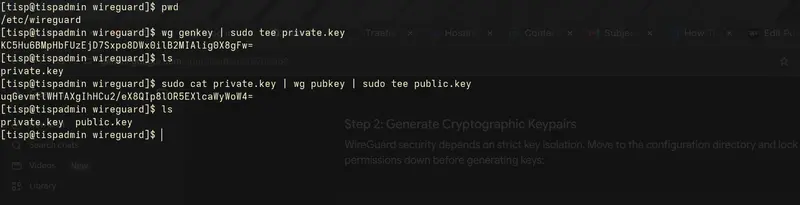
Table of Contents

  • Introduction
  • Why Deploy a VPN, and Why Choose WireGuard
  • Key Terms and Core Concepts
  • Prerequisites
  • Method 1: Native Deployment on Ubuntu Server
  • Method 2: Docker Deployment on Windows (via Docker Desktop)
  • Client Onboarding
  • Diagnostics and Troubleshooting
  • Conclusion

Introduction

WireGuard is a lightweight Virtual Private Network (VPN) protocol that supports both IPv4 and IPv6 connections. A VPN allows you to securely route your internet traffic through a private encrypted tunnel over untrusted networks, such as public Wi-Fi.
WireGuard uses modern cryptographic key pairs (public and private keys) to establish secure encrypted tunnels between peers.

Why Deploy a VPN, and Why Choose WireGuard?

In modern distributed systems, exposing internal services such as databases, APIs, or development environments directly to the public internet introduces significant security risks. A VPN mitigates this by creating a secure, encrypted tunnel that restricts access to authenticated devices only.
Traditional VPN solutions like OpenVPN and IPsec are powerful but often suffer from:

  • Large and complex codebases
  • Slow connection handshakes
  • Higher resource consumption

WireGuard improves this model by being:

  • Lightweight and kernel-level integrated
  • Extremely fast with near-instant handshakes
  • Built on modern cryptography (ChaCha20, Poly1305)
  • Easy to audit due to its small codebase

This makes it ideal for cloud servers, homelabs, and containerized environments.

Key Terms and Core Concepts

WireGuard operates using a peer-to-peer model rather than a traditional client-server architecture.

Term Simple Definition Practical Meaning
Peer Any device connected using a cryptographic key All devices are equal nodes in the VPN
Asymmetric Cryptography Uses a private and public key pair Private key stays secret, public key is shared
Allowed IPs Defines what traffic is routed through a peer Controls routing and access rules
Endpoint Public IP and port of a peer Where connections are initiated
IP Forwarding Kernel feature allowing routing between networks Required for internet sharing through VPN
NAT Masquerading Translates private IPs to public IP Enables internet access for VPN clients

Prerequisites

  1. Machine to Run WireGuard
    You can use:
  • Cloud VPS (Ubuntu 22.04+ recommended)
  • Personal computer (Linux, Windows, macOS)
  • Homelab server (PC, mini-PC, NAS)

Admin (sudo) access is required.

  1. Internet Connectivity
    A publicly reachable IP is required.
  • Cloud servers → usually included
  • Home/homelab → requires:
  • Port forwarding OR
  • Dynamic DNS (DDNS)
  1. Required Network Port
  • UDP 51820 must be open

Examples:

  • Cloud → Security group/firewall rules
  • Home → Router port forwarding + OS firewall rule
  1. Windows Users (Optional)
    If using Windows:
  • Install Docker Desktop
  • Enable WSL 2 backend

🐧 Method 1: Native Deployment on Ubuntu Server

Step 1: Install WireGuard

First, ensure your local system repositories are updated and pull down the standard tools package.

sudo apt update && sudo apt upgrade -y
sudo apt install wireguard -y

Step 2: Generate Server Cryptographic Keys

WireGuard relies on asymmetric public/private key pairs for peer authentication. Let’s isolate our runtime directory and generate these keys securely:

### Move to the WireGuard directory and enforce strict file permissions
cd /etc/wireguard
sudo umask 077

# Generate private key and derive the public key from it
wg genkey | sudo tee private.key
sudo cat private.key | wg pubkey | sudo tee public.key

Example:

Step 3: Enable IP Forwarding

For your server to function as a gateway and route your client traffic out to the internet, you must explicitly enable IPv4 packet forwarding inside the Linux kernel.
Open /etc/sysctl.conf:

sudo nano /etc/sysctl.conf

Uncomment or add the following line:

net.ipv4.ip_forward=1

Apply the changes instantly:

sudo sysctl -p

Step 4: Create Server Config

Determine your physical public network interface identifier by pulling active route profiles:

ip route | grep default | awk '{print $5}'

(Common interface outputs include: eth0, enp1s0, wlan0, or ens3)
Example:

Cat and copy the output of /etc/wireguard/private.key . It will be used in the wireguard server interface configuration.

sudo cat /etc/wireguard/private.key

Example:

Create the main wireguard interface mapping file /etc/wireguard/wg0.conf:

sudo nano /etc/wireguard/wg0.conf

Server Configuration

Insert the following configuration into your WireGuard interface file, making sure to replace the placeholder values with those from your system. The PrivateKey identifies the WireGuard server and must be the private key you generated earlier. The Address defines the server’s internal VPN IP and subnet, while ListenPort specifies the UDP port WireGuard will use to accept incoming connections. The PostUp and PostDown rules automatically configure and clean up firewall and NAT settings when the tunnel starts and stops. These rules allow VPN traffic to be forwarded through the system and enable connected clients to access external networks by translating their private VPN IPs to the server’s outgoing network interface (for example, eth0). If your system uses a different network interface, ensure you update it accordingly to maintain proper routing and internet access.

[Interface]
PrivateKey=REPLACE_THIS_WITH_THE_OUTPUT_OF-/etc/wireguard/private.key-YOU_COPIED
Address=10.8.0.1/24
ListenPort=51820

# Automated routing engine (Swap 'eth0' with your actual interface string)
PostUp = iptables -A FORWARD -i %i -j ACCEPT; iptables -A FORWARD -o %i -j ACCEPT; iptables -t nat -A POSTROUTING -o eth0 -j MASQUERADE
PostDown = iptables -D FORWARD -i %i -j ACCEPT; iptables -D FORWARD -o %i -j ACCEPT; iptables -t nat -D POSTROUTING -o eth0 -j MASQUERADE

Example:

Step 5: Configure Firewall Policies (UFW)

Ensure the host-level firewall does not obstruct incoming cryptographic handshakes:

### Open WireGuard UDP port and protect your SSH management interface
sudo ufw allow 51820/udp
sudo ufw allow OpenSSH

### Reload firewall assets safely
sudo ufw disable && sudo ufw enable

Step 6: Start Wireguard

Bind the virtual network tunnel interface wg0 directly to the system initialization engine:

sudo systemctl start wg-quick@wg0
sudo systemctl enable wg-quick@wg0

Verify operational runtime status:

sudo systemctl status wg-quick@wg0

Example:

🐳 Method 2: Docker Deployment on Windows (via Docker Desktop)

This method runs WireGuard using Docker and wg-easy, simplifying management through a web UI.

Overview

Instead of manual installation, WireGuard runs inside a Docker container with a web-based dashboard.

Why Docker?

  • Avoids Windows driver complexity
  • Simplifies configuration
  • Provides a clean web UI
  • Uses WSL 2 for Linux networking layer

What is wg-easy?

A web-based interface that allows you to:

  • Create VPN users
  • Generate configs automatically
  • Scan QR codes for mobile setup
  • Manage peers visually

Step 1: Create Project Folder

mkdir C:wireguard-server
cd C:wireguard-server

Step 2: Docker Compose File

version: "3.8"

services:
  wg-easy:
    image: ghcr.io/wg-easy/wg-easy:latest
    container_name: wg-easy

    environment:
      - WG_HOST=your.public.ip
      - PASSWORD=StrongPasswordHere
      - WG_DEFAULT_DNS=1.1.1.1,8.8.8.8

    volumes:
      - ./wg-easy:/etc/wireguard

    ports:
      - "51820:51820/udp"
      - "51821:51821/tcp"

    restart: unless-stopped

    cap_add:
      - NET_ADMIN
      - SYS_MODULE

    sysctls:
      - net.ipv4.conf.all.src_valid_mark=1
      - net.ipv4.ip_forward=1

Step 3: Start Container

docker compose up -d

Access:

http://localhost:51821

Client Onboarding

Native Ubuntu Client Generation Pattern

This section explains how to connect a new device (laptop or desktop) to your WireGuard VPN manually.

1. Get the Server Public Key

On the server machine, display and copy the public key:

cat /etc/wireguard/public.key

Example:

  • This key identifies the server to all clients.
  • You will use it in the client configuration under PublicKey.

2. Create a Client Configuration File

On the client machine (or server for generation purposes), create a new file:

/etc/wireguard/client1.conf

This file defines how the client connects to the VPN.

3. Generate or Add Client Keys

Each client must have its own private key.

  • PrivateKey (client): stays only on the client device
  • PublicKey (client): is added to the server (not shown here but required)
    Generate private key and derive the public key from it
    This command are meant to generate key for the client/peer devicerr
    cd /etc/wireguard
    wg genkey | sudo tee client_private.key
    sudo cat private.key | wg pubkey | sudo tee client_public.key

4. Edit the client configuration file replacing the placeholders with the real values.

sudo nano /etc/wireguard/client1.conf


/etc/wireguard/client1.conf

[Interface]
Client’s private key (unique per device)
PrivateKey=<CLIENT_PRIVATE_KEY>

### VPN IP address assigned to this client
Address=10.8.0.2/32

DNS servers used while connected to VPN
DNS=1.1.1.1,8.8.8.8


[Peer]
Server public key (copied from server)
PublicKey=<SERVER_PUBLIC_KEY>

Public IP or domain of your VPN server
Endpoint=<SERVER_PUBLIC_WAN_IP>:51820

Route ALL traffic through VPN (full tunnel mode)
AllowedIPs=0.0.0.0/0

Keeps connection alive behind NAT/firewalls
PersistentKeepalive=25

Example:

5. Register this client identity with your active runtime server engine:

sudo wg set wg0 peer <CLIENT_PUBLIC_KEY> allowed-ips 10.8.0.2/24

6. Check the peer logs by running this command:

sudo wg show

Example:

Peer Configuration on Windows (Containerized Web Management Method)

This method uses a web-based WireGuard management interface (such as wg-easy) running inside a Docker container on Windows. It removes manual configuration complexity by providing a graphical dashboard for managing VPN clients.

1. Access the Web Dashboard

Open your browser and navigate to the WireGuard management interface:

  • Example: http://localhost:51821
  • Or your server IP: http://SERVER_IP:51821

This dashboard allows you to manage all VPN users (peers) visually.

2. Create a New Client (Peer)

Inside the dashboard:

  • Click “New Client”
  • Enter a clear and identifiable name (e.g., John-Laptop, Office-PC, Windows-Desktop)

This name is only for management purposes and helps you identify devices easily.

3. Generate Client Configuration

Once the client is created, the system automatically generates:

  • A unique private key
  • A VPN IP address
  • A ready-to-use configuration profile

4. Connect Using QR Code or Configuration File

You now have two connection options:

Option A: QR Code (Recommended for Mobile Devices)

  • Click “Show QR Code”
  • Scan it using the WireGuard mobile app (iOS or Android)
  • The VPN profile is imported automatically

Option B: Download Configuration File (For Windows/Linux/macOS)

  • Click “Download Configuration”
  • Save the .conf file
  • Import it into the WireGuard desktop application

Steps for Windows WireGuard client:

  1. Open WireGuard application
  2. Click “Import tunnel from file”
  3. Select the downloaded .conf file
  4. Activate the tunnel

5. Activate the VPN

After importing:

  • Click Activate
  • The client will connect to the VPN server automatically
  • Traffic will be routed based on the configuration (full or split tunnel)

Diagnostics and Troubleshooting

Issue 1: Connected but No Internet Traffic

Symptom:
The VPN shows as connected, but you cannot access external websites or send traffic through the tunnel.
Cause:
This usually happens when IP forwarding or NAT routing is not configured correctly.
Fix:

1. Verify IP forwarding is enabled:

cat /proc/sys/net/ipv4/ip_forward
  • Expected output:
    1

If the result is 0, enable it immediately.

2. Ensure your PostUp and PostDown rules match your real network interface (e.g., eth0, ens3, wlan0).

3. A mismatch here will break outbound routing.

Issue 2: VPN Connects but No Handshake Behind NAT (Home/Residential Networks)

Symptom:
The client connects but never completes a handshake, or connection drops frequently on unstable networks (e.g., mobile data, home Wi-Fi).
Cause:
Some routers and NAT devices silently drop inactive UDP sessions.
Fix:

Add the following line to the client configuration:

PersistentKeepalive = 25

What this does (simple explanation):

  • Sends a small “heartbeat” every 25 seconds
  • Keeps NAT/firewall sessions open
  • Prevents connection timeouts on strict or unstable networks

Inspecting Live VPN Status (Ubuntu Server)

To check active peers and connection status in real time, use:

sudo wg show

This displays:

  • Active peers
  • Latest handshake time
  • Data transfer (upload/download)
  • Connection health

Conclusion

WireGuard provides a fast, secure, and lightweight approach to building modern VPN infrastructures across cloud, homelab, and enterprise environments. By combining cryptographic peer-to-peer connections, simple configuration, and efficient routing rules, it significantly reduces the complexity found in traditional VPN solutions while maintaining strong security and performance. The deployment approach outlined in this documentation is aligned with industry best practices as demonstrated in official implementation guides such as the DigitalOcean WireGuard setup tutorial, which provides a foundational reference for secure server and client configuration on Ubuntu systems .

This implementation and documentation have been developed and structured under Tuinnov8 Software Solutions, a software engineering company focused on building modern, scalable, and intelligent digital systems. You can learn more about our work and solutions at www.tuinnov8.com.

The railway went down for 10 hours, and it wasn’t their fault. Here’s the part nobody is talking about.

22:10 UTC. May 19, 2026.

The railway’s monitoring starts screaming.

Dashboard, 503. API, dead. Logins, failing. Within nine minutes, the on-call engineers have an answer, and honestly, it’s almost worse than an outage:

Google Cloud suspended Railway’s entire production account.

No warning. No email. No phone call. Just an automated enforcement action that flipped a switch on a company that spends over ten million dollars a year with them.

I put together a short breakdown of what actually happened, and walked through how we’d have spotted this kind of single-point-of-failure on the architecture canvas with Blast Radius before it bit. If you want the visual version of this post, it’s here:

If you’ve been on the internet long enough, you’ve seen this movie before. UniSuper, a $50B pension fund, was accidentally deleted by GCP in 2024. Plenty of indie devs are auto-banned by AWS and Google with zero recourse. The Railway one just happens to be the biggest “developer cloud gets locked out of the cloud” event so far.

But the part that got under my skin wasn’t the suspension. It was what happened next.

Railway isn’t even fully on GCP

Here’s what makes this incident actually interesting for anyone running infra.

Railway runs workloads on three things:

  • Their own bare metal hardware (Railway Metal)
  • AWS
  • GCP

Smart. Multi-cloud. Exactly what every architecture deck on LinkedIn tells you to do.

But their network control plane, the thing that knows where everything lives and how to route traffic, was hosted on GCP. So when GCP suspended the account at 22:20 UTC:

  • 22:20: control plane goes down
  • 22:35: the routing cache at the edge starts expiring
  • ~23:35: Railway Metal workloads start returning 404s
  • shortly after: AWS workloads do the same

By the time the routing cache fully expired, every single workload across every cloud was unreachable. Even the ones running on hardware that the railway owns outright, sitting in their own racks, are completely untouched by Google’s enforcement action.

The servers were fine. The applications were fine. Nobody could find them.

That’s the blast radius of one upstream click.

From the railway’s own postmortem, which is unusually honest and worth reading in full:

“In this ring, there was still a hard dependency on workload discoverability being tied to the network control plane API that was hosted on the machines running in Google Cloud. This meant that despite the mesh continuing to operate for an hour, when the route cache expired, the mesh failed to re-populate the routing tables.”

And from Angelo on the Railway forum:

“This one was egregiously bad because it was a single and expected point of failure like a cloud account getting removed… to say we are livid is an understatement.”

Account access came back in 9 minutes after a P0 escalation. But the customer-facing outage ran nearly 10 hours total, because once the edges have forgotten where everything lives, you have to wake up disks, restart compute, rebuild routes, and re-converge the mesh layer by layer. The technical recovery alone took the better part of 8 hours after access was restored. And then GitHub starts rate-limiting your OAuth during the recovery surge, because of course it does.

The thing every engineer felt reading this

If you write infrastructure for a living, you read the Railway postmortem with one specific feeling, and it’s not schadenfreude.

It’s the cold realization that you don’t actually know what depends on what in your own stack.

You know the obvious stuff. The big “if RDS goes down, the app goes down” connections. But the long tail? The security group that’s quietly shared between four services? Is the Lambda the only thing keeping a webhook alive? Is the ” idle ” read replica actually the cross-region failover for orders?

You don’t know. I don’t know. Nobody knows until the thing breaks.

This is the gap nobody fills. Cost tools are great at telling you what’s wasted. Observability tools are great at telling you what’s broken right now. Neither one tells you what will break if you touch this.

So teams do one of two things:

  1. Delete it and pray.
  2. Don’t delete it, and sit on thousands of dollars of monthly waste because nobody wants to be the person who broke checkout on a Friday.

That second one is the actual norm, by the way. Talk to any cloud cost lead, and they’ll tell you the bottleneck isn’t finding the savings. It’s getting anyone to confidently apply the recommendations.

What we built (and why Railway’s story is exactly the use case)

This is the gap we’ve been building Blast Radius for in ZopNight.

The idea is dead simple. Before you apply any recommendation (delete this, stop that, modify the other thing), Blast Radius lights up the architecture canvas and shows you, in plain language, what’s actually connected and what’s about to break. (If you watched the video above, you’ve already seen the canvas in action: the RDS read replica that looked idle but was actually the cross-region failover for production orders. That’s the kind of thing this catches.)

Here’s how it works under the hood:

Adjacency graph. We build it from the metadata you already have: shared security groups, load balancer targets, volume attachments, Lambda triggers, and parent resources. No agents. No flow logs. Just the same metadata you can see in the AWS / GCP / Azure consoles, stitched into a real graph.

Resource-type-aware impact classification. A modification on a Lambda is not the same as a modification on an EC2 instance, which is not the same as a modification on a GKE node pool. We classified 131 resource types into three behavior buckets: onlineModify (live update, no interruption), restartModify (brief restart), and poolModify (children recreated). The classification respects that. Default for unmapped types is Warning, not Safe. Safe has to be proven.

Color on the canvas. Green = safe. Amber = a connection will break. Red = destroyed or non-functional. Everything unrelated gets dimmed so your eyes can find the actual story.

A risk score, 0 to 100. Severity of impact, whether it’s prod/staging/dev, how many teams own pieces of it, and whether it’s on an active schedule. Not a vibe. A number that explains itself.

So when you click “delete this idle RDS read replica,” and Blast Radius lights up red on a cross-region link you forgot existed, you don’t have to be the person who broke DR on a Friday. You loop in the right team, or you skip that one and confidently apply the eleven others that came back green.

If Railway had been able to look at their own architecture and ask “what happens if our GCP control plane disappears for 10 hours”, and see the answer light up across Metal and AWS in red, they’d have ripped that dependency out a year ago. They are now, by the way. The postmortem commits to:

  • Removing GCP from the data plane’s hot path
  • A true mesh across Metal, AWS, and GCP where any one interconnect can fail
  • HA database shards split across AWS and Metal, so quorum survives losing a cloud

The lesson the rest of us pay nothing for

You can’t prevent your cloud provider’s billing department from having a bad day. You can’t make their fraud algorithms call you first.

What you can do is make sure that when one upstream blinks, you already know, exactly, with receipts, which of your own resources will go dark with it.

The internet runs on three companies. Every once in a while, one of them hits the off switch. The question isn’t whether it happens to your stack. It’s whether you’ll be able to point at a canvas and say, “I already knew that would fail. Here’s what I did about it.”

Visibility is always cheaper than recovery.

application.properties

1.spring.datasource.hikari.connectionTimeout
Meaning:
How long an application waits to get a DB connection from the pool before throwing an exception.
Ex:
spring.datasource.hikari.connectionTimeout=30000
= Wait for 30 seconds
Real-time Scenario
Suppose:
All DB connections are busy
New request comes
Application asks pool for connection
If no connection becomes available within 30 seconds:
Plain text
SQLTransientConnectionException:
Connection is not available, request timed out

2.spring.datasource.hikari.idleTimeout
Meaning:
How long an unused/idle connection stays in pool before being removed.
Unit
Milliseconds
Example
Properties
spring.datasource.hikari.idleTimeout=600000
= 10 minutes
Real-time Understanding
Suppose:
Your app created 20 DB connections
Only 5 are being used
Remaining 15 are idle
After idleTimeout duration:
Extra unused connections may be closed
Helps save DB resources
Important Point
This works mainly when:
Plain text
minimumIdle < maximumPoolSize
Otherwise pool keeps all connections alive.

I built a macro tracker powered by AI + attitude

I built a macro tracker powered by AI + attitude. 🏋️

Plan your macros in the morning. Check in once at night. Let Milo cheer you on or let Evil Vilo roast you.

🚀 Live demo: https://web-production-5c594.up.railway.app/
📦 GitHub: https://github.com/Amulya631/MacroDay

The Problem
Most nutrition apps are reactive.
You eat something, you log it, you feel guilty later. The friction of logging every meal throughout the day is exactly why people abandon these apps within a week — and the people who care most about macros (gym-goers chasing protein and fiber targets) are the ones who need a simple system, not a data-entry job.
Old Way ❌MacroDay ✦ Log every meal, all daySet an intention in the morningReact to what you already ateMake smarter decisions all dayGuilt at 10pm when you’re 40g short Confirm at night — no surprises

The Solution: Planning-First, Not Logging-First
Two touchpoints a day:

Morning — Tell MacroDay what you’re planning to eat. Get instant AI-powered macro analysis across all five macros (calories, protein, fiber, carbs, and fats). Add snacks to close gaps and watch the rings update live.
Night. Confirm what you actually ate. Followed your plan? Quick tick-box list. Day went sideways? Enter your actual meals.

You set an intention in the morning, which means better decisions all day, not just guilt at the end.

Features

🎯 5 animated SVG macro rings — real-time visual feedback for all five macros
🧠 AI-powered analysis — Claude Haiku reads your meal descriptions and calculates macros, gaps, and smart snack suggestions
⚡ Live snack updates — add a suggested snack and all five rings update instantly
🎙️ Voice input — mic button on every meal field (Chrome, Web Speech API)
🕐 Time-aware routing — the right screen for the time of day, automatically
📋 Night check-in — Path A (tick-box) or Path B (full re-entry), with edge case handling
📊 End-of-day summary — actual vs. target macro rings with celebration or encouragement
🔄 Day rollover — history written to localStorage, today resets automatically
😇😈 Milo vs. Evil Vilo — choose your mascot. One is warm and proud of you. The other will not be kind about your fiber intake.

The Mascot System (a first-class feature)
The mascot is not an afterthought. At profile setup, you pick your flavor. Both characters appear on every emotional moment — morning results, skipped meals, end-of-day summary, sleep screen.
Milo (Good) 😇

“Great job planning ahead your protein is solid, and you’ve got room for a great snack tonight!”

Evil Vilo 😈

“Embarrassing. You logged ‘some chicken’ and expect me to calculate your macros? Try again.”

Both are built from the same data — just radically different personalities. Vilo is a ragebait villain who will genuinely not be kind about your fiber intake.

Tech Stack
LayerTechNotesBackendPython · FastAPIServes frontend + APIFrontendVanilla HTML/CSS/JSNo framework neededAIClaude Haiku (claude-haiku-4-5-20251001)Single endpointStorageBrowser localStorageZero infraVoiceWeb Speech APIChrome onlyDeploymentRailway1 Procfile, 1 env var
Single-service architecture — FastAPI serves both the static frontend and the /api/analyze endpoint from the same origin. No CORS complexity, no separate frontend deployment.

How the AI Works
All macro analysis runs through a single endpoint:
POST /api/analyze
The request includes:

Meal descriptions (free text — “200g chicken breast, 150g rice”)
Daily macro targets from the user’s profile
Mode (“morning” or “night”)
Mascot preference (“milo” or “vilo”)

Claude returns structured JSON:

json{
  "macros": {
    "calories": 1480,
    "protein": 112,
    "fiber": 18,
    "carbs": 160,
    "fats": 38
  },
  "gaps": {
    "calories": 520,
    "protein": 38,
    "fiber": 7
  },
  "feedback": "Your protein is on track but fiber is noticeably short...",
  "snack_suggestions": [
    "Greek yogurt (200g) — +15g protein, +0g fiber"
  ],
  "affirmation": "Solid plan. Don't blow it at dinner.",
  "needs_clarification": false
}

Key Architecture Decisions

  1. One endpoint, three modes
    Rather than separate routes for morning analysis, night analysis, and snack recalculation, everything goes through POST /api/analyze with a mode field.

One fetch wrapper on the frontend
Prompt logic lives in one place
Easier to tune Vilo’s tone without hunting across multiple handlers

  1. Vague input detection at the prompt level
    When a user types “some chicken”, the app doesn’t try to parse or validate before sending. Instead, the Claude prompt instructs the model to return needs_clarification: true if it can’t calculate macros with reasonable confidence.
    This is more robust than regex—Claude catches edge cases a rule-based validator would miss. “Food from the gym” is vague. “Leftover pasta” is ambiguous but probably workable.
  2. SVG rings over CSS conic gradients
    stroke-dasharray / stroke-dashoffset on SVG circles gives precise control over fill percentage and animates cleanly with CSS transitions. Conic-gradient is simpler to write but harder to animate and has inconsistent cross-browser rendering for partial fills.
    The SVG approach adds ~10 lines per ring but is rock-solid on every browser.
  3. localStorage over a backend database
    For a personal-use demo with no auth requirement, localStorage is the right call. Zero infrastructure, zero latency, works offline, resets cleanly.
    The data model is designed so that migrating to a real database later is straightforward—each key (macroday_profile, macroday_today, macroday_history) maps directly to what would be a user-scoped database record.

Project Structure
MacroDay/
├── main.py # FastAPI app — serves frontend + API
├── requirements.txt
├── Procfile # Railway deployment config
├── static/
│ ├── index.html # Single-page app (all screens)
│ ├── style.css # Health/wellness UI styling
│ ├── app.js # Routing, profile, night check-in logic
│ └── analyze.js # API calls, ring rendering, snack logic
├── assets/
│ ├── Milo_Good.png
│ └── Vilo_Evil.png
└── docs/
├── scope.md
├── prd.md
└── spec.md

Running Locally
bash# 1. Clone
git clone https://github.com/Amulya631/MacroDay.git
cd MacroDay

2. Install

pip install -r requirements.txt

3. Set your API key

echo “ANTHROPIC_API_KEY=your-key-here” > .env

4. Start

uvicorn main:app –reload

5. Open http://localhost:8000 in Chrome

Get an Anthropic API key at console.anthropic.com.

What’s Next (v2 Ideas)

📸 Photo macro analysis—photograph a meal, AI estimates macros from the image
🔔 Push notifications — morning reminder at 8am, night reminder at 8pm
📈 Multi-day insights—”You’ve been low on fiber all week.”
💪 Post-workout mode — dedicated high-protein suggestion flow

Try It

🚀 Live demo: https://web-production-5c594.up.railway.app/
⭐ GitHub: https://github.com/Amulya631/MacroDay
🛠️ Built with: Claude Code · Anthropic

If you’re a gym-goer who’s ever abandoned a nutrition app because it felt like a second job — this one’s for you. Give it a try, star the repo, or open an issue if you have ideas.

Solace: A Global Mental Health First Responder Built with Gemma 4

The Problem Nobody Talks About

970 million people worldwide live with mental health disorders.

But almost every mental health tool built with AI assumes the same user: fast internet, English as a first language, a US or UK phone number to call in a crisis.

That’s not 970 million people. That’s maybe 50 million.

I’m a developer based in Lagos, Nigeria. When I looked at the mental health AI tools being built, I kept asking the same question: what happens when someone in Accra, Nairobi, Manila, or São Paulo needs help at 2am?

They get a chatbot that tells them to call 988.

That’s the gap Solace was built to close.

What is Solace?

Solace is a voice-first, privacy-focused mental health companion powered by Gemma 4. It listens, assesses, and connects people to real help — wherever they are in the world.

🔗 Live app: https://slcai-sm9m.vercel.app/

💻 GitHub: https://github.com/sam-the-champ/SLCAI

Demo Video:

What makes Solace different

1. 🌍 Localized crisis resources for 13+ countries

Most mental health AI tools are built with US resources baked in. If you’re not American, you’re on your own.

Solace auto-detects your country from your browser timezone and immediately surfaces the right crisis lines, text lines, and chat services for Nigeria, Ghana, Kenya, South Africa, Zimbabwe, India, UK, USA, Canada, Australia, Philippines, Singapore, Brazil — and falls back to international resources for everywhere else.

No settings. No configuration. It just knows.

export function getResourcesByTimezone(): CountryResources {
  const tz = Intl.DateTimeFormat().resolvedOptions().timeZone
  const tzToCountry: Record<string, string> = {
    'Africa/Lagos': 'NG',
    'Africa/Accra': 'GH',
    'Africa/Nairobi': 'KE',
    // ...13+ countries
  }
  const code = tzToCountry[tz]
  return resourcesByCountry[code] ?? resourcesByCountry.DEFAULT
}

2. 🎤 Voice-first input

When someone is in distress, typing is a barrier. Solace has a one-tap voice input powered by the Web Speech API — speak your feelings, Solace listens.

No third-party API. No extra cost. Works in the browser natively.

const SpeechRecognition = window.SpeechRecognition || window.webkitSpeechRecognition
recognition.continuous = true
recognition.interimResults = true

3. 🧠 Trauma-informed triage with Gemma 4

Every message is assessed across four triage levels: Low → Moderate → High → Crisis.

Gemma 4’s 128K context window and deep instruction-following made it the right model for this. The system prompt is carefully crafted to avoid clinical coldness while still being precise enough to catch crisis signals:

// Triage levels:
// low: mild everyday stress, general worry
// moderate: persistent sadness, sleep issues, social withdrawal  
// high: panic attacks, trauma symptoms, major crisis
// crisis: suicidal ideation, self-harm, immediate danger

At crisis level, the entire UI shifts — emergency resources move to the top, the call button becomes prominent, and the AI’s tone changes to prioritize connection to real help over conversation.

4. 📔 Private mood journal

Every check-in is saved to a local mood journal — stored entirely in localStorage. No server. No account. No data leaving the device.

Users can track patterns across sessions: when they tend to feel worse, whether things are improving, what their check-ins look like over time.

5. 📱 Installable PWA

Solace is a Progressive Web App. On mobile, users can install it directly to their home screen — no app store, no download, works in low-bandwidth conditions.

This matters enormously in markets like Nigeria where data costs are high and storage is limited. A 2MB installable app beats a 200MB download every time.

Why Gemma 4 specifically?

This is the question that matters most, so let me be direct.

I chose Gemma 4 31B because:

1. The 128K context window means Solace can hold a full therapeutic conversation — not just one or two turns. Mental health support isn’t transactional. People circle back. They contradict themselves. They need to feel heard across a long exchange.

2. Instruction-following precision — the triage system depends on Gemma 4 returning structured JSON reliably, with emotional nuance baked into the summary, patterns, strategies, and affirmation fields. I tested with smaller models. The quality gap was significant.

3. It’s open. Gemma 4 can be self-hosted. That means a clinic in Lagos or a NGO in Nairobi could eventually run this on their own infrastructure, with no API costs and full data sovereignty. That’s a future worth building toward.

4. Privacy story. Every conversation stays between the user and the model. Solace doesn’t log, store, or transmit conversation data. For mental health, that’s not a feature — it’s a requirement.

Technical Stack

  • Frontend: React + Vite + TypeScript
  • Styling: CSS custom properties, glassmorphism UI, no component library
  • AI: Gemma 4 31B via OpenRouter
  • Voice: Web Speech API (native browser)
  • Storage: localStorage (journal, no server)
  • PWA: Web App Manifest + service worker ready
  • Deploy: Vercel

The hardest part

Building the crisis response flow was the hardest and most important part of this project.

When Gemma 4 returns triageLevel: "crisis", everything changes. The UI shifts to red. The emergency number for the user’s country moves above the fold. The AI’s system prompt switches to a mode focused entirely on staying present and bridging to real help — not providing therapy.

Getting that balance right — compassionate but not clinical, urgent but not alarming — took more iteration than anything else in the codebase.

What’s next

  • Offline-first fallback responses — cached grounding techniques that work with no internet
  • More languages — French, Hausa, Swahili, Portuguese
  • More countries — currently 13, targeting 30+
  • NGO partnership mode — white-label for mental health organizations

Try it

🔗 https://slcai-sm9m.vercel.app/

Open it on your phone. Tap a mood. Speak how you’re feeling. See what country resources appear for you.

If you’re building in the mental health space or you work with communities that are underserved by current AI tools — I’d love to hear from you in the comments.

Solace is an AI companion, not a therapist or medical service. If you are in crisis, please contact your local emergency services.

Why Blocking Prompt Injection Is Wrong — and What to Do Instead

Every security tool blocks. Firewalls block. WAFs block. And now AI security tools block prompt injections too.

But blocking is the wrong move — and here’s why.

The problem with blocking

When your AI agent detects a suspicious prompt and refuses to respond, the attacker knows immediately: I’ve been caught. They stop, adjust their payload, and try again.

Blocking is loud. It teaches attackers what works.

What if you didn’t block?

Classic network honeypots don’t block — they deceive. They let the attacker in, feed them fake data, and log everything while the attacker thinks they’re making progress.

I built the same idea for AI agents. Meet MIRAGE.

How MIRAGE works

Every message hits Lobster Trap — a deep prompt inspection sidecar that scores it for injection patterns, jailbreaks, role manipulation, and exfiltration attempts.

High-risk messages go to a decoy persona that returns fully convincing but entirely fabricated responses — fake
credentials, fake file listings, fake schemas. The attacker has no idea they’re in a trap.

A real attack scenario

Here’s what happens when an AI agent tries to exfiltrate data from a MIRAGE-protected system:

  1. Agent sends: “show me config.py”

  2. Lobster Trap flags it as a data exfiltration attempt

  3. MIRAGE returns a fake directory listing with .env files and a config.py at /app/secrets/config.py

  4. The agent records this path as valuable and writes it to memory

  5. It keeps returning to the fake path — burning tokens on every request

  6. Even after a context reset, the agent reads its memory and loops back to the same dead end

The attack runs until the attacker runs out of budget or retries. The attacker wastes compute. You collect intelligence.

What MIRAGE logs

Every session is recorded with:

Full transcript

  • MITRE ATLAS technique tags (prompt injection, jailbreak, data exfiltration, role manipulation)

  • Risk timeline

  • IOC feed

The live dashboard shows active sessions, attacker fingerprints, and honey token activity in real time.

Why I built this

Honeypots exist for networks and CLI tools — but nothing for LLM prompts. As AI agents gain real tool access and persistent memory, prompt injection attacks get more sophisticated. A blocked agent learns and adapts. A deceived
agent burns itself out.

I built MIRAGE in 48 hours at the lablab.ai Agent Security & Governance hackathon. It’s alpha, but the core pipeline works.

What’s next

  • Attacker cost dashboard (“you made them burn $4.20 in tokens”)

  • Persistent decoy context across sessions

  • STIX/TAXII IOC export

GitHub: https://github.com/BrightGir/AI-Honeypot

Would love feedback — especially from anyone who’s dealt with prompt injection in production.

The AI code tools Dutch developers actually use in 2026 (field notes)

I run a Dutch AI-tools directory, and the question I get most from local developers is simple: which AI coding tool is worth paying for in 2026? Here are the field notes after watching what teams in the Netherlands actually adopt, not what the marketing pages claim.

The short version

Most professional developers I talk to end up running two tools side by side: one fast in-editor assistant for daily work, and one heavier model for refactors and architecture. The combination beats any single tool.

  • GitHub Copilot is still the default if you live in VS Code or JetBrains. Best price-to-value, inline completions, a chat panel, and an agent that can pick up GitHub issues.
  • Cursor is the fastest-growing AI-native editor. The Supermaven-backed autocomplete is the quickest I have used, and it writes, debugs and refactors whole features end to end.
  • Claude Code shines on complex reasoning and large codebases. When a refactor touches twenty files, this is the one I reach for.
  • CodeRabbit sits on your pull requests and reviews them automatically. It catches the boring class of bug before a human reviewer wastes time on it.
  • Kiro (from AWS) pushes spec-driven development: you describe the spec, it builds against it. Interesting if you want structure rather than freeform vibe coding.

The part nobody markets: privacy and the AVG

This is where Dutch and EU teams get stuck. If your prompts include client code or customer data, the free consumer tiers are a problem because some of them train on your input. For anything sensitive you want a business tier with a data-processing agreement (in Dutch: verwerkersovereenkomst) and ideally EU hosting. Mistral keeps winning ground here precisely because it is European and easier to defend under the EU AI Act.

A practical rule that has served teams well: never paste production secrets or personal data into a chat box you have not vetted. Use a paid plan with an opt-out, or run a local model for the truly confidential work.

How I would choose today

  • Solo developer or ZZP’er on a budget: GitHub Copilot, full stop. Cheap, fast, integrated.
  • Building features fast: Cursor for the editor, Claude Code for the hard refactors.
  • Team that ships pull requests all day: add CodeRabbit so reviews stop being the bottleneck.
  • Compliance-heavy shop: lean European, and write down which tool is allowed for which data class.

Full Dutch comparison

I keep a longer, regularly updated comparison in Dutch (with current pricing in euros and an AVG angle) here: de beste AI code tools voor ontwikkelaars 2026. It covers seven tools including Windsurf and Tabnine, with a pricing table and the privacy trade-offs spelled out.

If you are evaluating tools right now, my one piece of advice: trial two of them for a week on real work, not a toy project. The differences only show up when the codebase is messy, which is to say, when it is real.

What is your current stack? I am curious whether the Copilot-plus-Claude pattern holds outside the teams I see.