190 Countries, Zero API Calls: Shipping Static Data in a Chrome Extension

Most Chrome extensions that need data fall into one of two patterns: they call an external API, or they store a small amount of user-specific data locally. EntryCheck does neither. It bundles a static dataset of visa requirements for 190+ passport/destination combinations directly into the extension and resolves every lookup client-side with zero network requests.

This tradeoff — large bundle, instant lookups, no API dependency — turns out to be the right call for travel data. Here’s why, and how it works.

Why Static Over API

Visa requirements don’t change often. A country might update its visa-on-arrival list two or three times a year. An API would add latency, require authentication, and create a failure mode (network unavailable, API down, rate-limited) in a context where the user is typically trying to quickly check something before booking a flight.

More practically: there’s no reliable free public API for visa requirements. The data sources are government websites and reference databases. Scraping or licensing these for a real-time API isn’t worth it for a tool whose value is speed and simplicity.

A local JSON file loaded at extension startup sidesteps all of this.

Data Structure

The core dataset is a JSON object keyed by two-letter ISO passport code, then by two-letter destination code:

type VisaStatus =
  | 'visa_free'
  | 'visa_on_arrival'
  | 'e_visa'
  | 'visa_required'
  | 'not_admitted';

interface EntryRequirement {
  status: VisaStatus;
  maxStay?: number;        // days, undefined if no limit
  notes?: string;
}

type VisaMatrix = Record<string, Record<string, EntryRequirement>>;

A lookup is just two array accesses:

function lookup(matrix: VisaMatrix, passport: string, destination: string): EntryRequirement | null {
  return matrix[passport]?.[destination] ?? null;
}

The matrix itself compresses well: visa_free and visa_required cover the majority of combinations, so the JSON has a lot of repeated structure. Gzipped, the full dataset is under 30KB.

Bundling with WXT

The matrix lives in public/visa-matrix.json. WXT (the extension framework) copies the public/ directory to the output root verbatim. The background service worker loads it once on install and caches the result:

let cachedMatrix: VisaMatrix | null = null;

async function getMatrix(): Promise<VisaMatrix> {
  if (cachedMatrix) return cachedMatrix;
  const url = chrome.runtime.getURL('visa-matrix.json');
  const resp = await fetch(url);
  cachedMatrix = await resp.json();
  return cachedMatrix;
}

chrome.runtime.getURL converts the relative path to the extension’s internal chrome-extension:// URL. This is the standard pattern for accessing bundled assets from a service worker — it works in MV3 without any special permissions.

Content Script Injection on Google Flights

The lookup popup works fine on its own, but the more useful feature is automatic injection on Google Flights. When a user searches for a flight and the page shows a destination, EntryCheck’s content script detects the destination, looks up the requirements for the user’s saved passport, and injects a badge next to the search results.

The content script reads the current destination from the URL parameters and page DOM, calls the background for a lookup via chrome.runtime.sendMessage, and renders a small badge component inline.

chrome.runtime.sendMessage(
  { type: 'VISA_LOOKUP', passport: savedPassport, destination: detected },
  (response: EntryRequirement | null) => {
    if (response) renderBadge(response);
  }
);

The background receives this, calls getMatrix(), and returns the result. Because the matrix is in memory after the first load, the response is synchronous from the content script’s perspective.

The Maintenance Problem

Static data has one obvious downside: it goes stale. My current approach is to update the JSON file with each extension version bump and push it as a normal CWS update. This is manual but tractable — visa requirements change infrequently enough that quarterly checks cover 95% of changes.

For something that updates more frequently (exchange rates, business hours), this model breaks down and an API makes more sense. Visa requirements are the rare case where static actually wins.

🔗 EntryCheck on Chrome Web Store: Install

Your AI Writes Code Fast. Here’s How to Check It Before Shipping

GitHub actions workflow

A beginner-friendly guide to building an automated security pipeline with GitHub Actions — from zero, in under an hour.

Here is a scenario that plays out constantly in the world of AI-assisted development.

You build something. It works. You are excited. It is late. You run through a mental checklist — or most of it — and you push to production. Three items got checked. Two did not. You tell yourself you will fix it tomorrow.

Tomorrow, you are already building the next thing.

This is not a discipline problem. This is a systems problem. Checklists depend on human memory and human energy, and both of those fail under shipping pressure. Automation does not forget. It does not get tired. It does not skip the last two items because it is midnight and the feature finally works.

That is the entire argument for automated security gates. Not that you are careless — but that no human is perfectly consistent, and consistency is exactly what security requires.

If you read the first article in this series about vibe coding and security, you saw the Moltbook breach — a weekend-built app that exposed 1.5 million API tokens and 35,000 emails because a few security defaults were never configured. The checklist at the end of that article is a good start. This article is about making that checklist run automatically, every single time you push code, without you having to think about it.

One of the tools that makes this possible is GitHub Actions.

What Is GitHub Actions, Really?

If you have a GitHub repository — a place where your code lives online — GitHub Actions is a system that lets you run automatic tasks whenever something happens in that repository.

Something happens could mean:

  • You push new code
  • You open a pull request
  • You merge into your main branch
  • You create a new release

When that trigger fires, GitHub spins up a temporary computer in the cloud, runs whatever instructions you give it, and reports back whether everything passed or failed. You do not manage that computer. You do not pay for it beyond GitHub’s free tier limits. It just runs.

Those instructions live in a file called a workflow — a plain text file written in a format called YAML that lives inside your repository at .github/workflows/. You can have as many workflow files as you want, each doing different things.

Here is the simplest possible workflow to make this concrete:

# .github/workflows/hello.yml
name: My First Workflow

on:
  push:              # Run this whenever code is pushed
    branches: [main]

jobs:
  say-hello:
    runs-on: ubuntu-latest    # Use a fresh Linux computer

    steps:
      - name: Print a message
        run: echo "Code was pushed. The pipeline is running."

That is it. A name, a trigger, a machine to run on, and steps to execute. Everything we build in this article follows exactly that same structure — we are just swapping echo "hello" for real security tools.

Why This Matters More for Vibe Coders

Traditional developers have something vibe coders are still building: years of conditioned habits. The reflex to check for exposed secrets before pushing. The instinct to verify that a new endpoint requires authentication. The muscle memory of running a linter before committing.

Those habits took years to form. AI-assisted development is compressing timelines so fast that many people are shipping production apps before those habits exist.

Automated security gates close that gap. They are not a replacement for understanding security — but they are a safety net that catches common mistakes before they reach production. Think of it less like a replacement for a trained developer and more like spell-check. Spell-check does not make you a better writer, but it catches the embarrassing errors while you focus on the ideas.

The goal of this article is to give you a working security pipeline by the end. Not a theoretical one. An actual .yml file you can drop into any project today.

How to Set It Up: From Zero

You need two things before anything else:

A GitHub repository. If your project is not on GitHub yet, create a free account at github.com and push your code there. GitHub has a beginner guide for this if you have never done it.

A .github/workflows/ folder in your repository. You can create this directly on GitHub by clicking “Add file” inside your repository, or in your code editor locally. GitHub Actions picks up any .yml file inside that folder automatically.

That is genuinely all the setup required. No servers, no accounts, no credit cards.

Building the Pipeline: Layer by Layer

We are going to build one workflow file that runs three security checks in sequence. Each check catches a different category of problem. You can start with just one and add the others when you are ready — the pipeline is modular by design.

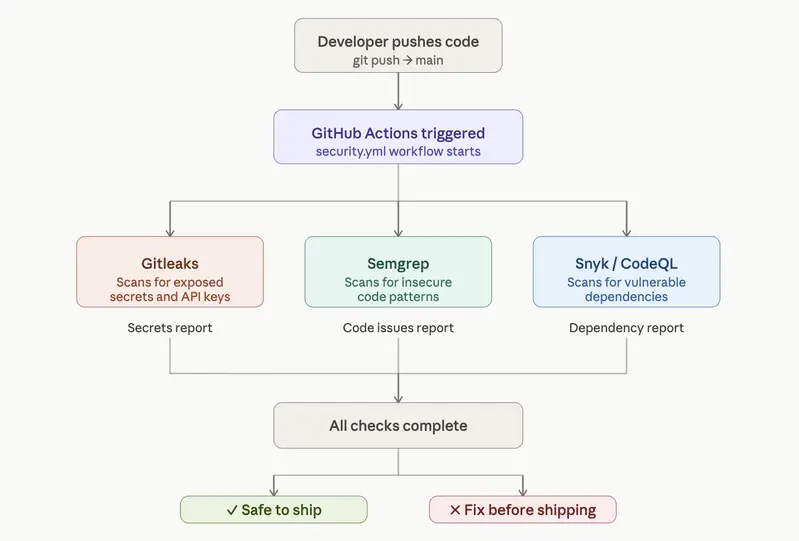
Here is the full picture of what we are building:

On every push to main:
│
├── Step 1: Gitleaks — scan for exposed secrets and API keys
├── Step 2: Semgrep — scan for insecure code patterns  
└── Step 3: Snyk or CodeQL — scan for vulnerable dependencies

Each scan catches a different category of problem — secrets, insecure code patterns, and vulnerable dependencies. If any one fails, GitHub stops the pipeline before the code reaches production. You get an email, a red badge on your repository, and a detailed report showing exactly what was found and where.

The diagram below maps how the pieces connect. Think of it as your security assembly line — every push goes through it automatically, without you having to remember to run anything manually.

GitHub actions workflow

Let’s build each layer.

Step 1: Catching Exposed Secrets with Gitleaks

Gitleaks scans your codebase for anything that looks like a secret — API keys, database passwords, tokens, private keys. It knows the patterns for hundreds of services: AWS, OpenAI, Stripe, Supabase, GitHub itself.

This is the Moltbook failure in automated form. If Gitleaks had been running on that repository, the exposed Supabase key would have been flagged before the first commit ever reached production.

Create a file at .github/workflows/security.yml and add this:

name: Security Pipeline

on:
  push:
    branches: [main]
  pull_request:
    branches: [main]

jobs:
  secret-scan:
    name: Scan for Exposed Secrets
    runs-on: ubuntu-latest

    steps:
      # Step 1: Download your code onto the pipeline machine
      - name: Checkout code
        uses: actions/checkout@v4
        with:
          fetch-depth: 0    # Scan the full git history, not just the latest commit

      # Step 2: Run Gitleaks
      - name: Run Gitleaks
        uses: gitleaks/gitleaks-action@v2
        env:
          GITHUB_TOKEN: ${{ secrets.GITHUB_TOKEN }}  # GitHub provides this automatically

What this does in plain English: Every time you push to main or open a pull request, GitHub downloads your code onto a fresh machine and runs Gitleaks across every file and every commit in your history. If it finds anything that looks like a secret, the pipeline fails and you get a detailed report showing exactly which file and which line contains the problem.

The fetch-depth: 0 line is important — without it, Gitleaks only scans your most recent commit. With it, it scans your entire history, which catches secrets that were committed weeks ago and never removed.

Step 2: Catching Insecure Code Patterns with Semgrep

Gitleaks catches secrets. Semgrep catches insecure patterns — things like SQL queries that trust user input directly, authentication checks that can be bypassed, or configuration values that should never be public.

Semgrep has a free tier and a library of pre-written rules maintained by security researchers. You do not need to write the rules yourself. You just point it at a ruleset and it does the work.

Add this job to the same security.yml file, underneath the secret-scan job:

  code-scan:
    name: Scan for Insecure Code Patterns
    runs-on: ubuntu-latest

    steps:
      - name: Checkout code
        uses: actions/checkout@v4

      - name: Run Semgrep
        uses: returntocorp/semgrep-action@v1
        with:
          config: >-
            p/security-audit
            p/secrets
            p/javascript
        env:
          SEMGREP_APP_TOKEN: ${{ secrets.SEMGREP_APP_TOKEN }}

What this does in plain English: Semgrep reads through your code looking for patterns that security researchers have identified as dangerous. The p/security-audit ruleset covers common vulnerabilities. The p/javascript ruleset adds JavaScript and TypeScript-specific checks. If your project uses Python, swap p/javascript for p/python. If it uses both, list both.

To get your SEMGREP_APP_TOKEN, create a free account at semgrep.dev, go to Settings, and copy your token. Then in your GitHub repository, go to Settings → Secrets and Variables → Actions → New Repository Secret, and paste it there as SEMGREP_APP_TOKEN. GitHub stores it encrypted and injects it into the pipeline automatically — your token never appears in your code.

Step 3: Catching Vulnerable Dependencies

Your app almost certainly uses packages written by other people — React, Express, Axios, whichever libraries your AI reached for. Those packages sometimes contain known security vulnerabilities. You did not write the vulnerability, but if it is in your app, it is your problem.

You have two solid options here depending on your comfort level.

Option A: Snyk (beginner-friendly, generous free tier)

Snyk is built for accessibility. It has a VS Code extension, a web dashboard, and a GitHub integration that makes setup straightforward. Add this job to your workflow:

  dependency-scan-snyk:
    name: Scan Dependencies with Snyk
    runs-on: ubuntu-latest

    steps:
      - name: Checkout code
        uses: actions/checkout@v4

      - name: Run Snyk
        uses: snyk/actions/node@master
        env:
          SNYK_TOKEN: ${{ secrets.SNYK_TOKEN }}
        with:
          args: --severity-threshold=high  # Only fail on high and critical issues

Get your SNYK_TOKEN by creating a free account at snyk.io, going to Account Settings, and copying your Auth Token. Add it to GitHub Secrets the same way you added the Semgrep token.

Option B: CodeQL (built into GitHub, no extra account needed)

CodeQL is GitHub’s own static analysis engine. It is more powerful than Snyk for code-level analysis, slightly more complex to configure, but requires no external account. Replace the Snyk job with this:

  dependency-scan-codeql:
    name: Scan with CodeQL
    runs-on: ubuntu-latest
    permissions:
      security-events: write

    steps:
      - name: Checkout code
        uses: actions/checkout@v4

      - name: Initialize CodeQL
        uses: github/codeql-action/init@v3
        with:
          languages: javascript  # Change to python, ruby, etc. if needed

      - name: Perform Analysis
        uses: github/codeql-action/analyze@v3

Results from CodeQL appear directly in your GitHub repository under the Security tab — no external dashboard needed.

Which should you choose? Start with Snyk if you want immediate, readable results in plain English. Move to CodeQL when you want deeper analysis integrated directly into GitHub. There is no wrong answer — running either is infinitely better than running neither.

The Complete Pipeline

Here is the full security.yml file with all three jobs combined. Drop this into .github/workflows/security.yml in any project and your automated security gate is live:

name: Security Pipeline

on:
  push:
    branches: [main]
  pull_request:
    branches: [main]

jobs:
  secret-scan:
    name: Scan for Exposed Secrets
    runs-on: ubuntu-latest
    steps:
      - uses: actions/checkout@v4
        with:
          fetch-depth: 0
      - uses: gitleaks/gitleaks-action@v2
        env:
          GITHUB_TOKEN: ${{ secrets.GITHUB_TOKEN }}

  code-scan:
    name: Scan for Insecure Code Patterns
    runs-on: ubuntu-latest
    steps:
      - uses: actions/checkout@v4
      - uses: returntocorp/semgrep-action@v1
        with:
          config: >-
            p/security-audit
            p/secrets
            p/javascript
        env:
          SEMGREP_APP_TOKEN: ${{ secrets.SEMGREP_APP_TOKEN }}

  dependency-scan:
    name: Scan Dependencies
    runs-on: ubuntu-latest
    steps:
      - uses: actions/checkout@v4
      - uses: snyk/actions/node@master
        env:
          SNYK_TOKEN: ${{ secrets.SNYK_TOKEN }}
        with:
          args: --severity-threshold=high

Three jobs. Three categories of risk. All running automatically on every push.

Reading the Results

When a pipeline run completes, GitHub shows you one of two things:

Green checkmarks — all scans passed. You are clear to merge or deploy.

A red X — something was found. Click into the failed job, read the output, and it will tell you exactly what was flagged, in which file, and often why it is a problem.

Do not treat a red X as a failure. Treat it as the system working. The pipeline caught something before it reached production — which is precisely what it is there to do.

One Thing to Do Right Now

If setting up all three jobs at once feels like too much, start with just Gitleaks. Create the .github/workflows/security.yml file with only the secret-scan job. Push it to your repository. Watch it run.

Once you have seen a pipeline run — green or red — the rest becomes much less intimidating. The structure is always the same: trigger, machine, steps. You are just swapping in different tools.

Security automation is not a one-time setup. It is a habit that compounds. Every project you start from now on gets the pipeline from day one. Every collaborator who opens a pull request gets their code scanned automatically. Every push gets checked before it ships.

That is what consistency looks like when you remove the human from the loop.

Where This Fits in Your Stack

This pipeline covers the code layer — what is in your repository. Combined with the platform-level defaults from the previous article — RLS enabled, rate limiting on, secrets in the right environment variables — you now have security running at two levels simultaneously:

Before the code ships → GitHub Actions catches it in the pipeline
After the code ships → Platform defaults limit the damage if something slips through

Neither layer is perfect on its own. Together they cover the vast majority of the failures that appear in real-world breaches — including the ones that made Moltbook a case study.

You did not need a Computer Science degree to set this up. You needed a .github/workflows/ folder and about an hour.

The next article in this series covers something slightly different: what to do when the AI itself is part of your pipeline — and the new attack surface that creates.

Found this useful? Share it with someone who just shipped their first repo. The best time to add a security pipeline is before the first breach. The second best time is right now.

qwen2.5-coder is too slow for Claude Code on a Mac. Here’s the fix.

Terminal screenshot of  raw `claude-local` endraw  successfully answering with wifi off

Claude Code does not care where the model lives. Point it at a local model and it works with no network. I tested that at 35,000 feet, picked the wrong model first, and swapped mid-flight.

TL;DR

  • Claude Code reads two environment variables to decide where its model lives. Point them at Ollama and it runs fully offline.
  • I tested this on a real flight. Berlin, May 13, wifi off, cabin door closed.
  • I started on qwen2.5-coder:14b. It was too slow for anything agentic. One tool call sat for 25 seconds, the next for 52.
  • I switched to gemma4:26b. That one carried the session.
  • Local is for offline work, privacy-sensitive code, and cheap drafting. Cloud is still better for heavy reasoning and large-context tasks.
  • The install takes 20 minutes once. After that, switching models is one command.

The setup, in one paragraph

Ollama runs an open-weights model on your laptop. Claude Code points at Ollama instead of Anthropic’s servers. No network call leaves the machine. The cloud account is irrelevant for that session. The only real decision is which local model you run, and that decision is where I got it wrong the first time.

Why offline beats “just use a smaller cloud model”

Before the setup, the three objections I get every time:

  • “Just don’t code on a plane.” A flight is six uninterrupted hours. No social media, no notifications, nothing that pulls focus. That is rare now. Throwing it away because your LLM needs wifi, when the wifi problem is fixable, is a planning failure.
  • “Just use Copilot offline.” Copilot’s local mode does completions. Anything context-heavy still hits the network. The moment you ask for the work that justifies an AI assistant, you are back online.
  • “Just use a smaller cloud model.” Haiku and GPT-4o-mini still live in the cloud. Smaller is not local. No network, no inference. Same failure, smaller bill.

Local is the only setup that runs at 35,000 feet. It also runs on a train through a tunnel, in a cafe with broken wifi, and on the morning the OpenAI status page goes red. The flight is just the stress test.

What you need

  • A Mac on Apple Silicon (M1 or newer). Linux and Windows via WSL2 work with minor changes.
  • Claude Code installed and already authenticated against your cloud account.
  • About 16 GB of unified memory. 32 GB if you want the larger models comfortable.
  • Homebrew, for the Ollama install.
  • 20 minutes the first time. Roughly 90 seconds every time after.

Step 1 — Pull the model before you fly

Install Ollama and pull a model:

brew install ollama
ollama pull qwen2.5-coder:14b

Do this on home wifi the night before. The pull is around 9 GB. Airport wifi and hotspots will not cooperate, and finding that out at the gate is its own small tragedy.

Confirm it landed:

ollama list

This was my mistake, so I will be blunt about it: I prepped qwen2.5-coder:14b because it is the model every “local LLM for coding” post recommends. Pull more than one. You will see why in Step 4.

Step 2 — Point Claude Code at Ollama

Start the Ollama server in one terminal:

ollama serve

Then in a new terminal, launch Claude Code against your local model:

ollama launch claude --model qwen2.5-coder:14b

Wrap that in two shell aliases so the rest of your workflow has named modes. Add these to ~/.zshrc:

alias claude-local='ollama launch claude --model gemma4:26b'
alias claude-cloud='claude'

Then source ~/.zshrc. That is the entire switching layer.

claude-local runs offline against Ollama. claude-cloud runs against the real Anthropic API. Two commands, one decision per session.

Step 3 — Verify on the ground

Prove the setup works in airplane mode before you board anything. This is non-negotiable. Discovering a missing step at altitude is bad theater with no exits.

  1. Make sure ollama serve is running.
  2. Turn wifi off. Actually off, not “disconnected from this network.”
  3. Run claude-local and point it at a real file.
  4. Confirm a real answer comes back.

Terminal screenshot of  raw `claude-local` endraw  successfully answering with wifi off

If it loads your project and answers with wifi off, it will work on the plane.

Step 4 — The flight: qwen2.5-coder was too slow

The best move I made was running the model without wifi on the ground first and measuring real performance. Every forum I read pointed at qwen2.5-coder. I trusted them. They were wrong for this job.

File reads were fine. Short explanations were fine. Then the model tried anything agentic, and the wait times stopped being a rounding error.

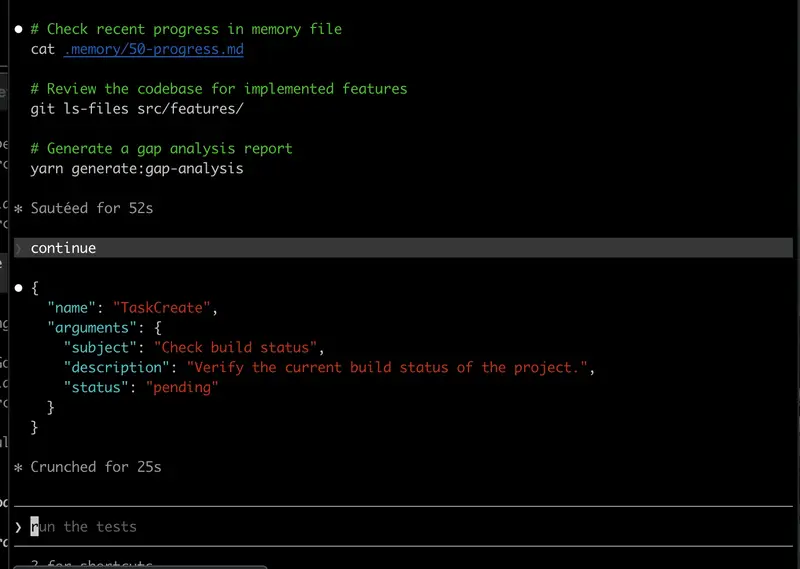
Terminal screenshot showing slow tool-call wait times on qwen2.5-coder during the flight

One tool call crunched for 25 seconds. An earlier step had sat at 52. For a single step in a loop that needs five or six of them, that is not a workflow. That is staring at a terminal while the person next to you finishes a movie.

qwen2.5-coder:14b is a fine model for single-shot edits. For the multi-step tool loop that Claude Code actually runs, on this hardware, it could not keep up. The model every post recommends was the wrong call for the job I had.

Step 5 — The swap: gemma4:26b carried the session

I had pulled a second model before the flight, exactly because I did not fully trust the first one. So I switched to gemma4:26b.

Terminal screenshot of  raw `ollama pull gemma4:26b` endraw

Bigger model, 17 GB on disk, and on this MacBook it was the difference between a demo and a tool. The tool loop ran at a speed I would actually choose. The gap analysis completed. Multi-step reasoning held together instead of stalling halfway.

Terminal screenshot of gemma4:26b running a real Claude Code gap-analysis task

Honest scorecard for the flight: roughly 70 percent of my normal Claude Code workflow worked on gemma4:26b. The 30 percent that did not was the heavy “go reason across the whole repo” pattern, which is cloud territory anyway. For six hours of focus on a known task, it was a real working setup, not a downgrade.

Because I already had a tight context-engineering setup with optimised token consumption, it ran smoothly. The Mac started lagging briefly when I had Xcode and Antigravity open alongside, but closing those and cleaning up Chrome tabs sorted it. If you want the context-engineering side, the U-AMOS write-up is here: I spent 6 months losing fights with AI in React Native. Then I built U-AMOS.

Practical tip: install the OneTab Chrome extension. Collapse open tabs into a list when you start a focus session. RAM frees up immediately and so does your attention. OneTab on the Chrome Web Store.

Which local model should you actually run?

The lesson from the flight changed my default. Here is the short list I keep now:

Model picker comparison card — Devstral / Qwen3-Coder / Gemma 4 / Llama 3.3

  • Devstral Small (24B) — built for agentic coding, multi-file edits, tool use. Currently the strongest open-source option on SWE-bench.
  • Qwen3-Coder (30B) — RL-trained on SWE-bench, native tool calling, large context. The successor to the model that failed me, and it is a real upgrade.
  • Gemma 4 (4B to 31B) — the best size-to-capability ratio. The 26b variant is what saved my flight.
  • Llama 3.3 (70B) — solid general coding and stable tool calling if your machine can carry it.

Notice what is not on that list: qwen2.5-coder. That is not an accident. Pick a model that is RL-trained for tool use, not just code completion. Claude Code lives or dies on the tool loop.

When to use local vs cloud

After running both for weeks, the rule is simple.

Reach for claude-local when:

  • There is no network. Planes, trains, dead cafes, conference wifi.
  • The code is privacy-sensitive. Client work under NDA, anything you do not want crossing a vendor boundary.
  • You are drafting and iterating prompts before spending cloud tokens on the real run. Local cost stays at zero.

Reach for claude-cloud when:

  • The work is multi-tool and agentic. Subagents, MCP calls, parallel reads.
  • The task needs large context. Whole-repo refactors, “explain this project.”
  • The output ships to production. The polish gap between a local model and cloud Claude is real.

You do not pick once and live there. The aliases exist so you can switch inside a single session. Draft offline, land, run claude-cloud for the high-stakes execution.

Where this breaks

The honest section, because AI-generated tutorials never have one.

  • Tool use is the weak point. Even good local models are less reliable than cloud Claude at chaining many tool calls. Expect rough edges if your workflow leans hard on subagents and MCP servers.
  • Context windows are smaller. Sessions that try to load the entire repo will choke. Scope to the files in play, not the whole tree.
  • Battery drains faster. Running a 26B model while your editor and browser are open will eat the battery noticeably quicker than cloud Claude. Plan for it on a long offline session.
  • The endpoint shape is a soft contract. Ollama’s responses are close to Anthropic’s, not identical. Most coding requests work. If you hit a strange parsing error mid-stream, that mismatch is usually why, and claude-cloud is the fix in the moment.
  • Model versioning is your job now. Ollama makes pulling easy, but you decide when to upgrade and which variant. Keep a note of what you run and why.

Where to go next

This offline setup is one of three layers in a full AI-coding stack: cloud LLMs for heavy reasoning, local LLMs for offline and private work, and on-device LLMs for the mobile apps you ship to users. The on-device side for React Native is its own problem, covered in the Phi-3 Mini integration walkthrough. All three ship pre-wired in the AI Mobile Launcher AI Pro tier, so you are not assembling this from scratch.

I packaged the rest of this into the Local LLM with Claude Code bundle: the paste-ready zshrc aliases plus a claude-status helper, the Ollama config tuned for Apple Silicon, the model-picker matrix, and a pre-flight checklist so the setup is never a surprise at altitude. Reply to the Code Meet AI newsletter and I will send it.

FAQ

Can I run Claude itself locally?

No. Claude is closed-weight, so there is no local-runnable Claude. This setup uses Claude Code, the CLI, with an open-weights model like Gemma 4 or Devstral serving the inference. The CLI is the interface, the model is whatever endpoint you point it at.

What is the best local LLM for coding with Claude Code?

For the agentic tool loop Claude Code runs, pick a model RL-trained for tool use: Devstral Small, Qwen3-Coder, or Gemma 4. Avoid older completion-tuned models like qwen2.5-coder. They handle single edits fine but stall on multi-step work.

Does Claude Code airplane mode actually work with no signal?

Yes. With Claude Code pointed at local Ollama, no request leaves your laptop. I ran a full session at 35,000 feet with wifi off. The only requirement is pulling the model in advance.

Why Ollama and not LM Studio or llama.cpp?

Ollama wraps llama.cpp with a clean HTTP API on a known port. LM Studio works too but is GUI-first. Direct llama.cpp gives more control and more setup pain. Ollama is the path of least resistance for getting this running in under 30 minutes.

Will I get the same code quality as cloud Claude?

No. A good local model is excellent for syntax-level work: refactors, cleanup, rewriting a hook. For plan-heavy or reasoning-heavy tasks the gap is large. Use cloud for design, local for execution, or use local to draft and cloud to polish.

Malik Chohra — 9 yrs software, 7 in React Native. Building Wire RN, AI Mobile Launcher, and Code Meet AI.

Yapay zekada 500 milyar dolarlık dev yarış: Piyasalar kritik veriye kilitlendi

Küresel piyasalarda yapay zeka altyapısına yönelik yatırımlar teknoloji hisselerini desteklemeye devam ederken, yükselen petrol fiyatları ve enflasyon endişeleri yatırımcıların risk algısında belirleyici oluyor. Gelecek hafta açıklanması beklenen ABD büyüme verileri öncesinde teknoloji, enerji, tahvil ve dijital varlık piyasalarındaki fiyat hareketleri yakından izleniyor.

New AI body map reveals obesity’s hidden attack on facial nerves

Scientists have created an AI-powered system that can scan and map an entire mouse body in extraordinary detail — and it just uncovered a surprising new effect of obesity. Beyond disrupting metabolism, obesity appears to damage facial sensory nerves linked to touch and sensation, while also triggering widespread inflammation across the body.

Building Automated Text-to-Video Pipelines with AI

Building Automated Text-to-Video Pipelines with AI

Hey DEV community! 👋

Ever wanted to turn your blog posts, documentation, or README files into videos automatically? In this article, I’ll walk through how to build a text-to-video pipeline using AI tools — from architecture to implementation patterns.

Building Automated Text-to-Video Pipelines with AI

The Problem

As developers, we create a LOT of text content:

  • Blog posts
  • Documentation
  • README files
  • Tutorials
  • Release notes
  • Changelogs

But video content gets 10x more engagement. The problem? We’re developers, not video producers.

The Solution: Automated Text-to-Video

Modern AI-powered text-to-video conversion tools can transform written content into professional videos with narration, visuals, and subtitles — all programmatically.

Let’s build an automation pipeline around this.

Architecture Overview

┌─────────────────────────────────────────────┐
│              Content Sources                 │
│  ┌────────┐ ┌────────┐ ┌────────────────┐  │
│  │  Blog  │ │  Docs  │ │  Markdown      │  │
│  │  Posts │ │  Site  │ │  Files         │  │
│  └───┬────┘ └───┬────┘ └───────┬────────┘  │
└──────┼──────────┼───────────────┼───────────┘
       └──────────┼───────────────┘
                  ▼
┌─────────────────────────────────────────────┐
│         Content Processor                    │
│  ┌─────────────────────────────────────┐    │
│  │  1. Fetch content                   │    │
│  │  2. Parse & clean                   │    │
│  │  3. Optimize for video              │    │
│  │  4. Split if needed                 │    │
│  └─────────────┬───────────────────────┘    │
└────────────────┼────────────────────────────┘
                 ▼
┌─────────────────────────────────────────────┐
│         Video Generation                     │
│  ┌─────────────────────────────────────┐    │
│  │  AI Text-to-Video API               │    │
│  │  - Script generation                │    │
│  │  - Voice synthesis                  │    │
│  │  - Visual creation                  │    │
│  │  - Video assembly                   │    │
│  └─────────────┬───────────────────────┘    │
└────────────────┼────────────────────────────┘
                 ▼
┌─────────────────────────────────────────────┐
│         Distribution                         │
│  ┌────────┐ ┌────────┐ ┌────────────────┐  │
│  │YouTube │ │Social  │ │  CDN/Website   │  │
│  │       │ │Media   │ │               │  │
│  └────────┘ └────────┘ └────────────────┘  │
└─────────────────────────────────────────────┘

Implementation Patterns

Pattern 1: Blog Post → YouTube Video

This is the most common use case. Convert existing blog posts to YouTube videos for dual-channel reach.

# Conceptual pipeline
class BlogToVideoPipeline:
    def __init__(self):
        self.parser = ContentParser()
        self.optimizer = VideoOptimizer()
        self.generator = VideoGenerator()

    def process(self, blog_url):
        # Step 1: Extract content
        content = self.parser.extract_from_url(blog_url)

        # Step 2: Optimize for video
        # Remove code-heavy sections that don't translate well
        # Split into logical segments
        optimized = self.optimizer.prepare(content)

        # Step 3: Generate video
        video = self.generator.create(
            text=optimized.text,
            title=optimized.title,
            voice="professional_male",
            language="en",
            style="tutorial"
        )

        return video

Pattern 2: Documentation → Video Tutorials

Convert your project documentation into video walkthroughs:

# CI/CD Integration concept
name: Docs to Video
on:
  push:
    paths: ['docs/**/*.md']
    branches: [main]

jobs:
  convert:
    runs-on: ubuntu-latest
    steps:
      - uses: actions/checkout@v4

      - name: Detect changed docs
        id: changes
        # Get list of changed markdown files

      - name: Convert to video
        # For each changed doc, call video generation API

      - name: Upload to CDN
        # Store generated videos

      - name: Notify team
        # Post to Slack with video links

Pattern 3: Release Notes → Changelog Videos

Make your changelogs more engaging:

# Release notes video generator concept
def generate_release_video(version, changelog_text):
    # Structure the content for video
    sections = parse_changelog(changelog_text)

    video_script = f"""
    Welcome to version {version} of our product.
    Here's what's new in this release.

    {format_features(sections['features'])}

    We've also fixed the following issues:
    {format_bugfixes(sections['bugfixes'])}

    That's all for version {version}. 
    Thanks for being a user!
    """

    # Generate video from script
    video = text_to_video_api.convert(
        text=video_script,
        style="product_update"
    )
    return video

Content Optimization for Video

Not all text converts equally well to video. Here are optimization strategies:

Text Preprocessing

def optimize_for_video(markdown_text):
    """Preprocess text content for better video conversion"""

    optimizations = {
        # Remove inline code blocks (hard to narrate)
        'inline_code': lambda t: re.sub(r'`[^`]+`', 
            lambda m: m.group().strip('`'), t),

        # Convert URLs to readable form
        'urls': lambda t: re.sub(
            r'[([^]]+)]([^)]+)', r'1', t),

        # Remove image references
        'images': lambda t: re.sub(
            r'![([^]]*)]([^)]+)', r'', t),

        # Simplify headers
        'headers': lambda t: re.sub(
            r'^#{1,6}s+', '', t, flags=re.MULTILINE),
    }

    result = markdown_text
    for name, transform in optimizations.items():
        result = transform(result)

    return result.strip()

Content Splitting Strategy

Long-form content should be split into digestible videos:

def split_content(text, max_words=1500):
    """Split content into video-sized chunks"""
    sections = text.split('n## ')  # Split on H2 headers

    chunks = []
    current_chunk = []
    current_words = 0

    for section in sections:
        word_count = len(section.split())
        if current_words + word_count > max_words and current_chunk:
            chunks.append('n## '.join(current_chunk))
            current_chunk = [section]
            current_words = word_count
        else:
            current_chunk.append(section)
            current_words += word_count

    if current_chunk:
        chunks.append('n## '.join(current_chunk))

    return chunks

Quality Metrics

Track these metrics to evaluate your pipeline:

Metric Target How to Measure
Conversion success rate >95% API response codes
Video quality score >4/5 Manual review sampling
Processing time <5 min/video Pipeline logs
Narration accuracy >90% Spot checks
Viewer retention >50% YouTube Analytics

Tips for DEV.to Content Creators

If you’re a developer who writes on DEV.to, here’s how to maximize your content:

  1. Write video-friendly posts: Use clear headings, short paragraphs, and explain concepts in plain language
  2. Create a blog → video pipeline: Automate conversion of your best posts
  3. Cross-post videos: Share on YouTube, LinkedIn, and Twitter
  4. Track performance: Compare engagement metrics between text and video

What Converts Well to Video:

  • ✅ “How to” tutorials
  • ✅ Concept explanations
  • ✅ Tool reviews and comparisons
  • ✅ Career advice
  • ✅ Industry trends

What Doesn’t Convert Well:

  • ❌ Code-heavy tutorials (use screen recordings instead)
  • ❌ Low-level debugging guides
  • ❌ Reference documentation

Conclusion

Building a text-to-video pipeline is one of those “why didn’t I do this earlier” projects. The technology is mature, the tools are accessible, and the impact on content reach is significant.

Start small — convert your most popular blog post into a video today. If the results look good (and they will), build out the automation pipeline.

Your written content deserves a larger audience. Video is how you get there.

Happy coding! 🚀

Found this useful? Follow me for more content on developer tools and automation.

tags: ai video automation devops content

Can Gemini Become an Offline AI Tutor? Lessons from Building Educational AI

Gemini succeeds in Education and it can be available, affordable, adaptive, and resilient

Can Gemini Become an Offline AI Tutor? Lessons from Building Educational AI

This is a submission for the Google I/O Writing Challenge

What if every student had access to a personal AI tutor — one that explains concepts patiently, adapts to learning speed, gives feedback instantly, and never gets tired?

That sounds exciting.

But there is one problem:

What happens when the internet disappears?

Gemini succeeds in Education and it can be available, affordable, adaptive, and resilient

For millions of learners globally — especially across low-connectivity and underserved regions — AI education often feels like a promise built for someone else. Many of the most powerful educational AI experiences assume constant internet access, modern devices, and uninterrupted cloud infrastructure.

As someone building AI-powered educational systems, this question stood out to me while exploring the Google I/O 2026 Gemini ecosystem updates:

Can Gemini evolve beyond a cloud assistant and become an effective offline AI tutor?

This question matters more than it seems.

Because the future of educational AI may not be defined by the smartest model.

It may be defined by the most accessible one.

Why Gemini at Google I/O 2026 Caught My Attention

One thing that stood out from Google I/O 2026 is that Gemini is no longer just “a model.”

Google increasingly positions Gemini as an ecosystem:

  • Consumer experiences
  • Developer APIs
  • AI Studio experimentation
  • Multimodal reasoning
  • Productivity workflows
  • Agentic capabilities

For developers, this is exciting.

Tools like Google AI Studio lower the barrier to experimentation and prototyping. It is easier than ever to test ideas, evaluate prompts, and build intelligent applications faster.

But while exploring the announcements, I kept thinking about one specific use case:

education.

More specifically:

Can these advances realistically improve learning for students who face limited connectivity, limited devices, and limited educational support?

Because educational inequality is not simply a content problem.

It is also an access problem.

The Problem With Today’s Educational AI

Current AI models are already impressive inside classrooms.

They can:

✅ Explain difficult concepts
✅ Generate quizzes
✅ Personalize explanations
✅ Help teachers prepare materials
✅ Provide tutoring support
✅ Translate and simplify information

But after working on educational AI systems, I’ve noticed something important:

Most educational AI breaks down outside ideal conditions.

Many solutions assume:

  • Stable internet
  • Cloud access
  • Modern hardware
  • Continuous subscriptions
  • Always-online APIs

That works in some environments.

But not everywhere.

In many schools — especially in low-resource environments — internet access is inconsistent, devices are shared, and educational resources are limited.

A student may have:

  • A low-cost Android phone
  • Limited mobile data
  • Unstable electricity
  • No access after school hours

And suddenly:

The “AI tutor” disappears.

This is where I think the next phase of Gemini becomes interesting.

Where Gemini Already Succeeds in Education

To be fair, Gemini already demonstrates several strengths that make it genuinely promising for education.

1. Natural Explanations

Students rarely learn best from textbook language.

They ask questions like:

“Can you explain this in a simpler way?”

Gemini’s conversational reasoning is valuable because learning is often iterative.

A student may ask:

“Explain photosynthesis.”

Then:

“Explain it like I’m 10.”

Then:

“Give me an example.”

Then:

“Test me.”

This back-and-forth matters.

Good tutoring is not just giving answers.

It is guided understanding.

Gemini performs surprisingly well in this type of interactive learning flow.

2. Personalized Learning

One challenge in education is that classrooms move at one speed.

Students do not.

Some students need:

  • More examples
  • Slower explanations
  • Visual learning
  • Practice questions
  • Simplified wording

AI tutoring can adapt.

This is where Gemini could become transformative.

Instead of one-size-fits-all education:

Students could experience personalized instruction at scale.

That idea is powerful.

Especially in regions with high student-to-teacher ratios.

3. Multimodal Learning Potential

Google’s multimodal direction is particularly exciting for education.

Students do not only learn through text.

They learn through:

  • Images
  • Voice
  • Diagrams
  • Videos
  • Visual reasoning

Imagine a student taking a picture of a math problem and receiving:

  • A step-by-step explanation
  • Concept breakdown
  • Similar practice questions
  • Common mistakes to avoid

That moves AI closer to a true tutor.

Not just a chatbot.

But Here’s Where Current Models Still Fail in Classrooms

This is where I think educational AI still needs honest criticism.

Despite the progress, current models still struggle in important ways.

1. Hallucinations Are Dangerous in Education

In productivity tools, mistakes are frustrating.

In education?

Mistakes can become mislearning.

Students trust authority.

If an AI confidently gives incorrect scientific reasoning, incorrect math steps, or misleading historical information, many learners may not notice.

That creates a risk:

confidence without correctness.

Educational AI needs stronger:

  • Verification
  • Fact consistency
  • Curriculum alignment
  • Citation awareness
  • Confidence indicators

In classrooms, accuracy matters more than creativity.

2. AI Often Gives Answers Too Quickly

One overlooked issue:

Many AI systems optimize for speed.

Learning does not.

A good teacher does not instantly reveal every answer.

Sometimes they ask:

“What do you think?”

Or:

“Try solving step one.”

Educational AI still needs better pedagogical reasoning.

Instead of simply solving:

It should scaffold learning.

Helping students think rather than replacing thinking.

3. Internet Dependence Is Still a Major Barrier

This is the biggest issue I see.

The best AI educational experiences are often locked behind cloud infrastructure.

But millions of learners exist in environments where:

connectivity is intermittent, expensive, or unavailable.

This matters globally.

Not only in rural communities.

Even urban learners can struggle with:

  • Expensive mobile data
  • Network interruptions
  • Shared access

Educational equity requires resilient systems.

And resilience means:

learning should not stop when the internet stops.

Lessons From Building Educational AI: Why I Started Thinking Offline

I have been working on educational AI ideas through a concept called LocalMind — an offline-first educational intelligence system designed to make AI learning more accessible.

The core idea is simple:

What if students could still access intelligent tutoring without relying entirely on the cloud?

Instead of assuming perfect connectivity, educational systems should adapt to real-world conditions.

An offline-first learning ecosystem could support:

Students

  • Personalized tutoring
  • Practice support
  • Simplified explanations
  • Learning revision

Teachers

  • Lesson preparation
  • Classroom support
  • Question generation
  • Learning insights

Schools

  • Shared educational intelligence
  • Resource optimization
  • Better accessibility

The goal is not replacing teachers.

It is augmenting learning.

Teachers remain essential.

But AI can help bridge educational gaps.

Especially where resources are stretched.

So… Can Gemini Become an Offline AI Tutor?

I think the answer is:

Potentially — but not yet fully.

Google is building powerful capabilities around Gemini.

But for educational transformation, three things still matter.

1. Smaller, Efficient Models Matter

Not every school has high-performance devices.

Educational AI should run efficiently on:

  • Low-cost phones
  • School computers
  • Lightweight devices

Efficiency matters as much as intelligence.

A “good enough” local tutor available anytime may outperform a powerful cloud model that students cannot consistently access.

Accessibility beats perfection.

2. Offline-First Architecture Needs More Attention

Educational systems should gracefully transition between:

Online → Offline → Sync

Imagine this:

When connected:

  • Gemini updates learning plans
  • Downloads educational materials
  • Improves personalization

When offline:

  • Tutoring still works
  • Practice continues
  • Revision remains available

When reconnected:

  • Progress syncs automatically

That model feels more realistic for global education.

3. Educational AI Must Think Like a Teacher

Future tutoring systems need educational intelligence — not only language intelligence.

Good tutors:

  • Encourage curiosity
  • Ask guiding questions
  • Adapt difficulty
  • Identify confusion
  • Reinforce weak areas

The future educational AI experience should feel less like:

“Here is the answer.”

And more like:

“Let’s solve this together.”

That shift matters.

What I Hope Google Builds Next

After Google I/O 2026, I am optimistic.

But I also think there is room for a bigger vision.

I would love to see Google invest more deeply in:

Offline educational AI pathways

Especially for underserved regions.

Smaller Gemini educational models

Optimized for low-resource devices.

Education-specific tutoring frameworks

Focused on pedagogy rather than pure conversation.

Better classroom safety and verification

Reducing hallucinations in learning environments.

Because educational AI should not only serve the most connected learners.

It should serve everyone.

Final Thoughts

Google I/O 2026 showed that Gemini is becoming much bigger than a chatbot.

For developers, educators, and builders, the possibilities are exciting.

But while many conversations focus on cutting-edge capabilities, I keep returning to a simpler question:

What happens to learning when the internet disappears?

If AI is going to transform education globally, accessibility cannot be optional.

The next generation of educational AI should not only be intelligent.

It should be:

available, affordable, adaptive, and resilient.

Can Gemini become an offline AI tutor?

I think the foundation is there.

The bigger challenge is making sure that future reaches every learner — not just the connected ones.

And that is the future of educational AI I hope we build.

AI assisted in the making of some parts of this Article