Google Cloud Introduces Cross-Engine Iceberg Support in BigQuery

At the Apache Iceberg Summit last month, Google announced new interoperability features for Apache Iceberg in BigQuery. The preview of the serverless Iceberg REST catalog lets teams create, update, and query the same Apache Iceberg tables in BigQuery and in engines like Spark, Flink, and Trino without duplicating data.

By Renato Losio

Zero-Downtime Blue-Green and IP-Based Canary Deployments on ECS Fargate

ALB Canary Routing

Most ECS blue-green deployment tutorials eventually lead to the same stack:

  • AWS CodeDeploy
  • Deployment groups
  • AppSpec files
  • Lifecycle hooks
  • Weighted traffic shifting
  • Complex rollback orchestration

And while CodeDeploy works, I kept running into one practical limitation during real deployments:

I couldn’t let my internal team validate a new release on the actual production URL before exposing it to customers.

That became the entire motivation behind this setup.

I didn’t want:

  • separate staging domains
  • duplicate ALBs
  • temporary preview environments
  • “almost production” testing

I wanted something much simpler:

  • Internal users should see the new version first
  • Customers should continue seeing the stable version
  • Both should use the same production domain
  • Rollback should be immediate
  • Deployments should remain fully zero downtime

So I built a Terraform-driven deployment workflow using:

  • ECS Fargate
  • Application Load Balancer (ALB)
  • ALB listener priorities
  • Source IP routing
  • Terraform

without using CodeDeploy.

After running this setup in practice, I ended up preferring it for many ECS workloads.

The Core Idea

Both BLUE and GREEN environments run behind the same ALB.

Internal office/VPN IPs get routed to GREEN first.

Everyone else continues hitting BLUE.

That means QA and internal teams can validate the new release directly on the real production infrastructure before public rollout begins.

Same:

  • domain
  • SSL certificate
  • ALB
  • authentication flow
  • redirects
  • networking path

No “staging surprises” later.

A lot of deployment issues only appear on the real production routing path.

Real Example

Internal users open:

https://nginx.jayakrishnayadav.cloud

…and immediately see the GREEN version.

Meanwhile, public users continue seeing BLUE.

No DNS switching.

No duplicate infrastructure.

Just ALB listener routing.

Architecture Overview

The deployment flow looks like this:

                ┌────────────────────┐
                │   Application LB   │
                └─────────┬──────────┘
                          │
         ┌────────────────┴────────────────┐
         │                                 │
 Internal Office/VPN IPs             Public Users
         │                                 │
         ▼                                 ▼
   GREEN Target Group               BLUE Target Group
         │                                 │
    ECS GREEN Tasks                  ECS BLUE Tasks

The canary routing rule gets evaluated first.

If the request source IP matches internal CIDRs, traffic goes to GREEN.

Everything else falls back to BLUE.

Terraform Structure

I kept the Terraform layout modular so it could be reused across multiple services.

.
├── main.tf
├── variables.tf
├── outputs.tf
├── env/
│   ├── backend.hcl
│   └── terraform.tfvars
├── modules/
│   ├── vpc/
│   ├── iam/
│   ├── alb/
│   ├── ecs-cluster/
│   └── ecs-blue-green-service/
└── scripts/
    └── zero-downtime-test.sh

Each ECS service gets:

  • BLUE ECS service
  • GREEN ECS service
  • BLUE target group
  • GREEN target group
  • production listener rule
  • optional canary listener rule

ALB Listener Rule Logic

The entire deployment behavior depends on ALB listener priorities.

The canary listener rule gets evaluated first.

If the request source IP matches internal CIDRs, traffic gets forwarded to GREEN.

resource "aws_lb_listener_rule" "canary" {
  count    = var.activate_canary ? 1 : 0
  priority = 99

  condition {
    source_ip {
      values = var.canary_source_ips
    }
  }

  condition {
    host_header {
      values = ["nginx.jayakrishnayadav.cloud"]
    }
  }

  action {
    type             = "forward"
    target_group_arn = aws_lb_target_group.green.arn
  }
}

The production rule remains below it:

resource "aws_lb_listener_rule" "production" {
  priority = 100

  condition {
    host_header {
      values = ["nginx.jayakrishnayadav.cloud"]
    }
  }

  action {
    type             = "forward"
    target_group_arn = local.active_target_group
  }
}

That’s it.

No weighted routing.

No lifecycle hooks.

Just listener priorities.

Real Deployment Workflow

This wasn’t built as a theoretical architecture exercise.

I tested the rollout flow directly from Terraform while continuously validating traffic behavior against live ECS Fargate services.

Terraform initialization:

terraform init -backend-config=env/backend.hcl

Deployment apply:

terraform apply 
  -var-file=env/terraform.tfvars 
  -lock=false 
  -auto-approve

During canary validation, I continuously verified my public IP:

curl ifconfig.me

That mattered because the ALB source-IP rule decides whether traffic reaches:

  • BLUE
  • GREEN

Once my IP matched the configured canary CIDRs, traffic immediately started routing to GREEN.

Deployment Flow

The nice part about this setup is that everything becomes variable-driven.

Step 1 — Normal Production State

BLUE handles all production traffic.

GREEN remains scaled down.

enable_canary   = false
activate_canary = false
promote_to_all  = false

Apply:

terraform apply 
  -var-file=env/terraform.tfvars 
  -lock=false 
  -auto-approve

Result:

  • BLUE active
  • GREEN inactive
  • minimal Fargate cost

Step 2 — Start GREEN Tasks

Now we start the GREEN environment.

enable_canary   = true
activate_canary = false
promote_to_all  = false

Apply again:

terraform apply 
  -var-file=env/terraform.tfvars 
  -lock=false 
  -auto-approve

At this stage:

  • GREEN tasks start
  • ECS health checks complete
  • ALB target registration completes
  • no production traffic reaches GREEN yet

Users never hit partially starting containers.

Step 3 — Internal Canary Validation

Now we enable canary routing.

enable_canary   = true
activate_canary = true
promote_to_all  = false

Apply again:

terraform apply 
  -var-file=env/terraform.tfvars 
  -lock=false 
  -auto-approve

Now:

  • internal office/VPN users hit GREEN
  • public users continue hitting BLUE

This became the most valuable phase of the deployment workflow.

Because now:

  • QA validates production behavior
  • developers inspect logs
  • authentication flows get tested
  • sessions and redirects get verified

while customers remain completely unaffected.

Internal Canary Routing

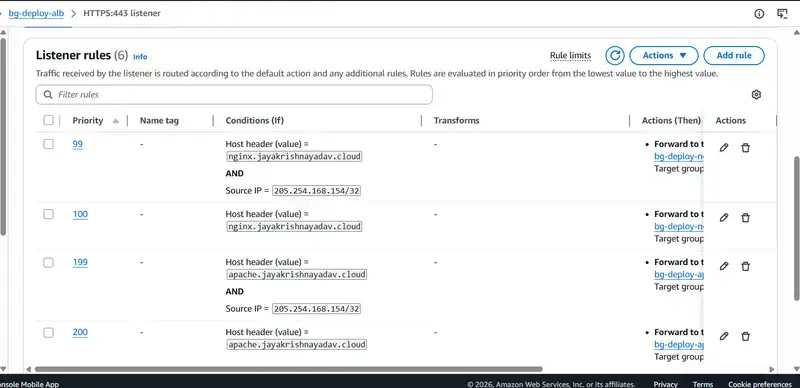
This is the ALB listener rules view while canary routing is enabled.

The priority 99 rule matches internal source IPs and forwards them to GREEN, while everyone else continues hitting BLUE.

ALB Canary Routing

Step 4 — Promote GREEN to Production

Once validation looks good:

enable_canary   = true
activate_canary = false
promote_to_all  = true

Apply again:

terraform apply 
  -var-file=env/terraform.tfvars 
  -lock=false 
  -auto-approve

Now:

  • production listener switches to GREEN
  • BLUE scales down
  • all users see the new version

No downtime occurs.

Traffic simply moves from one target group to another.

Verifying Zero Downtime

I didn’t want to assume the deployment was safe.

I wanted to verify it continuously during rollout.

So I used a simple curl-based validation script that continuously hit both applications while traffic shifted between BLUE and GREEN.

for i in {1..100}
do
  for url in 
    "https://nginx.jayakrishnayadav.cloud/" 
    "https://apache.jayakrishnayadav.cloud/"
  do
    response=$(curl -k -s -w " HTTPSTATUS:%{http_code}" "$url")

    body=${response% HTTPSTATUS:*}
    status=${response##*HTTPSTATUS:}

    if [[ $body == *"BLUE - v"* ]]; then
      color="BLUE"
    elif [[ $body == *"GREEN - v"* ]]; then
      color="GREEN"
    else
      color="UNKNOWN"
    fi

    echo "Run: $i | URL: $url | Status: $status | Version: $color"
  done
done

Output during deployment:

Zero Downtime Validation

You can clearly see:

  • HTTP 200 responses throughout deployment
  • no failed requests
  • no 503s
  • clean traffic movement from BLUE to GREEN

That confirmed the deployment was genuinely zero downtime.

Production Promotion View

After promotion:

  • the canary rule disappears
  • the production listener points directly to GREEN
  • all traffic reaches the new version
  • BLUE scales down to zero

Clean and simple.

Production Listener Switch

Final Traffic Flow

Rollback

Rollback became extremely simple.

I just reverted the Terraform variables:

enable_canary   = false
activate_canary = false
promote_to_all  = false

Apply Terraform again:

terraform apply 
  -var-file=env/terraform.tfvars 
  -lock=false 
  -auto-approve

ALB immediately routes traffic back to BLUE.

The rollback process stays predictable because traffic switching is entirely controlled through ALB listener rules.

HTTPS Configuration

The ALB uses ACM certificates for HTTPS.

Listeners:

  • Port 80 → redirect to HTTPS
  • Port 443 → production traffic
  • optional internal listener → restricted to internal CIDRs

Example:

test_listener_allowed_cidrs = [
  "160.30.39.198/32"
]

That keeps internal preview traffic private while still using the same production infrastructure.

Cost Optimization

One thing I specifically wanted to avoid was permanently doubling infrastructure cost.

Normal state:

  • only BLUE tasks run

Deployment window:

  • BLUE + GREEN both run temporarily

After promotion:

  • BLUE scales down again

So infrastructure cost only increases briefly during deployments.

Final Thoughts

This project started because I wanted a very practical deployment workflow:

Internal users should validate the new version on the actual production URL before customers ever see it.

Once I implemented that using ALB listener priorities and source IP routing, I realized I no longer really needed CodeDeploy for this workflow.

The end result became:

  • simpler
  • easier to operate
  • easier to rollback
  • easier to debug
  • easier to reason about
  • fully zero downtime

And because everything is Terraform-driven, the deployment process stays reproducible and predictable.

GitHub Repository

Full Terraform implementation:

https://github.com/jayakrishnayadav24/ecs-blue-green-deployment/tree/canary

I reproduced a Claude Code RCE. The bug pattern is everywhere.

Last week, security researcher Joernchen published a clever RCE in Claude Code 2.1.118. I spent Saturday reproducing it from the advisory to understand the pattern. The bug is fixed now, but the parsing anti-pattern behind it is everywhere in AI developer tools.

I’ve written a full article here:
https://vechron.com/2026/05/i-reproduced-a-claude-code-rce-the-bug-pattern-is-everywhere/

We Replaced Our RAG Pipeline With Persistent KV Cache. Here’s What We Found.

RAG has become the default answer for giving LLMs access to private knowledge. And for good reason — it works. But after running it in production we kept hitting the same wall. Not retrieval accuracy. The operational tax.

Re-embedding on data changes. Chunking drift. Retrieval misses on edge cases. Pipeline failures at 2am. The vector database that needs babysitting.

So we ran an experiment.

The Hypothesis
What if instead of chunking, embedding, and retrieving — we just loaded the full document into the LLM context, cached the KV state persistently, and reused it across every query?

No retrieval step. No embedding pipeline. No vector database. Just the model with full document context, warm and ready.

How It Works
The core idea is simple. When an LLM processes a prompt it generates a key-value attention cache — the internal representation of everything it has read. Normally this cache is transient. It lives in VRAM during the request and disappears after.
We persist it.
The initialization prompt — your document — gets processed once. The resulting KV cache gets stored externally and indexed to that document. Every subsequent query retrieves that cached state and appends the user query. The model never recomputes the document. Ever.

The math:
KV_init = LLM.prefill(document)
KV_store[document_id] = KV_init

# On every query:
KV_full = KV_store[document_id] + LLM.prefill(query)
output = LLM.decode(KV_full)

What We Found

Answer quality improved.
No retrieval misses are possible when the full document is in context. The model has read everything. It doesn’t guess which chunks are relevant — it knows the whole document. For complex multi-part questions that span different sections this is a significant improvement over chunked retrieval.

Updates became trivial.

Document changes? Re-run the prefill, store the new KV cache. Minutes not hours. No re-embedding pipeline. No re-indexing. No retrieval regression testing. Just regenerate and deploy.

Operational complexity dropped.

No embedding model to maintain. No vector database to monitor. No chunking strategy to tune. No retrieval quality metrics to track. The surface area for things to break quietly got dramatically smaller.
Latency on warm cache is effectively instant.

When the KV state is already loaded the query just appends and generates. No retrieval hop, no context injection latency.
The Honest Tradeoffs

Context window is the ceiling.

Current limit is around 120k tokens — roughly 200-300 pages. Works well for focused documents. For large corpora you need a routing layer to select the right cache per query. You’ve pushed the retrieval problem up one level — instead of retrieving chunks you’re selecting a cache. Simpler problem but not zero.

Cold cache restore adds latency.

The first query after a cache restore pays a latency cost. For strict SLA requirements this matters. Warm cache is instant. Cold restore depends on your infrastructure.

Initial prefill costs more than embedding.

Running a full forward pass on a large document costs more compute than embedding it. The economics work when query volume is high enough to amortize that cost. Low query, high update frequency — RAG still wins.

Where This Wins

This approach is clearly better when:

You have a focused, structured document — legal contract, compliance policy, product manual, technical spec
Query volume is high relative to update frequency
Full context comprehension matters more than breadth
You want to eliminate pipeline maintenance entirely
Privacy matters — no document chunks sent to embedding APIs

Where RAG Still Wins

Very large document collections where context limits apply
Highly dynamic data that changes multiple times per day
When you genuinely don’t know which document is relevant at query time
Low query volume where prefill cost doesn’t amortize

What We’re Building

We’ve been running this in production at InferX as part of our Sovereign Endpoints™ infrastructure. The persistent KV cache layer sits on top of our GPU snapshotting architecture — which is what makes the cold cache restore fast enough to be practical.
We’re now opening a limited beta for teams who want to test this on real workloads. Particularly interested in legal, compliance, finance, and developer tooling use cases.
If you’re running RAG in production and want to run a head-to-head comparison — we’d love to work with you.

Jenkins CI/CD Pipeline for a Dockerized Node.js Application: Manual Trigger vs Automatic Trigger Using GitHub Webhooks

Have you ever pushed code to GitHub and wished your application could automatically build and deploy itself without logging into a server or clicking a button in Jenkins? In this article, you’ll learn how to build a complete CI/CD pipeline for a Dockerized Node.js application using Jenkins, starting with manual deployments and progressing to fully automated deployments using GitHub webhooks.

We will cover:

  • Creating a Jenkins pipeline
  • Building a Docker image
  • Deploying a container
  • Triggering builds manually
  • Triggering builds automatically
  • GitHub Personal Access Tokens
  • Fine-grained vs Classic Tokens
  • Jenkins credentials
  • GitHub webhooks
  • Required Jenkins plugins
  • Common errors and troubleshooting
    The goal is to understand not only how to configure everything but also why each component is needed.

Node.js Application Repo URL- https://github.com/omkarsharma2821/Node.js-App-Deploy-Github-Action

Architecture Overview

The complete flow looks like this:

Developer
    |
    | Git Push
    v
GitHub Repository
    |
    | Webhook
    v
Jenkins
    |
    | Build Docker Image
    v
Docker
    |
    | Run Container
    v
Application Running

Without webhooks:

Developer
    |
    | Git Push
    v
GitHub Repository

Jenkins Build Now (Manual Trigger)
    |
    v
Build and Deploy

With webhooks:

Developer
    |
    | Git Push
    v
GitHub Repository
    |
    v
Webhook
    |
    v
Jenkins
    |
    v
Build and Deploy Automatically

Prerequisites

Before starting, ensure you have:

  • Ubuntu Server
  • Jenkins installed
  • Docker installed
  • Git installed
  • GitHub repository
  • Node.js application with Dockerfile
    Verify installations:
jenkins --version
docker --version
git --version

Installing Docker on Jenkins Server

Install Docker:

sudo apt update
sudo apt install docker.io -y

Enable Docker:

sudo systemctl enable docker
sudo systemctl start docker

Verify:

docker --version

Allow Jenkins to Use Docker

By default Jenkins cannot execute Docker commands.

Add Jenkins user to Docker group:

sudo usermod -aG docker jenkins

Restart Jenkins:

sudo systemctl restart jenkins

Verify:

sudo su - jenkins
docker ps

If Docker works without sudo, Jenkins is ready.

Creating the Pipeline

Initially we created a Jenkins pipeline that manually clones the repository.

Example:

pipeline {
    agent any

    stages {

        stage('Clone Repository') {
            steps {
                sh '''
                    mkdir -p devops
                    cd devops
                    rm -rf Node.js-App-Deploy-Github-Action
                    git clone -b main https://github.com/username/repository.git
                '''
            }
        }

        stage('Build Image') {
            steps {
                sh '''
                    cd devops/Node.js-App-Deploy-Github-Action
                    docker build -t node-app .
                '''
            }
        }

        stage('Deploy') {
            steps {
                sh '''
                    docker run -d -p 8000:8080 node-app
                '''
            }
        }
    }
}

This works, but every deployment requires manually clicking:

Build Now

Problem with Multiple Deployments

Suppose the application is already running.

Running:

docker run -d -p 8000:8080 node-app

again will fail because port 8000 is already occupied.

Error:

Bind for 0.0.0.0:8000 failed

Better Deployment Approach

Before starting a new container, remove the old one.

docker rm -f node-app-container || true

Then start a new container:

docker run -d --name node-app-container -p 8000:8080 node-app

Understanding docker rm -f node-app-container || true

Let’s break it down.

docker rm

Removes a container.

docker rm node-app-container

Works only if container is stopped.

-f

Force remove.

docker rm -f node-app-container

This:

  1. Stops container
  2. Removes container

||

OR operator.

Syntax:

command1 || command2

If command1 fails, command2 executes.

true

Always returns success.

true

Exit code:

0

Final Meaning

docker rm -f node-app-container || true

If container exists:

Remove it

If container doesn’t exist:

Ignore error and continue

This prevents Jenkins from failing.

Manual Triggering

The simplest approach is manual execution.

Navigate to:

Jenkins Job
|
└── Build Now

Advantages:

  • Easy to understand
  • Good for learning
    Disadvantages:

  • Requires human intervention

  • Not real CI/CD

Automatic Triggering

The goal of CI/CD is:

Code Push
    |
    v
Automatic Build
    |
    v
Automatic Deployment

This is where GitHub webhooks come into play.

Required Jenkins Plugins

Install the following Jenkins plugins before configuring the CI/CD pipeline:

1. Git Plugin

  • Enables Jenkins to interact with Git repositories.
  • Allows Jenkins to clone repositories, fetch changes, and checkout specific branches.
  • Required for integrating Jenkins with GitHub repositories.

2. GitHub Plugin

  • Provides integration between Jenkins and GitHub.
  • Allows Jenkins to communicate with GitHub repositories and services.
  • Supports GitHub-related features within Jenkins.

3. GitHub Integration Plugin

  • Enables GitHub webhook support.
  • Allows Jenkins to automatically trigger builds when code is pushed to GitHub.
  • Essential for implementing automated CI/CD workflows.

4. Pipeline Plugin

  • Enables support for Jenkins Pipelines.
  • Allows execution of Jenkinsfiles written in Declarative or Scripted Pipeline syntax.
  • Required for defining CI/CD workflows as code.

5. Credentials Plugin

  • Provides secure storage for sensitive information.
  • Allows storing:
    • GitHub Personal Access Tokens (PATs)
    • Usernames and passwords
    • SSH keys
    • API tokens
  • Prevents hardcoding secrets in Jenkins jobs and pipelines.

GitHub Authentication

When Jenkins needs to access a GitHub repository, authentication requirements depend on the repository type.

Public Repository

  • Can typically be cloned without authentication.

Example:

git clone https://github.com/username/repository.git

Private Repository

  • Requires authentication.
  • GitHub no longer supports account passwords for Git operations.
  • A Personal Access Token (PAT) must be used instead of a password.

Why Use a Personal Access Token (PAT)?

  • More secure than passwords.
  • Allows granular permission control.
  • Can be revoked without affecting your GitHub account password.
  • Recommended by GitHub for all Git operations requiring authentication.

Classic Personal Access Token

Older token type.

Advantages:

  • Simple
  • Easy to configure
    Disadvantages:

  • Broad permissions

  • Less secure
    Example scopes:

repo
workflow
admin:repo_hook

Fine-Grained Personal Access Token

Newer and recommended approach.

Advantages:

  • Repository-level access
  • Better security
  • Granular permissions
    Example:
Repository Access:
Only selected repositories

Permissions:

Contents: Read and Write
Metadata: Read
Webhooks: Read and Write

Fine-Grained vs Classic Token

Feature Fine-Grained Classic
Security High Lower
Repository Scope Specific Broad
Permission Control Granular Broad
Recommended Yes Legacy

For modern projects, prefer Fine-Grained tokens.

Adding GitHub Token to Jenkins

Navigate to:

Manage Jenkins
|
Credentials

Select:

Global Credentials

Choose:

Add Credentials

Kind:

Username with Password

Example:

Username: GitHub Username
Password: Personal Access Token

ID:

github-creds

Save.

Pipeline Script vs Pipeline Script from SCM

Many beginners get confused here.

Pipeline Script

Pipeline stored inside Jenkins UI.

Example:

pipeline {
    agent any
}

Advantages:

  • Quick setup
    Disadvantages:

  • Not version controlled

  • Difficult to maintain

Pipeline Script from SCM

Pipeline stored in GitHub repository.

Repository structure:

project/
|
|-- Dockerfile
|-- package.json
|-- app.js
|-- Jenkinsfile

Jenkins automatically downloads Jenkinsfile.

Advantages:

  • Version controlled
  • Industry standard
  • Easier maintenance
    Recommended approach.

Configuring Pipeline from SCM

Create Jenkins job.

Select:

Pipeline

Under Definition:

Pipeline script from SCM

SCM:

Git

Repository URL:

https://github.com/username/repository.git

Branch:

*/main

Script Path:

Jenkinsfile

Save.

Creating GitHub Webhook

Navigate to:

GitHub Repository
|
Settings
|
Webhooks
|
Add Webhook

Payload URL:

http://JENKINS_PUBLIC_IP:8080/github-webhook/

Content Type:

application/json

Event:

Just the push event

Save webhook.

Configuring Jenkins Trigger

Open job configuration.

Under Build Triggers:

Select:

GitHub hook trigger for GITScm polling

Save.

Testing the Webhook

Push code:

git add .
git commit -m "testing webhook"
git push origin main

Expected flow:

GitHub Push
    |
    v
Webhook
    |
    v
Jenkins
    |
    v
Pipeline Starts

No manual click required.

Common Troubleshooting

Webhook Returns 404

Cause:

Wrong webhook URL

Correct:

http://SERVER-IP:8080/github-webhook/

Webhook Returns 403

Cause:

Authentication or security issue

Verify:

  • GitHub plugin
  • GitHub integration plugin

Webhook Returns 200 But Build Doesn’t Start

Common cause:

Pipeline Script instead of Pipeline Script from SCM

or

Repository mapping issue

Dockerfile Not Found

Example:

unable to evaluate symlinks in Dockerfile path

Cause:

Wrong working directory.

Check:

pwd
ls -la

Verify Dockerfile location.

Permission Denied While Running Docker

Cause:

Jenkins not in docker group

Fix:

sudo usermod -aG docker jenkins
sudo systemctl restart jenkins

Final Jenkinsfile

pipeline {
    agent any

    stages {

        stage('Build Image') {
            steps {
                sh '''
                    docker build -t node-app .
                '''
            }
        }

        stage('Deploy') {
            steps {
                sh '''
                    docker rm -f node-app-container || true
                    docker run -d --name node-app-container -p 8000:8080 node-app
                '''
            }
        }
    }
}

Conclusion

A Jenkins pipeline can be triggered manually or automatically. Manual triggering is useful for learning and testing, but real CI/CD begins when code pushes automatically trigger builds and deployments.

The recommended production approach is:

  1. Store the Jenkinsfile in GitHub.
  2. Use Pipeline Script from SCM.
  3. Configure GitHub credentials using a Personal Access Token.
  4. Enable GitHub webhook integration.
  5. Use Docker for packaging and deployment.
  6. Remove old containers before deploying new versions.
    With this setup, every code push automatically builds a Docker image, deploys a fresh container, and updates the application without requiring any manual intervention.

✍️ Author: Omkar Sharma

📬 Feel free to connect on LinkedIn or explore more on GitHub

Stellantis, yeni STLA One küresel modüler araç platformunu tanıttı

Stellantis, yeni STLA One küresel modüler araç platformunu tanıttı

Stellantis, yeni STLA One küresel modüler araç platformunu tanıttıStellantis, büyük FaSTLAne 2030 planı kapsamında yeni STLA One küresel modüler araç platformunu da tanıttı. Bu konuda şirketten yapılan resmi açıklamada, “2027 yılında devreye alınacak ve beş farklı platformu tek bir ölçeklenebilir mimari altında bir araya getirecek şekilde tasarlanan STLA One ile karmaşıklığın azaltılması ve kapsama alanının genişletilmesi hedefleniyor. B, C ve D segmentlerini kapsayacak olan STLA One, tasarımdan gelen modüler yapı ve batarya seçenekleri sayesinde yüzde 20 maliyet verimliliği öngörülüyor. Aynı zamanda Stellantis’in STLA Brain, STLA SmartCockpit ve steer-by-wire teknolojilerini entegre edecek ilk platformu olacak STLA One, 30’dan fazla modeli destekleyen ve 2035 yılına kadar 2 milyondan fazla üretim hacmini hedefleyen mega bir platforma dönüşecek. Stellantis, 2030 yılına kadar üretim hacminin yüzde 50’sini üç küresel platform üzerinde toplamayı ve yüzde 70’e kadar parça ortak kullanımı sağlamayı hedefliyor. STLA One ayrıca 800 volt mimarisini destekleyecek şekilde geliştiriliyor. Bu sayede oldukça rekabetçi şarj süreleri ve gerçek kullanım koşullarında daha iyi bir […]

Stellantis, yeni STLA One küresel modüler araç platformunu tanıttı yazısı ilk olarak Teknoloji haberleri – LOG üzerinde yayınlandı.

How to Stream Live Forex Rates to Google Sheets API: A Complete Guide

Table of Contents

  • Quick Answer: How to Stream Live Forex Rates to Google Sheets API
  • Why Streaming Live Forex Rates to Google Sheets API Is Harder Than It Looks
  • The Step-by-Step Approach
  • Tools for Streaming Live Forex to Google Sheets
  • Common Mistakes to Avoid When Using a Forex API in Google Sheets
  • How We Approach This Problem at RealMarketAPI
  • When to Start Using a Dedicated Forex API for Google Sheets
  • Frequently Asked Questions

Quick Answer: How to Stream Live Forex Rates to Google Sheets API

To stream live forex rates into Google Sheets, connect a dedicated market data provider through Google Apps Script, or bridge a WebSocket feed through a small server. That setup pulls fresh rates into your spreadsheet on a schedule you control, well past what the built-in functions can do.

Pick a provider with a genuine free tier and low latency. RealMarketAPI is one option: it serves live gold, forex, crypto, and stock prices over REST, WebSocket, or a Telegram Bot, and the free plan needs no credit card. You can have a key in under a minute.

With the right API behind it, a sheet can track currency pairs in near real time, feed a live dashboard, or fire an alert when a level breaks. The two things that decide whether it works are latency and uptime, and those are exactly where casual free feeds tend to fall down.

What Is the Fastest Way to Pull Live Forex Data Into Google Sheets?

Google Sheets ships with the GOOGLEFINANCE function, which covers some currency pairs out of the box. It refreshes roughly every 20 minutes, skips many pairs, and offers no historical depth.

The faster route is Google Apps Script calling a REST endpoint on a timer. The script fetches JSON, parses it, and writes the values straight into your cells. This is the pattern most developers settle on.

For true streaming, a WebSocket feed pushes ticks the instant they happen. Sheets cannot hold a socket open itself, so you route the stream through a small middle layer, which we cover below.

Why Streaming Live Forex Rates to Google Sheets API Is Harder Than It Looks

Dropping forex data into a spreadsheet sounds trivial. The friction shows up quickly.

Most free feeds lag by 15 seconds or more. Many cap you at a handful of calls per minute, and a 25-requests-per-day ceiling, which is what Alpha Vantage now enforces on its free tier, makes continuous streaming impossible.

Google Sheets adds its own ceilings. Custom functions and Apps Script triggers share quota, and a single script execution is capped at six minutes. Call an API too aggressively and the run dies mid-write, leaving you with half a sheet.

Why Does the GOOGLEFINANCE Function Fall Short for Real-Time Forex?

GOOGLEFINANCE is handy for stocks and the major pairs. It does not cover every instrument, and Google itself notes the data can be delayed by up to 20 minutes. The official GOOGLEFINANCE reference spells out the supported attributes.

It also returns a single price with no bid, no ask, no historical OHLC, and no indicators. For anyone tracking spreads or back-testing, that thin data model is a dead end.

What Latency Issues Do Free FX APIs Have?

Free APIs often resell data sourced from secondary providers. The fetch-then-cache cycle quietly adds seconds, sometimes minutes, of lag before a number reaches you.

Some also throttle hard during volatile sessions, exactly when you most want a current quote. The result is gaps in the sheet right when the market is moving.

The Step-by-Step Approach

A dependable link between a forex API and Google Sheets comes down to four steps that build on each other.

Step 1: Choose a Reliable Forex API for Google Sheets

Look for a real free tier, low latency, and broad pair coverage. Steer clear of anything that only updates every few minutes.

RealMarketAPI’s free plan runs at sub-150ms latency and covers six core symbols (gold, silver, Bitcoin, Ethereum, EUR/USD, and Google) at 5,000 requests per month over REST. Paid plans extend that to 60+ instruments across forex, crypto, stocks, and commodities. The pricing page lists each tier, and the Free tier asks for no credit card.

Step 2: Connect Google Apps Script to the API

Apps Script is the bridge between your sheet and any REST endpoint. The official Apps Script documentation walks through the basics, and the minimal flow is short:

  1. Open Extensions, then Apps Script, and create a new script.
  2. Use UrlFetchApp.fetch() to call the API endpoint with your key.
  3. Parse the JSON and write it with getRange().setValues().
  4. Save the function so a trigger can run it.

Our API docs show the exact endpoint structure and response shape.

Step 3: Schedule Automatic Updates With Triggers

Time-driven triggers run your function on a schedule. A minutes timer gives you near real-time refreshes without touching the sheet by hand.

Keep the six-minute execution cap in mind. If you pull many pairs, split them across separate triggers or batch the requests so a single run stays well under the limit.

Step 4: Handle Errors and Rate Limits Gracefully

Every API enforces a request rate. Your script should read the HTTP status code and back off before retrying rather than hammering the endpoint.

Our API returns clear error codes alongside a Retry-After header, so a well-written script knows precisely how long to pause and recovers without leaving holes in the data.

Tools for Streaming Live Forex to Google Sheets

Several APIs can feed a spreadsheet. Here is an honest look at how three common choices compare.

Feature Finnhub Alpha Vantage RealMarketAPI
Free plan Yes Yes Yes (no credit card)
Free tier freshness Real-time (US stocks) Delayed 15-20 min Sub-150ms (live)
WebSocket Yes (stocks, currencies) No Yes (Plus plan and up)
Historical data Plan dependent 20+ years (daily) Up to 10 years (Business)
Technical indicators No 50+ indicators Indicators API (Pro and up)
Telegram Bot No No Yes

Comparing Free Tiers for Forex API Google Sheets Use

Provider Free tier request limit Instruments on free tier Free tier data freshness
Finnhub 60 calls per minute Stocks, forex, crypto Real-time (US stocks)
Alpha Vantage 25 requests per day Stocks, forex, commodities Delayed 15-20 min
RealMarketAPI 5,000 requests per month 6 core symbols Sub-150ms (live)

All three offer a free tier, but they gate streaming differently. Finnhub bundles WebSocket into its free plan for stocks and currencies. Alpha Vantage offers no WebSocket at any tier. RealMarketAPI keeps its free tier REST-only with 5,000 requests per month, then unlocks WebSocket streaming on the Plus plan at $14.99 per month. If you want the full feature-by-feature breakdown, see our RealMarketAPI vs Finnhub and RealMarketAPI vs Alpha Vantage comparisons.

Common Mistakes to Avoid When Using a Forex API in Google Sheets

A few avoidable errors quietly cost time and accuracy.

What Happens When You Rely Solely on Free Data Sources?

Free APIs change their terms often. Coverage shrinks, limits tighten, and you usually find out only when a sheet stops updating.

Some free feeds also insert deliberate delays. That is fine for a hobby tracker and useless for anything time-sensitive, such as an automated signal.

How Does Polling Too Frequently Harm Your Sheet?

Calling the API every ten seconds feels productive. In practice it burns through the script execution time and URL fetch quota that Google Sheets enforces.

When a script overruns, it fails quietly. You are left staring at stale numbers with no error flag to warn you.

Why Ignoring Bid-Ask Spreads Hurts Accuracy

Many free APIs return only a mid price. For real trading or risk work, you need both the bid and the ask.

Our API returns bid, ask, and a timestamp for every instrument. The features page lays out the full OHLC data model.

How We Approach This Problem at RealMarketAPI

We built RealMarketAPI because the existing options were too slow, too expensive, or too narrow for the developers we kept talking to.

The service aggregates prices from leading exchanges and delivers them in under 150 milliseconds, backed by a 99.99% uptime commitment. That combination is what makes a spreadsheet usable for live work rather than after-the-fact review.

What Makes RealMarketAPI Different for Google Sheets Streaming?

There are three ways to connect: REST, WebSocket, and a Telegram Bot, all on the same low-latency backbone.

We also ship official SDK clients for JavaScript, Python, and C#, so the same feed drops into a serverless bridge with a few lines of code. The SDK clients page covers the typed, async-ready basics.

How to Stream Live Forex Rates to Google Sheets API With RealMarketAPI

  1. Create a free account, no credit card needed.
  2. Copy your API key from the dashboard.
  3. Add a short Apps Script function that calls the REST endpoint.
  4. Set a time trigger to pull data every minute.

For sheets that need to move in real time, pair our WebSocket feed with a small bridge running on a Google Cloud function. Our WebSocket candles guide shows a reconnect-safe pattern in Node.js, and the low-latency forex dashboard use case covers the same idea end to end. WebSocket access begins on the Plus plan.

Can RealMarketAPI’s Telegram Bot Feed Data Into Google Sheets?

Yes. The Telegram Bot sends prices, charts, and alerts. You can forward those messages to an Apps Script web app through a webhook, then write them into your sheet, giving you an always-on pipeline without polling.

When to Start Using a Dedicated Forex API for Google Sheets

You do not always need a paid plan. A few signals tell you when it is time to move up.

When Should You Upgrade From a Free Plan to a Paid Forex API for Google Sheets?

Upgrade when:

  • Your sheet needs updates faster than once a minute.
  • You require historical depth for back-testing.
  • A free tier’s request ceiling keeps blocking your workflow.
  • You need dependable uptime for a live dashboard or trading bot.

Our Plus plan adds WebSocket streaming, and Pro layers on the Indicators API, the Intelligence API, and higher request limits. The use cases library shows how teams combine live data with sheets for monitoring and analysis.

If your needs are modest, a few pairs refreshed hourly, the free tier is plenty. For anything headed to production, a paid plan with an SLA is the safer foundation.

Frequently Asked Questions

How to get live prices in Google Sheets?

The GOOGLEFINANCE function imports financial data for some stocks and currency pairs, though it can lag by up to 20 minutes. For broader coverage and lower latency, use Google Apps Script to call a dedicated forex API. RealMarketAPI, for example, serves sub-150ms data, with free coverage of six core symbols and 60+ instruments on paid plans.

How to pull live cryptocurrency prices into Google Sheets?

Use a crypto-capable API called from an Apps Script function on a timer. RealMarketAPI covers crypto pairs alongside forex, so a single endpoint can feed both into one sheet.

Can I use WebSocket to stream forex data into Google Sheets?

Not directly, because Sheets cannot hold a socket open. The workaround is a small middle layer, such as a script on a server or a Google Cloud Run service, that receives WebSocket ticks and writes them to the sheet through the Sheets API.

What is the best free forex API for Google Sheets integration?

It depends on your needs. Finnhub gives 60 calls per minute and bundles WebSocket on its free tier. Alpha Vantage adds 50+ technical indicators but caps the free tier at 25 requests per day with no WebSocket. RealMarketAPI offers a no-credit-card free tier at 5,000 requests per month and sub-150ms latency, with WebSocket on paid plans.

How do I handle rate limits when using a forex API in Google Sheets?

Read the response headers, such as X-RateLimit-Remaining and Retry-After, then add Utilities.sleep() between calls or use exponential backoff in your Apps Script. Our API returns clear error codes that tell your script exactly how long to wait.


Small Models Will Beat Giant Models (And Most People Haven’t Realized Why Yet)

This is a submission for the Gemma 4 Challenge: Write About Gemma 4

A few weeks ago, I noticed something strange after running Gemma locally.

I started asking it questions I would never send to a cloud model.

Messy startup ideas.

Half-formed thoughts.

Experimental UI concepts.

Personal notes I normally keep to myself.

And that made me realize something important:

The future of AI may not belong to the biggest models.

It may belong to the models that feel the most human to interact with.

For the last two years, the AI industry has been obsessed with scale:

  • more parameters,
  • larger context windows,
  • bigger GPU clusters,
  • better benchmarks.

But I think we’re optimizing for the wrong thing.

Because the best AI experience is not always the smartest AI response.

Sometimes the best AI is:

  • instant,
  • offline,
  • private,
  • always available,
  • and deeply personalized.

That’s where small models become incredibly important.

1. Latency Changes Human Behavior

Human thinking is fragile.

Even tiny delays break momentum.

If an AI assistant:

  • takes 10 seconds,
  • depends on internet reliability,
  • or constantly hits limits,

people subconsciously stop depending on it.

But when AI becomes instant, it stops feeling like software.

It starts feeling like thought augmentation.

“The best AI is not always the smartest one. It’s the one that interrupts you the least.”

That’s why local models matter.

Cloud AI optimizes intelligence.

Local AI optimizes cognition.

2. Privacy Is More Important Than We Think

People behave differently when they know something is watching them.

Even if companies promise privacy.

Cloud AI introduces invisible psychological friction.

Users self-censor:

  • weird ideas,
  • unfinished thoughts,
  • vulnerable questions.

But local AI changes that completely.

When the model runs on your own device:

  • experimentation increases,
  • curiosity increases,
  • creativity increases.

That’s not just a technical improvement.

It’s a behavioral shift.

3. The Future Of AI Is Personal

Most frontier models are trying to become universal intelligence.

But daily life doesn’t require universal intelligence.

It requires contextual intelligence.

Your AI assistant does not need to solve frontier mathematics every five seconds.

It needs to:

  • understand your workflow,
  • remember your projects,
  • adapt to your habits,
  • and stay consistently available.

Small models are powerful because they can become personal.

Not because they know everything.

But because they know you.

“The future of AI is not one superintelligence. It’s millions of personal intelligences.”

My Prediction

Over the next few years:

  • Browsers will ship with local AI
  • IDEs will maintain persistent memory
  • Offline assistants will become normal
  • AI products will compete on latency, not just intelligence
  • Personal models will replace generic assistants

And ironically, the companies that win may not be the ones with the biggest models.

They may be the ones that create the smoothest cognitive experience.

Final Thought

I think the AI industry is rediscovering something the software industry learned decades ago:

Convenience beats power more often than engineers expect.

The best technology is rarely the most technically impressive system.

It’s the system people actually keep using.

And that’s why I believe small models are going to matter far more than most people expect.

Not because they are bigger.

But because they are closer to humans.

How I Built 5 Linux Automation Scripts on AWS EC2


I wanted to find out what working on a real Linux server actually feels like — not a local VM, not a simulator.

So in May 2026, I spun up an Ubuntu 22.04 server on AWS EC2, connected via SSH, and spent the entire month doing real work on it.

Here’s what I built.

🖥️ Environment

Tool Details
Cloud AWS EC2 t2.micro
OS Ubuntu 22.04 LTS
Editor VS Code Codespaces
Auth SSH key-based authentication
Automation Bash scripting + cron jobs

📚 Topics Covered

Linux Fundamentals

  • User and group management
  • File permissions (chmod, chown)
  • Process management (ps, top, kill, systemctl)
  • Networking basics (ss, curl, UFW, DNS)
  • Package management with apt

Automation & Scripting

  • Bash scripting — functions and validation
  • Log management
  • Cron job scheduling
  • SSH workflows (scp, rsync)
  • Log analysis using grep, awk, and sed

🔧 The 5 Automation Scripts

By the end of the month, I had built and automated 5 production-style Bash scripts.

1. Server Health Check

A monitoring script that checks:

  • CPU usage
  • RAM usage
  • Disk usage
  • Service status
  • Internet connectivity

Scheduled every 15 minutes using cron.

./server_health.sh

Example output:

================================================
        SERVER HEALTH CHECK REPORT
================================================

Date: 2026-05-12 10:00:00
Hostname: ip-172-xx-xx-xx

--- CPU Usage ---
✅ CPU is OK (2.3%)

--- Memory Usage ---
✅ RAM is OK (45%)

--- Services Status ---
✅ ssh: RUNNING
✅ nginx: RUNNING
✅ docker: RUNNING

--- Network ---
✅ Internet: CONNECTED

================================================

2. Disk Usage Alerter

A script that scans partitions and generates alerts when disk usage exceeds a threshold.

Features:

  • Threshold-based alerts
  • Partition monitoring
  • Log generation
  • Color-coded terminal output

Runs every hour through cron.

3. Log Cleaner

A maintenance script that:

  • Compresses older logs
  • Removes outdated logs
  • Reduces disk usage automatically

Built using find, gzip, and mtime filters for log retention management.

Runs every Sunday.

4. User Creation Script

A provisioning script for creating users with a consistent setup.

Features:

  • Username validation
  • Group assignment
  • Home directory creation
  • Temporary password generation
  • Batch user creation using CSV files
sudo ./user_creation.sh --file users.csv

5. Backup Script

Creates compressed backups using tar.gz archives.

Features:

  • Backup verification
  • Retention policy
  • Automatic cleanup of old backups
  • Logging and integrity checks

Scheduled daily at 2 AM.

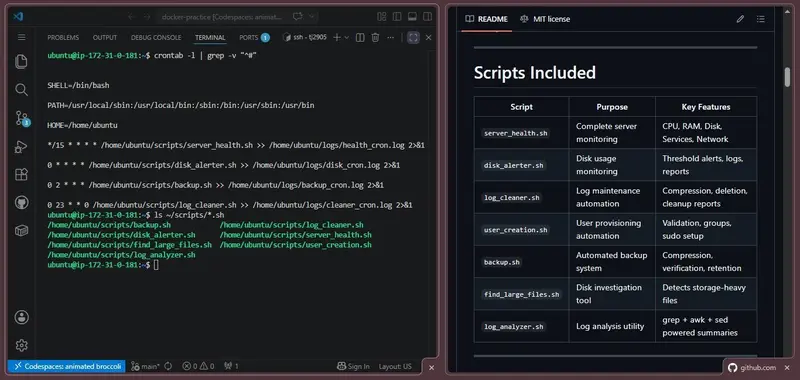
⏱️ Cron Job Automation

All scripts were automated using cron jobs.

# Health check — every 15 minutes
*/15 * * * * /home/ubuntu/scripts/server_health.sh >> /home/ubuntu/logs/health_cron.log 2>&1

# Disk alerter — every hour
0 * * * * /home/ubuntu/scripts/disk_alerter.sh >> /home/ubuntu/logs/disk_cron.log 2>&1

# Backup — daily at 2 AM
0 2 * * * /home/ubuntu/scripts/backup.sh >> /home/ubuntu/logs/backup_cron.log 2>&1

# Log cleaner — every Sunday at 11 PM
0 23 * * 0 /home/ubuntu/scripts/log_cleaner.sh >> /home/ubuntu/logs/cleaner_cron.log 2>&1

Once configured, the server handled routine maintenance automatically.

💡 Biggest Learnings

1. Linux becomes comfortable through repetition

At the beginning, basic terminal commands felt unfamiliar.

After working daily on a remote server, navigating Linux from the command line became much more natural. There’s no shortcut — you just have to do it daily.

2. Automation changes how you think

One of the biggest mindset shifts was noticing repetitive work and immediately thinking:

“Can this be automated?”

That shift alone made scripting feel much more practical — and honestly, more fun.

3. Real infrastructure teaches different lessons

Working on an actual EC2 instance exposed me to problems that are difficult to fully understand in local environments:

  • SSH authentication issues
  • File permission problems
  • Cron debugging
  • Disk usage management
  • Log analysis workflows

Solving those problems on a live server taught me far more than just reading commands from documentation.

🚀 What’s Next

Next, I’m moving into AWS Core Infrastructure — VPC, IAM, RDS, and Terraform.

That work starts in June 2026. Follow along if you’re on a similar path.

📁 GitHub Repository

All scripts and documentation are open source:

👉 github.com/tanayjdev/linux-bash-scripts

BCA Student • Aspiring Cloud & DevOps Engineer

I built a Chrome extension to stop squinting at the web

 We’ve all been there. You open an article, a documentation page, or a research paper — and the font is tiny, the line spacing is suffocating, or the contrast is just… bad. You squint, you zoom in, you lose the layout. It’s frustrating.
So I built Typly.

What it does

Typly is a lightweight Chrome extension that lets you customize typography on any website — per HTML tag.
whatever you want. You can adjust:

  • Font size
  • Font family
  • Line height
  • Text color

Changes happen in real-time, and you can save presets to reuse your favorite styles across different sites.

Why per-tag?

Most browser zoom tools change everything at once and break page layouts. With Typly, you’re surgical. Want just the body text bigger but keep the headings as-is? Done. Want to swap a site’s tiny sans-serif body font for something more readable? Two clicks.

Who it’s for

I built it primarily for myself — I spend a lot of time reading documentation and long-form articles, and I got tired of fighting with poorly designed websites. But it turns out it’s also genuinely useful for:

People with dyslexia or low vision who need specific font adjustments
Developers and designers testing typography on live pages
Students and researchers reading for hours at a stretch

What I learned building it

Getting per-tag style injection to work cleanly across wildly different websites was harder than I expected. Sites with aggressive CSS specificity (!important everywhere, shadow DOM components) pushed me to rethink the injection approach a few times. The real-time preview also required some careful debouncing so it doesn’t hammer the DOM on every keystroke.

Try it

If you spend any meaningful time reading on the web, give it a shot:
Typly on the Chrome Web Store
It’s free, collects zero data, and weighs in at just 1.26MB.

Would love feedback — especially from anyone who uses it for accessibility purposes. What features would make it more useful for you?