
DevOS: Notion MCP Challenge
This is a submission for the Notion MCP Challenge

Workflow

What I Built
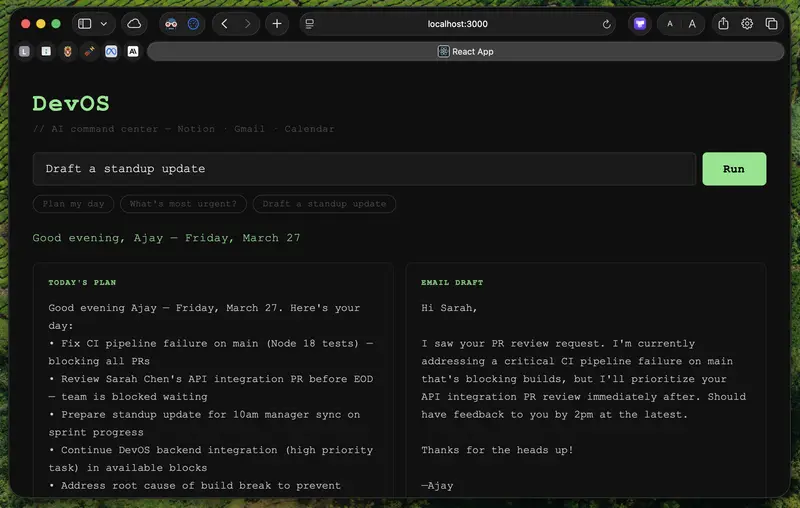
DevOS is an AI-powered daily command center for software engineers. You type one natural language command — like “Plan my day” or “What’s most urgent?” — and it pulls your real tasks from Notion via MCP, cross-references your Gmail inbox and Google Calendar, and uses Claude to synthesize everything into:
- A prioritized daily plan
- An email draft for your most urgent message
- A reasoning explanation of why your top task matters most right now
The plan is then automatically written back to your Notion workspace as a “Today’s Plan” page — creating a live read-write loop between your AI assistant and your actual work context.
No tab-switching, no copy-pasting context into a chatbot. One prompt, full context, actionable output.
Show us the code

AjayMaan13
/
DevOS
An AI-powered command center that turns your Notion, email, calendar, and code into one intelligent workflow.
DevOS
AI-powered command center for software engineers. One prompt. Live context from Notion, Gmail, and Google Calendar.

Workflow

What It Does
DevOS is a local AI assistant that reads your actual work context — not a generic chatbot making things up. Type one natural language command and it simultaneously reads your Notion tasks, Gmail inbox, and Google Calendar. Claude synthesizes everything into a daily plan, an email draft, a priority explainer that tells you why a specific task matters most right now, and writes the plan back to your Notion workspace automatically.
How It Works
- You type a command in the React frontend (
localhost:3000) - Frontend POSTs to an Express backend on port 3001
- Backend makes a live call to Notion MCP — fetching your real tasks from your workspace
- Claude receives Notion data plus email and calendar context
- Claude returns a JSON object with four fields:
plan…
How I Used Notion MCP
Notion MCP is the core data source. When you run a command, the Express backend makes a live call to mcp.notion.com/mcp using Anthropic’s MCP client beta — fetching your real tasks with their status and priority directly from your workspace. No hardcoded mock data, no manual Notion API pagination. MCP handles the tool discovery and execution.
That Notion context is then fed into a Claude synthesis call alongside email and calendar data. Claude returns structured JSON, and the frontend renders each field in its own panel.
The write-back side uses the Notion REST API to create a new “Today’s Plan” page under a configurable parent page after every run. So Notion isn’t just a data source — it’s also the destination. Your AI-generated plan lives right alongside your tasks in the same workspace.
What MCP unlocks here is the ability to treat Notion as a live, queryable context layer for AI — not just a static database you export from. The AI reads your workspace, reasons over it, and writes back to it, all in a single command cycle.

 ABD, tanıttığı Leonidas AGV ile dron sürülerine karşı otonom mikrodalga silah sistemi geliştirdi. Geliştirilen otonom araç sistemi dron sürülerini kısa sürede etkisiz hale getirebiliyor.

 Volkswagen, tüm tepkilere rağmen İsrail ile ortaklık kurmaya kararlı görünüyor. Volkswagen CEO’su Oliver Blume, Alman basınından gelen sorular üzerine konuya dair önemli açıklamalar yaptı.

 Bilim kurgu filmi Kurtuluş Projesi (Project Hail Mary) adından övgüyle söz ettirmeye devam ederken, Amazon da devam filmi için de nabız yoklamaya başladı. Son sözü Andy Weir söyleyecek.