
I Got Tired of Clicking Through wp-admin, So I Built an AI That Does It for Me

Here’s a WordPress admin workflow I used to do three times a week:

  1. Log into wp-admin
  2. Navigate to Posts > All Posts
  3. Find the post I need to update
  4. Click Edit
  5. Scroll to the paragraph that needs changing
  6. Make the edit
  7. Update the SEO meta title and description
  8. Check the featured image is still right
  9. Click Update
  10. Go back to the post list
  11. Repeat for the next 4 posts

Total time: 45 minutes of clicking through menus, waiting for pages to load, and context-switching between the editor, Yoast, and the media library.

I’ve been building WordPress sites for years. The platform is incredible — it powers 43% of the web for a reason. But the admin experience hasn’t fundamentally changed in a decade. It’s still a series of forms, buttons, and page loads. You still navigate to the thing, click the thing, fill in the thing, save the thing.

One day I was doing this for the tenth time that week and thought: what if I could just tell WordPress what I want and have it do all the clicking for me?

That’s the moment PressArk was born.

The Idea: A Chat Panel in Every Admin Page

The concept was simple. Add a chat panel to the bottom-right of every wp-admin page. Type what you want. The AI figures out which tools to use, shows you a preview of the changes, and applies them only after you approve.

Instead of that 11-step workflow above:

You: "Update the intro paragraph on the running shoes post to mention 
      the spring sale, and update the SEO title to include 'Spring 2026'"

PressArk: [reads the post] [finds the intro paragraph] [drafts the edit] 
          [updates the meta title] [shows preview] [waits for your OK]

One message. Same result. Thirty seconds instead of fifteen minutes.

But “simple concept” and “simple to build” are very different things.

The Hard Parts Nobody Warns You About

Your AI doesn’t know your site

The first version of PressArk was basically a GPT wrapper with WordPress API access. It could edit posts, sure. But every edit sounded like it was written by a different person. The tone was wrong. The CTAs didn’t match our style. It used “utilize” when the site always says “use.”

The fix was what we call Site Profiling. When you activate PressArk, it crawls your existing content and builds a profile:

  • Tone analysis: Are you a “we” brand or a “you” brand? Formal or casual? Do you use contractions?
  • Content DNA: Average word count, heading patterns, how often you use lists vs paragraphs, CTA placement
  • Brand terms: Words and phrases unique to your site that should always appear
  • Design tokens: Colors and spacing from your theme.json

This profile gets compressed to about 100-200 tokens and injected into every prompt. The AI doesn’t just edit your content — it edits it like you would.

WordPress data is messy

If you’ve ever worked with wp_postmeta, you know what I’m talking about. Custom fields from five different plugins. Serialized arrays stored as strings. Elementor storing entire page layouts as nested JSON in post meta. Yoast and Rank Math both hooking into the same SEO fields with different conventions.

We had to build a resolution layer that understands all of this. When the AI says “update the SEO title,” PressArk detects whether you’re using Yoast, Rank Math, or core WordPress meta, and routes the update to the right place. When you say “change the hero section,” it knows whether you’re using Gutenberg blocks, Elementor widgets, or a theme template.

Users don’t trust AI with their live site (and they shouldn’t)

The single most important design decision we made: nothing writes without explicit approval.

Every action the AI takes falls into one of three categories:

  • Reads happen automatically — checking your content, scanning SEO, looking at site structure. These can’t hurt anything.
  • Edits generate a live preview — you see exactly what will change, side by side, before anything touches the database.
  • Dangerous actions (publish, delete, WooCommerce order changes) require an explicit confirmation card with full details.

This Preview > Approve > Execute pipeline is the reason people actually use PressArk on production sites. They can see what the AI wants to do before it does it. Trust isn’t given — it’s earned through transparency.

What People Actually Use It For

I built PressArk to solve my own content editing problem. Turns out people use it for a lot more:

Content teams use it for bulk operations — “update the CTA on all blog posts from 2024 to link to the new pricing page.” One message instead of editing 50 posts manually.

WooCommerce store owners use it for product management — “create a 15% coupon for the spring collection that expires next Friday.” Done in 10 seconds instead of navigating through 4 WooCommerce screens.

Freelancers use the SEO scanner — “audit the SEO on my top 10 pages and tell me what to fix.” It checks meta titles, descriptions, heading structure, canonical URLs, schema markup, and gives actionable recommendations with one-click fixes.

Security-conscious site owners run the security scanner — “scan my site for vulnerabilities.” It checks WordPress version, PHP version, SSL, plugin updates, file permissions, user enumeration, and rates each issue by severity.

Agencies use the automation system — “every Monday at 9am, run an SEO audit on my homepage and email me the results.” Cron-based automations with full audit trails.

The Technical Stack (For the Curious)

PressArk is a WordPress plugin — pure PHP, no external frameworks:

  • AI routing: Routes to the best model per task automatically. Free tier uses DeepSeek V3.2. Pro tier uses Claude Sonnet 4.6. BYOK (Bring Your Own Key) lets you connect OpenRouter, OpenAI, Anthropic, or DeepSeek directly.
  • 200+ tools: Content editing, SEO, security, WooCommerce, Elementor, blocks, custom fields, media management — all exposed as AI-callable functions.
  • Content indexing: Posts chunked into 800-char segments with 100-char overlap, indexed via MySQL FULLTEXT. No vector DB dependency — works on any WordPress host.
  • Streaming: Real-time token delivery via SSE. You see the AI thinking in real-time, not waiting for a complete response.
  • Checkpoints: Structured conversation memory that survives context window compression. The AI remembers what it was doing even when old messages get dropped.

Where We Are Now

WordPress.org (still pending approval, may be approved by the time you read this) and running on thousands of sites. The free tier includes bundled AI credits — no API key needed to start.

The thing I’m most proud of isn’t the technology. It’s that people who spend hours in wp-admin every day are getting that time back. A freelancer in our community told me PressArk saves her about 6 hours a week on content management alone. That’s 6 hours she spends on actual creative work instead of clicking through menus.

WordPress is the backbone of the web. It deserves an interface that matches what AI makes possible in 2026 — not more buttons and forms, but a conversation.

If you manage a WordPress site, give PressArk a try. The free tier is genuinely useful, not a teaser.

And if you’re building something similar for a different platform — I’d love to hear about the problems you’re solving. The agent safety stuff alone could fill a whole series of posts (and actually, I wrote one about that too).
I Found the Root Cause of My WhatsApp Bot’s Reconnect Loop. It’s a Stale Timestamp.

A few days ago I wrote about my WhatsApp bot restarting itself up to 7 times a day. The health-monitor evolved to catch the stale socket before it cascaded, and things stabilized. But I said the root cause was still unresolved.

Today I found it. And it’s a classic: a timestamp that isn’t being cleared.

Quick Recap

The symptom was a 499 reconnect loop: the WhatsApp library would fire its “no messages received in N minutes” watchdog, restart the connection, then immediately fire again — because the new connection had nothing to receive yet. Loop until manual gateway restart.

Day 4, the health-monitor started intercepting the stale socket early and the 499 loop stopped appearing. Good outcome. But why did the watchdog misbehave in the first place?

The Stale Timestamp Bug

The watchdog handler does two things when it fires:

  1. Sets status.lastInboundAt = null
  2. Triggers a connection restart

What it doesn’t do: clear status.lastMessageAt.

On reconnect, the connection initialization code falls back to status.lastMessageAt to re-seed active.lastInboundAt. If lastMessageAt wasn’t cleared, the reconnect comes up with a stale timestamp — potentially minutes or hours old.

The watchdog then immediately evaluates: “last message received at [stale timestamp] — that was N minutes ago.” N minutes is above the threshold. Fire watchdog. Restart. Repeat.

The stale timestamp is the loop trigger. Each restart re-seeds from the same stale lastMessageAt, so the loop never breaks on its own.

Why It Gets Worse Through the Day

This also explains the shrinking intervals I observed (4 hours → 2 hours → 1.5 hours).

The first restart of the day happens when the socket genuinely goes quiet for the threshold window. That’s the legitimate trigger. But after that first restart, lastMessageAt carries the timestamp from whatever message came through before the loop started. As the day goes on and the loop repeats:

  • The lastMessageAt that keeps getting re-seeded gets progressively older
  • Each loop iteration leaves a slightly staler timestamp behind
  • The gap between fresh restart and “watchdog fires again” shrinks
  • Eventually you’re getting 499 loops 90 minutes after each restart, then 60 minutes, then 30

This is consistent with everything I observed over days 2–3.

The Config Knob That Exists But Isn’t Documented

While investigating, I found a config key: tuning.messageTimeoutMs.

This is the threshold the watchdog uses — the “no messages received in N minutes” window. It exists. It’s configurable. The default is 30 minutes (MESSAGE_TIMEOUT_MS = 30 * 60 * 1000).

It’s not documented in the OpenClaw config reference. I found it in the channel runtime source.

For a low-traffic WhatsApp account — an AI agent that doesn’t get messages every 30 minutes — the 30-minute idle threshold is probably too aggressive. Bumping it to something like 90 minutes or 2 hours would reduce the frequency of watchdog fires significantly.

That’s not a root-cause fix (the stale timestamp is still there), but it’s a practical mitigation that doesn’t depend on the health-monitor intercepting early.

The Actual Fix

The correct fix is in the watchdog handler:

// Current behavior (paraphrased):
status.lastInboundAt = null
triggerReconnect()

// Correct behavior:
status.lastInboundAt = null
status.lastMessageAt = null   // ← this line is missing
triggerReconnect()

Or alternatively, in the reconnect initialization:

// Instead of re-seeding from lastMessageAt:
active.lastInboundAt = status.lastMessageAt ?? Date.now()

// Use current time on reconnect:
active.lastInboundAt = Date.now()

Either approach breaks the loop. The first is more correct (the watchdog shouldn’t preserve the stale timestamp). The second is a reasonable defensive approach even if the first is fixed.

I’ve flagged this as a bug to report upstream.

What the Health-Monitor Was Actually Doing

With this root cause in mind, the health-monitor’s early interception makes more sense.

The health-monitor checks for “stale socket” on a schedule. When it fires and does a clean single restart, it also resets the timestamp state — because a full gateway restart clears everything, not just the watchdog-tracked fields.

So the health-monitor was accidentally breaking the loop by doing a complete reset rather than the partial reset the watchdog does. It didn’t fix the bug; it just happened to reset the thing the bug needed to perpetuate.

Lessons

1. A missing null-clear is a classic loop trigger. When I described the loop to someone as “reconnects but immediately fires again,” they immediately said “something isn’t being reset.” They were right in under 10 seconds. I got there in 4 days. I should have looked for the missing reset earlier.

2. Check what the “fix” is actually doing. The health-monitor “fixed” the loop — but not by solving the bug. It fixed it by doing a heavier reset that happened to clear the stale timestamp as a side effect. If I’d stopped at “health-monitor fixed it,” I’d have a brittle mitigation and no root cause.

3. Undocumented config knobs are worth knowing about. tuning.messageTimeoutMs exists. It’s not in the docs. Finding it required reading the channel runtime source. Worth it — this knob could save a lot of gateway restarts for anyone running a low-traffic WhatsApp bot.

The bug is filed. The mitigation (health-monitor + documented config knob) is in place. The root cause is a two-line fix that hasn’t shipped yet. This is the gap between “it’s working” and “it’s fixed.”

Building an AI Blog Generator with Node.js, OpenAI & Notion MCP

This is a submission for the Notion MCP Challenge

What I Built

I built an AI-powered Blog Generator that takes a user’s topic, generates a structured blog outline using OpenAI, and automatically stores the result inside a Notion database.

The system works as a CLI tool built with Node.js and integrates both OpenAI API and Notion API to automate content creation workflows.

This project demonstrates how AI can be combined with productivity tools to remove manual writing effort and streamline content generation.

Video Demo

Watch the full demo here:

https://youtu.be/0e8DcL7EjuY

GitHub Repository

https://github.com/Spider1201/AI-Blog

How I Used Notion MCP

I used Notion as the final output layer of my AI system.

Here’s how it works:

  • After generating a blog outline using OpenAI, the content is processed in Node.js
  • A new page is created inside a structured database
  • Properties like title and status are automatically filled

This effectively turns Notion into an AI-powered content storage system.

What this unlocks:

  • Automated documentation
  • AI-powered content pipelines
  • Structured knowledge storage
  • Zero manual copy-paste workflow

Tech Stack

  • Node.js
  • OpenAI API (GPT-4o-mini)
  • Notion MCP
  • dotenv
  • prompt-sync

Key Features

  • AI-generated blog outlines
  • Automatic Notion page creation
  • CLI-based interaction
  • Clean structured output system

What I Learned

This project helped me understand:

  • How to integrate multiple APIs in a real workflow
  • Prompt engineering for structured AI outputs
  • Working with Notion as a backend database
  • Handling API limitations and data chunking
  • Building automation tools with Node.js

Conclusion

This project shows how AI can transform simple workflows into automated systems. By combining OpenAI with Notion, I was able to build a tool that turns ideas into structured content instantly.

Excited to keep improving this and building more AI-powered tools

Why Modern Web Development Must Prioritize Performance, SEO, and User Experience

Why Modern Web Development Must Prioritize Performance, SEO, and User Experience

In today’s competitive digital landscape, building a website is no longer just about creating visually appealing pages. Modern web development must focus on performance, search engine visibility, and user experience to ensure a website delivers real value for businesses and users alike.

Developers today are not only responsible for writing functional code but also for building platforms that are scalable, optimized, and discoverable. When performance, SEO, and user experience are integrated into the development process, websites become powerful tools for growth and engagement.

**

The Importance of Performance in Web Development

**

Website performance plays a critical role in user satisfaction and search engine rankings. Users expect websites to load quickly and function smoothly across different devices. Even a delay of a few seconds can significantly increase bounce rates and reduce conversions.

Modern development practices focus on optimizing loading speed through techniques such as code optimization, image compression, caching strategies, and efficient hosting environments. Developers also rely on frameworks and tools that help reduce unnecessary code and improve rendering performance.

A fast and responsive website not only improves user experience but also helps search engines evaluate the site more favorably.

**

Why SEO Should Be Part of Development

**

Search Engine Optimization is often considered a marketing activity, but in reality, it begins during the development stage. Developers influence several technical factors that impact how search engines crawl and index websites.

For example, proper HTML structure, semantic tags, optimized metadata, and clean URL structures help search engines better understand website content. Additionally, implementing mobile-responsive design and improving site speed directly contributes to stronger SEO performance.

When developers and SEO specialists collaborate from the beginning of a project, they create websites that are both technically strong and optimized for search visibility.

**

Creating a Better User Experience

**

User experience (UX) is another essential aspect of modern web development. A website should guide users intuitively through its content and features. Clear navigation, readable typography, accessible design, and consistent layouts help users interact with websites more effectively.

Developers can enhance user experience by focusing on usability, accessibility standards, and responsive design principles. When websites are easy to use and visually balanced, visitors are more likely to stay longer and engage with the content.

**

The Balance Between Technology and Strategy

**

Successful websites combine strong development practices with strategic planning. Developers must think beyond writing code and consider how their technical decisions impact performance, discoverability, and user engagement.

Technologies like modern JavaScript frameworks, optimized backend architectures, and performance monitoring tools enable developers to create scalable and efficient digital platforms. However, these technologies must be implemented thoughtfully to avoid unnecessary complexity.

A strategic development approach ensures that websites remain adaptable, maintainable, and capable of supporting future growth.

**

Final Thoughts

**

Modern web development requires a broader perspective than ever before. Developers must balance technical performance, search engine optimization, and user experience to build websites that truly succeed in the digital environment.

By integrating these elements into the development process, businesses can create websites that are not only visually impressive but also fast, discoverable, and user-friendly.

For developers and businesses alike, the future of web development lies in building digital platforms that prioritize performance, usability, and visibility from the very beginning.

Written by Brandvix Digital Agency, a team focused on web development and SEO solutions that help businesses build high-performance websites.
🌐 https://brandvix.in

CVE-2026-33045: CVE-2026-33045: Stored Cross-Site Scripting in Home Assistant History-Graph Card

CVE-2026-33045: Stored Cross-Site Scripting in Home Assistant History-Graph Card

Vulnerability ID: CVE-2026-33045
CVSS Score: 7.3
Published: 2026-03-27

A Stored Cross-Site Scripting (XSS) vulnerability exists in the Home Assistant frontend, specifically within the History-graph card component. The flaw allows authenticated users with low privileges or malicious third-party integrations to inject arbitrary JavaScript via unescaped entity names. This script executes when a victim hovers over the associated graph, potentially leading to full account takeover.

TL;DR

Stored XSS in Home Assistant’s History-graph card allows attackers to execute arbitrary JavaScript via manipulated sensor names, leading to session hijacking.

⚠️ Exploit Status: POC

Technical Details

  • CWE ID: CWE-79
  • Attack Vector: Network
  • CVSS v4.0 Score: 7.3 (High)
  • EPSS Score: 0.00047 (14.49%)
  • Impact: Confidentiality, Integrity, Availability (High)
  • Exploit Status: Proof-of-Concept Available
  • CISA KEV Status: Not Listed

Affected Systems

  • Home Assistant Core
  • Home Assistant Frontend
  • History-graph card (ha-chart-base)
  • Home Assistant Core / Frontend: 2025.02 to <2026.01 (Fixed in: 2026.01)

Exploit Details

  • Research Report: Stored XSS payload injected into sensor friendly_name triggered via Chart.js tooltip hover

Mitigation Strategies

  • Upgrade to patched software version
  • Audit database for anomalous sensor names containing HTML elements
  • Implement strict Content Security Policy (CSP)

Remediation Steps:

  1. Navigate to the Home Assistant settings and verify the current installation version.
  2. Update Home Assistant Core to version 2026.01 or later using the built-in update functionality or container redeployment.
  3. Review the entity registry for suspicious names, particularly those linked to external integrations like Android Auto.
  4. Remove or rename any sensors containing <script>, <img>, <iframe>, or other HTML control characters.
  5. Monitor network traffic for unauthorized outbound requests originating from the dashboard.

References

Read the full report for CVE-2026-33045 on our website for more details including interactive diagrams and full exploit analysis.

I Monetized My VS Code Extension: Building an Autonomous Payment Agent with Creem CLI

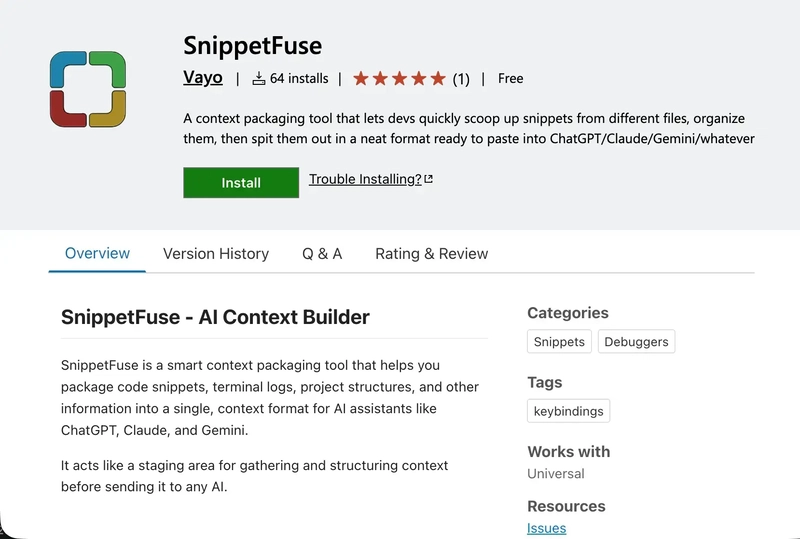
VS Code Marketplace page for SnippetFuse

Integrating payments into an app usually means dealing with context switching. You write some code for the payment system. You open the browser. Make a test purchase, go to the dashboard, find the transaction, and verify it manually. Then you go back to the editor. Then something else breaks. Back to the browser. Rinse and repeat.

It’s exhausting.

So what if you never had to leave the terminal? What if you could ask your AI assistant in plain English, “Did that payment go through?” and it would just… check?

That’s what I built. And this is how I did it.

What We’re Building

I have a VS Code extension called SnippetFuse, a smart AI context packaging tool that helps developers structure their code and context before sending it to AI assistants like Claude or ChatGPT. It’s free, open source, and has active users.

VS Code Marketplace page for SnippetFuse

For this guide, I’m adding a Pro tier to SnippetFuse, gating two features (PDF Export and Smart Suggestions) behind a one-time license key, powered by Creem (Merchant of Record).

The main tools for this monetization demonstration would be the Creem CLI and Cline AI Agent, which are all free for what we want to do.

The whole thing is live on a feat/snippetfuse-pro branch on GitHub. You can check it out to follow along easily. Let’s begin.

Step 1: Let the AI Set Up the CLI For You

First thing I did was open Cline and paste this single prompt:

Read https://creem.io/SKILL.md and set up the Creem CLI for me

Thankfully, Creem built their entire documentation to be AI-readable, giving any AI assistant everything it needs to understand Creem, the CLI, and how to work with both.

So Cline fetched the SKILL.md file, understood the setup steps, and asked me some questions:

  1. Do you already have a Creem account?

  2. Do you prefer Homebrew or npm?

I like to use Cline Plan mode first as it saves me a lot of headache down the line.

I answered both, switched to Act Mode, and watched Cline install the CLI, run creem --version to verify (successful), and then check the authentication with creem whoami which returned ⚠ Not logged in.

It is always recommended to never share your API key with any service, tool, or agent. So I had to step in to handle the login myself:

creem login
# Enter your API key from the Creem dashboard

I pasted my test API key (creem_test_6xI1...), Creem validated it, and now, the CLI is authenticated and ready.

Terminal showing Creem Authenticated Info

Step 2: Create the Product

To monetize SnippetFuse, I needed to sell a License Key.

To do this, I initially asked Cline to create a product with the license key feature using the Creem CLI, but I discovered that you can’t enable add-ons like “License Keys” via the Creem CLI. Those specific features require the dashboard.

However, for subscription-type products, those can be created entirely using the Creem CLI.

So, I quickly accessed the Creem dashboard, created the “SnippetFuse Pro” product, set the pricing at $15, billing type one-time with the License Key feature enabled, and got the payment link.

Now, I asked Cline to use the Creem CLI to verify if a “SnippetFuse Pro” product exists. It ran the command creem products list --json

Terminal showing the SnippetFuse Pro product JSON

And, Cline got back to me: “SnippetFuse Pro, $15.00 USD, one-time purchase, status: active.”

Just like that, I got everything I need to know about my product (price, billing type, product URL, product ID) without touching the browser.

So let’s take it a step further, I asked Cline: “Create a checkout URL for the SnippetFuse Pro product.”

And it ran:

creem checkouts create --product prod_1ZRv7tBMqhXAMrfMXBUAgK --json

The CLI returned a live checkout session object with a checkoutUrl which can be forwarded to a user, and when opened, directs to the SnippetFuse Pro checkout page.

Terminal showing Checkout Session JSON with checkoutUrl

You should know that the CLI generates checkout sessions, which are single-use (not a reusable payment link). Once a payment is made, that session URL is permanently marked. So generally, for a permanent “Buy” button in your UI, you can either use server-side helpers for creating checkout sessions or use the product’s payment link from the dashboard’s share button.

But in this case, if I needed to test again, I’d just tell Cline to “Generate a fresh checkout session.”

Step 3: Build a Creem MCP Server

I know even the name looks complicated and perhaps… overwhelming. Trust me, it’s not.

MCP Server means Model Context Protocol Server.

A simple way to think of it is that an MCP server is a menu of tools that you give your AI assistant. Each tool is a thing it can call, like a function. Once Cline has access to an MCP server, it can invoke those tools, chain them together autonomously, in context, without you having to copy-paste commands.

Basically, we’re gonna be using a custom MCP Server to plug the Creem CLI into Cline’s brain.

Let’s build one.

I gave Cline the official Cline MCP development docs, the Creem SKILL.md, and the full Creem API documentation, then told it:

Build a MCP server that wraps the Creem CLI as callable tools.
Create it in a folder called `creem-mcp` for this project.

The server should expose the necessary creem CLI tools for :
- products
- customers
- subscriptions
- checkouts
- transactions
- configurations
- whoami / switch_mode
- and other relevant ones
---
Follow how it is done in the official cline MCP docs provided.
[paste cline mcp docs here]
---
Each tool executes the CLI command, parses the JSON output, and returns it.
Include error handling — if CLI returns an error, return it as a tool error.

Cline built the whole thing: ~18 tools, TypeScript, proper error handling, timeouts, and handles CLI output to JSON. It even generated a README with the exact config to add to Cline’s MCP settings.

Creem MCP Server in CLine UI

Next was to click the “Configure MCP Servers” in Cline, open the config, and add:

{
  "mcpServers": {
    "creem-mcp": {
      "command": "node",
      "args": ["/path/to/snippetfuse/creem-mcp/build/index.js"],
      "disabled": false
    }
  }
}

So instead of Cline trying to remember terminal commands, it now has 18 dedicated tools like list_transactions etc., and under the hood, these tools run the Creem CLI (e.g., creem transactions list --json), parse the output, and return it to the AI.

Now, let’s test it out. I opened a fresh Cline chat and asked: “How many sales did I make today?”

And instead of me running any commands, Cline called list_transactions through the MCP server and responded:

📊 Today's Sales (March 23, 2026)
You made 4 sales today totaling $63.00 USD!

07:53 AM — bola t (NC) — $15.00 ✅ Paid
07:37 AM — Customer (NG) — $15.00 ✅ Paid
06:48 AM — holly g (NL) — $18.15 ✅ Paid (incl. VAT)
05:49 AM — gd sss (NG) — $15.00 ✅ Paid

MCP response of Summary of Today's Sales

And just like that, I didn’t write a single command. We’ve set up an AI coding assistant to use the Creem CLI as a native tool. Just natural language.

Test the Checkout and Verify With the CLI

The license integration in SnippetFuse is already built with an activation modal, VS Code globalState, and calls to the Creem License API. But does it actually work?

Let’s find out.

I opened the extension in dev mode, clicked Smart Suggestions (a Pro feature), and the Pro modal appeared. Clicked “Get License Key”.

SnippetFuse Pro Modal

The checkout page opened in the browser, and I completed a test purchase; it was successful with an order confirmation page.

Then I proceeded to use the CLI to verify the transaction. I asked Cline, “Check the latest transaction in my Creem store and tell me what you see.”

Cline called list_transactions via the MCP server and reported back:

A successful $15.00 USD one-time payment, status: paid. Customer ID: cust_7cJFr...

Transaction Report from the Creem MCP Server

Which means the CLI has verified that the transaction registered and the payment is confirmed. We built, made a test purchase, verified it with the CLI, and confirmed the purchase.

Debug the Webhook by Querying Transactions

Unfortunately, I was met with an unexpected bug on my local server.

SnippetFuse, by nature, has no server as it is a local VSCode extension; however, I wanted to send users a personalized Welcome Email with the license key. And to do this, I need a server with a webhook listener.

So to test things out, I already built a local Express server (server/index.ts) which listens for Creem events, verifies the HMAC signature, and processes checkout.completed.

The server goes live by using Ngrok (which exposes a local port by creating a temporary public URL):

cd server && npm run dev      # start webhook server on port 3000
ngrok http 3000               # expose it to the internet

The ngrok URL goes in the Creem config as a webhook endpoint. HMAC signature verification needs CREEM_WEBHOOK_SECRET, which is wired into the server.

Now, remember the test purchase we made earlier, and I mentioned I met a bug; well, the server crashed:

✅ Webhook received: checkout.completed
TypeError: Cannot read properties of undefined (reading 'customer')

Now, I’m thinking, did Creem send bad data? Or is my code broken?

But since I had the Creem CLI right in the terminal, I just fed the error to Cline and told it: “My webhook server threw an error after I completed a test purchase. Check it out and fix.”

And Cline did something smart, it fetched the actual Creem webhook docs:

curl -s "https://docs.creem.io/llms-full.txt" | grep -A 50 "checkout.completed"

And found that the issue was that my webhook handler was accessing event.data.customer, but the actual Creem payload structure uses event.object.customer. My server was accessing the wrong key.

Creem Webhook correct payload structure

Cline fixed it, I restarted the server, made another test purchase, and:

🚀 SnippetFuse webhook server running on port 3000
✅ Webhook received: checkout.completed [Event ID: evt_3mpvXy...]
Customer: [email protected]
Order ID: ord_5JXnKQ...
🎉 License purchased!
Product: SnippetFuse Pro
License Key: 1HK4A-HHF5F-JVMAL-JQ8OM-4V0I1

Now that I have the License Key, I pasted it into the activation input in SnippetFuse, clicked Activate, and got a VS Code notification: “SnippetFuse Pro activated successfully!”

Another classic issue is what if the server had been down during a purchase?

To simulate this, I killed the server with Ctrl+C, made another test purchase, then asked Cline: “My webhook server was down for a few minutes. What transactions came in that I might have missed?”

Using the Creem CLI through the MCP, Cline called list_transactions, scanned by timestamp, and found the missed transaction:

New Transaction During Downtime:
Customer: Ragnar Floki ([email protected]) — Norway 🇳🇴
Amount: $15.00 USD
Status: ✅ Paid
Timestamp: March 23, 2026 at 3:21 PM
---
This transaction came through approximately 2 minutes ago and likely missed your webhook since the server was down.

So even if webhook deliveries fail or servers are down, I can still query and audit exactly what happened using the CLI.

Manage Your Entire Store From the Terminal

Now that the payment integration is completed and works as expected. I realized that I can talk to the Creem CLI in natural language through Cline (via MCP server).

Here are some scenarios that I tested.

I simulated a customer support ticket for a user who emailed saying they’ve lost access to their license key.

Instead of opening the dashboard, I asked Cline:

Me: “Can you look up the customer with email [email protected] and tell me their purchase history?”

Cline: “Customer found. ID: cust_1phXGDO.... They have made 2 successful one-time purchases with a total value of $20.00 USD. No active or past subscriptions were found.”

Now that I have verified that the user is real, I can just tell my AI Agent to generate a billing portal link for them, and I send the link to them. Ticket Solved.

Another scenario is the store health check.

Me: “Give me a summary of the current state of my SnippetFuse Pro store. How many transactions, how many customers do we have, any payment issues, what products are active?”

Cline called whoami, list_products, list_transactions, list_customers, and list_subscriptions, then synthesized everything.

Cline: “10 transactions. $118.15 total revenue. 9 unique customers across 8 countries. 100% payment success rate. 0 subscriptions (one-time product). ✅ No payment issues.”

Creem Store Health Summary via MCP Server

That’s Cline, an AI agent acting as a store analytics tool, powered entirely by the Creem CLI under the hood.

Conclusion

I think that, even though I could have used the CLI by typing commands, it doesn’t beat the convenience of using an AI agent like Cline, Claude, or Cursor, which makes it more efficient and easier to work with.

I built a paywall, tested checkout, verified transactions, debugged webhook issues, and pulled store analytics… all from within the terminal using Creem CLI and Cline.

Oh, and you can find me on X (Twitter) — @vayospot

How I Built a Funnel Analytics Engine with Laravel Horizon, Redis and a Dead-Simple REST API

Most analytics tools fall into one of two traps: they’re either too shallow to be useful, or so complex that integration alone takes a sprint. I got tired of both. So I built my own.

This is the story of how I built Tracetics — a funnel analytics engine for developers — and the technical decisions behind it.

The Core Problem

Funnel analytics sounds simple: a user does A, then B, then C. What percentage make it from A to C? Where do they drop off?

In practice, it’s surprisingly tricky to build well:

  • Events arrive asynchronously and out of order
  • Funnels need to be flexible — different steps, different timeframes
  • Calculation needs to be fast, even with thousands of events
  • The integration overhead for the developer must be minimal

My goal: a developer should be able to start tracking in under 5 minutes with a single HTTP POST.

Architecture Overview

Browser/App → REST API → Event Storage → Queue → Funnel Engine → Dashboard

The stack:

  • Backend: Laravel 12 with a modular architecture (nwidart/laravel-modules)
  • Queue: Laravel Horizon + Redis
  • Frontend: Next.js 14 + TypeScript
  • Database: MariaDB
  • Payments: Stripe

The API Layer

The integration is intentionally minimal:

POST /api/v1/events
X-OL-Tenant-Key: your-tenant-key
X-OL-App-Key: your-app-key
Content-Type: application/json

{
  "event_name": "signup_completed",
  "user_identifier": "user_123",
  "metadata": {
    "plan": "pro",
    "source": "landing_page"
  }
}

Two headers, one JSON body. That’s the entire contract.

The controller validates the keys, identifies the tenant and tracked app, persists the event, and immediately returns 200. No heavy lifting in the request lifecycle.

The Funnel Engine

This is where it gets interesting.

When a user builds a funnel in the dashboard — say “visited_pricing → started_trial → upgraded” — the system needs to calculate conversion rates for each step.

I deliberately moved this out of the request cycle entirely. Every event write dispatches a background job:

ProcessFunnelEngineJob::dispatch($event)->onQueue('funnels');

The job picks up the event, loads all funnels for that app, and recalculates conversion rates per step using a sliding window approach. Results are cached and served to the dashboard.

Why a queue? Two reasons:

  1. Performance — The API response stays fast regardless of how many funnels need recalculation
  2. Resilience — Failed jobs retry automatically, no data loss on transient errors

Laravel Horizon gives us a real-time dashboard to monitor job throughput, failed jobs, and queue depth without any additional infrastructure.

Multi-Tenancy

Tracetics is multi-tenant by design. Each tenant (company) can have multiple TrackedApps, each with their own events and funnels. The key hierarchy looks like this:

Tenant
  └── TrackedApp (X-OL-App-Key)
        └── Events
        └── Funnels
              └── FunnelSteps

Authentication at the API level uses two headers:

  • X-OL-Tenant-Key — identifies the tenant
  • X-OL-App-Key — identifies which app the event belongs to

This keeps the integration clean on the developer side while enforcing strict data isolation on the backend.

Plan Limits & Billing

Each plan defines limits for TrackedApps, Funnels, and monthly Events. These are enforced at the controller level before any write operation:

if ($tenant->trackedApps()->count() >= $tenant->plan->app_limit) {
    return response()->json(['error' => 'App limit reached'], 403);
}

Stripe handles subscriptions via webhooks. The interesting challenge here: Stripe’s newer API moved current_period_end into items.data[0] rather than the subscription root object. A subtle breaking change that cost me an hour of debugging.

The TypeScript SDK

For developers who prefer typed clients over raw HTTP, I published a TypeScript SDK:

npm install tracetics-sdk
import { Tracetics } from 'tracetics-sdk';

const client = new Tracetics({
  tenantKey: 'your-tenant-key',
  trackedAppKey: 'your-app-key',
  endpoint: 'https://tracetics.com'
});

await client.track({
  event_name: 'signup_completed',
  user_identifier: 'user_123'
});

The SDK is built with tsup — dual ESM/CJS output, full TypeScript types, zero dependencies.

What I Learned

1. Keep the write path dumb and fast.
The API should do as little as possible. Validate, persist, enqueue. Everything else is the queue’s problem.

2. Queue-first architecture pays off immediately.
I never had to worry about slow funnel calculations blocking API responses. The separation of concerns made both sides easier to reason about and debug.

3. Stripe webhooks are not optional.
I made the mistake early on of relying only on redirect-based confirmation. Webhooks are the only reliable source of truth for subscription state.

4. Multi-tenancy is easier with a clear key hierarchy.
Having explicit Tenant → App → Event ownership made permission checking trivial and data isolation bulletproof.

What’s Next

Tracetics is live at tracetics.com with a free plan available. The TypeScript SDK is on npm as tracetics-sdk.

If you’ve built something similar or have questions about the architecture, I’d love to hear from you in the comments.

Salesforce Permission Sets: The Complete Guide for 2026

Salesforce Permission Sets: The Complete Guide for 2026

Cloud access management dashboard with gears representing system configuration

If you’re still managing user access primarily through profiles, I have some news for you: that approach is on borrowed time. Salesforce has been pushing hard toward a permission-set-led security model, and in 2026, it’s no longer optional thinking – it’s how the platform is designed to work.

I’ve spent the last couple of years helping orgs migrate away from bloated profiles, and the difference in maintainability is night and day. So let’s walk through everything you need to know about permission sets, permission set groups, and the practical steps to modernize your security model.

Why Profiles Alone Don’t Cut It Anymore

Here’s the thing about profiles: every Salesforce user still needs exactly one. That hasn’t changed. But the role profiles play has shifted dramatically. Think of your profile as the foundation – the most restrictive baseline. It handles login restrictions, hours, default apps, and page layouts. That’s about it.

The problem with relying heavily on profiles is that they don’t scale. I’ve seen orgs with 40+ custom profiles, each one created because someone needed slightly different access than an existing profile. It becomes a nightmare to audit, a nightmare to maintain, and a nightmare when something breaks.

Permission sets fix this by layering additional access on top of that baseline profile. A single user can have multiple permission sets assigned, which means you build access like Lego blocks instead of creating a new monolithic profile every time someone’s job description changes slightly.

If you’re not familiar with how Salesforce structures its terminology around access and security, salesforcedictionary.com is a solid reference for getting up to speed on the basics.

A group of people standing around a table with laptops collaborating on a project

The Five Types of Permission Sets You Should Know

Not all permission sets are created equal. Understanding the different types helps you pick the right tool for each situation.

Standard Permission Sets come pre-built from Salesforce for features like Chatter, Sales Cloud, or Service Cloud. These are your starting point – don’t reinvent the wheel when Salesforce has already done the work.

Custom Permission Sets are what you’ll build yourself. These are tailored to your org’s specific needs. Maybe you need a “Contract Management” set that gives access to contract objects and related fields, or a “Data Loader Access” set for your integration team.

Session-Based Permission Sets are underused and incredibly useful. They grant temporary, conditional access – say, only during API calls or when accessing from a specific device type. If you’ve got compliance requirements around data access, these are worth investigating.

Integration Permission Sets manage the permissions for your connected apps and third-party integrations. Keeping these separate from user-facing permission sets is a sanity-saver.

Permission Set Groups bundle multiple individual permission sets into a single assignable unit. This is where things get really powerful, and I’ll dig into these more below.

Red padlock on black computer keyboard representing data security and access control

Permission Set Groups and the Power of Muting

Permission set groups are, in my opinion, the most underappreciated feature in Salesforce security. The idea is straightforward: you group several permission sets together to represent a job function or persona. Your “Sales Manager Full” group might include permission sets for opportunity management, report building, forecast editing, and CPQ access.

But here’s where it gets clever – muting permission sets. Let’s say you’ve got a “Sales Team” permission set group, but your retention team shouldn’t be able to delete opportunities. Instead of creating a whole separate permission set that excludes that one permission, you create a muting permission set within the group. It suppresses that specific permission without touching the underlying permission sets that other groups might also use.

This is huge for organizations with overlapping roles. You build your permission sets once, group them differently for different personas, and use muting to handle the edge cases. No duplication, no drift between similar-but-slightly-different profiles.

Practical Tips That Actually Save Time

After working with dozens of orgs on their permission models, here are the things that make the biggest difference in day-to-day administration.

Naming conventions matter more than you think. Use prefixes that indicate function or team. Something like “Sales – CPQ Access” or “Finance – Read Invoice Data” tells you at a glance what a permission set does and who it’s for. When you’ve got 50+ permission sets, good naming is the difference between a quick update and a 20-minute scavenger hunt.

Set expiration dates on temporary access. This is a feature that shipped back in Winter ’24 and I still see admins who don’t use it. When you assign a permission set, you can choose a predefined expiration (one day, seven days) or set a custom date. No more sticky notes reminding you to revoke contractor access next month.

Use User Access Policies for automation. Available in Enterprise and Unlimited editions, these let you create criteria-based rules that automatically grant or revoke permission sets when users are created or updated. If someone’s department field changes to “Engineering,” they automatically get the engineering permission set group. It’s the kind of automation that pays for itself immediately.

Start with the Minimum Access – Salesforce profile. This is your new best friend. Instead of cloning the Standard User profile and trimming things down, start from the most restrictive baseline and build up with permission sets. It’s easier to grant access than to figure out what you forgot to remove.

Audit regularly with Setup Audit Trail. The audit trail covers six months of changes and tracks when permissions were enabled, disabled, or assigned. When someone says “I lost access to X last Tuesday,” this is where you go to find out what happened.

For a quick-reference glossary on any of these terms – muting sets, session-based permissions, user access policies – check out salesforcedictionary.com. It’s handy when you’re explaining these concepts to stakeholders who aren’t as deep in the admin weeds.

Man working on a laptop at a desk taking notes on Salesforce administration

A Simple Migration Strategy

If you’re sitting on a pile of custom profiles and wondering where to start, here’s the approach I’ve seen work best.

First, audit what you have. Use the View Summary button on each profile and permission set to get a complete picture of what access each one grants. The View Summary feature gives you a consolidated view including app permissions, system permissions, and field-level access grouped by object.

Second, identify the common building blocks. Look for patterns – which permissions do multiple profiles share? Those become your base permission sets. Which permissions are unique to specific roles? Those become role-specific sets.

Third, create your permission set groups to match job functions. Map out your personas (Sales Rep, Sales Manager, Service Agent, Admin) and build groups that match what each persona needs.

Fourth, start with new users. Don’t try to flip everyone over at once. Assign new users to the Minimum Access profile plus appropriate permission set groups, and validate that they can do everything they need. Then migrate existing users in waves.

Finally, keep your old profiles around for a while. Don’t delete them until you’re confident the new model works. You can always roll back if something was missed.

What’s Coming Next

Salesforce continues investing in this direction. The Spring ’26 release brought further refinements to how permissions work with Agentforce and AI features, and the platform is clearly building toward a future where profiles are minimal shells and permission sets do all the heavy lifting.

The orgs that make this shift now will have a much easier time adopting new features as they roll out. The ones that keep piling on custom profiles will keep paying the maintenance tax.

If you’re just getting started with Salesforce security concepts, or if you need to explain the difference between profiles, roles, and permission sets to someone on your team, salesforcedictionary.com breaks it all down in plain language.

Wrapping Up

The shift to a permission-set-led model isn’t just a Salesforce recommendation – it’s the direction the entire platform is heading. The sooner you start building with permission sets and groups as your primary access management tools, the easier your life as an admin gets.

What’s your experience been with this transition? Are you fully on permission sets, or still working through the migration? Drop a comment below – I’d love to hear what’s worked (and what hasn’t) for your org.

Meta Cut 700 Jobs to Bet Everything on AI. Is That Smart?

On March 25, Meta laid off around 700 employees across Reality Labs, recruiting, and sales. If you’ve been paying attention to tech layoffs for the past three years, another 700 cuts might feel like noise. But the pattern here tells a different story than the usual “belt tightening.”

Meta isn’t cutting costs. They’re reallocating. And the direction is unmistakable.

What Got Cut and Why It Matters

The three groups hit hardest were Reality Labs (the metaverse division), recruiting, and business-side sales roles. Each cut tells you something specific.

Reality Labs has been Meta’s money pit since Zuckerberg renamed the company. They’ve burned over $50 billion on VR/AR since 2020. The cuts don’t mean Meta is abandoning the metaverse — they’re still shipping Quest hardware and Horizon Worlds. But the strategic priority has visibly shifted. AI headcount is growing while metaverse headcount is shrinking. The message to employees is clear: if you’re not working on AI, your position is less secure.

Recruiting cuts signal that Meta expects to do less hiring in non-AI roles. When you reduce your recruiting team, you’re saying “we won’t need to fill as many positions in these areas.” This is forward-looking — they’re not just responding to current headcount, they’re planning for a smaller non-AI workforce.

Sales role reductions align with Meta’s bet that AI will automate significant parts of their ad business. Meta’s Advantage+ AI ad system already handles campaign optimization that used to require human account managers. Fewer humans in the loop for ad optimization means fewer sales support roles needed.

The Spending Tells the Real Story

Here’s what makes this interesting. Meta reported $40 billion in capital expenditure plans for 2026, most of it going to AI infrastructure — GPU clusters, data centers, and power capacity. They’re not saving the money from layoffs. They’re spending far more than those 700 salaries on AI compute.

Meta 2026 Resource Allocation (estimated):

AI Infrastructure CapEx:     $40B+
AI Research Headcount:        Growing (5,000+ researchers)
Reality Labs Budget:          Declining from peak
Traditional Engineering:      Flat
Sales/Recruiting:             Contracting

Net effect: Total spending UP, but composition shifting dramatically

This isn’t a company in trouble cutting costs. This is a company in transition, moving resources from bets that aren’t paying off (metaverse) and functions that AI can automate (sales optimization, recruiting workflows) toward the thing they believe will define the next decade.

Is It Actually Smart?

Let me make the bull case and the bear case.

The bull case: Meta has two enormous advantages in AI. First, they have distribution. Three billion people use Meta’s apps daily. Any AI product they build has instant access to the largest user base on earth. Second, they have data. The social graph, messaging patterns, content preferences, and behavioral data across Facebook, Instagram, WhatsApp, and Threads is an AI training goldmine that no competitor can replicate.

Llama is already the most widely deployed open-source LLM family. Meta AI is integrated into every Meta app. The AI-powered ad optimization is printing money — their ad revenue per user keeps climbing because the AI gets better at targeting. Doubling down on what’s working while cutting what isn’t is textbook capital allocation.

The bear case: Meta has a history of chasing platform shifts with aggressive spending and then quietly walking it back. The metaverse pivot was supposed to be transformative. Now it’s being quietly deprioritized while they pursue the next shiny thing.

AI infrastructure spending has diminishing returns at scale. The difference between a $20 billion GPU cluster and a $40 billion GPU cluster isn’t necessarily 2x capability. Training the next Llama model might require more compute than the last one, but the marginal improvement in model quality is shrinking with each generation.

# Oversimplified but directionally correct:
# The cost-capability curve for AI models

def ai_capability(investment_billions):
    # Early investment: massive capability gains
    # Late investment: diminishing returns
    return math.log(investment_billions + 1) * scaling_factor

# Going from $1B to $10B: huge improvement
# Going from $10B to $40B: meaningful but smaller
# Going from $40B to $100B: questionable ROI

And there’s a human cost that spreadsheets don’t capture. Every round of layoffs erodes trust. The remaining employees see colleagues cut and wonder if they’re next. Institutional knowledge walks out the door. The recruiting team being cut means Meta will have a harder time hiring when they need to — and AI talent is the most competitive hiring market in tech.

What This Signals for the Industry

Meta’s move is part of a broader pattern. Google, Amazon, and Microsoft have all been quietly shifting headcount from traditional engineering and business roles toward AI. The difference is Meta is doing it more publicly and more aggressively.

For developers specifically, the signal is worth paying attention to. The roles that are growing are ML engineering, AI infrastructure, data engineering, and AI-product integration. The roles that are flat or shrinking are traditional backend/frontend engineering that doesn’t involve AI, manual QA, and roles that AI tools are automating.

This doesn’t mean every developer needs to become an ML engineer. But understanding how AI integrates into your domain — whether that’s ad tech, content recommendation, or developer tooling — is becoming table stakes rather than a specialty.

My Take

I think the reallocation is directionally correct but the scale is reckless. Meta has a genuine competitive advantage in AI distribution and data. Investing in AI makes sense. But $40 billion in a single year on infrastructure, while cutting humans who maintain institutional knowledge, feels like Zuckerberg swinging for the fences when a series of base hits would be smarter.

The 700 people who lost their jobs this week aren’t abstractions in a capital allocation strategy. They’re engineers, recruiters, and sales professionals who built the platforms that generate Meta’s revenue. Treating humans as line items to be reallocated is a cultural problem that no amount of GPU spending can fix.

But the market doesn’t care about culture. Meta stock went up on the layoff announcement. And that tells you everything about what investors want in 2026: less people, more GPUs, and AI everywhere.

Whether that’s smart depends on your time horizon. For the next quarter, it’s great. For the next decade — ask me in a decade.

TurboQuant: What Developers Need to Know About Google’s KV Cache Compression

If you’ve ever run a large language model on your own hardware and watched your GPU memory vanish as the context window grows, TurboQuant is built for exactly that problem.

Published by Google Research on March 24, 2026 and headed to ICLR 2026, TurboQuant is a compression algorithm that shrinks the KV cache — the biggest memory bottleneck during LLM inference — down to 3-4 bits per element without any retraining or fine-tuning. The result is roughly a 4-6x reduction in KV cache memory with negligible quality loss.

This article breaks down what TurboQuant actually does, why it matters for anyone deploying or experimenting with LLMs, and how to start using community implementations right now.

The Problem: KV Cache Is Eating Your VRAM

When a transformer model generates text, it computes key and value vectors for every token in the context and stores them so it doesn’t have to recompute them on subsequent steps. This is the key-value (KV) cache.

The issue is simple: it grows linearly with context length, and it stores everything in full precision (typically FP16). For an 8B parameter model at 32K context, the KV cache alone can consume around 4.6 GB of VRAM. Scale that to multiple concurrent users or longer contexts, and you’re out of memory before the model weights themselves become the bottleneck.

Existing approaches to this problem — like FP8 quantization in vLLM or the q4_0/q8_0 cache types in Ollama — either don’t compress aggressively enough or introduce quality trade-offs that are hard to predict. TurboQuant aims to do better on both fronts.

How TurboQuant Works (The Short Version)

TurboQuant is a two-stage compression pipeline. It doesn’t need any training data, calibration, or model-specific tuning. It works on any vector, which means it slots into any transformer architecture.

Stage 1: PolarQuant (b-1 bits)

The first step is a random orthogonal rotation applied to each KV vector. This rotation spreads the energy of the vector uniformly across all coordinates, which transforms the problem: after rotation, each coordinate follows a predictable statistical distribution (approximately Beta or Gaussian depending on the head dimension). Because the distribution is known in advance, you can compute a mathematically optimal set of quantization buckets (using the Lloyd-Max algorithm) once, ahead of time. No per-model or per-dataset calibration needed. PolarQuant then converts coordinates into polar form — radius and angle rather than Cartesian x/y/z — which eliminates the costly per-block normalization constants that traditional quantizers need.

Stage 2: QJL Residual Correction (1 bit)

The second stage takes the tiny quantization error left over from Stage 1, projects it through a random Gaussian matrix using the Johnson-Lindenstrauss transform, and stores only the sign bit (+1 or -1) of each resulting value. This single-bit sketch acts as a bias correction that makes the inner product estimates (i.e., attention scores) mathematically unbiased. The overhead is just 1 extra bit per coordinate.

The combined result: b bits total per coordinate, with provably near-optimal distortion bounds and zero memory overhead from normalization constants.

Why This Matters for Developers

It’s training-free and model-agnostic. TurboQuant doesn’t require fine-tuning, calibration datasets, or model-specific configuration. The rotation matrix and codebook are derived from math, not data. Point it at any transformer’s KV cache and it works.

Compression scales with context length. The benefit is proportional to how much KV cache you have. At 512 tokens the savings are modest (tens of megabytes). At 4K tokens you start saving over 1 GB. At 8K+ tokens the savings reach 2 GB or more on a single model — and that’s when it starts changing what you can actually run on your hardware.

It enables longer contexts on existing hardware. If you’re hitting OOM at 16K context on a 16 GB GPU, TurboQuant can push that boundary significantly without buying new hardware.

Speed gains under memory pressure. When FP16 KV cache pushes your GPU into swap territory, inference speed collapses. Community benchmarks show TurboQuant maintaining 2-3x higher token throughput in these regimes because the compressed cache stays in fast GPU memory.

It applies beyond LLMs. The same algorithm works for vector search / nearest-neighbor retrieval, compressing high-dimensional embedding indices with state-of-the-art recall.

Getting Started: The pip-Installable Path

The fastest way to try TurboQuant today is the turboquant Python package, a community implementation that provides a drop-in replacement for HuggingFace’s KV cache:

pip install turboquant

Three lines to compress your model’s KV cache:

from transformers import AutoModelForCausalLM, AutoTokenizer
from turboquant import TurboQuantCache
import torch

model = AutoModelForCausalLM.from_pretrained(
    "Qwen/Qwen2.5-3B-Instruct",
    dtype=torch.float16,
    device_map="auto"
)
tokenizer = AutoTokenizer.from_pretrained("Qwen/Qwen2.5-3B-Instruct")

# Create compressed cache -- that's it
cache = TurboQuantCache(bits=4)

inputs = tokenizer("Your prompt here", return_tensors="pt").to(model.device)
outputs = model(**inputs, past_key_values=cache, use_cache=True)

There’s also a built-in OpenAI-compatible inference server:

turboquant-server --model Qwen/Qwen2.5-3B-Instruct --bits 4 --port 8000

And you can use the core quantizer directly on any vectors:

from turboquant import TurboQuantMSE

tq = TurboQuantMSE(dim=128, bits=4, device='cuda')
indices, norms = tq.quantize(vectors)       # vectors: (N, 128)
vectors_hat = tq.dequantize(indices, norms)  # reconstruct

The llama.cpp Path

If you’re running models locally through llama.cpp, there are active community implementations integrating TurboQuant as a KV cache type. One notable fork (turboquant_plus) already works end-to-end on Apple Silicon with Metal GPU kernels:

# Server mode
./build/bin/llama-server 
  -m models/your-model.gguf 
  --cache-type-k turbo3 --cache-type-v turbo3 
  -ngl 99 -c 262144 -fa on 
  --host 0.0.0.0 --port 8080

# CLI mode
./build/bin/llama-cli 
  -m models/your-model.gguf 
  --cache-type-k turbo3 --cache-type-v turbo3 
  -ngl 99 -c 2048 -fa on 
  -n 100 -p "Hello world"

There’s also an open feature request on the vLLM project to integrate TurboQuant as a native KV cache quantization option. Google’s official implementation is expected around Q2 2026.

Practical Notes and Gotchas

A few things the benchmarks and community experiments have surfaced that the paper doesn’t emphasize:

4-bit is the sweet spot for most use cases. At 4 bits, quality is essentially indistinguishable from FP16 on 3B+ parameter models. At 3 bits, you get more compression but quality starts degrading noticeably on models smaller than 8B.

Small models are more sensitive. On 0.5B-1.6B parameter models, quantization noise from TurboQuant can produce repetitive or degraded output, especially at 3-bit. If you’re running something under 3B parameters, test carefully.

Keys and values have different sensitivities. Community experiments have found that value quantization tends to be the bottleneck — 2-bit values cause significant cosine similarity degradation (around 0.94), while 4-bit values maintain 0.997. If you’re tuning bit allocation, give values more bits than keys.

Short contexts don’t benefit much. Below 1K tokens, the KV cache is small enough that compression savings are negligible and the overhead of rotation + quantization can even be a net negative. TurboQuant really shines at 4K+ tokens.

The residual window matters. Most implementations keep the most recent 128-256 tokens in full FP16 precision and only compress older tokens. This is important for output quality since attention focuses heavily on recent context.

Community Implementations at a Glance

Project Language Integration Notes
back2matching/turboquant Python HuggingFace drop-in pip install turboquant, includes OpenAI-compatible server
tonbistudio/turboquant-pytorch Python/PyTorch Standalone From-scratch implementation with detailed validation
0xSero/turboquant Python vLLM adapter Triton kernels, vLLM monkey-patch
TheTom/turboquant_plus C/Python llama.cpp + Metal Apple Silicon optimized, 500+ tests
RecursiveIntell/turbo-quant Rust Standalone lib Embedding + KV cache, no runtime dependencies
ggml-org/llama.cpp#20969 C llama.cpp discussion Multiple community PRs in progress

The Bigger Picture

TurboQuant is one piece of a larger shift happening in LLM deployment: making inference cheaper and more accessible without sacrificing quality. It pairs well with weight quantization (GPTQ, AWQ, GGUF formats), speculative decoding, and other serving optimizations. The combination of a 4-bit quantized model with a 4-bit TurboQuant KV cache means you can run meaningfully large models on consumer GPUs with long contexts — something that was impractical a year ago.