
one of the first things you should try is launching an EC2 instance and hosting a simple website. In this guide, we’ll create an EC2 instance, install a web server, and access it from the public internet.
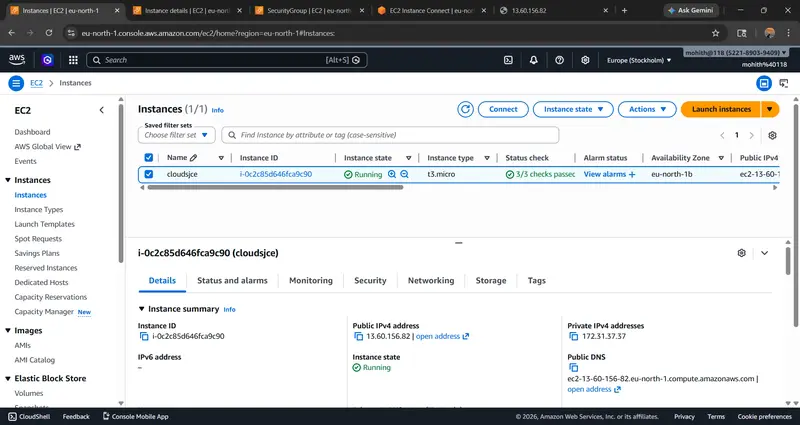
Step 1 — Launch EC2 Instance
- Go to AWS Console
- Open EC2 Dashboard
- Click Launch Instance
Configure:
Name
My-Web-Server
AMI
Amazon Linux 2023
Instance type
t2.micro (Free tier)
Step 2 — Configure Security Group
Allow SSH and HTTP traffic:
type – ssh & http is in port 22 & 88 sorce is my ip and anywhere
This allows:
- SSH login
- Public web access
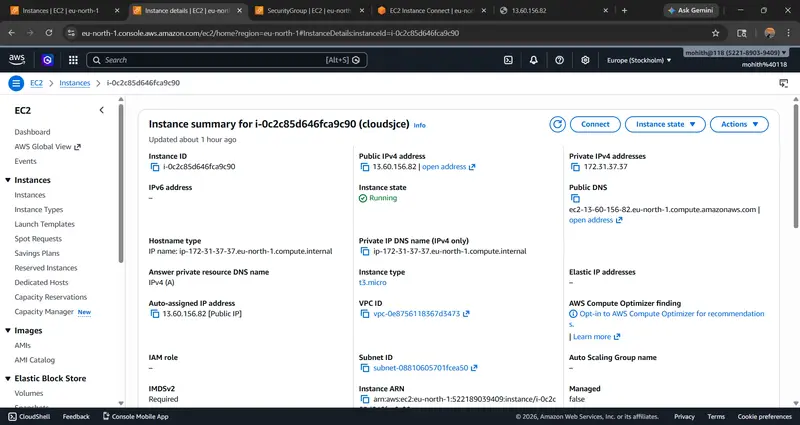
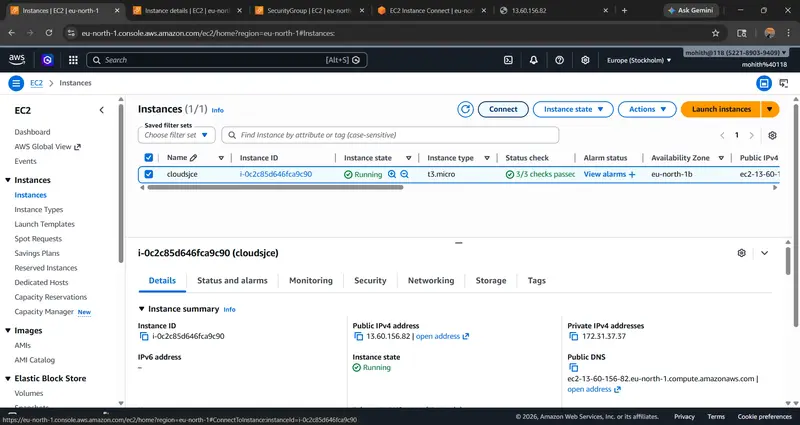
Step 3 — Connect to EC2
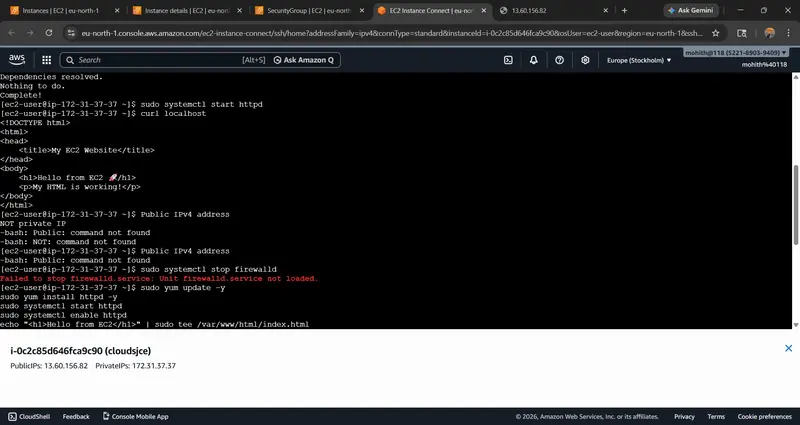
Use EC2 Instance Connect web browser on console :
throught the above connect option present in it
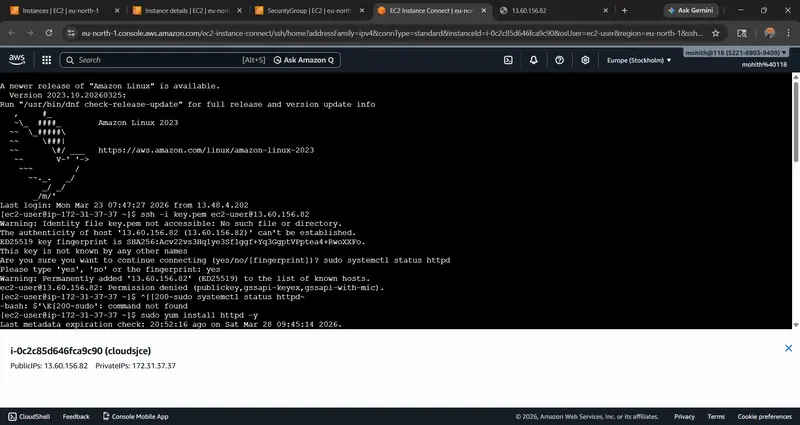
Step 4 — Install Apache Web Server
Update packages
sudo yum update -y
Install Apache
sudo yum install httpd -y
Start server
sudo systemctl start httpd
Enable auto start
sudo systemctl enable httpd
Step 5 — Create Simple Website
Create index file:
sudo nano /var/www/html/index.html
Enter the html code
<!DOCTYPE html>
<html>
<head>
    <title>My EC2 Website</title>
</head>
<body>
    <h1>Hello from EC2 </h1>
    <p>My HTML is working!</p>
</body>
</html>
Save and exit.
Step 6 — Access Website from Internet
Copy Public IPv4 address
Open in browser:
http://your-public-ip
Example:
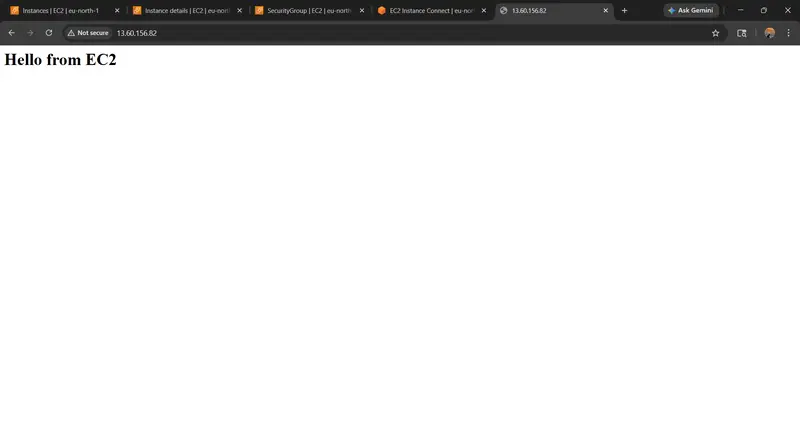
http://13.60.156.82
You should see:
Hello from EC2
My first AWS hosted website
Architecture
Browser → Internet → EC2 Public IP → Apache → HTML Page
Common Issue (IMPORTANT)
If website not loading:
Check Security Group:
Wrong:
HTTP 80 → 0.0.0.0/32
Correct:
HTTP 80 → 0.0.0.0/0
This allows internet access.
Useful Commands
Check server status
sudo systemctl status httpd
Restart server
sudo systemctl restart httpd
Stop server
sudo systemctl stop httpd
What i Learned from this is
✅ Launch EC2 instance
✅ Configure security group
✅ Install Apache web server
✅ Deploy HTML page
✅ Access from internet